
Before configuring equipment scaling:
- Recipes must already exist in Recipe Management
- Equipment items should be defined and available for selection
- Event package guest ranges (tiers) should be conceptually planned
How to add Equipment to a Recipe Item:
1. On the left side panel, go to Data Items
2. Click on Food Management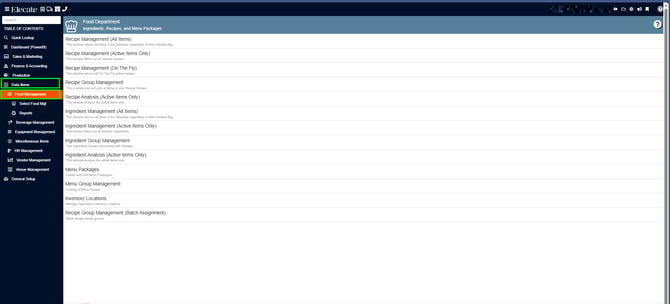
3. Select Recipe Management (Active Items Only)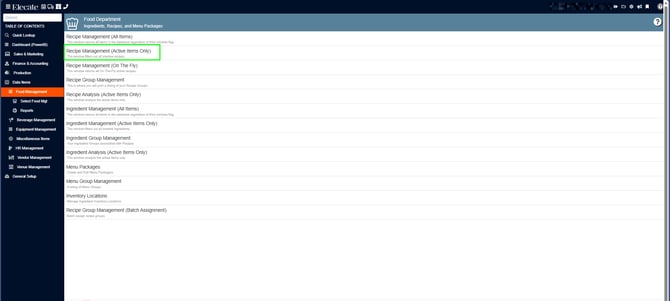
4. You can either select an existing item or create a new record by selecting New Entry: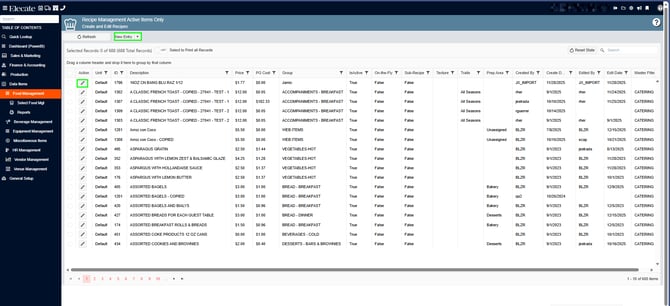
5. If you selected an existing item, go to the Equipment Tab: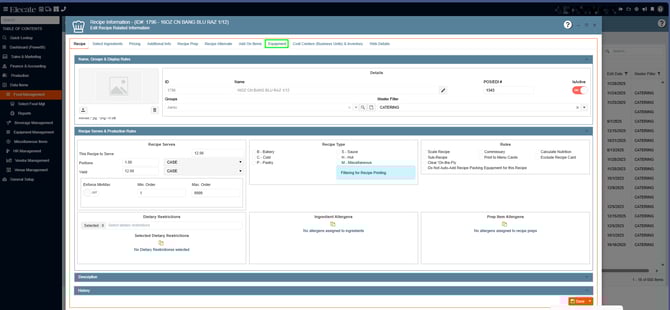
6. Select the New add bottom: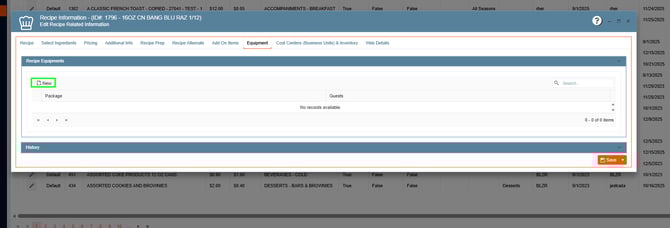
In the following window, you will have to fill out the blank spaces and click on Save & Close:
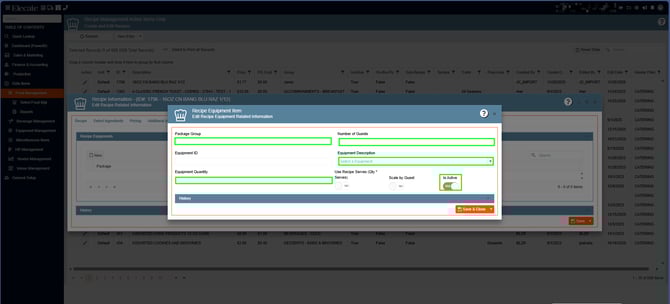
How to add Recipe Equipment to an Event:
If a piece of recipe equipment and the package is configured for a specific guest count, the equipment quantity should not exceed the amount defined at the package level.
For example, if an item is set to a quantity of 2 for 100 guests, that quantity will remain fixed as long as the guest count stays within that range.
1. Decide your tiers:
Break down your guest count into ranges. For example:
- Tier 1: 1–100 guests
- Tier 2: 101–200 guests
- Tier 3: 201–300 guests
2. Assign quantities per tier:
For each tier, specify how many units of the item are needed. Example:
- Tier 1: 2 units
- Tier 2: 4 units
- Tier 3: 6 units
3. Apply the scaling flag:
Enable the scaling flag so the system automatically switches to the correct quantity when the guest count enters a new tier.
First Example without the Scaling Toggle OFF in Equipment:
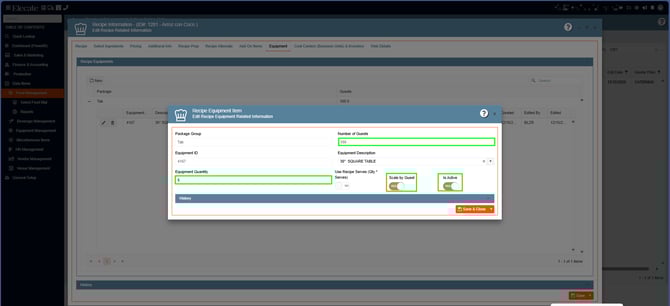
Recipe Item Information: Number of Guests 100, Equipment Quantity 5 and Scale by Guest toggle Off: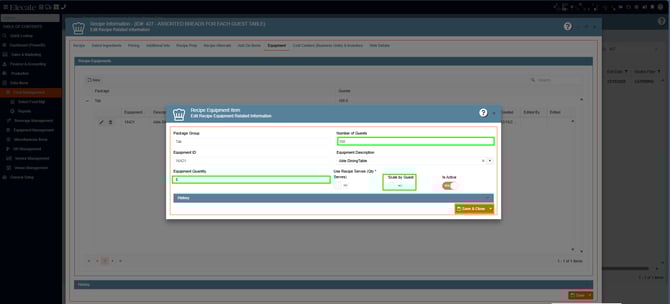
1. Go to Sales & Marketing
2. Click on Event & Order Management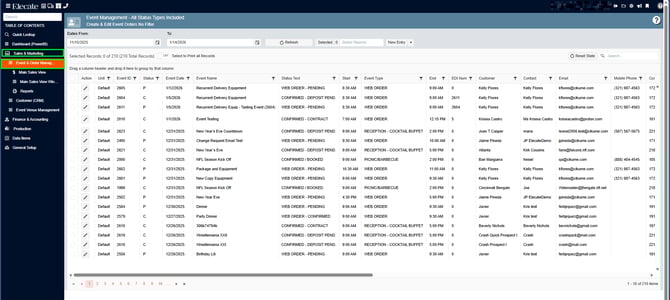
3. Select on Event Management - All Status Types Included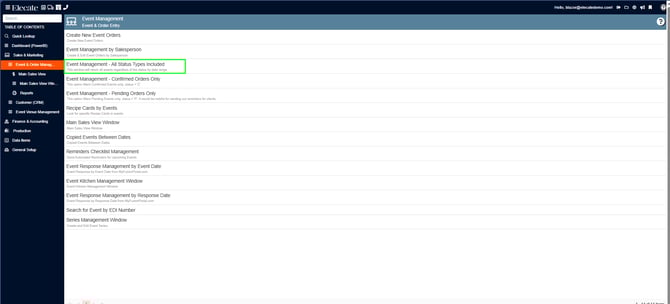
4. Open an existing event or create a new one by clicking on New Entry: 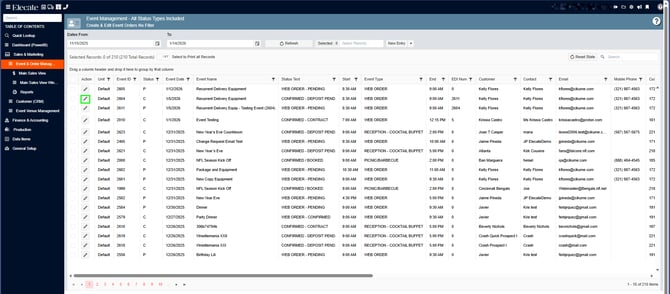
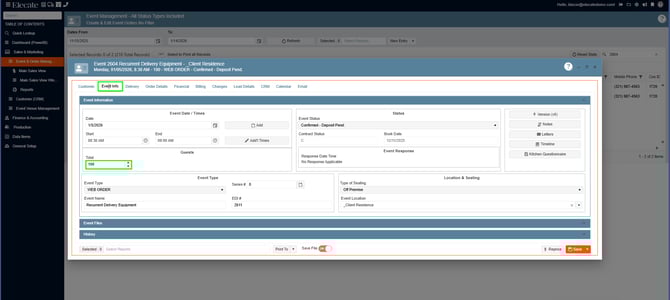
5. Go to the Event Info Tab, enter the number of guests, click on OK in the pop-up: Do you want to scale the order items to the new guest count?
6. Go to the Order Details, look for the Recipe item that you previously modified with the Equipment and add the item to the event, under Order Review you will be able to check, if the recipe and the equipment item were added to the event and the quantity for each item: 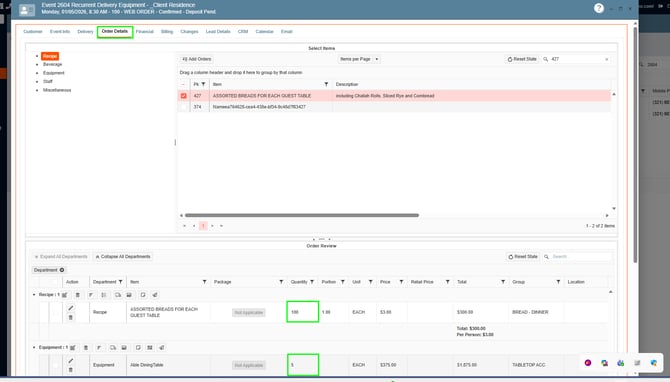
7. Go back to the Event Info Tab and modify the Guest count to 200, tab OK on the pop-up message: 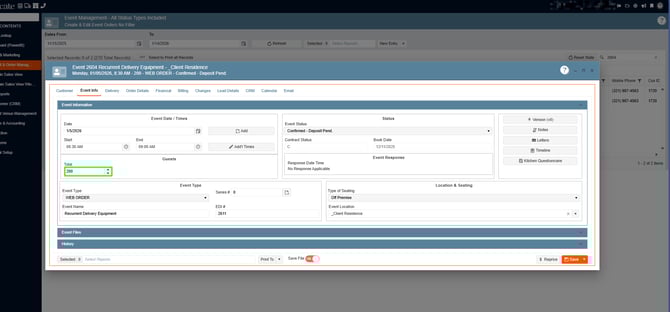
8. Return to the Order Details tab, as shown in the image below, the Guest count increased however the Equipment item remains the same, since the scaling flag in the Equipment is OFF: 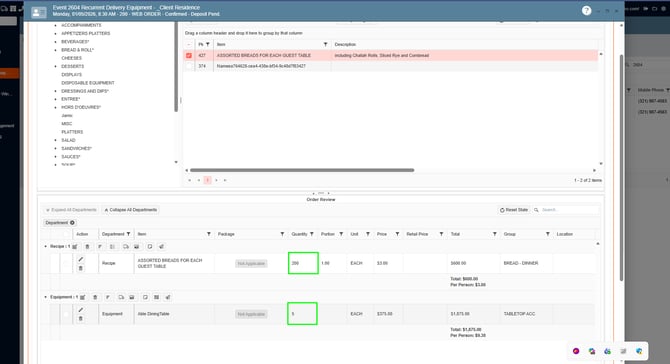
Example 2 with Scaling toggle ON in Equipment:
Recipe Item´s Information: Number of Guests 100, Equipment Quantity 5 and Scale by Guest toggle ON:
1. Go to Sales & Marketing
2. Click on Event & Order Management
3. Select on Event Management - All Status Types Included
4. Open an existing event or create a new one by clicking on New Entry:
5. Go to the Event Info Tab, enter the number of guests, click on OK in the pop-up: Do you want to scale the order items to the new guest count?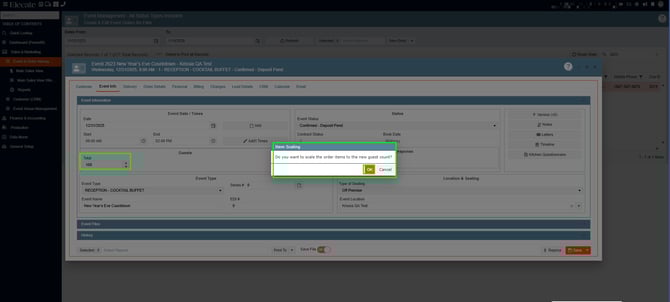
6. Go to the Order Details, look for the Recipe item that you previously modified with the Equipment and add the item to the event, under Order Review you will be able to check, if the recipe and the equipment item were added to the event and the quantity for each item: 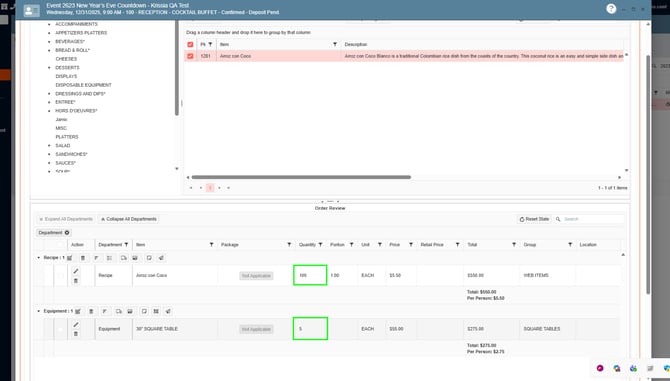
7. Go back to the Event Info Tab and modify the Guest count to 200, tab OK on the pop-up message: 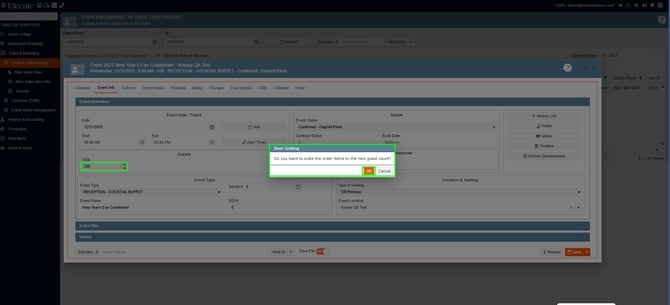
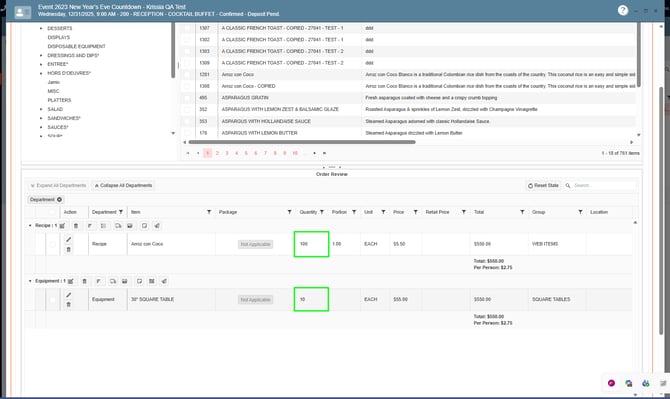
FIELD DEFINITIONS:
Number of Guests:
- Defines the baseline guest count tied to the equipment setup
- Used as the anchor point for scaling calculations
Equipment Quantity:
- The number of equipment units required for the baseline guest count
- Acts as the starting value for scaling logic
Scaling Flag (Scale Toggle):
- Determines how equipment quantity behaves when guest counts change
Detailed Behavior:
- OFF:
- Equipment quantity remains fixed
- Changing guest count does NOT adjust equipment automatically
- ON:
- Equipment quantity increases based on defined guest tiers
- Quantity multiplies or steps up when thresholds are crossed
Tier-Based Scaling Logic:
- Equipment quantities increase when moving into a higher guest range
- Example:
- 2 units for 1–100 guests
- automatically becomes 4 units for 101–200 guests