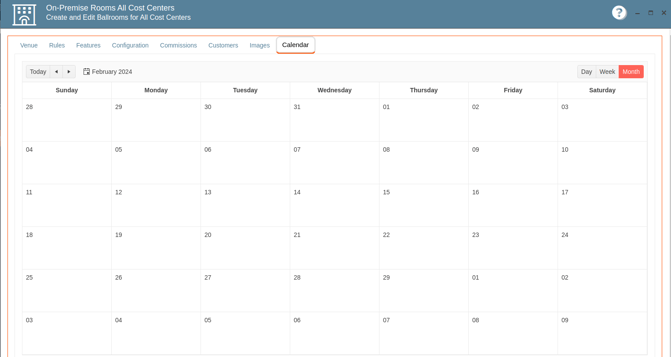
When you click this button, it will bring up a list of venues and rooms with which the customer is associated. If there are none in the list yet, you can add them by clicking the [+Add Room] button and filling in the appropriate information.
Adding a Room:
Find the location in the drop down menu and then click [+Add Room].
To remove a room, click on it to select and then click [X Remove Room].
A warning box will pop up asking you:
The answer is usually yes.
Another box will pop up asking this:
The answer is yes.
When you are finished, click [Close].
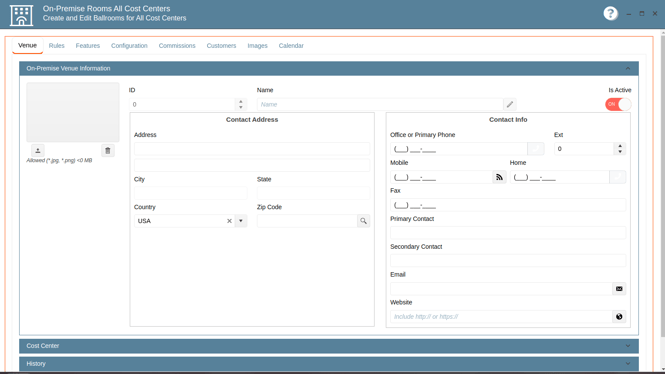
The Venue Management Window has the following tabs
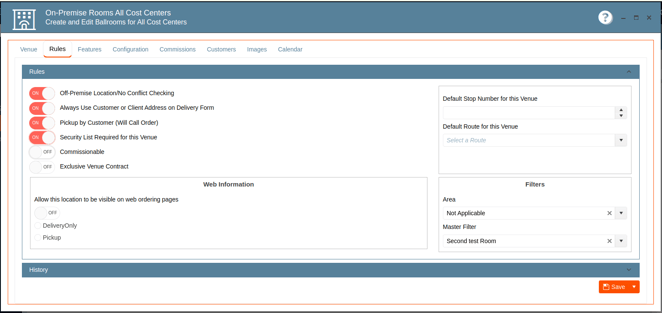
- Rules
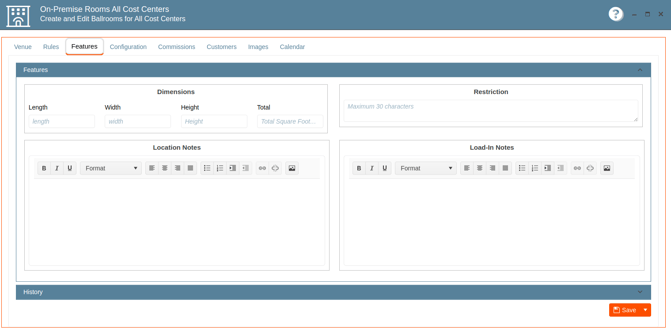
- Features
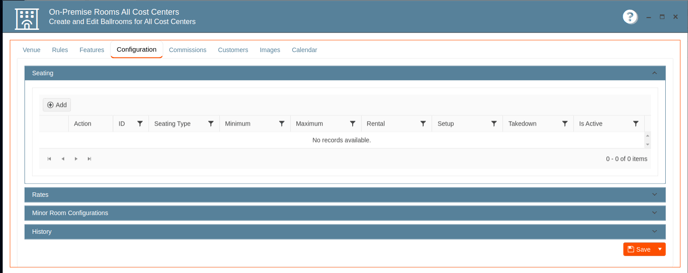
- Configuration
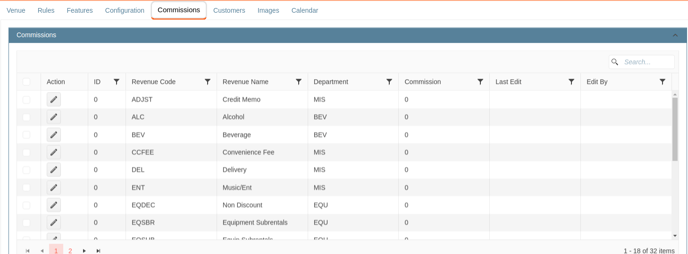
- Commissions
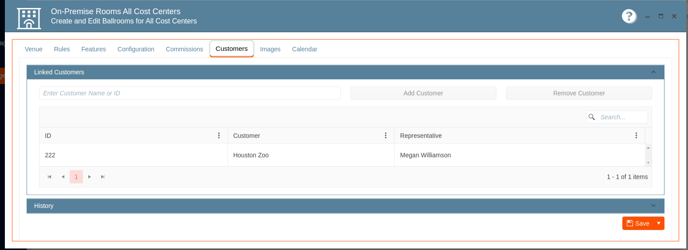
- Customers
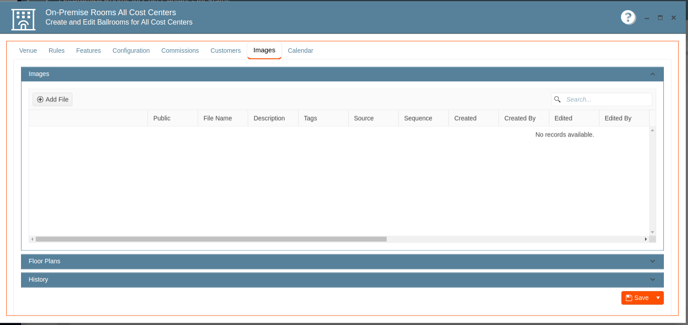
- Images
- Calendar