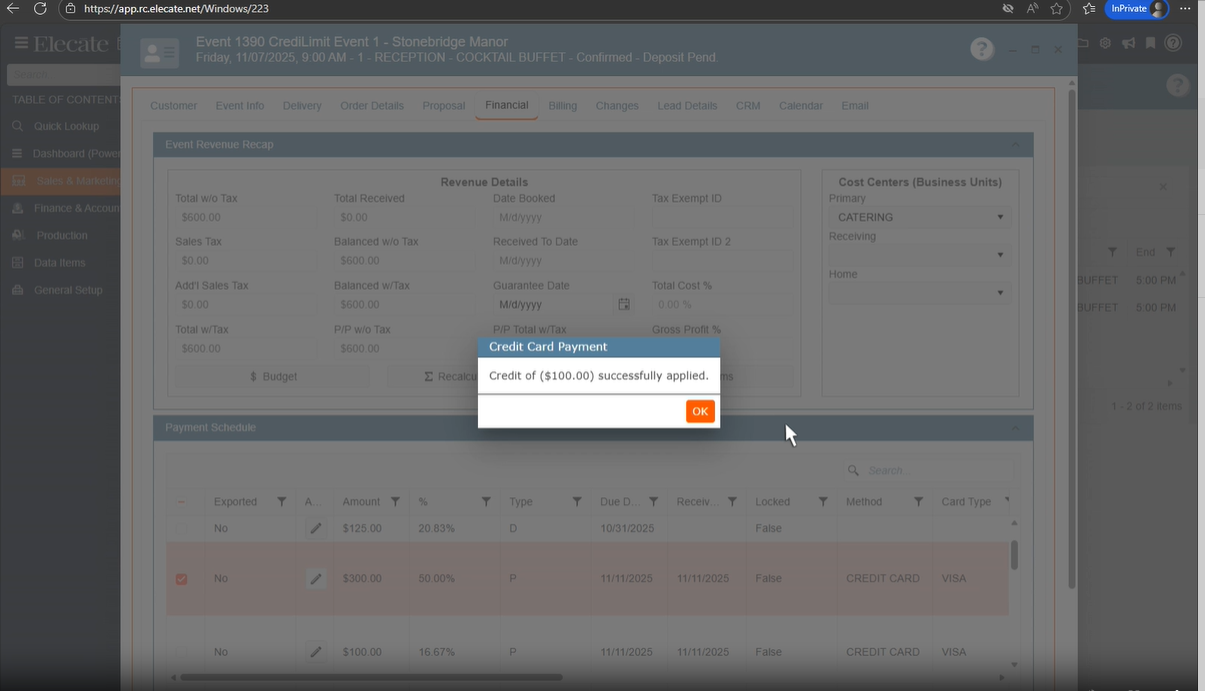
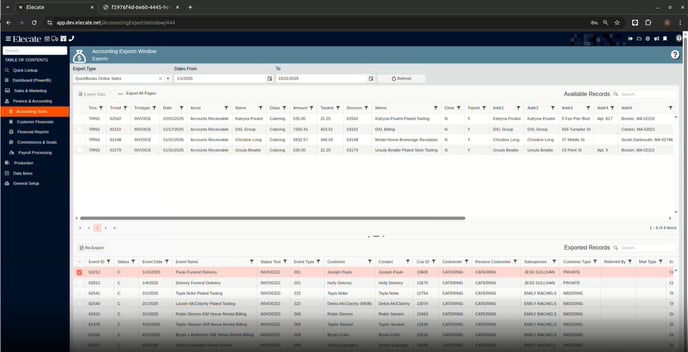
1. Needing the development team add re-export functionality and conditional UI changes for QBO integration:
-
When QBO integration is enabled via
appsettings, the following controls are hidden:- "Select New Status..." dropdown
- "Update Selected" button
-
A new "Re-export" button is added to the grid section under "Exported Records" and is available for:
- Customer
- Sales
-
The "Re-export" button triggers the appropriate logic to re-export the selected records to QBO.
-
The UI updates dynamically based on the QBO setting without requiring a page reload.
-
All changes are tested and verified in both QBO-enabled and non-QBO scenarios.
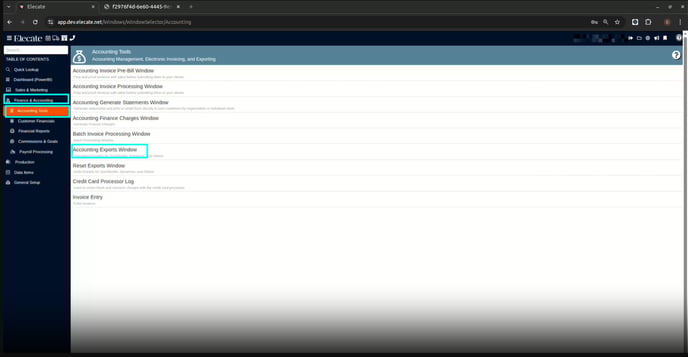
1. On the left side panel, go to Finance and Accounting
2. Click on Accounting Tools
3. Select Accounting Exports Window
 2. Syncronizing Jamix Stock Cards into Recipe Items, so that I can Manage Jamix POs:
- Stock Card sync in the Recipe Management Items Window**
* Read `EnableJamixSync`, if 'Yes', then read `JamixInstanceId`
* Display the import Stock Cards button
* Add a loading screen while processing, show spinner wheel screen, with the message 'Please, wait while we load your Jamix Locations'
* Response handling:
* Success: show pop-up with a successful message, refresh
* Error: Show a pop-up message - Endpoint Consume**
* Send a KeyCloak token
1. On the left side panel, go to Data Items
2. Click on Food Management
3. Select Recipe Management (Active Items Only)
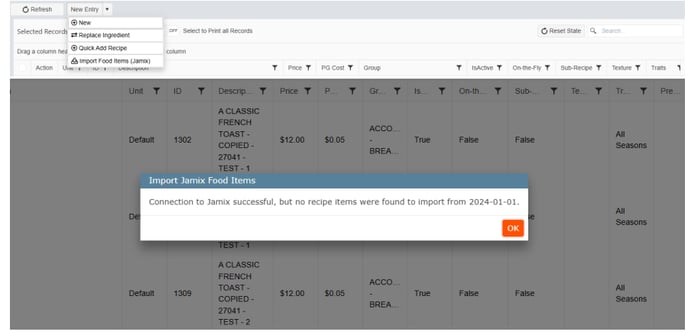
4. From the New Entry drop-down menu click on it, select Import Food Items (Jamix)
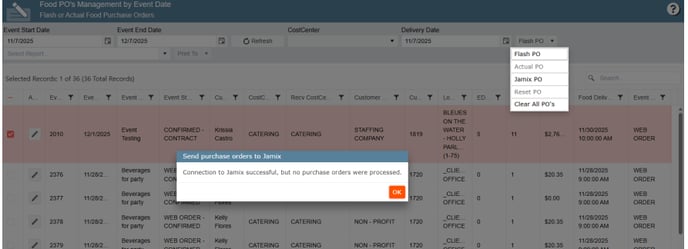
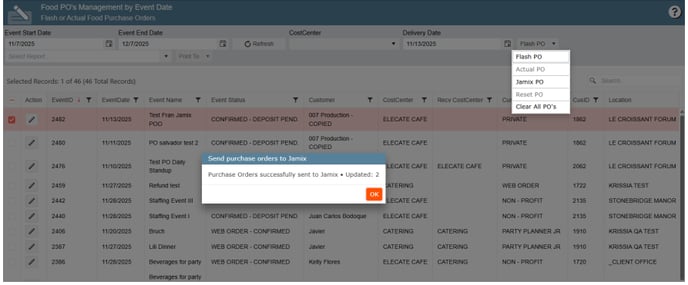
3. Creating Purchase Orders in Empower and Jamix, so that Kitchen department is aware of the correct requests:
- Food PO's Management by Event Date Window:
* Read `EnableJamixSync`, if 'Yes', then read `JamixInstanceId`
* Display the Generate Jamix PO button
* Add a loading screen while processing, show spinner wheel screen, with the message 'Please, wait while we load your Jamix Locations'
* Response handling:
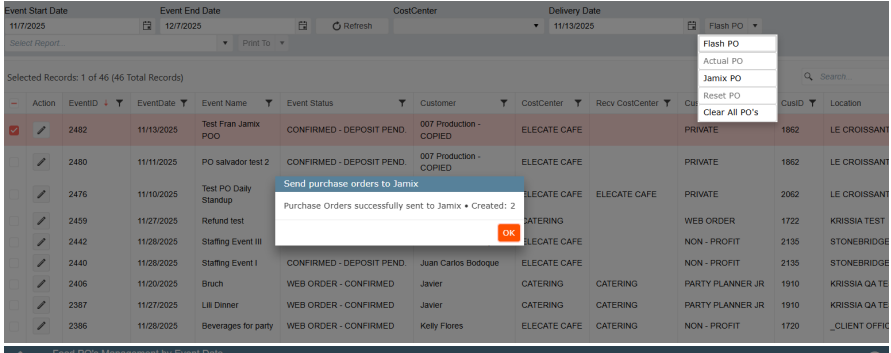
* Success: show pop-up with a successful message, refresh
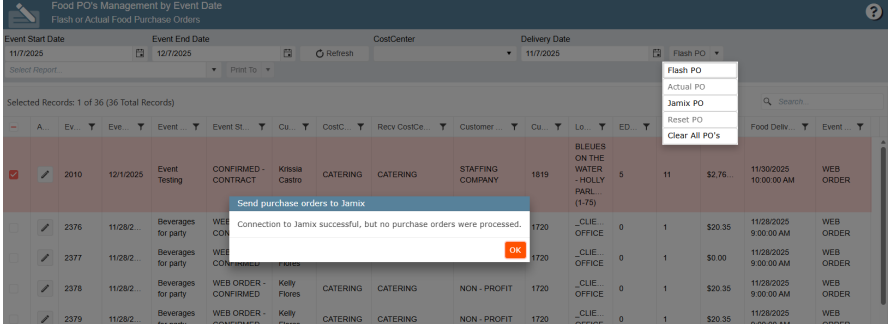
* Error: Show a pop-up message - Endpoint Consume:
* Send a KeyCloak token
1. On the left side panel, go to Production
2. Click on Purchasing & Inventory
3. Select Purchasing
4. Choose PO Management by Event Dates
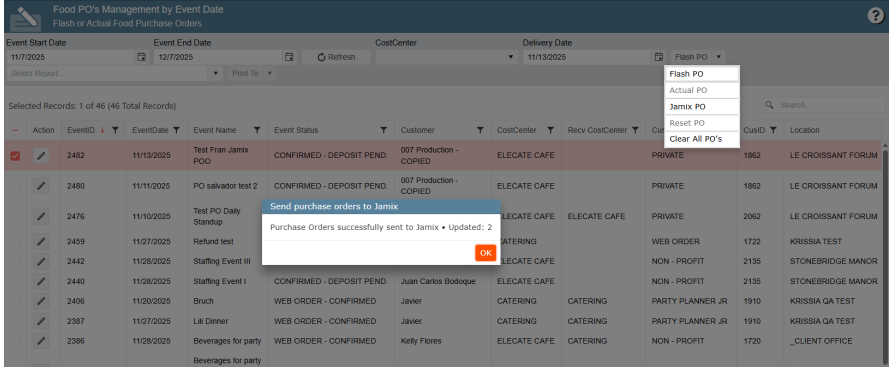
5. Select the Event Start Date and Event End Date, next click on Refresh, put a check mark on the desire order, then from the Flash PO drop-down menu, select Jamix PO
4. Updating Purchase Orders already placed in Jamix:
TBD business Logic
1. On the left side panel, go to Production
2. Click on Purchasing & Inventory
3. Select Purchasing
4. Choose PO Management by Event Dates
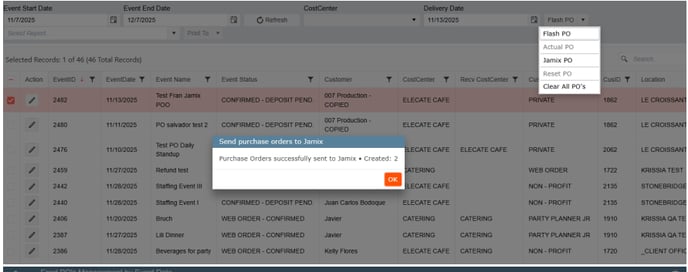
5. Select the Event Start Date and Event End Date, next click on Refresh, put a check mark on the desire order, then from the Flash PO drop-down menu, select Jamix PO
5. Having an option to nest the packages within the order review:
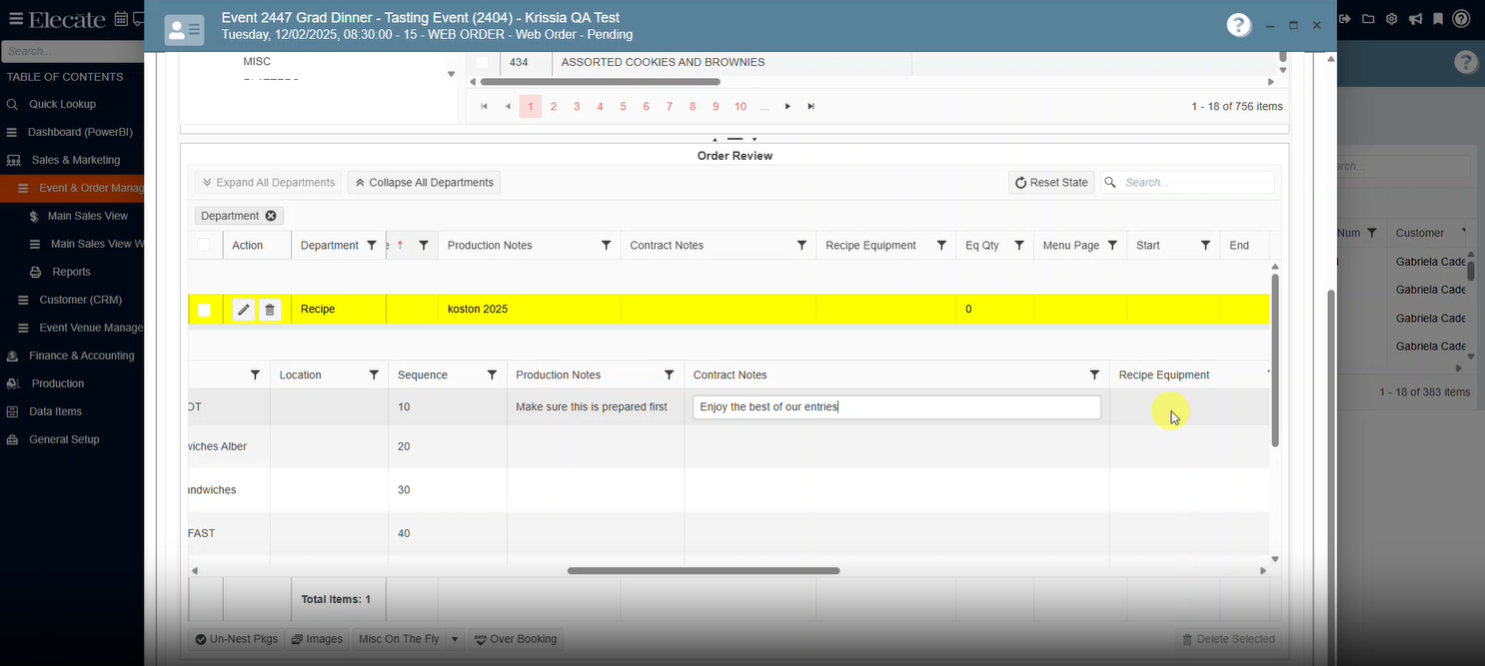
- A “Nest Packages” option (toggle or button) is available in the Order Review screen.
- When enabled, all items belonging to the same package are grouped under the package name.
- Each package group can be expanded (unfolded) or collapsed (folded) using a visual control (plus/minus button).
- Collapsing a package hides all its items, while expanding reveals them again.
- The nested view updates dynamically when the Nest package button is clicked — no page refresh required.
- When packages are nested the button will change the text to un-nest pkgs
- The grouping respects existing data relationships (items only appear under their correct package).
- The nested or flat view preference persists while the user remains on the Order Review page.
- The feature does not affect the accuracy of item quantities, prices, or totals.
- Styling clearly differentiates package headers from individual items (bold font).
Shift - 2:
- If the use clicks on the "Nest" or "Un Nest" button, then the app must not fire a full save for the event.
- Once items are nested on a package, then the "Group" column must be disabled.
- If a user does a change on the "Production Notes, Contract Notes, Sequence or Eqp Quantity" then those changes must be saved only if the user clicks on the "Save" button for the event.
- Remove the need for the "Edit" button on the items that are on a nested package
- Allow the user to click on to click on those fields without pressing on the edit button
- This must also applied to items that are outside of a package.
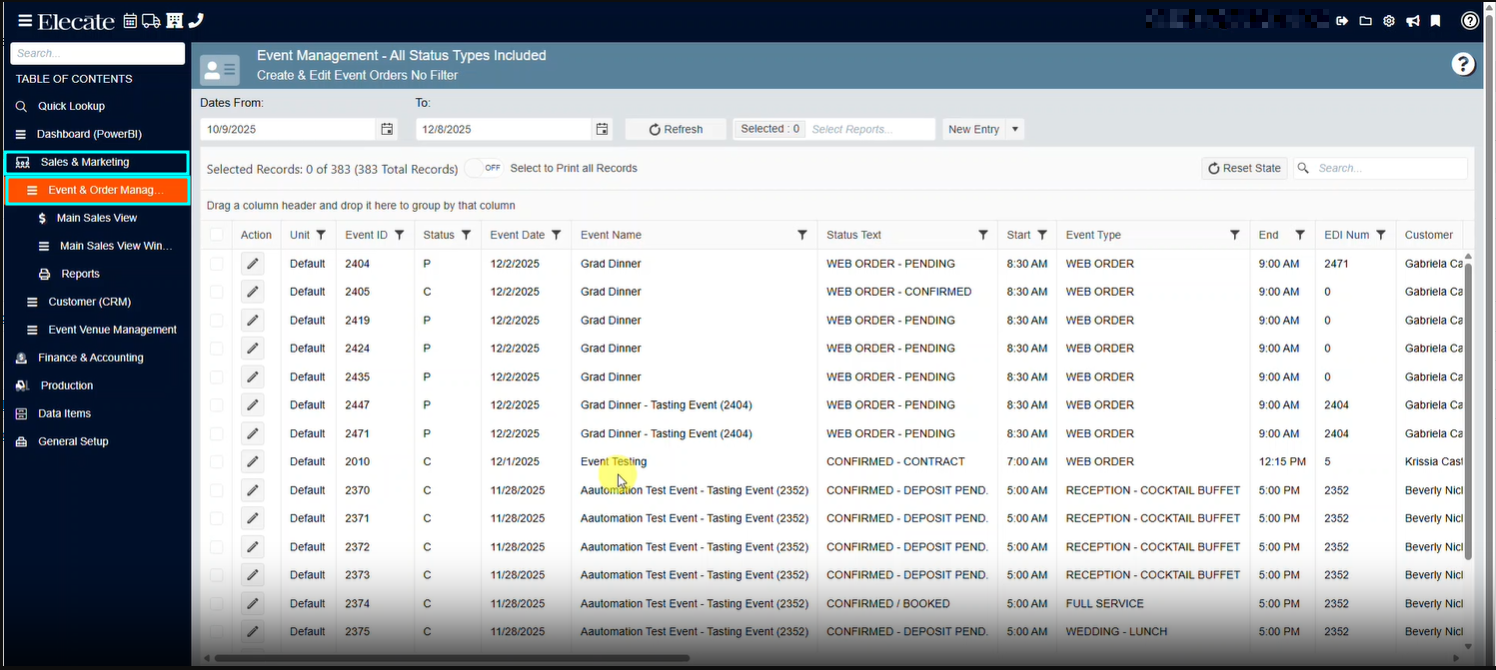
1. On the left side panel, go to Sales & Marketing
2. Click on Event & Order Management
3. Select Event Management - All Status Types Included
4. Open an existing event or create a new by clicking on New Entry
5. Go to the Order Details Tab, add Recipe Packages
6. At the bottom of the screen, on the Left side you will see the Nest Pkgs button, click on it
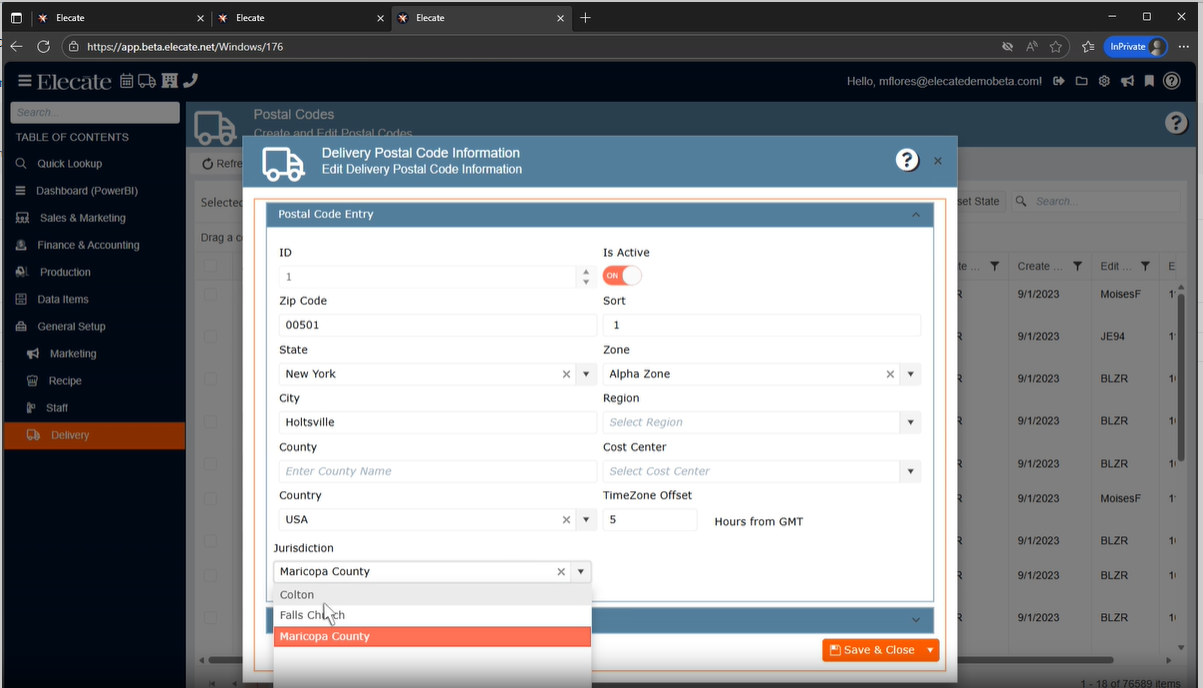
6. Having a drop-down field for Jurisdictions:
- In the Delivery Postal Code Information window, we need to have a dropdown that will pull the information from the "Jurisdiction" table.
1. At the top of the screen on the right side, click on the Gear Icon
2. Look for Financial Setup
3. Select Create and Edit Tax Jurisdictions (here you will see the existing information, or you can add new information)
4. Next, go to General Setup
5. Click on Delivery
6. Select Create and Edit Postal Codes
7. You can either select an existing record or create a new one, once the modal window is open on the left side at the bottom we have the Jurisdiction field with the available options.
7. Adding Captain from the Staff Scheduling Window:
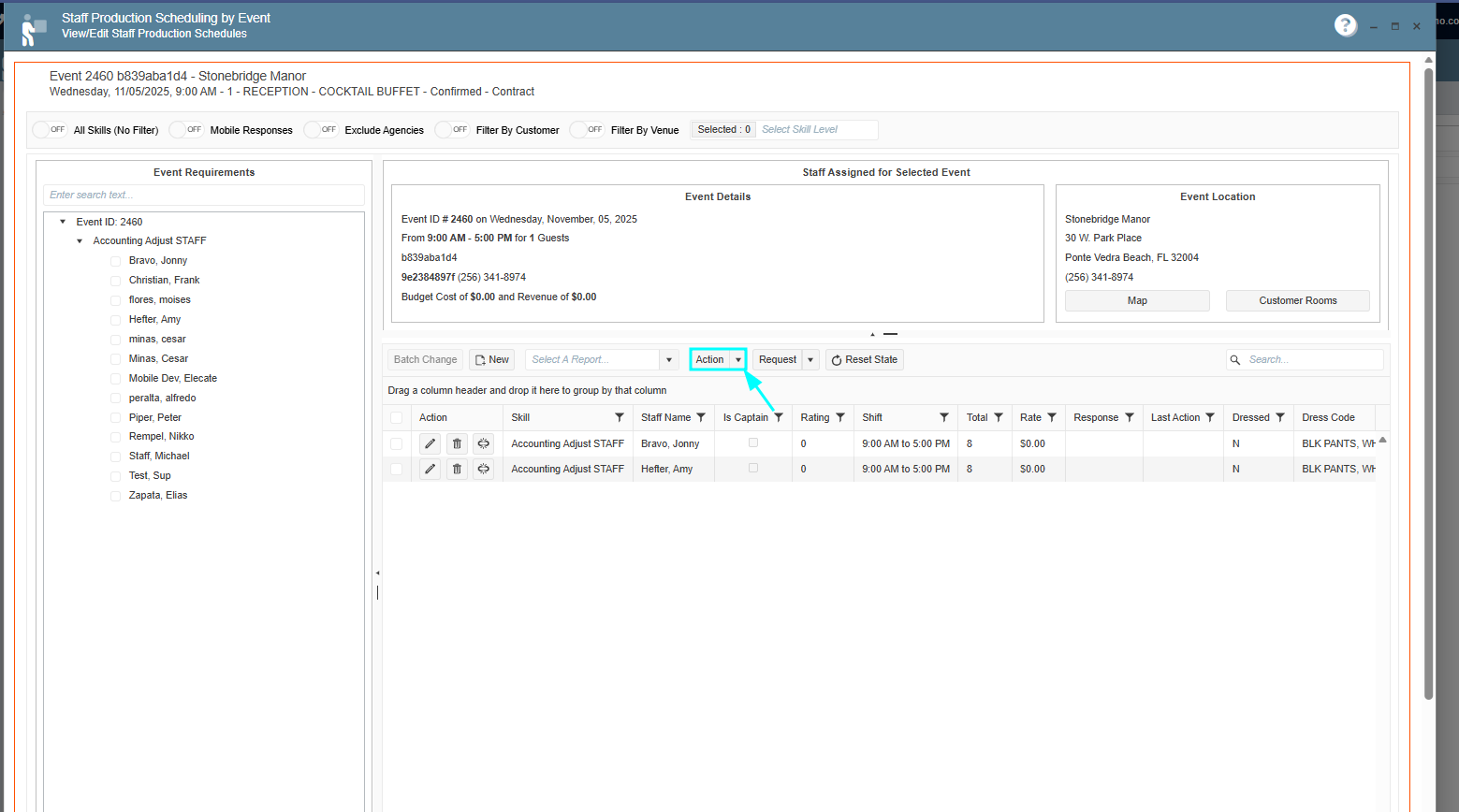
- On the Staff Production Scheduling by Event window, when clicking on the "Action" button dropdown, we need the ability to assign a Captain
- This will be display as two options:
- Add Captain
- This will be display as two options:
-
-
- Unassign Captain
- The add action must be enable only if you are selecting a record that has not been assigned as a captain.
-
-
- The Unassign Captain action must be enable only if you are selecting a record from the grid that is a captain
Additional AC:
- A column will be added to identify who is the captain on the staff members added to the grid.
- Remove the "Delete Captain" option
- The "Add Captain" action must only be enabled if you are selecting a skill type with a staff member available and the event does not have a captain assigned to it. Otherwise the button must be disable
- "Unassign Captain" button must be enable if you are selecting the captain for the event, otherwise that must be disable.
1. On the left side panel, go to Production
2. Click on Event Staffing
3. Select Staff Production Scheduling
4. Select an event from the Calendar, on the right side of the screen you will see the Select Events/ Skill Types column
5. Open the desired event by clicking on it
6. From the existing skill added to the event, put a check mark on the desired skill, next click on the Action drop-down menu, from the drop-down list you will see the Add Captain or Unassign Captain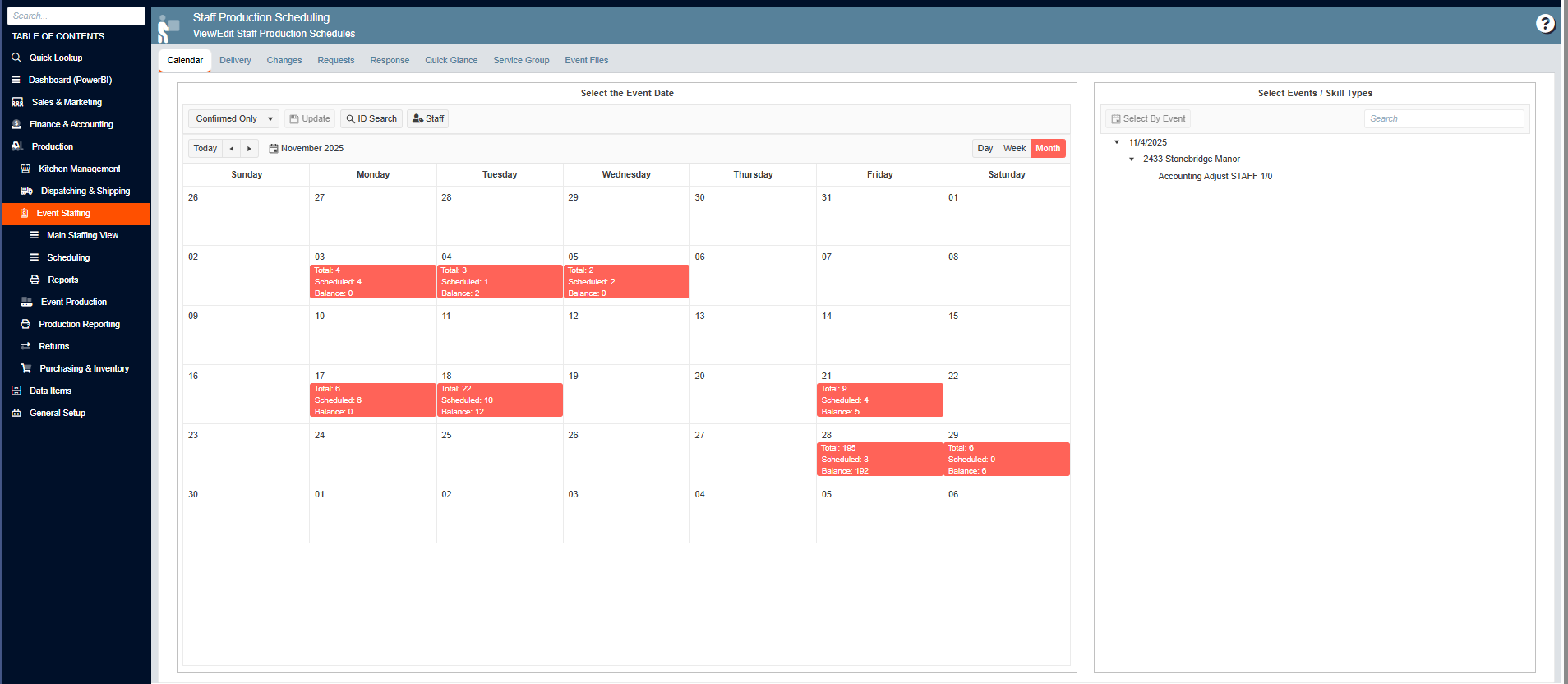
8. Allowing EventType.EventTypeDivision to be nullable and handle null values during invoice export:
-
Database/Model Update:
- Modify the
EventType.EventTypeDivisionproperty to allowNULLvalues.
- Modify the
-
Validation Logic:
- In
ExportInvoiceCommandHandler(line 142), add a check:- If
EventTypeDivisionisNULL, handle gracefully (e.g., skip logic or apply default behavior). - Ensure no exceptions are thrown due to null references.
- If
- In
9. Wanting to be able to do partial refunds:
- Allow the user to do a "partial refund" process when doing the "Refund Transaction" process
- This should allow the user to refund only a portion or the desired quantity for the user, but not the total payment.
1. On the left side panel, go to Sales & Marketing
2. Click on Event & Order Management
3. Select Event Management - All Status Types Included
4. Open an existing event, go to the Financial Tab
5. In the Payment Schedule section, look for the Refund Transaction button