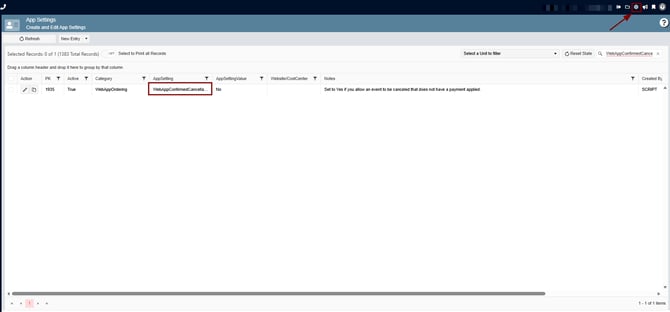
A Payment Has Been Applied to the Event Web Orders:
What happens?
- Once a payment has been applied to an event, cancellation restrictions may apply.
- AppSetting 1934 (WebAppConfirmedCancellationAllowed) only allows the cancellation of events that do not have a payment applied.
How do we know? The AppSetting note states:
"Set to Yes if you allow an event to be canceled that does not have a payment applied."
Because the event has a payment, this AppSetting does not permit the cancellation.
1. At the top of the screen, on the right side click on the Gear Icon
2. Select App settings
3. Search for WebAppConfirmedCancellationAllowed
4. Set the App Setting to Yes
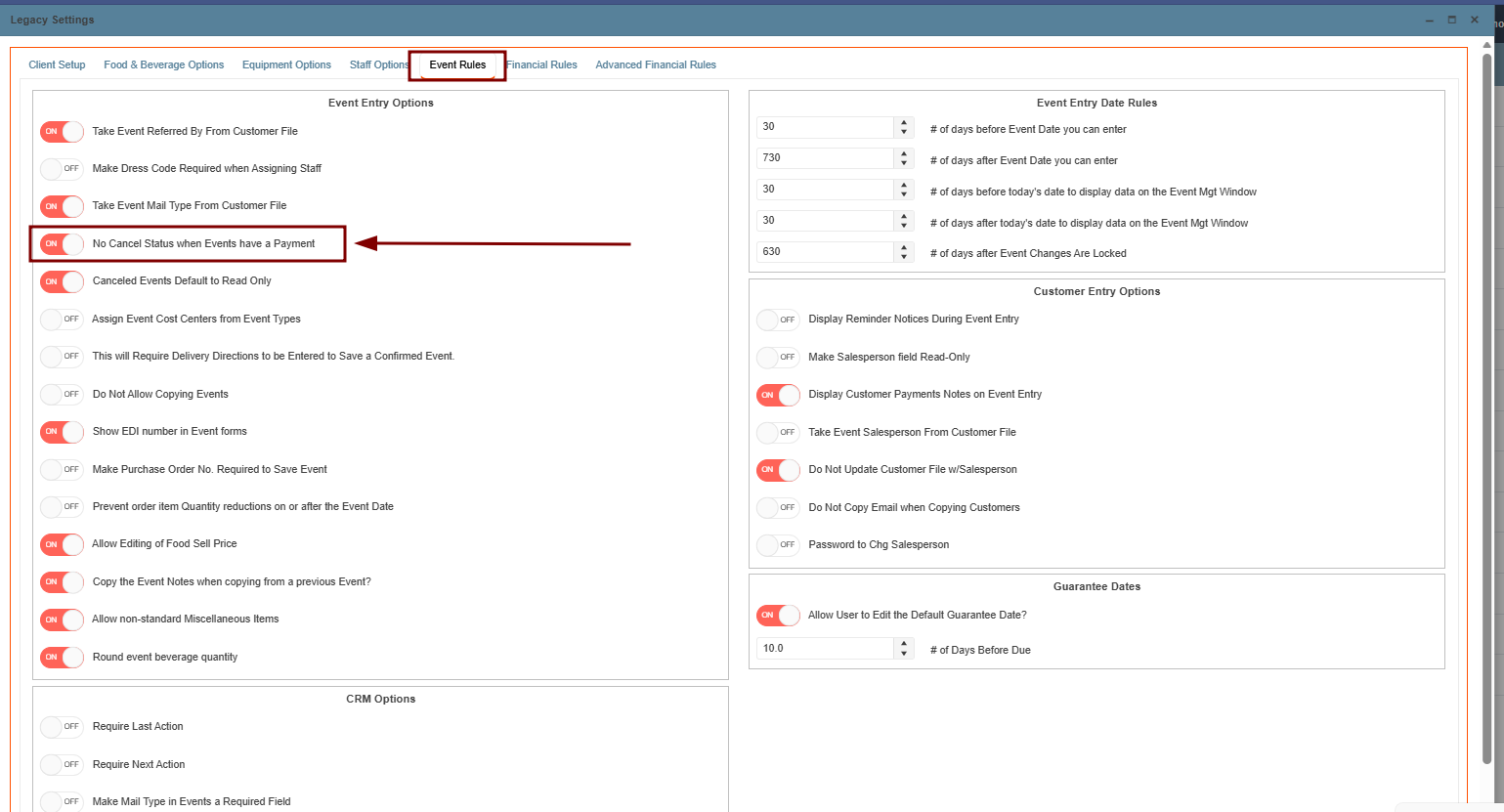
The Legacy Setting Prevents Cancellation of Paid Events
What happens?
- The legacy setting "No Cancel Status when Events have a Payment" prevents users from canceling events that have an associated payment.
- When enabled, the system blocks the cancellation regardless of the AppSetting value.
Why does this exist?
- This is a safety measure designed to help prevent users from accidentally canceling the wrong event after payment has been processed.
What are the available options?
If a cancellation is required, you can:
- Refund the client and then proceed with the cancellation.
- Temporarily disable the legacy setting "No Cancel Status when Events have a Payment" and then cancel the event.
Summary
An event cannot be canceled when:
- A payment has already been applied, and AppSetting 1934 only applies to events without payments.
- The legacy setting "No Cancel Status when Events have a Payment" is enabled, which blocks the cancellation of paid events.
This behavior is expected and serves as a safeguard against unintended cancellations.
1. At the top of the screen, on the right side click on the Gear Icon
2. Select Legacy Settings
3. Go to the Event Rules Tab and Turn OFF the ¨No Cancel Status when events have a payment ¨