
Sending email confirmations reassures the user that their request was processed correctly, it also provides a written record of the transaction or action, which can be useful for future reference.
You can configure confirmations for actions like:
• Placing an order
• Confirming an order
• Canceling an order
• Making a payment
• Sending an invoice
• Crerating a change request
• A change request is approved
• A change request is rejected
Setting up the email confirmations consists of two steps, first you have to create the template to then set the template in the app settings.
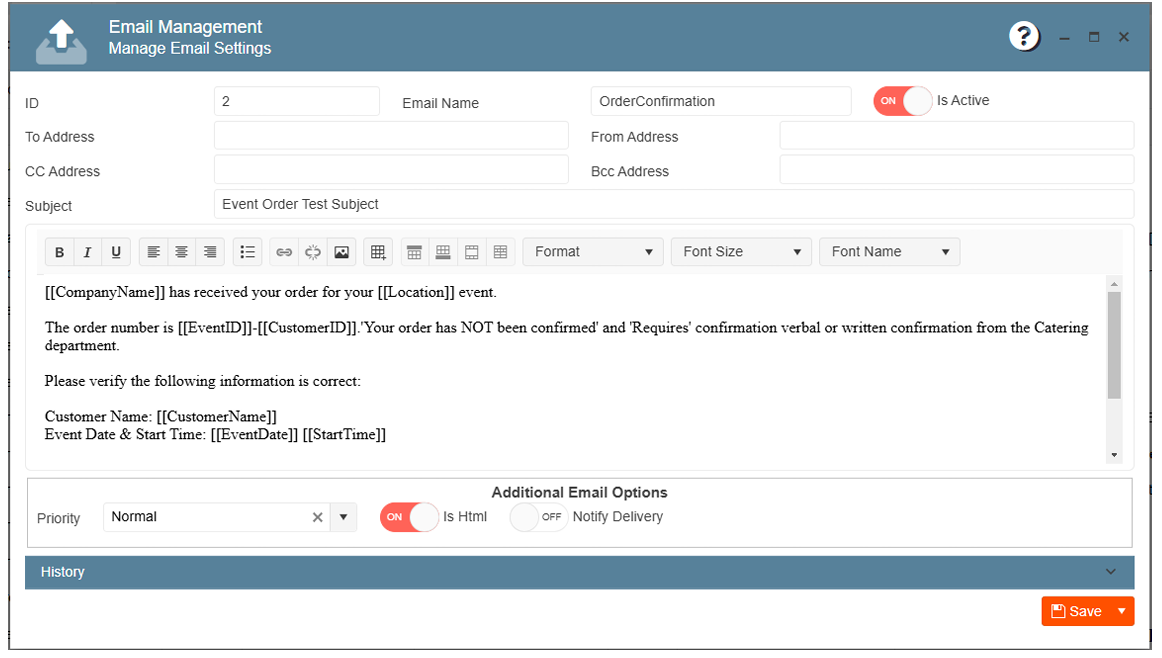
To create a template:
1. Navigate to the Gear Icon
2. Click on Email Management
3. Click on New Entry
4. Make sure the toggle is active for the template to be available
5. Type the template name
6. Fill in the template options
7. Click Save
Note: the double square brackets (“[[- ]]” )are place holders for the system to fill information automatically, you can move these place holders to any part of the template, but if you remove the brackets the information will not be populated.
To set the templates on the app settings go to:
1. Navigate to the Gear Icon
2. Click on App Settings
3. Search for the app setting of the email you want to configure:
• Placing an order - WebAppPendingEmail
• Confirming an order - WebAppConfirmedEmail
• Canceling an order - Webappcancelationemail
• Making a payment - PaymentPortalEmailTemplate
• Sending an invoice - WebAppPaymentEmail
• Creating a change request - WebAppOrderChangeRequestedEmail
• A change request is approved - WebAppOrderChangeAcceptedEmail
• A change request is rejected – WebAppOrderChangeRejectedEmail
4. Click on the pencil icon or double click on the app setting row to edit
5. Type in the Template Name on the app setting value
6. Click Save
The following emails can include reports:
• Placing an order
• Confirming an order
• Canceling an order
• Making a payment
• Sending an invoice
To include reports along with those templates go to:
1. Navigate to the Gear Icon
2. Click on App Settings
3. Search for the app setting of the email you want to attach the report to:
• Placing an order - WebAppPendingEmailReport
• Confirming an order - WebAppConfirmedEmailReport
• Sending an invoice - WebAppPaymentEmailReport
4. Click on the pencil icon or double click on the app setting row to edit
5. Type in the Report Name on the app setting value
6. Click Save
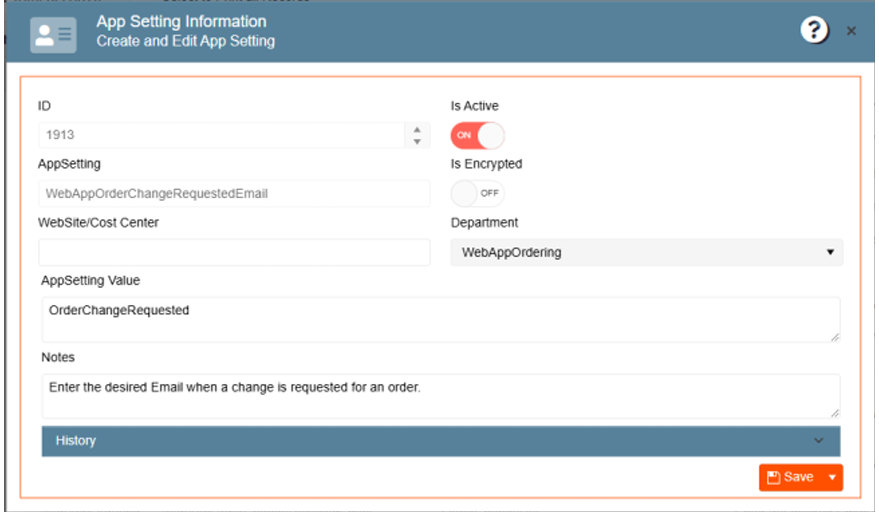
Note: appsettings left with no value will not be effective even when active.