Why selecting a Revenue Code is required
-
Financial classification & grouping
Each revenue code is linked to a group and parent department, which helps organize income into the correct category for tracking and accounting purposes. -
Tax application
Revenue codes are directly linked to tax entries, ensuring the correct taxes are applied automatically to charges associated with that code. -
Reporting accuracy
Revenue codes define where amounts appear in financial reports (e.g., Company Revenue, Other Revenue, or after Grand Total), ensuring accurate and consistent financial reporting. -
Control of additional charges
They determine whether specific charges can be applied, such as:- Gratuity
- Service charges
- Commissions
- Damage waivers
- Fuel surcharges
-
Commission and rewards configuration
Revenue codes allow configuration of commissions, incentives, and rewards, ensuring correct calculations and visibility in reports.
How to Create and Edit Revenue Codes:
1. At the top of the screen, on the right side of the screen, click on the Gear Icon: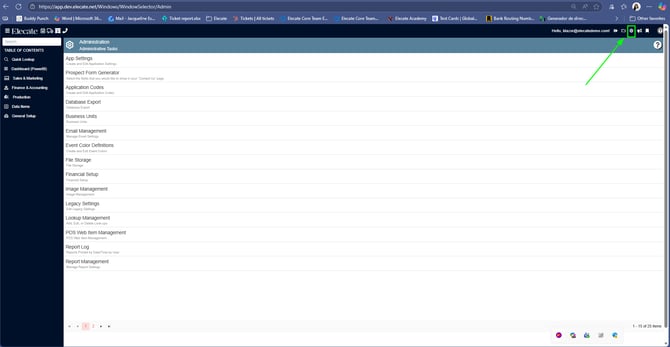
2. Select Financial Setup: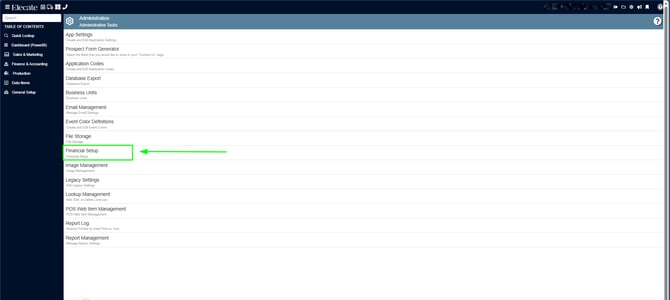
3. Choose Create and Edit Revue Codes: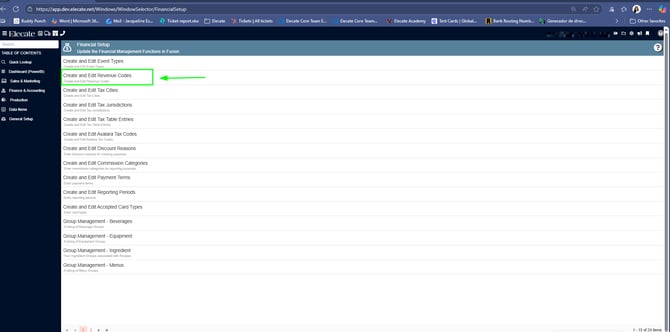
4. You can either select an existing record or create a new one by clicking on the pen icon: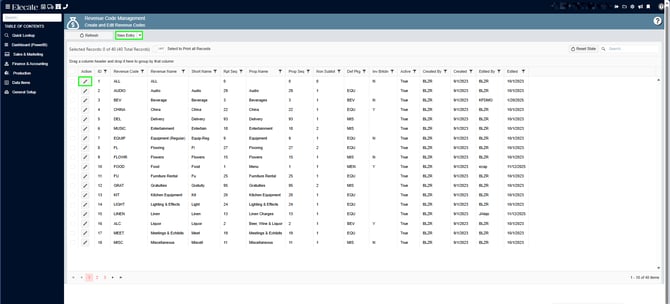
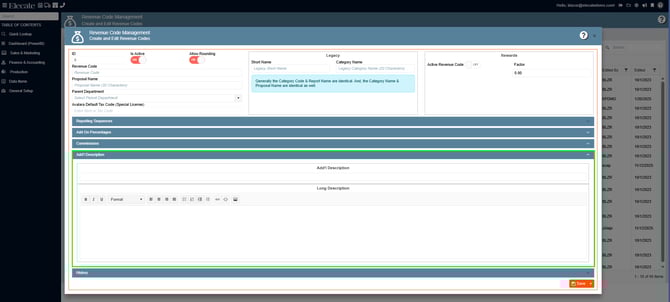
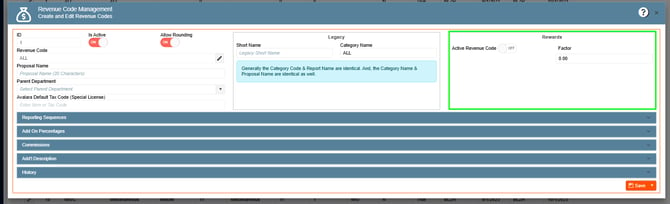
5. If you need to create a new record, click on New Entry and follow the steps:
- Make sure the Toggles is Actived and Allow Rounding are ON
- From the Drop-dowm Menu select a Revenue Code
- Enter the Proposal Name
- Choose a Parent Department
- In the Legacy box: enter a Short and Category Name:

6. Rewards Configuration – Configure any rewards or incentives linked to the revenue code
- A Revenue Code is linked to a group
- A Revenue Code is linked to a tax entry
Groups and Taxes need to be updated; otherwise, the new entry will not be used on any event.
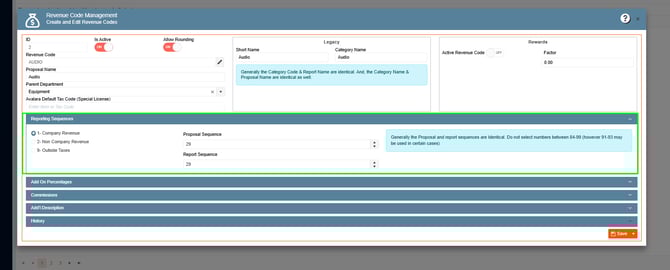
Reporting Sequence:
Company Revenue: The option of deciding where you would want the category revenue included on certain specific financial pages of the proposal. It can be included as part of Company Revenue, Other Revenue, or after a Grand Total has been calculated.
Non-Company Revenue: The option of deciding where you would want the category revenue included on certain specific financial pages of the proposal. It can be included as part of Company Revenue, Other Revenue, or after a Grand Total has been calculated.
Outside Taxes: The option of deciding where you would want the category revenue included on certain specific financial pages of the proposal. It can be included as part of Company Revenue, Other Revenue, or after a Grand Total has been calculated.
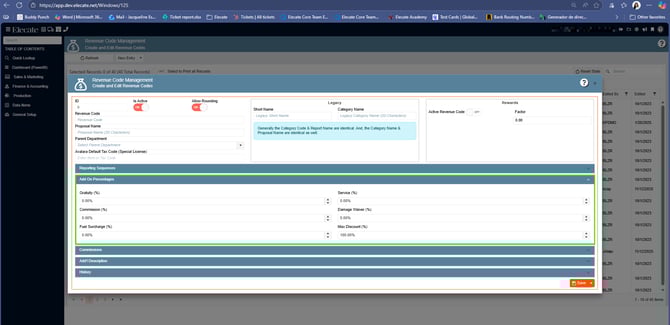
Add-On Charges:
Allow Gratuity For This Event Type: Check this box if you allow a “Gratuity Charge” for this type of event. This links to “Revenue Categories.”
Allow Service Charge For This Event Type: Check this box if you allow a “Service Charge” for this type of event. This links to “Revenue Categories.”
Allow Commissions For This Event Type: Check this box if you allow a “Commissions” for this type of event. This links to “Revenue Categories.”
Allow Damage Waiver For This Event Type: Check this box if you allow a “Damage Waiver” for this type of event. This links to “Revenue Categories.”
Allow Fuel Surcharge For This Event Type: Check this box if you allow a “Fuel Surcharge” for this type of event. This links to “Revenue Categories.”
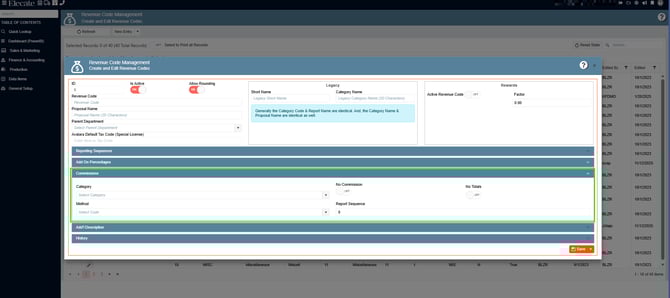
Commissions Setup:
Categories: Select the category from the dropdown menu.
Method: Select the menu from the dropdown menu.
Report Sequence: Enter the sequence for which you want to the Commissions to appear on the reports.
Add´l Description:
You can add an additional description for the Revenue Code