
Staffing App
New Features
1. Publish Event Push Notifications
Staff Managers can now send a notification using the publish event option to staff with Auto Scheduling Level.
How to set a staff's Auto Scheduling Level?
-
Go to Data Items (Staffing or Administrator role is required)
- Select HR Management
- Click on HR Management (Active Staff Only)
- Select a staff record and open the Staff Person Management card by clicking on the pen icon
- Navigate to the Mobile/Web Tab
- In the Access and Publishing section, next to the Mobile access toggle, you will find a field called "Auto Scheduling Level"
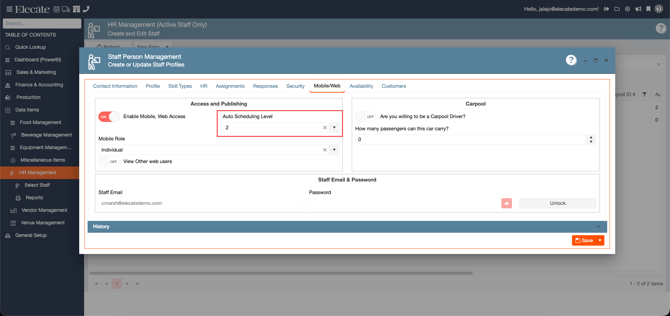
- Select a value
- Click Save
You will want to select an Auto Scheduling Level according to your preferred criteria, performance, availability or others.
Send a Publish Event Notification
-
From the main sidebar, select Production
- Select Event Staffing
- Select Staff Production Scheduling; you will be sent to the Staff Calendar screen
- Select a date, and the events for the day will appear on the right
- Double-click on an event record, and this will open the Staff Production Scheduling by Event window
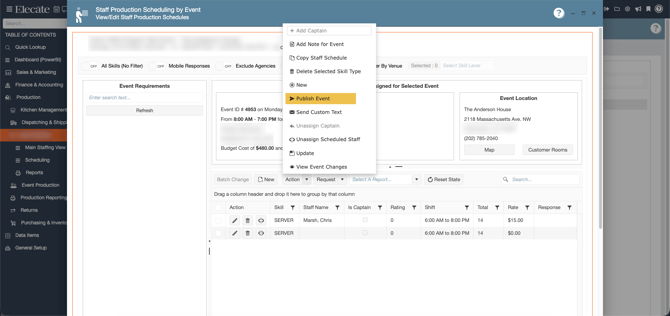
- Click the Action dropdown button; you will see the list of options
- Click on Publish Event
- A new pop-up window will appear; select the Event Level from the dropdown and click Save & Close
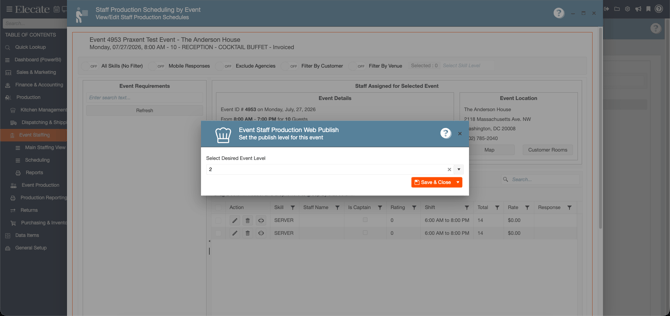
By publishing an event, staff with the assigned levels and higher will receive a Push notification alerting them of an upcoming event that may be of interest to them. In the screenshot above, the user has selected level 2, meaning that staff with level 1 and 2 will receive the push notification.
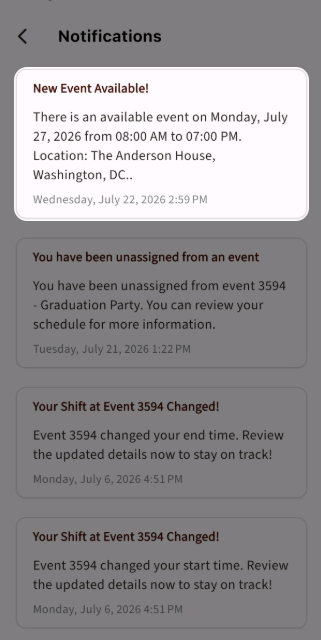
How to set up the Publish Event Push Notification content?
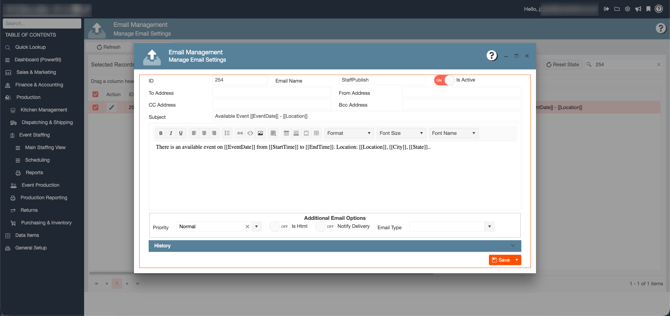
You can find the content of the Publish Notification by following the next Steps
-
Click on the Gear icon (Administrator role is required)
-
Select AppSettings
-
Search for
StaffPublishEmailPkYou will need the AppSetting Value -
Go back to the Administration Panel and select Email management
-
Search for the email with the ID specified in the AppSetting
-
You can update the content (Push notification does not support styling)
Fixes
1. Unexpected Uniform change notifications cleared
Under certain conditions, a Uniform change push notification was being sent to staff assigned to events who don't use that feature. This has been resolved
Delivery Driver App
New Features
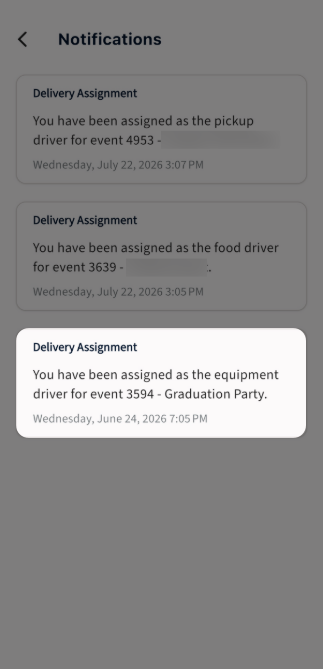
1. Push Notifications and Notifications screen
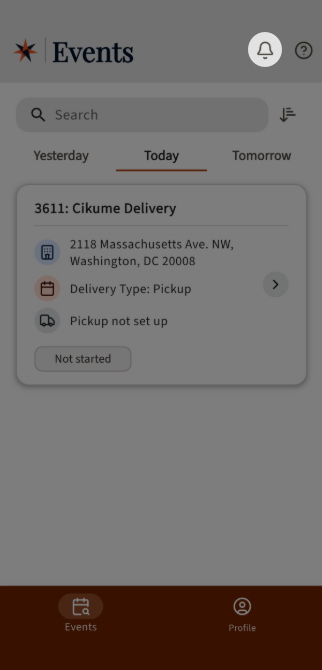
Operations managers can assign delivery events to Drivers; now, drivers will receive Push notifications on their phones when they have been assigned to an event.
We have also added a Notifications screen accessible at the top of the main screen
When drivers install this new app version, they will need to consent to the push notification permissions on their devices