
Feature Requests:
1. Cost Center Selection for Sales Users:
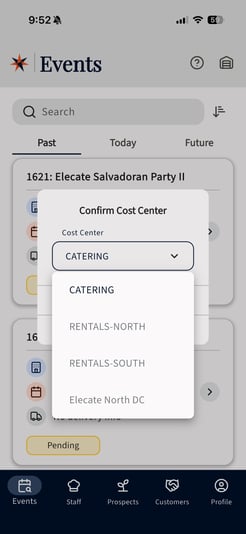
Sales Users can now select a Cost Center when accessing the Sales App. This enhancement ensures that users only view Events, Customers, and Prospects associated with the Cost Center they select.
To use this functionality, the following conditions must be met:
- The Sales User must have multiple Cost Centers assigned in the Elecate Web Core App.
- The ShowCostCenterSelectionPrompt app setting must be enabled in the Core App.
When both conditions are met, the Sales User will be prompted to select a Cost Center upon logging into the Mobile App. Once selected, the app will display only the Events, Customers, and Prospects related to that Cost Center.
2. Color-Coded Monthly View in the Staffing App:
The Monthly View in the Staffing App has been enhanced with color-coded indicators to provide a clearer view of staff event statuses.
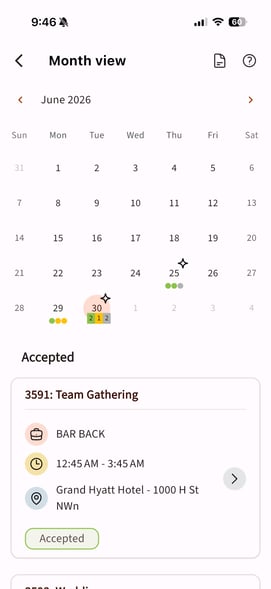
When viewing the monthly calendar, event dots will now appear as follows:
- Green dots: Accepted Events
- Yellow dots: Pending Events
- Gray dots: Declined Events
For days with more than four events, the calendar will display status badges instead of individual dots:
- A green badge showing the total number of accepted events.
- A yellow badge showing the total number of pending events.
- A gray badge showing the total number of declined events.
This enhancement gives staff members a faster and more accurate way to review their event status directly from the Monthly View.
- Open the Elecate Staffing App.
- Navigate to the Calendar.
- Select the Month View.
- Review the color-coded dots or status badges for each day.
Bugs:
1. Staff Check-In Failure After an Event Date Change:
A bug was addressed that could prevent staff members from checking in when an Event Date had been changed in the Elecate Web Core App.
The Mobile App now properly recognizes updated Event Dates, allowing staff members to successfully check in without receiving an error.
- Update an Event Date in the Elecate Web Core App.
- Open the Elecate Staffing App.
- Select the updated Event.
- Complete the Staff Check-In process successfully.