Feature Requests:
1. Enabling Clients to Schedule Reports via Subscriptions:
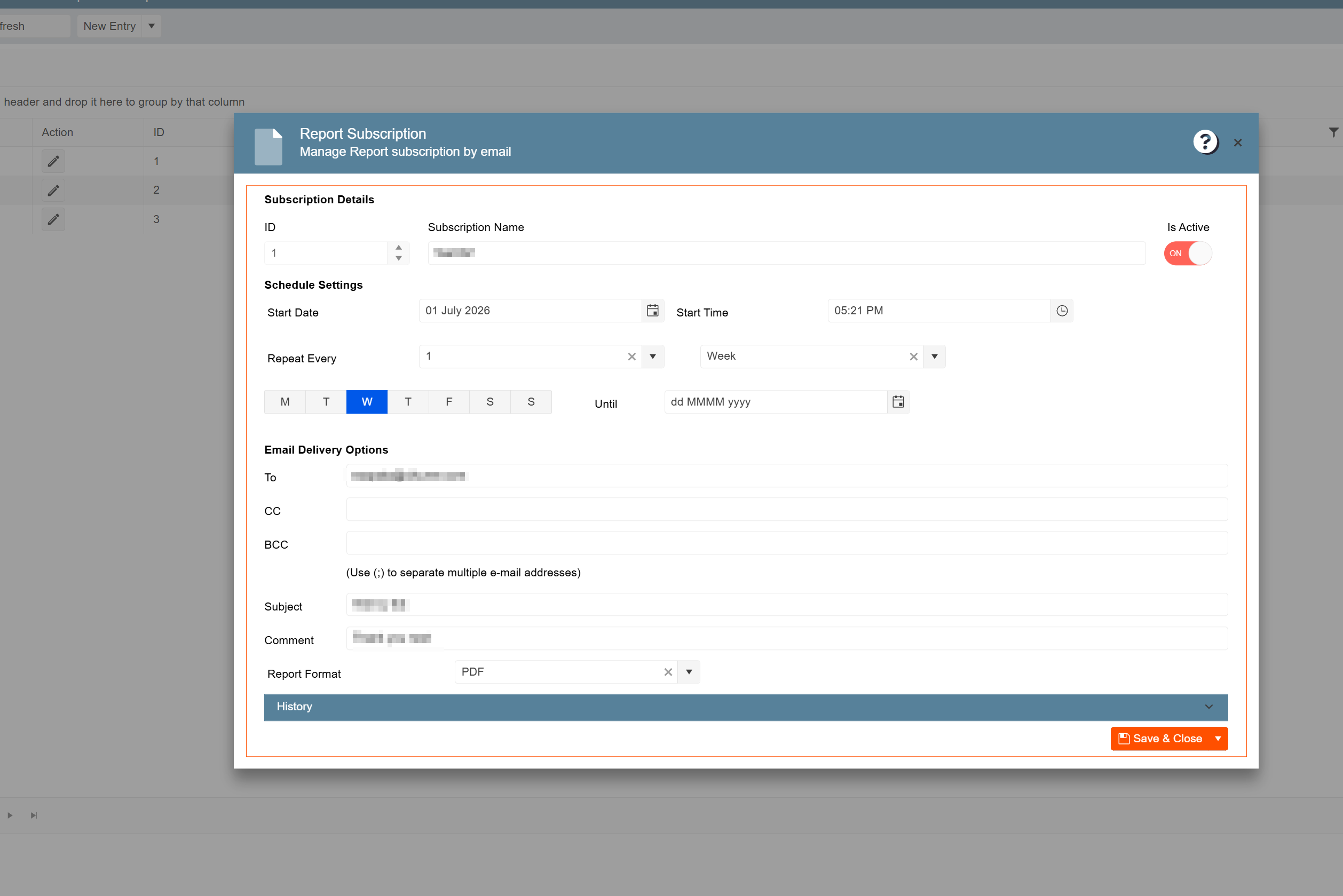
Admins can now create and manage report subscriptions directly within the application through the Report Management window. This new self-service feature allows you to schedule and manage reports without contacting the development team, making the process quicker and more efficient.
1. At the top of the screen, click on the Gear Icon
2. Search for Report Management and click on it
2. Enabling Grid Persistence in Customer Sales and Marketing Management:
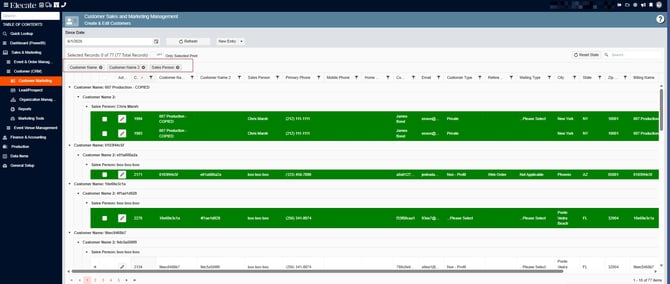
The Customer Sales and Marketing Management screen now saves your grid preferences, including column order, filters, sorting, and grouping. This enhancement allows your preferred layout to be retained across sessions, reducing repetitive setup and improving efficiency when managing customer data.
1. On the left side panel, select Sales & Marketing
2. Click on Customer (CRM)
3. Select Customer Marketing
4. Choose Customer Sales and Marketing Management
3. Having a button that will allow me to Scale Prep Items to Event Quantity:
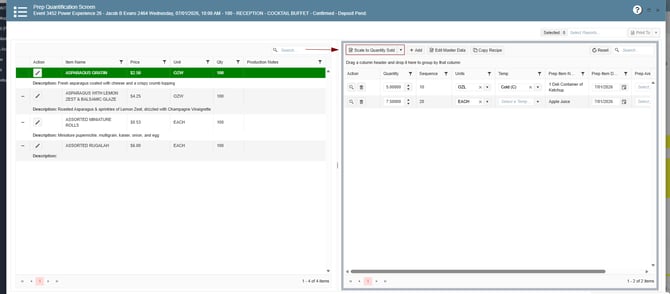
A new "Scale to Event Quantity Sold" button has been added to the Prep Quantification window. This option allows users to automatically scale all recipe prep items based on the quantity defined for the event, providing a faster and more accurate way to adjust recipe quantities beyond the existing Scale to Guest Count and Reset to Master Data options.
1. On the left side panel, go to Production
2. Click on Kitchen Management
3. Select Main Kitchen View
4. Open the event by clicking the Edit (Pen) icon. In the event window, locate the panel on the right side of the screen. At the top-left corner of this panel, you will find the Scale to Quantity Sold button.
Bugs:
1. Users are enabled to add a discount amount or percentage on an Event where the Rev Code has notes:
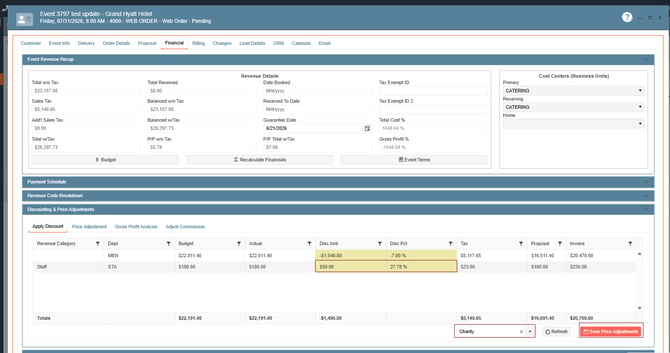
Discounts can now be applied to Staffing revenue codes. When a revenue code is configured as Staffing, any discount entered as an amount or percentage will be automatically applied to the event, ensuring accurate pricing and greater flexibility in discount management.
1. On the left side panel, go to Sales & Marketing
2. Click on Event & Order Management
3. Select Event Management - All Status Types Included
4. Open an existing event by clicking on Pen Icon, make sure your event has staff items
5. Go to the Financial Tab, open the Discount & Price Adjustments section
6. Apply a discount to the Staff department, save the changes, and verify that the system retains the discount
2. Jamix | Core Integration | Locations Import grid is not usable:
The Locations Import grid for Jamix has been updated to use the Empower standardized grid, allowing administrators to navigate and manage location options more easily.