Enhancements:
1. Enforcing Full Payment Requirement flag in the Event Type Window:
A new configuration option, Enforce Full Payment in Portal, has been added to Event Type Management to provide greater control over payment requirements in the Shopping Cart.
When enabled, customers must pay the full outstanding balance for events associated with that Event Type. Partial payments will be rejected, and users will receive a clear message indicating that full payment is required. When disabled, both partial and full payments are allowed.
1. Go to the Gear Icon, at the top of the screen
2. Select Financial Setup
3. Click on Create and Edit Event Types
4. Open an existing event, check for the Enforce Full Payment option
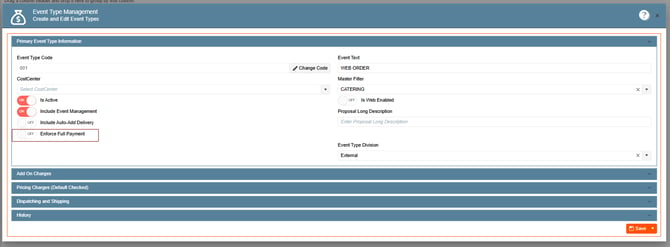
Note: This configuration is being released to Core first, ahead of the Shopping Cart integration. The Enforce Full Payment in Portal option will appear in Event Type Management now, but it will not take effect until the corresponding Shopping Cart release. Enabling it in this release will not change payment behavior yet; the enforcement begins once the Shopping Cart update is live in the next release.
2. Having an appSetting that will allow me to change the "Guest Count" when an event is submitted:
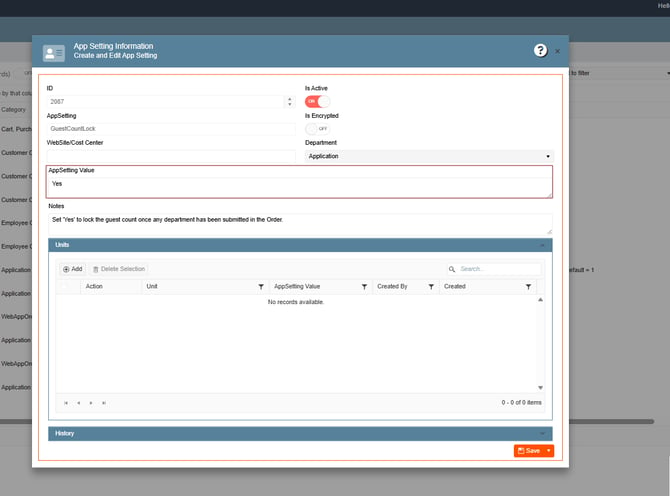
A new GuestCountLock setting has been added to allow organizations to control whether the Guest Count field can be updated after department submission. By default, the current behavior remains unchanged and the field is locked after submission. When disabled, users can continue editing the Guest Count even after one or more departments have been submitted.
1. At the top of the screen on the right side click on the Gear Icon
2. Select App Settings
3. Serach for the appsetting called: GuestCountLock
Next,
4. On the left side panel, go to Sales & Marketing
5. Click on Event & Order Management
6. Select Event Management - All Status Types Included
7. Open an existing event, go to Order Details, submit a department
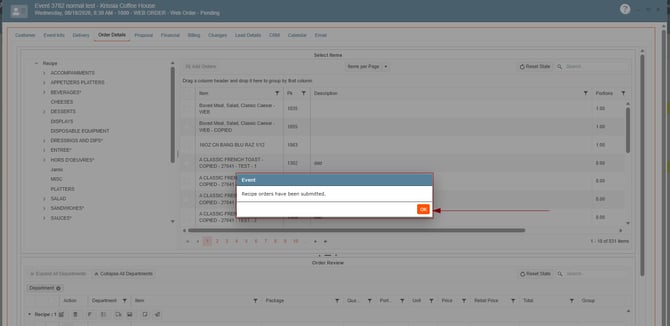
Once the department has been submitted, go to the Event Info Tab and check the Total filed, this should be locked. 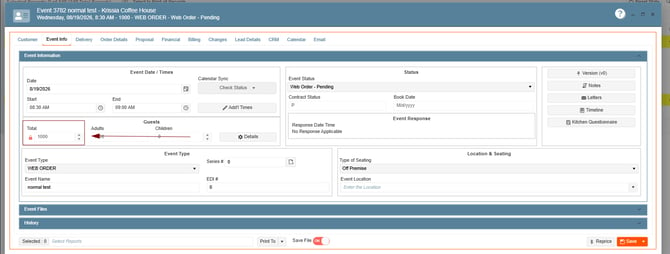
Bugs:
1. Calendar Management window Throws Unexpected Error (Null Reference Exception):
An issue causing a Null Reference Exception when users clicked the Calendar icon has been resolved. The calendar page now loads correctly, with improved object validation and error handling to prevent application failures and ensure reliable access to calendar functionality.
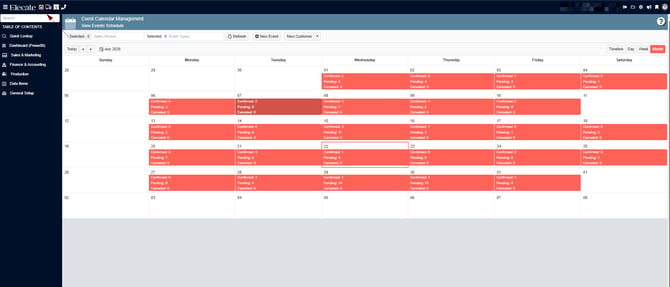
At the top of the screen on the Left side, next to the Elecate logo, you´ll find the Calendar Icon:
2. After rejecting a change request with comments, it does not clear out from the OPS views:
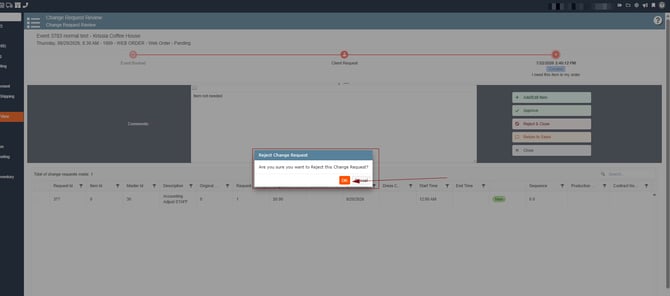
The Change Request process has been improved so that when a user in the Main Kitchen, Operations, or Staffing view rejects a change request and provides comments, the rejected request is automatically removed from the Change Request view.
This enhancement ensures the list only displays pending requests that still require action, improving visibility and reducing clutter.
1. On the left side panel, go to Sales & Marketing
2. Click on Event & Order Management
3. Select Event Management - All Status Types Included
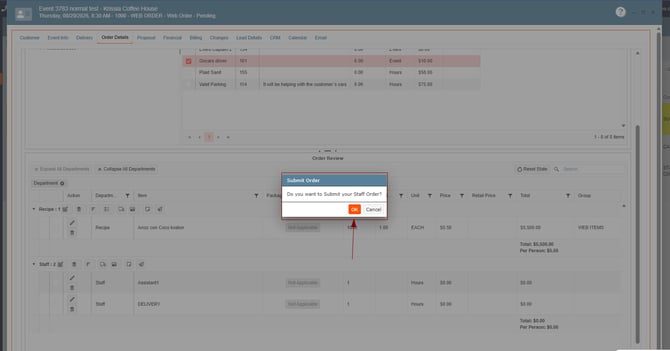
4. Open an event, go to Order Details, add staff item, submit the department:
Next
5. Go to Main Sales View
6. Search for your event, select the Change Request Column, select the Staff Department
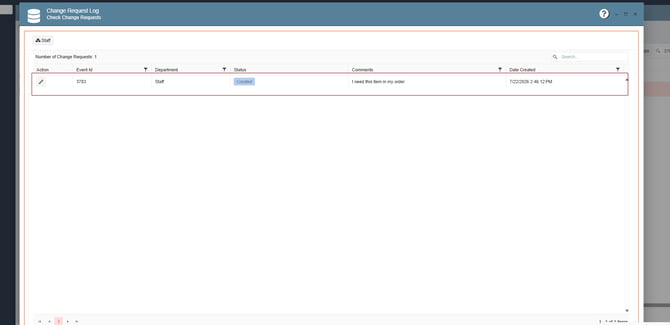
7. Add an item to the event, enter the reason of the change request
Then
8. Go to Production
9. Select Event Staffing
10. Click on Main Staffing View
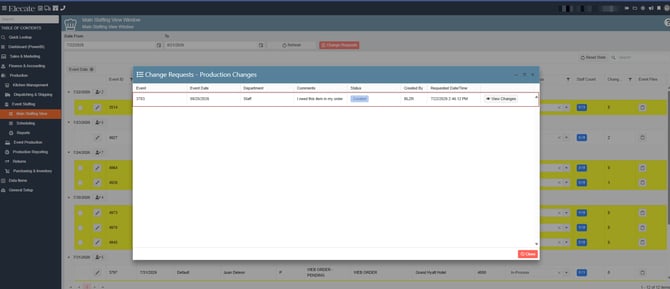
11. Once you click on it, a window is displayed showing the current Change Request
12. Select your event, once you are into the Change Request Review window, you will have 5 different options, leave a comment, remember to click on Reject & Close:
3. Editing Days Pop Up Notification Text is crashing in Production env.:
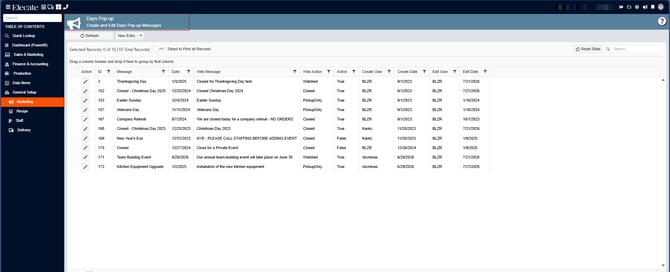
An issue causing the Notification Edit modal to fail in the Production environment has been resolved. Improved validation and error handling prevent the NullReferenceException that was occurring when opening or editing notifications, ensuring the modal functions reliably.
1. On the left side panel, go to General Setup
2. Click on Marketing
3. Select Create and Edit Days Pop-up messages
4. Batch Changes modal does not retain dropdown selections and incorrectly requires Start Time and End Time:
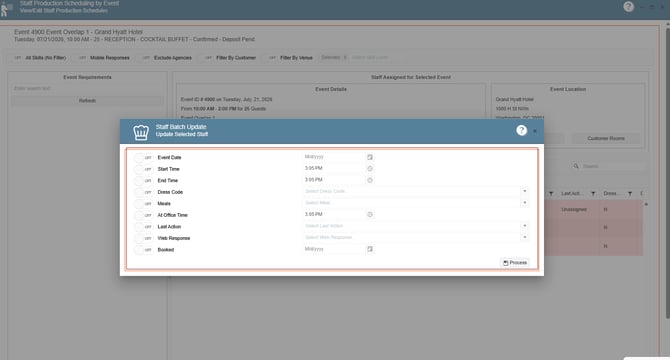
Issues in the Batch Changes modal within Staff Production Scheduling have been resolved. Dropdown selections now save and apply correctly, and users can perform batch updates without being required to enter Start Time and End Time when modifying unrelated fields.
This fix improves the flexibility and usability of batch updates for selected skill types.
1. Go to the Staff Production Scheduling
2. Select an existing event
3. Select multiple skill types
4. Select the "Batch Change" button