
Feature Request:
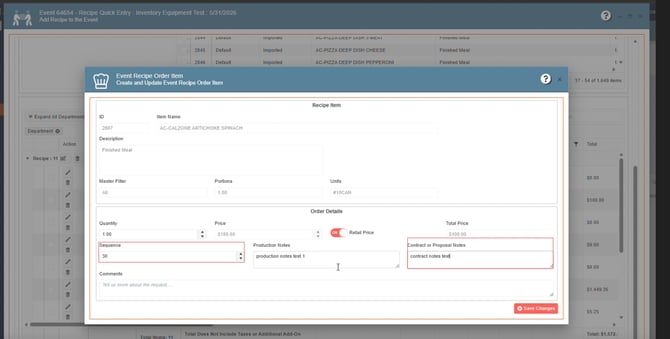
1. Being able to change the Sequence, Contract and Production Notes on a Change Request:
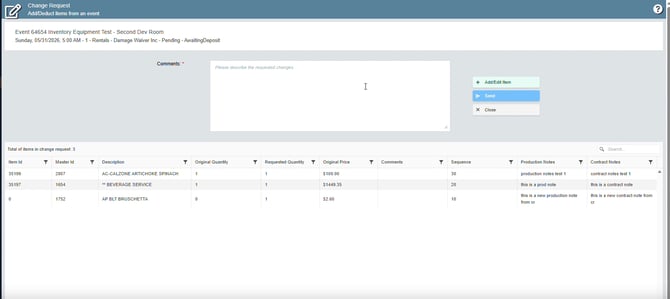
Salespeople can now create and manage Change Requests for submitted orders from the Main Sales View, including the ability to sort items by Sequence and add or edit Contract Notes and Production Notes. These fields are now properly displayed in the Change Request grids.
Additionally, approved Change Request items will now correctly reflect the updated values in reports.
1. Go to Sales & Marketing
2. Click on Event & Order Management
3. Choose Event Management - All Status Types Included
4. Open an existing event, add items from the different departments, add notes in the Production Notes or Contract or Proposal Notes, change the sequence, submit of the departments
5. Save and close the event
1. Go to Sales & Marketing
2. Click on Event & Order Management
3. Select Main Sales View
4. Search for your event, go to the Change Request column
5. In the following window, review the grid if the information is displayed Production Notes or Contract or Proposal Notes and sequence
2. Quantity Field has the capacity increase:
Users are able to introduce a quantity up to 999,999.999 on the Quantity field, and a round up logic has been implemented to complement the update.
Users can test this quantity increase by following these steps:
A. Go to Data Items
B. Go to Food Management
C. Go to Recipe management
D. Select an existing recipe
E. Go to "Select Ingredients"
F. Select an existing ingredient or create a new one
G. Set up a quantity up to 999,999.999

Bug Fixes:
1. Inactive location records are showing up in the cost center tab (Equipment Management window):
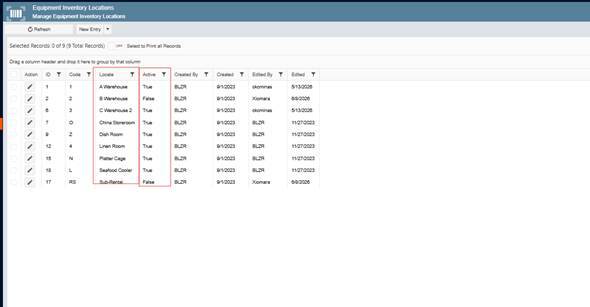
The issue has been fixed. Disabled inventory locations will no longer appear in the Cost Center tab within Equipment or any Data Management window. Users will now only see active inventory locations in those sections.
-
- Go to Data Items
- Click on Equipment Management
- You can either select the Equipment Management (All Items) or Equipment Management (Active Items Only)
- Open an existing record
- Go to the Cost Center Tab
- Edit or create a new Cost Center, in the INV Location column, review in the drop-down menu if only the activate locations are showing up (current issue, inactive locations are showing up in the drop-down when are disabled)

2. Version Module – Crash, Pricing Mismatch, and Time Format Errors:
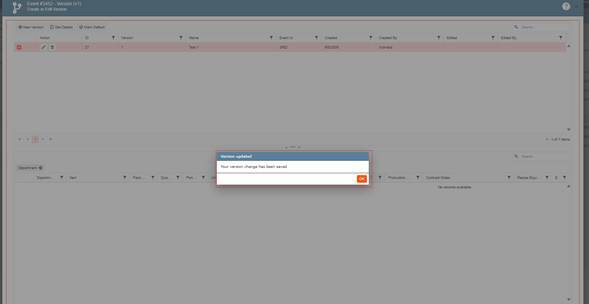
The reported issues in the Versions module have been fixed.
The crash that occurred when selecting a version and clicking Mark Default has been resolved.
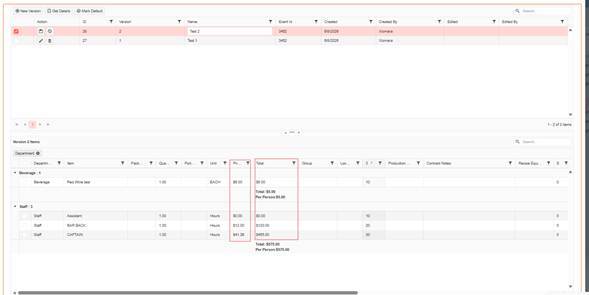
The Price column in the Version modal now correctly displays the unit price for each individual item instead of the total combined amount.
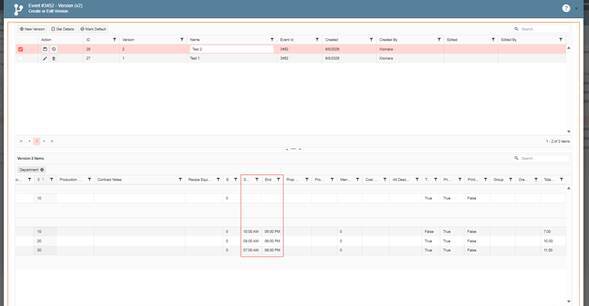
The Skill Staff time entries now display using the proper AM/PM format to avoid confusion with scheduled shifts.
- Navigate to Sales and Marketing.
- Select Event and Order Management.
- Go to Event Management – All Status.
- Open Any Event or Create a New One and add items to Order Details
- Go to the Event Info tab.
- Open the Versions section; Create a new version with the items on the event
- Set the name of the version and save it
- Click Get Details and wait for the order data to load, so you can check the items on your version
- You can also check the Price & Total columns for financial information in regards your saved version
- You can also check the Start & End time columns for the skill types assign to your event.
3. When changing sequence for Course & Section the values will reset if you try to lower it multiple times:
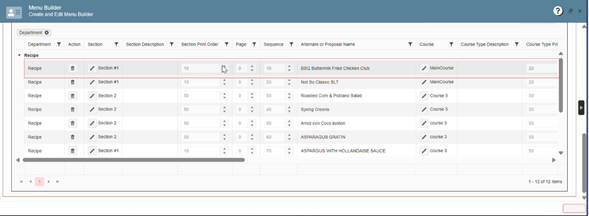
Users can now change the sequence order for multiple courses and sections within an event without the values resetting, even when swapping the ranking order multiple times.
- Go to Data Items
- Select Equipment Management
- Click on Equipment Inventory Locations
- Review the active and inactive locations
- Look for an existing event
- Go to Menu Builder
- Add 2 sections and at least 3 courses per section
- When doing so, do the following:
- Course 1: Sequence Value 10
- Course 2: Sequence Value 20
- Course 3: Sequence Value 30
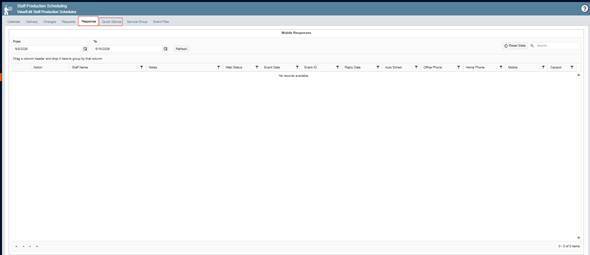
4. Quick Glance Tabs Not Loading Data (Delay when selecting tabs) and occasionally blue screen:
The reported issues have been fixed.
- The Response and Quick Glance tabs now load data properly without extended delays.
- Users should no longer experience blank or unresponsive screens when accessing these tabs.
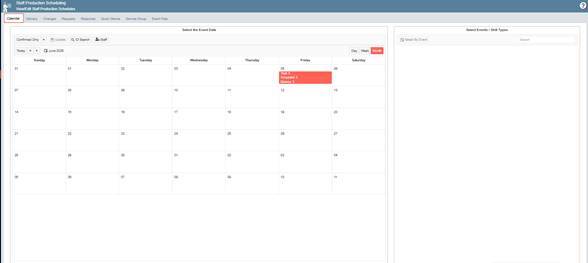
- The Calendar tab has been updated to prevent blue screen errors when refreshing. The system will now display an appropriate error message and follow-up actions instead.
- The Response tab controls have also been aligned with Empower’s general UI for a more consistent user experience.
- Go to Production
- Click on Event Staffing
- Select Staff Production Scheduling
- In the following window, try to select any of the following tabs: Response and Quick Glance
Enhacements:
1. Adjust Error Modal Size and Layout to Fit Window in Prep Quantification:
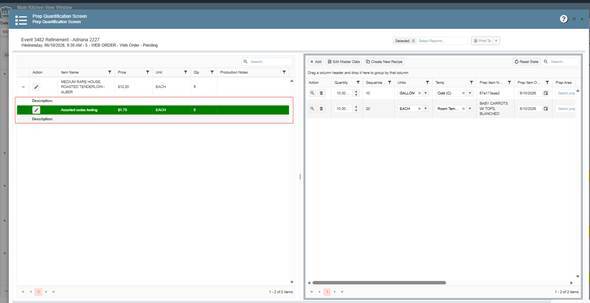
The issue reported in the Menu Prep window has been resolved. Users should now be able to open the modal window without receiving the error message.
1. Go to Production in the left side menu
2. May click on the Kitchen Management option
3. Open the Main Kitchen View
4. Click the Pencil button to open the Prep Quantification Window
2. Quantity Field Capacity Increased:
Previously, an error occurred when users added a Recipe Prep item with a high quantity value, especially when the item was set to scale based on the event quantity. In some cases, when the calculated quantity exceeded 1,000, the application displayed an error.
This has now been improved. Recipe Prep items can now support scaled quantities up to 999,999.999 without causing an error.
Additionally, the related error messages have been refined to make them clearer and easier for users to understand. The message display has also been improved so that it no longer takes up the entire screen in similar scenarios.
Users can test this quantity increase by following these steps:
A. Go to Data Items.
B. Go to Food Management.
C. Go to Recipe Management.
D. Select an existing recipe.
E. Go to Recipe Prep.
F. Select an existing Recipe Prep item or create a new one.
G. Set the quantity up to 500 and make sure the Scaling flag is turned ON.
H. Click Save & Close.
I. Add this recipe to an event with a quantity higher than 200.
J. Follow the normal submit process for the Recipe department.
K. Go to the Prep Quantification window in the Main Kitchen View and select the event you were working on.
L. Edit the recipe you were testing.
Users should be able to edit the recipe without seeing the previous error message.