
Bug Fixes:
1. Inactive location records are showing up in the cost center tab (Equipment Management window):
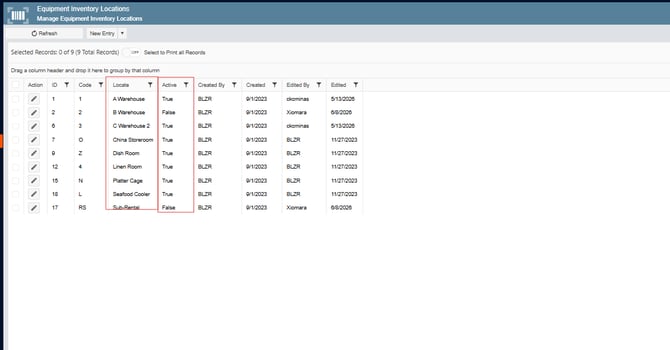
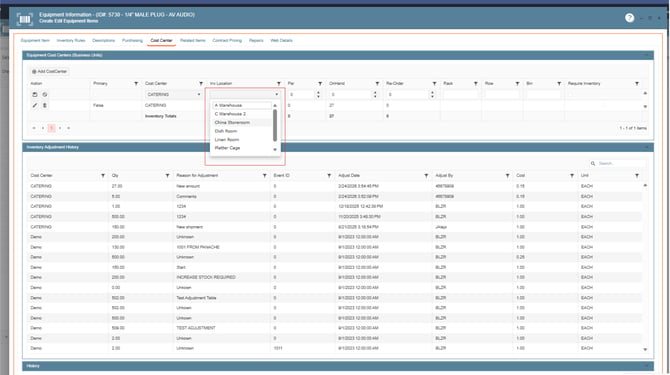
The issue has been fixed. Disabled inventory locations will no longer appear in the Cost Center tab within Equipment or any Data Management window. Users will now only see active inventory locations in those sections.
-
- Go to Data Items
- Select Equipment Management
- Click on Equipment Inventory Locations
- Review the active and inactive locations
 Next:
Next:-
- Go to Data Items
- Click on Equipment Management
- You can either select the Equipment Management (All Items) or Equipment Management (Active Items Only)
- Open an existing record
- Go to the Cost Center Tab
- Edit or create a new Cost Center, in the INV Location column, review in the drop-down menu if only the activate locations are showing up (current issue, inactive locations are showing up in the drop-down when are disabled)
2. Version Module – Crash, Pricing Mismatch, and Time Format Errors:
The reported issues in the Versions module have been fixed.
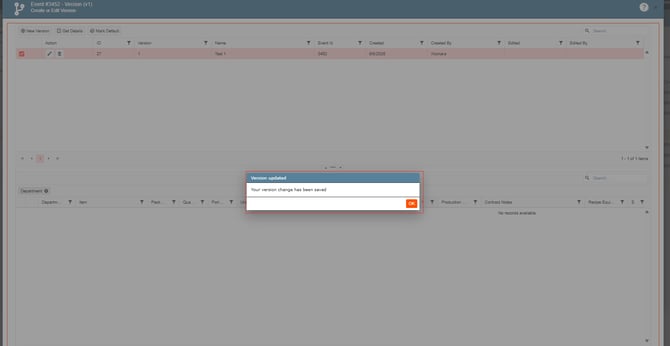
- The crash that occurred when selecting a version and clicking Mark Default has been resolved.
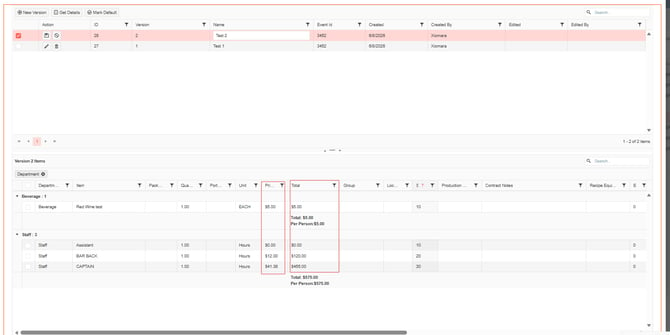
- The Price column in the Version modal now correctly displays the unit price for each individual item instead of the total combined amount.
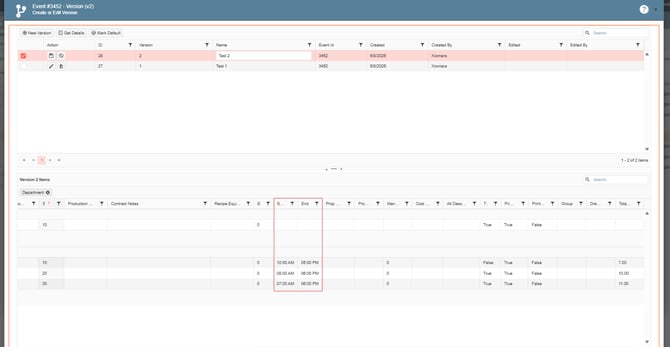
- The Skill Staff time entries now display using the proper AM/PM format to avoid confusion with scheduled shifts.
- Navigate to Sales and Marketing.
- Select Event and Order Management.
- Go to Event Management – All Status.
- Open Event 2656 and go to the Event Info tab.
- Open the Versions section; four versions are displayed.
- Select the version named Test 1.
- Click Get Details and wait for the order data to load.
- Click Mark Default.
- Navigate to Sales and Marketing.
- Select Event and Order Management.
- Go to Event Management – All Status.
- Open Event 2656 and go to the Event Info tab.
- Open the Versions section; four versions are displayed.
- Select the version named Test 1.
- Click Get Details and wait for the order data to load.
- Check the Price and Total columns
- Navigate to Sales and Marketing.
- Select Event and Order Management.
- Go to Event Management – All Status.
- Open Event 2656 and go to the Event Info tab.
- Open the Versions section; four versions are displayed.
- Select the version named Test 1.
- Click Get Details and wait for the order data to load.
- Check the star and end time format:
3. When changing sequence for Course & Section the values will reset if you try to lower it multiple times:
Users can now change the sequence order for multiple courses and sections within an event without the values resetting, even when swapping the ranking order multiple times.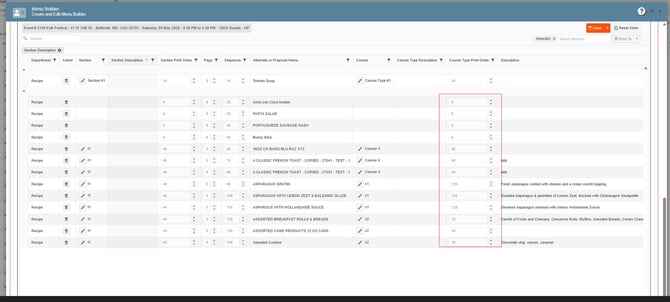
-