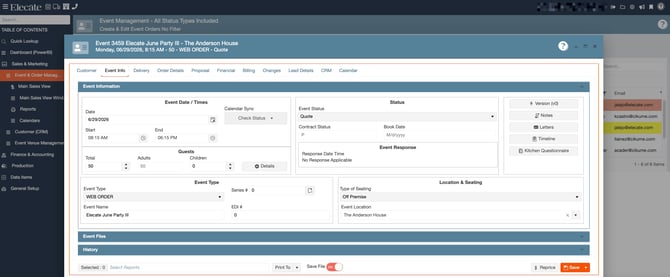
Feature Request:
1. Having Grid Persistence in the Quantification Area:
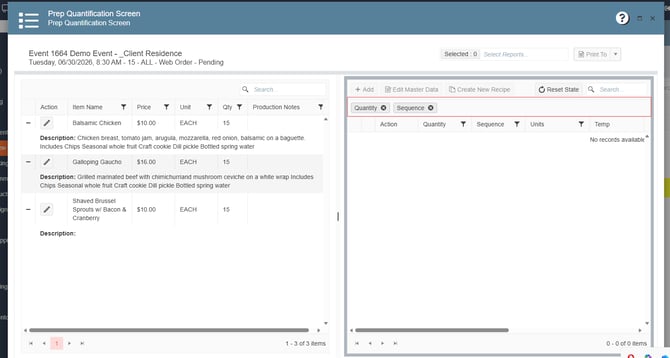
Grid persistence has been added to the Prep Quantification area. Users can now group and sort columns based on their preferences. These settings will be saved, so when users leave and return to the window, their customized layout will remain intact.
1. On the left side panel, go to Production
2. Click on Kitchen Management
3. Select Main Kitchen View
4. Open an event, select one of the recipe items by clicking on the pen icon
5. On the right side, you´ll see the Quantification Area, you can start using Grid persistence
Bug Fix:
1. Print Order value in Menu Builder courses is not updating, causing issue when making updates in the courses:
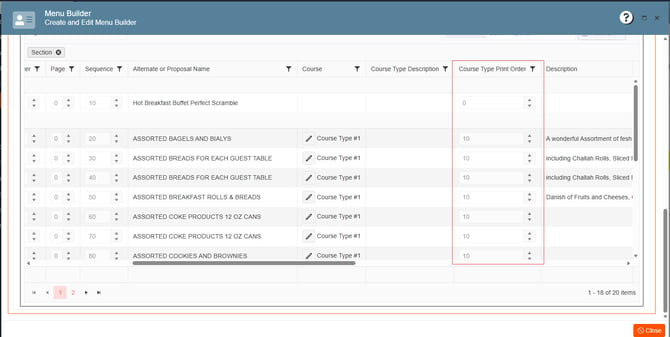
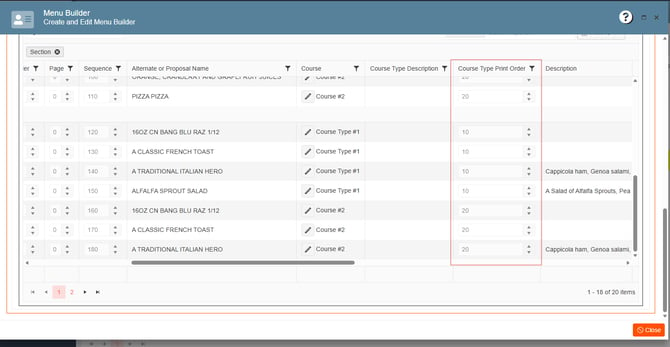
When creating courses in Menu Builder, the Print Order field automatically updates in increments of 10. This allows flexibility for adding notes, descriptions, or making other updates without disrupting the order of existing items.
1. On the left side panel, go to Sales & Marketing
2. Click on Event & Order Management
3. Select Main Sales View, pick an event and click on the Menu Builder Icon
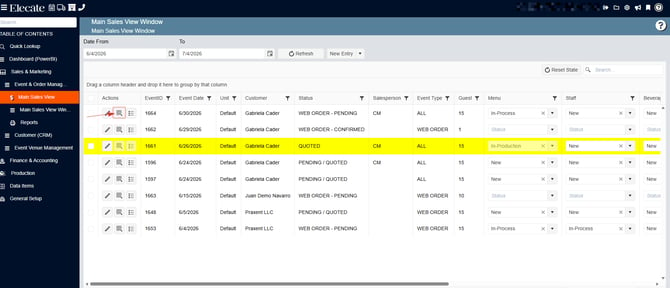
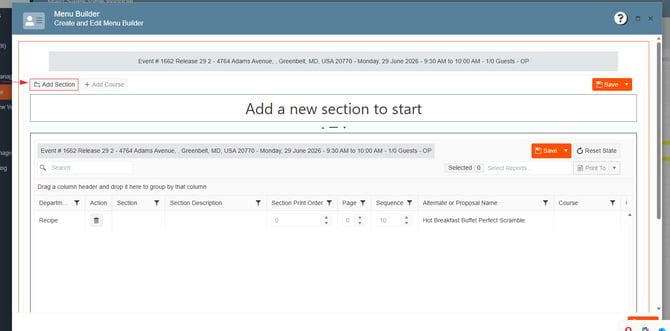
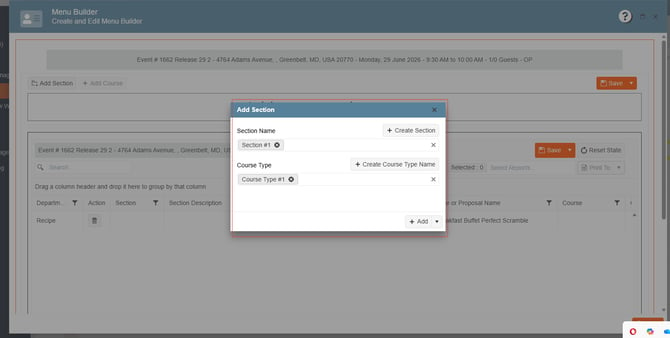
4. Add 2 Sections and 2 Courses to the event:
5. Add items to the different courses, save changes, at the bottom you´ll see the grid with the items added and the Course Type Print Order column:
2. Sales production notes should populate in Staff production schedule Production Notes per Skill Type:
Now sales notes can be seeing in the Staff Production Schedule window.
1. On the left side panel, go to Sales & Marketing
2. Click Event & Order Management
3. Select Event Management - All Status Types Included
4. Open an existing event, go to order details, add staff item, save the changes
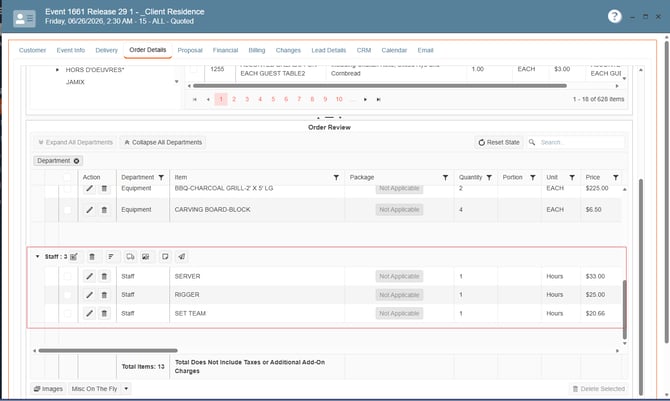
Next
5. Go to Production
6. Select Event Staffing
7. Choose Main Staffing View
8. In the calendar, search for the event, double click on it
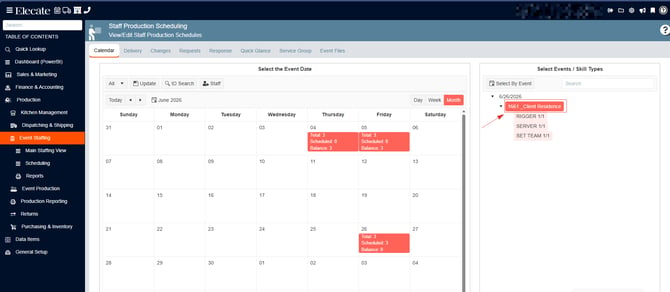
When event is opened, you will be able to see the Production Notes: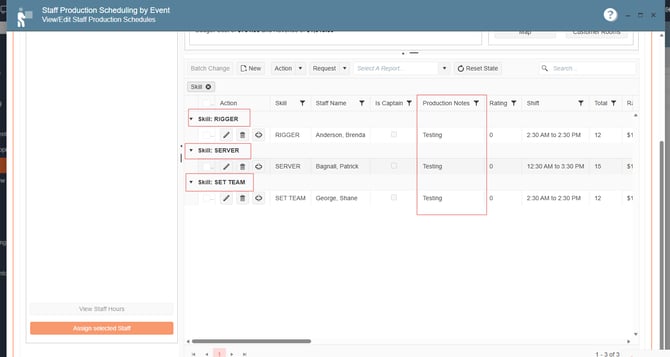
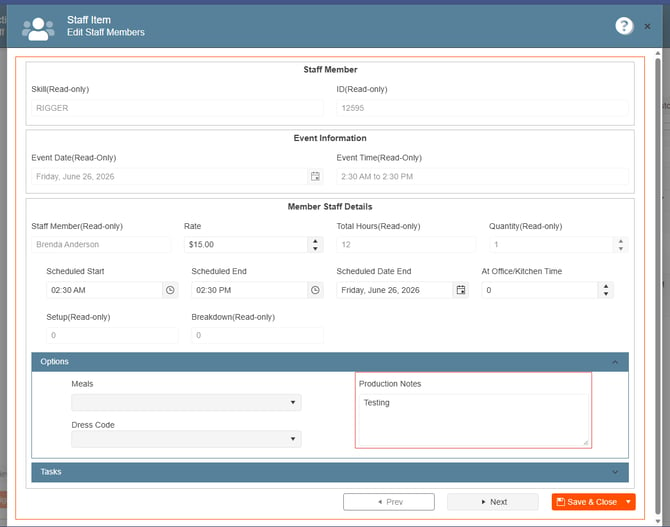
And after assigning a staff member to the skill, the production notes can be seeing in each of them:
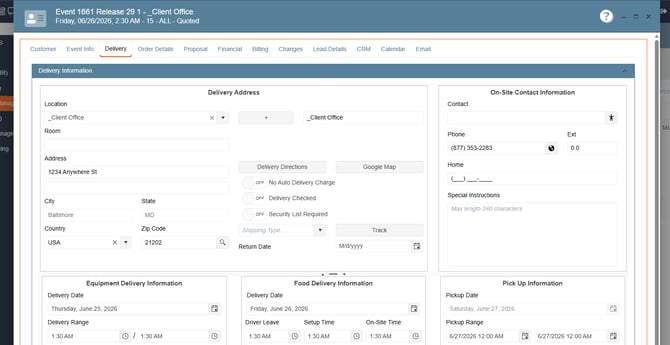
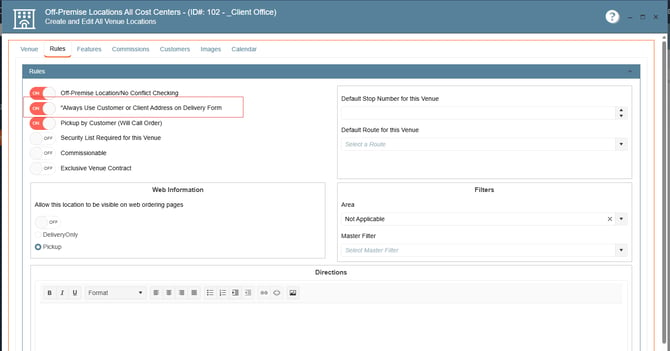
3. Delivery address resets after event time changes for new and existing events based on “Always Use Customer or Client Address on Delivery Form” rule:
An issue was identified where the delivery address could reset after modifying the event time, affecting both new and existing events. The behavior varied depending on the “Always Use Customer or Client Address on Delivery Form” setting.
1. On the left side panel, go to Sales & Order Management
2. Select Event Venue Management
3. Choose Off-Premise Locations All Cost Centers - All Status
4. Pick a Venue, go to the Rules Tab, review if the ¨Always Use Customer or Client Address on Delivery Form¨ rule is ON or OFF:_
- When the rule is OFF, the delivery address may revert to the customer address
- When the rule is ON, the delivery address may revert to the default address from the venue
Next
5. Go to Sales & Marketing
6. Click on Event & Order Management
7. Select Event Management - All Status Types Included
8. Open an existing event, go to the Delivery Tab, review the Location and address, next change the event´s time and check if the address remains the same: