Feature Request:
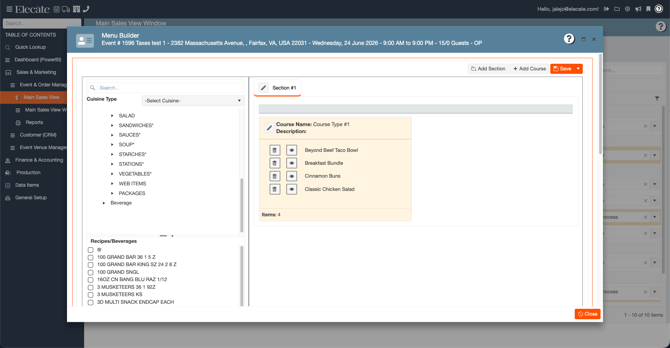
1. Adding a search bar in the Menu Builder window that can search Food and Beverages:
- On the left side panel, go to Sales & Marketing
- Click on Event & Order Management
- Select Main Sales View
- Open the Menu Builder Feature
- Once the event opens, you´ll be able to see the search bar on the left side window
2. Being able to change the email body template when sending an order attachment:
The requested enhancements have been successfully implemented.
Email Sending Improvements
You will now notice an improved email experience when sending reports from the order card:
- A redesigned email window aligned with Elecate standards (updated title and buttons)
- Ability to upload additional attachments and remove them as needed
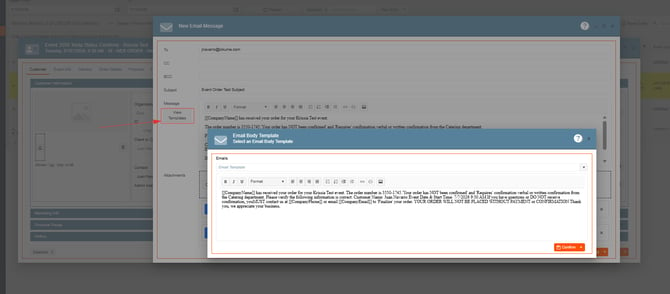
- Option to change the email body template using a dropdown
- When selecting a new template, you’ll be prompted to preview and confirm it in a modal window before applying the change
Email Template Management
In addition, administrators now have enhanced control within the Email Management window:
- Email templates can now be categorized by Mail Type (e.g., Event, Proposal, or others)
- This makes it easier to organize and select the appropriate templates during the sending process
These updates are designed to provide more flexibility and streamline your workflow when managing and sending emails.
- On the left side panel, go to Sales & Marketing
- Click on Event & Order Management
- Select Event Management - All Status Types Included
- Open an existing event, go to the report field, select one or two reports, from the print drop-down menu, select Send Email
- Open View Templates
-
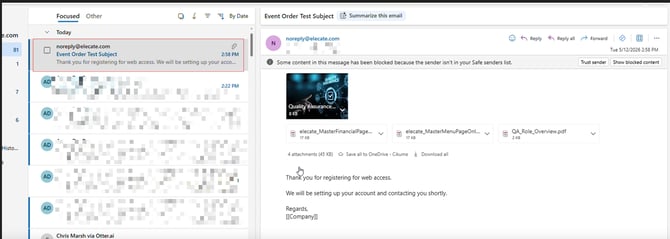
Once you have modified the template, enter the desired recipient’s email address in the “To” field to send the information.
Bug Fixes:
1. Incorrect PG Price and Negative value in the sequence column when adding a Sub-recipe:
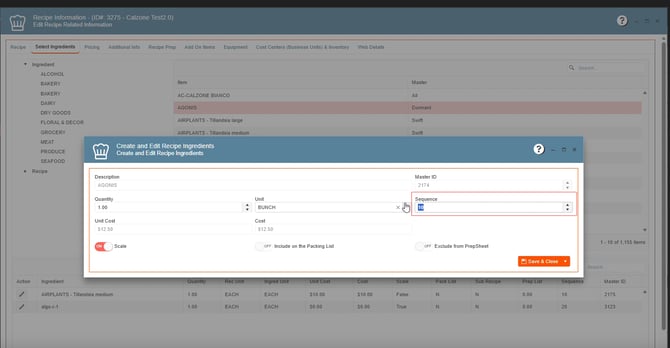
When adding an ingredient or sub-recipe, the system will now correctly display the Unit Cost and Cost values, ensuring accurate calculations.
Additionally, validation has been improved so that only positive values can be entered, helping prevent errors and maintain data consistency.
- Go to Data Items
- Click on Food Management
- Go to Recipe Management (Active Items Only)
- Open an existing record
- Go to the Select Ingredients tab
- Add Ingredients to the recipe
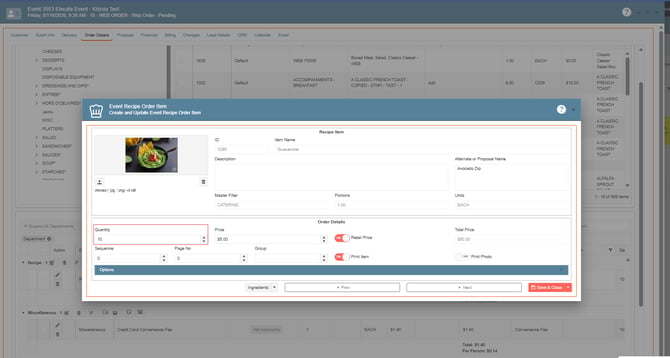
- Go to the Order Details, open the item by clicking on the pen icon
- Go to the sequence field
- Enter a negative value, Save & Close
- Review if the app saves the information
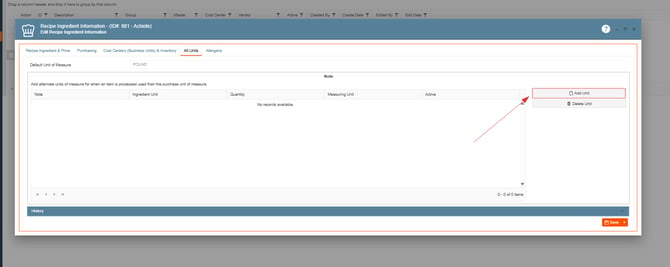
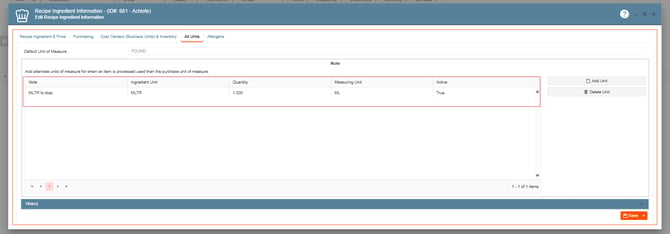
2. Alt Units Duplicate and Do Not Refresh Properly in Recipe Building Window:
This issue has been fixed. Alt Units will no longer duplicate, and the screen now refreshes automatically after creating one.
- On the left side panel, go to Data Items
- Click on Food Management
- Select Ingredient Management (All Items)
- Open an existing record, go to Alt Units Tabs
- Select Add Unit on the right side of modal window
- Create the new data, review if the information is automatically displayed after creation: