Feature Request:
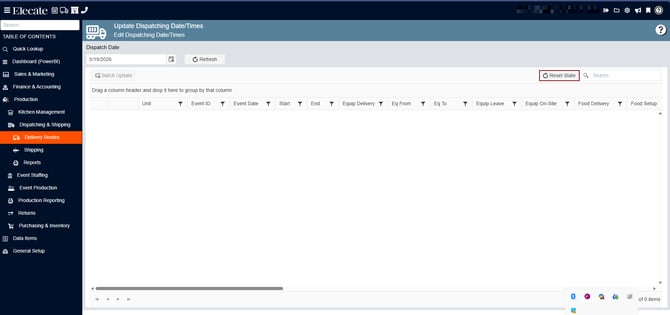
1. Adding the "Reset State" button on the "Update Dispatching Date/Times" window:
- It was added the "Reset State" button on the "Update Dispatching Date/Times" that reset the grid persistence and preferences back to default.
1. On the left side panel, go to Production
2. Click on Dispatching & Shipping
3. Select Delivery Routes
4. Update Dispatching Date/Times
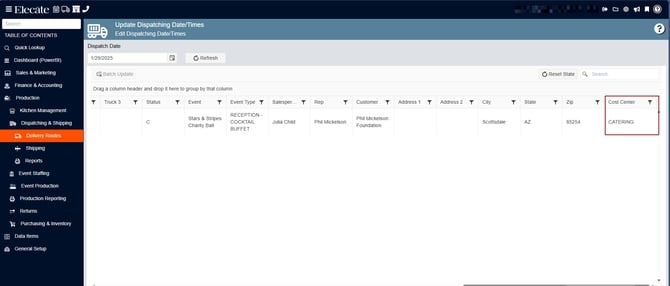
2. Allowing users to see records only for their assigned Cost Center column in the Update Dispatching Date/Times Window:
To enhance usability and make scheduling easier, we’ve introduced updates to the Update Dispatching Date/Times Window.
- A Cost Center column is now displayed in the grid.
- Users will only see dispatch events with their assigned Cost Center(s).
- The grid now automatically filters events, so you only view your own records—similar to other areas like Equipment and Events.
- Now loads only Events for users assigned to that Cost Center.
1. On the left side panel, go to Production
2. Click on Dispatching & Shipping
3. Select Delivery Routes
4. Update Dispatching Date/Times
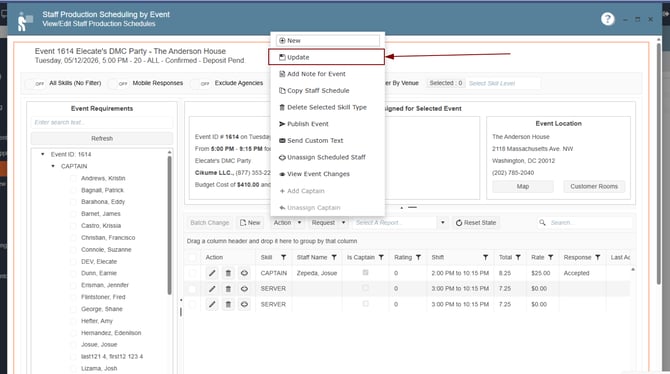
3. Being able to Update the Event Staff from the Staff Prod Scheduling Window:
- An Update option is available in the action dropdown, allowing you to apply up to six different updates.
- A new button has been added under the sections list for quick access.
- A loading screen will appear while the update is being processed.
1. On the left side panel, go to Production
2. Click on Event Staffing
3. Select Staff Production Scheduling
4. Search for the event in the calendar, on the right box double click on the event
Bug Fix:
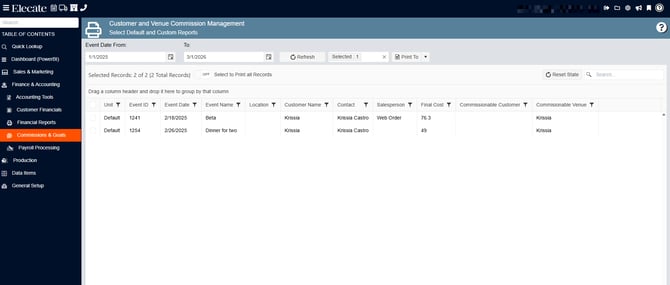
4. Blue Screen Error When Refreshing Customer and Venue Commission Management window:
Blue Screen Error fixed, issue is no longer happening in the Customer and Venue Commission Management Window.
1. On the left side panel, go to Finance & Accounting
2. Select Commissions & Goals
3. Click on Customer and Venue Commission Management
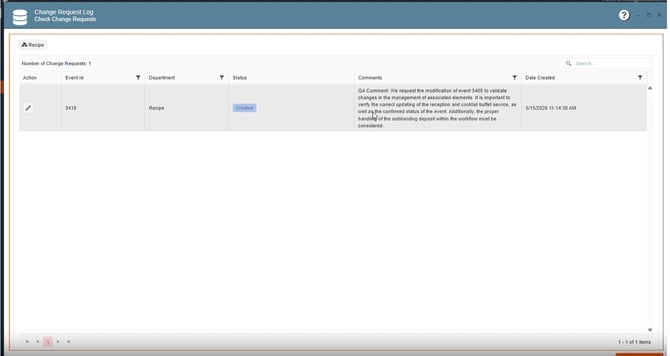
5. Blue Screen Error When sending a Change Request without items from the Main Sales View window:
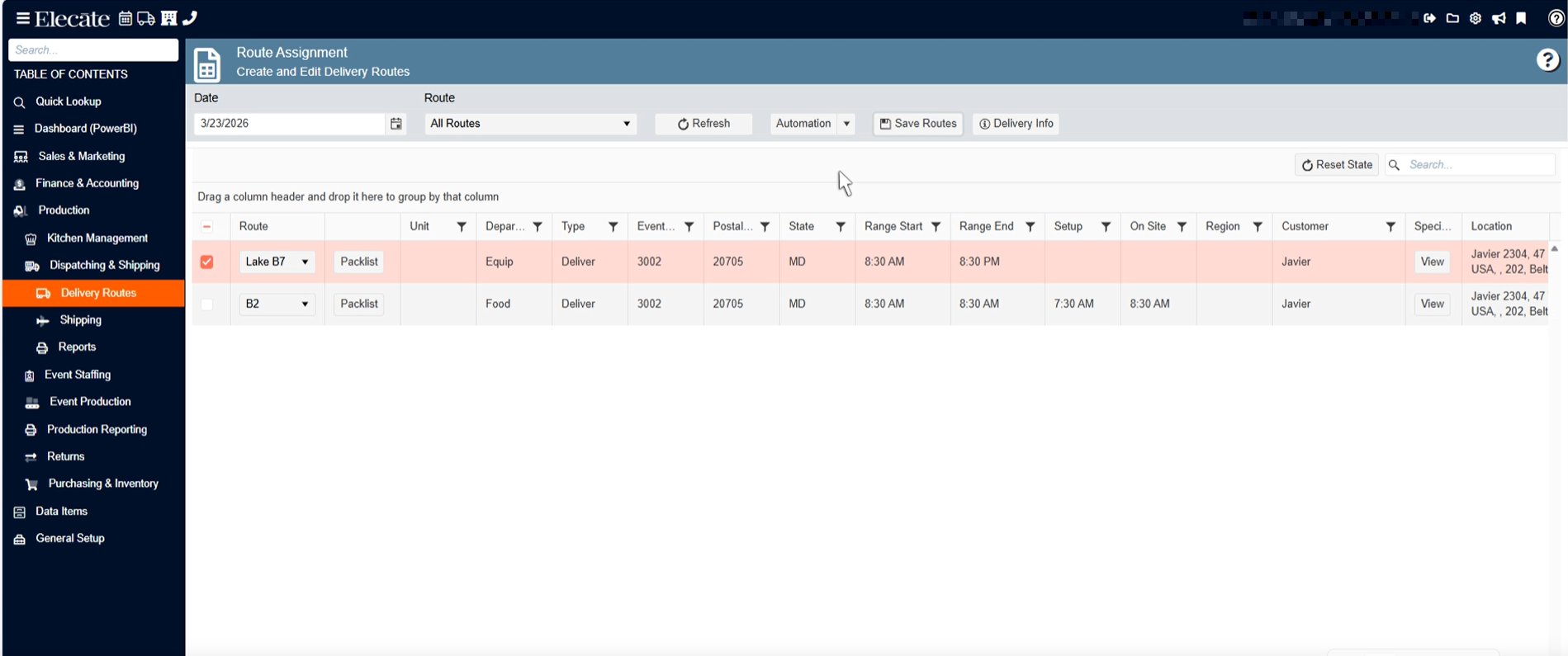
5. Select Events and assign routes
6. Go back to Dispatching and Shipping/Delivery Routes
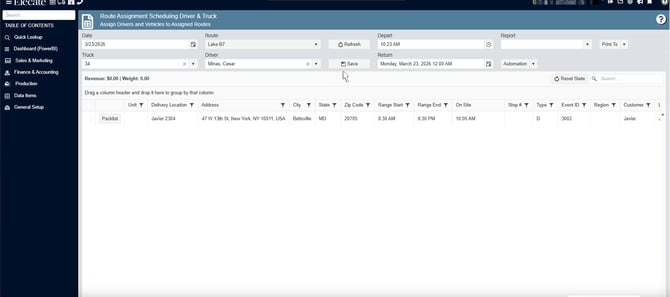
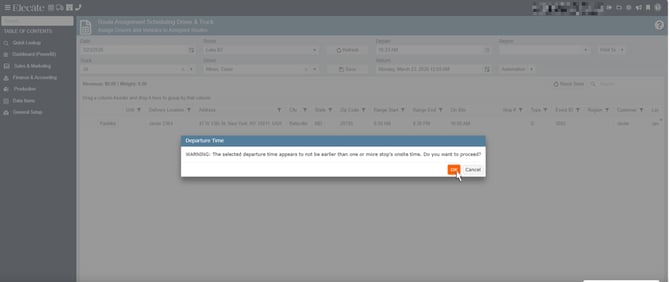
7. Select Route Assignment Scheduling Driver & Truck