
Feature Requests:
-
Add the ability to open the Event card from the Payments Received Reporting Window
- Including Beverage Items Order Review within Menu Builder
- Enter Purchase by Invoice and changes in the Vendor Item Update
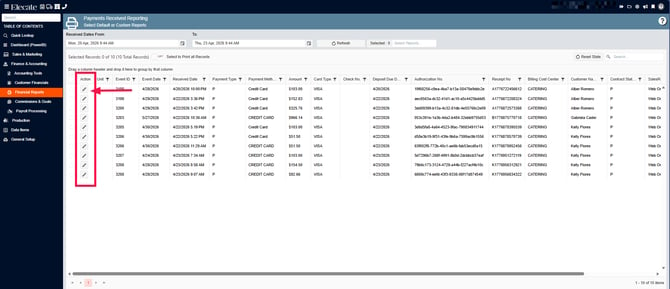
To expedite bank reconciliations, a new Actions column must be added to the table and displayed as the first column in the grid within the Payments Received Reporting window.
Each row in the Actions column must display an Edit (pen) icon.
Behavior:
-
When a user clicks the Edit (pen) icon:
- The Event [[EveID]] window must open.
- This applies specifically to Check entries.
-
When the user saves changes in the Event window:
- The system must update the event information.
- The Payments Received Reporting window must refresh automatically.
- The refreshed grid must display the updated data.
- Related Event Financials transactions must also be updated.
1. On the left side panel, go to Finance & Accounting
2. Click on Financial Reports
3. Select Payments Received Reporting
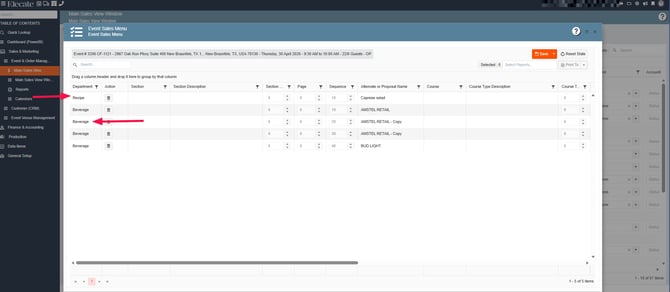
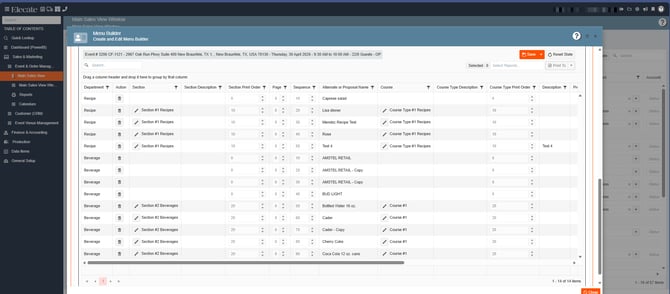
Kitchen Managers will include beverage items when designing a menu using the Menu Builder. Selected beverages will display in both the Menu Builder grid and the Event Sales Menu, and all relevant reports must also reflect beverage items.
A new Department column was added to the Event Sales Menu to distinguish between Recipes and Beverages. Users will be able to leverage existing Grid Persistence features, including grouping by this new column.
Beverage items will support editing the same fields as recipe items, including:
- Section Print Order
- Page
- Sequence
- Course Type Print Order
- Quantity
- Production Notes
- Course Type
- Section
Additionally, users must be able to delete items from this department section.
1. On the left side panel, go to Sales & Marketing
2. Click on Main Sales View
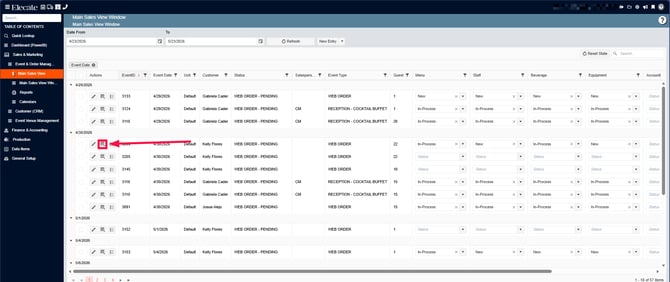
3. Search for the Event ID and click on the Menu Builder Icon
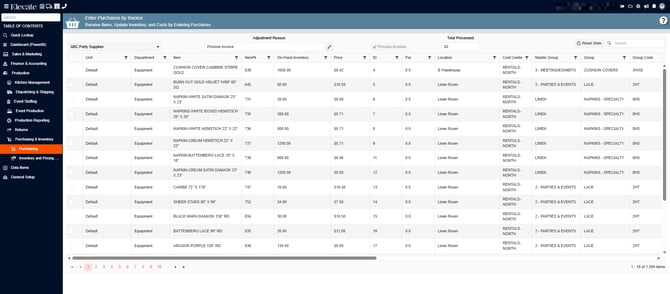
Updating state in the Enter Purchase by Invoice and changes in the Vendor Item Update:
Enter Purchase by Invoice
- Add a pencil icon next to Adjustment Reason that opens a pop-up to update the value.
- The Adjustment Reason field should be read-only in the main view.
- Pop-up requirements:
- Title: Update Adjustment Reason (Elecate standard, white text)
- Field: Adjustment Reason (max 50 characters)
- Footer: Save and Close button with a dropdown Close option
- After saving, the updated Adjustment Reason should display in the main screen.
- Behavior updates:
- Inventory column grid refreshes after a Vendor Item update.
- Total Processed recalculates as the sum of all processed invoice items.
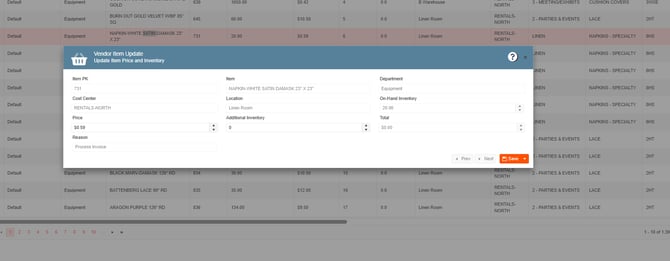
Vendor Item Update
- Increase modal window width and improve spacing.
- Display full item name (increase field length to 50 characters).
- Add read-only fields for:
- Item ID
- On-Hand Inventory (based on Cost Center/Location)
- Update buttons to Elecate standard (Save and Close with dropdown).
Original Request Context
- Expand the vendor modal window and add a primary key (PK) field.
1. On the left side panel, go to Production
2. Select Purchasing & Inventory
3. Choose Purchasing
4. Click on Enter Purchase by Invoice
- Bug Fix:
Slow loading in the order's Equipment overbooking pop-up window