1. Wanting to have the "Global Admin" role, so that I can assign to users from the User Management Window (Academy):
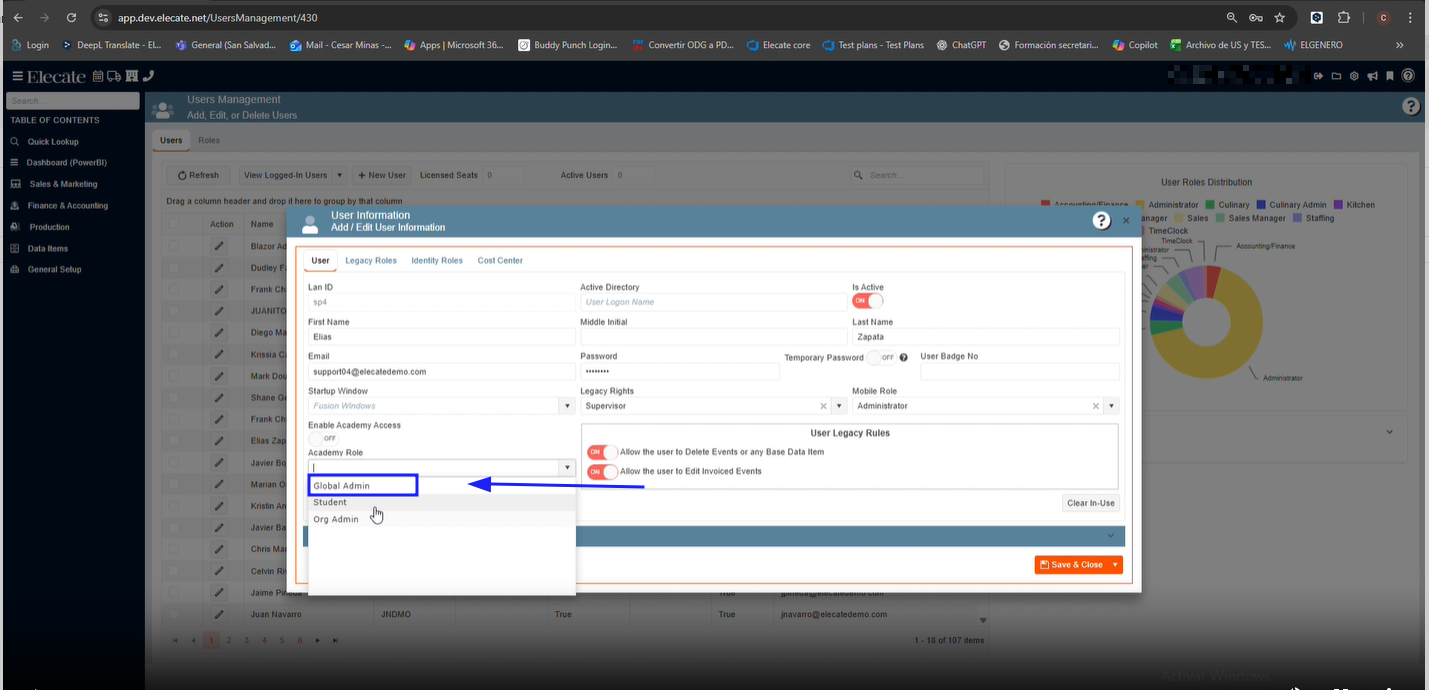
- On User Management, on the "Academy Role" field, we need to add the option for the "Global Admin" role, in order to allow users to assign that academy role to any given user in that database and will behave as the "SysAdmin" role that we have on Keycloak.
1. At the top of the screen, on the right side click on the Gear Icon
2. Look for User Managements (Second Page)
3. Select an existing record, from the Academy Role drop-down, choose Global Admin
2. Needing the Dev team to Add Confirmation Window for Sync and Delete Actions in Event Management Screen:
-
When the user clicks Sync Calendar, a confirmation dialog should appear with:
- Header: Confirm Email Calendar Invite?
- Message: “By confirming, a meeting invite will be sent notifying all participants that an event has been scheduled in their calendars”
- Options: Confirm and Cancel.
- When the user clicks Delete, a confirmation dialog should appear with:
- Header: Delete Email Calendar Invite?
- Message: “By confirming, all meeting attendees will receive an email notifying them that the calendar invite has been cancelled. Please note that this is a standard cancellation message from the email provider; the event itself is not being cancelled.”
- Options: Confirm and Cancel.
- If the user clicks Confirm, the respective action (Sync or Delete) is executed.
- If the user clicks Cancel, no changes are made, and the dialog closes.
- The confirmation dialog should be consistent with the system’s UI/UX standards.
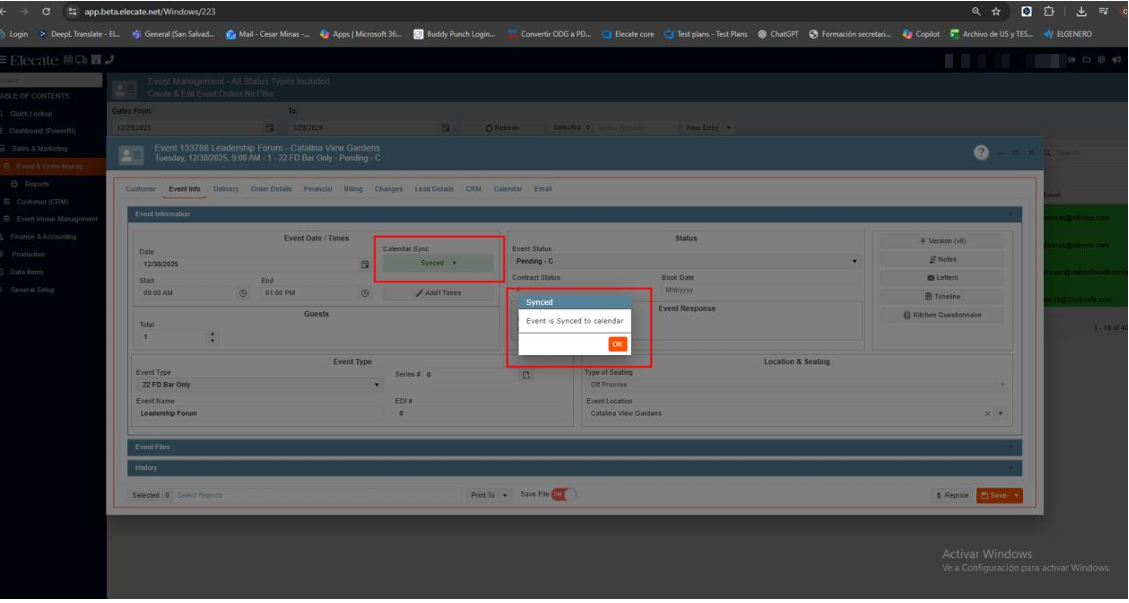
1. On the left side panel, go to Sales & Marketing
2. Select Event & Order Management
3. Click on Event Management - All Status Types Included
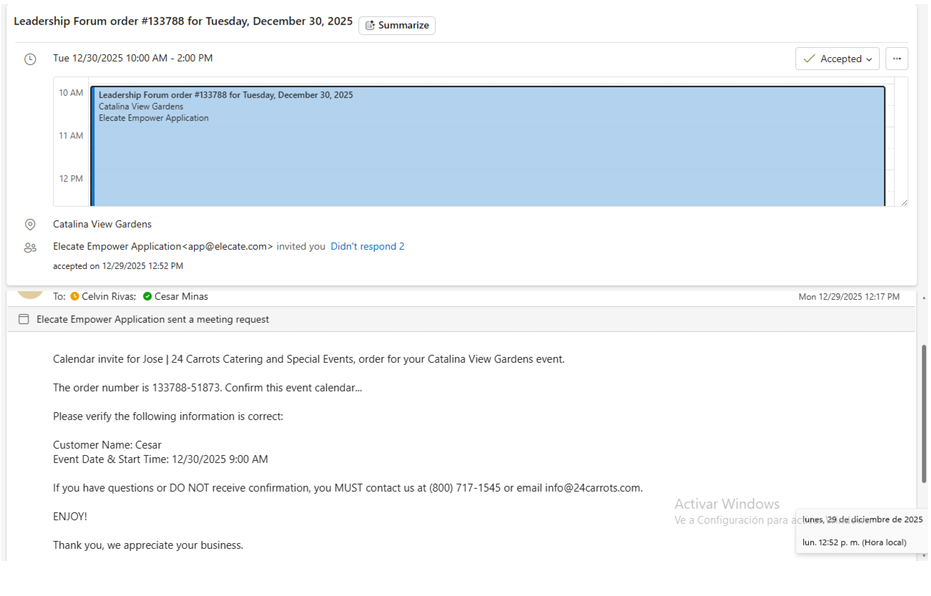
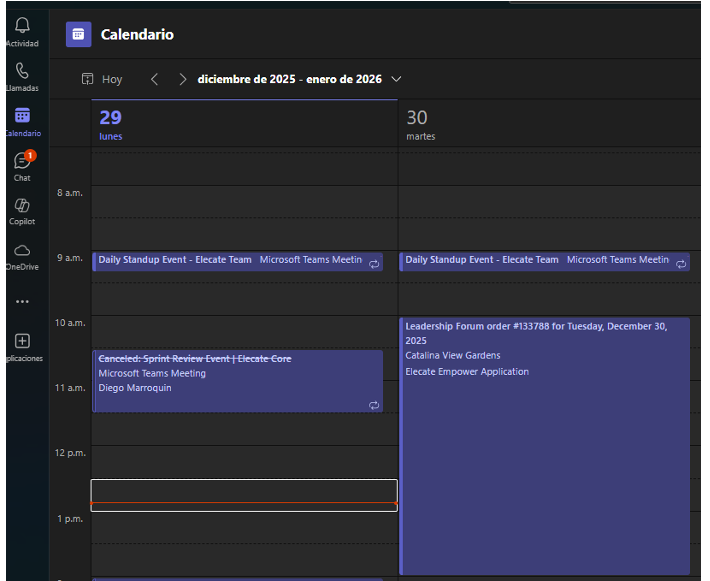
4. Once you completed all the required information, next go to the Event Info Tab, the Calendar Sync button is next to the date field, click on the Calendar drop-down and select Sync to Calendar, the invite is automatically sent to the calendar to schedule the event.