1. Wanting a new prompt on the Prep Quantification Screen for scaling:
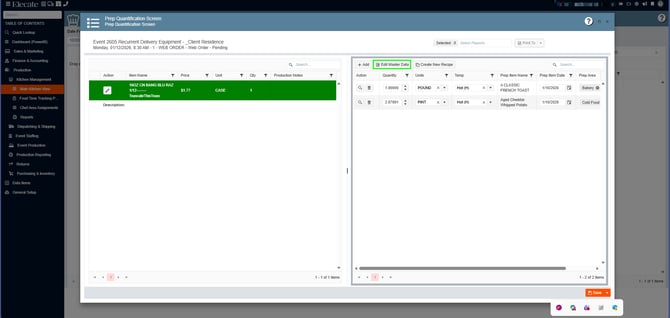
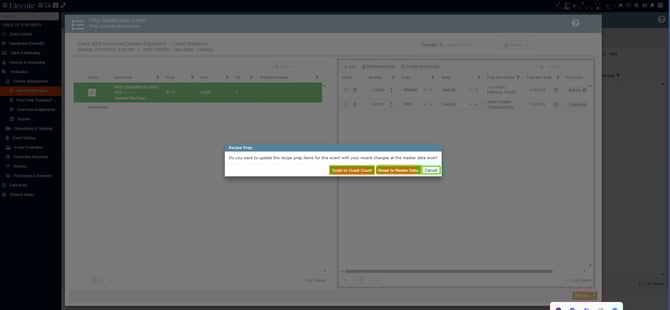
- When the user goes to the Prep Quantification Screen, and then click on the "Edit Master Data" window and then exit out of the screen, they will get a prompt, we need to change it for the following:
- Header: Recipe Prep
- Text: Do you want to scale the recipe prep at the guest count level or reset it to the master data level?
- Buttons:
- Scale to Guest Count
- Reset to Master Data
- Cancel
- Scale to Guest Count
- This will scale the recipe prep quantity to the guest count event level
- Reset to Master Data
- This will retain its current functionality
- Cancel
- This will cancel the action and make no changes.
1. On the left side panel, go to Production
2. Click on Maing Kitchen View
3. Open an existing Event by clicking on the pen Icon
4. A window will pop-up, on the left side you will see the recipe item, click on the pen icon, on the right side you will see the Recipe Prep items, click on the Edit Master Data bottom
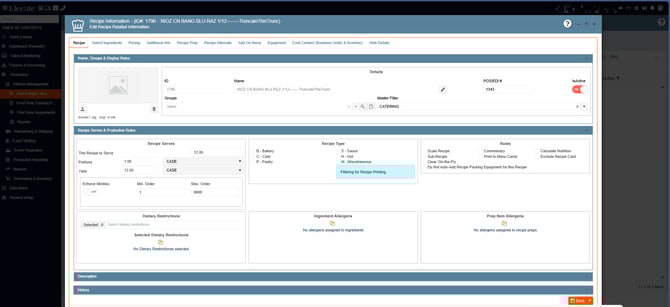
5. Review the serving in the Recipe Tab, next go to the Recipe Prep Tab, you can either modify an existing data or create a new one by clicking on New
6. Once you have completed the necessary changes, click on Save & Close, you will see a prompt with the following options: Scale to Guest Count, Reset to Master Data or Cancel
2. Wanting a better message when an item has tracking enabled, but its inventory value is zero (As a Sales Person):
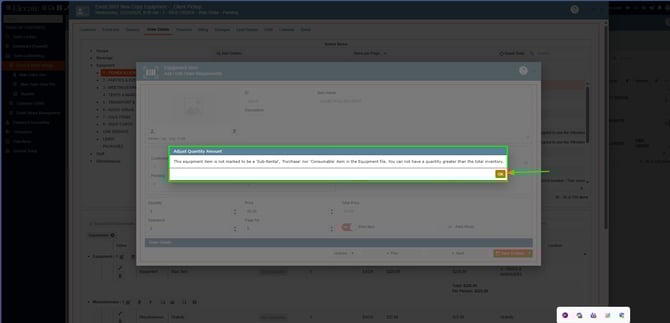
Given a Salesperson who is working on an Event Order Items, when they select an item which has an inventory value of zero and has its **Purchase Items** tracking rules are enabled, then they will receive a message stating that that item cannot be added:
> Cannot add item, tracker is active but inventory is currently zero
> The item [name of the item] cannot be added because has an inventory value set to 0, and the tracking is on. Please adjust the base item and try to re-select the item.
1. On the left side panel, go to Sales & Marketing
2. Click on Event & Order Management
3. Select Event Management - All Status Types Included
4. Open an existing event or create a new by clicking on New Entry
5. Add Equipment items to the event, if the item has the inventory rule ON, the following warning will pop-up:
3. Fit-n-finish to the Multiple Payment from the Event Window's Financial Tab:
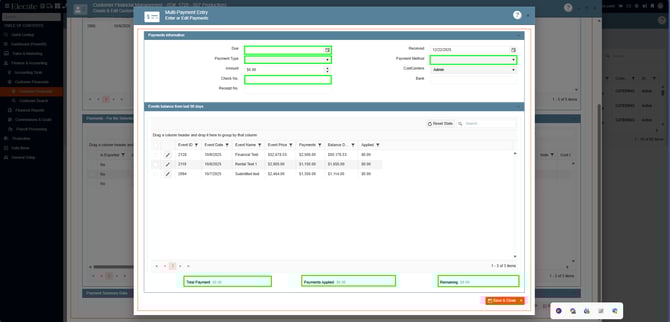
Given a Salesperson, when processing multiple payments for a customer in the Customer financials window then they:
a. Will not have a default value for the _Due Date_
b. Will now have the _Receipt No._ field
c. Will not be able to edit the _Payment Applied_ and _Remaining_ fields
d. Will have a better readability with labels near to the fields
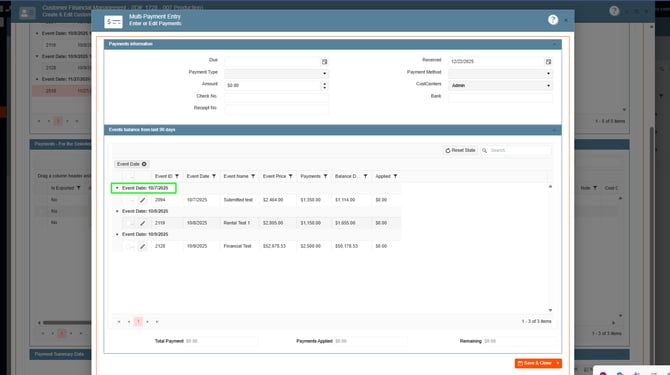
e. Will be able to look at only the date value and not time when grouping by Event Date
1. On the left side panel, go to Finance & Accounting
2. Click on Customer Financials
3. Select Customer Financial Management
4. Open an existing event, go to the Payments Tab, select the Multiple Payment button
4. Using negative dollar values on the Procurement Unit Cost of a Misc Item:
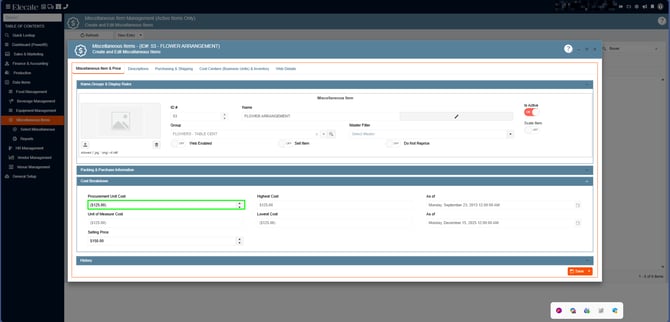
- On the cost breakdown section that can be found within the Miscellaneous Information entry window, we need to allow negative money values in the Procurement Unit Cost
1. On the left side panel, go to Data Items
2. Click on Miscellaneous Items
3. Select Miscellaneous Item Management (Active Items Only)
4. Open an existing item, go to the Cost Breakdown section, in the Procurement Unit Cost field, enter a negative value
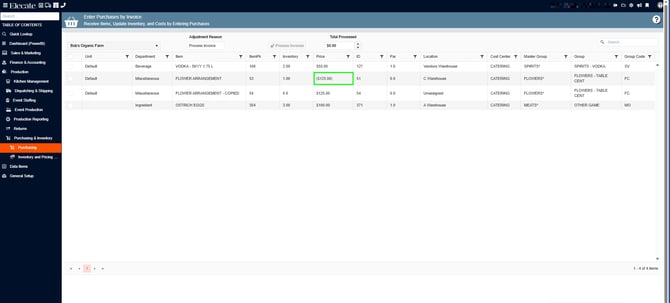
Next
5. Go to Production
6. Click on Purchasing & Inventory
7. Select Purchasing
8. Choose Enter Purchases by Invoice, from the Select Vendor drop-dowm choose the vendor
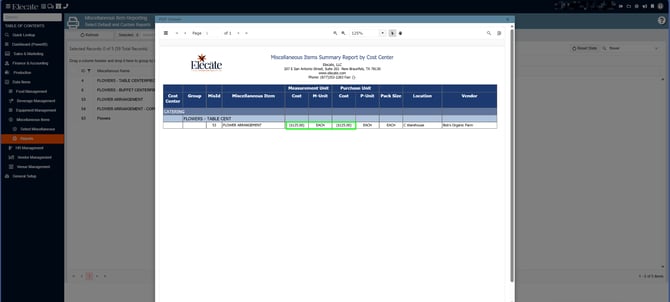
Finally
9. Go to Data Items
10. Click on Miscellaneous Items
11. Select Reports
12. Choose Miscellaneous Item Reporting
13. From the report field select a report
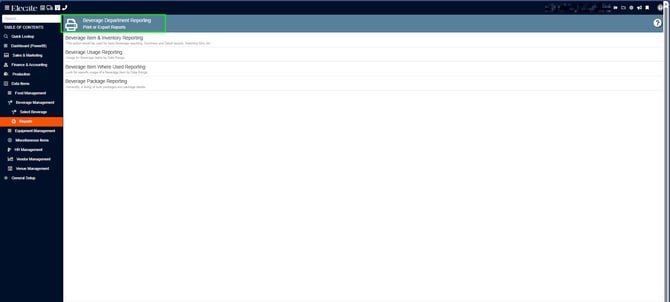
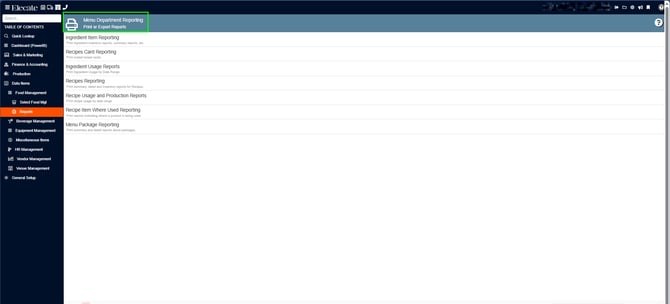
5. Requesting to the DB team to hide Non-Report Options from Beverage Reports Menu:
Given the user navigates to the Beverage Reports section:
When the menu is displayed,
Then only the "Reports" option should be visible.
-
All other options currently shown under Beverage Reports (as indicated in the screenshot) must be hidden.
1. On the left side panel, go to Data Items
2. Click on Food Management
3. Choose Reports
OR
4. Go to Beverage Management
5. Click on Reports