
Enhancements:
1. Controling whether a discount reason is required:
A new app setting, RequireDiscountReason, has been added to provide greater control over discount management. When this setting is enabled (Yes), users must select a discount reason before saving a discount. When disabled (No), the discount reason remains optional, preserving the current system behavior.

-
Go to Sales and Marketing
-
Select Event and Order Management
-
Choose Event Management - All Status Types Included
-
Open an existing event
-
Go to the Financial Tab

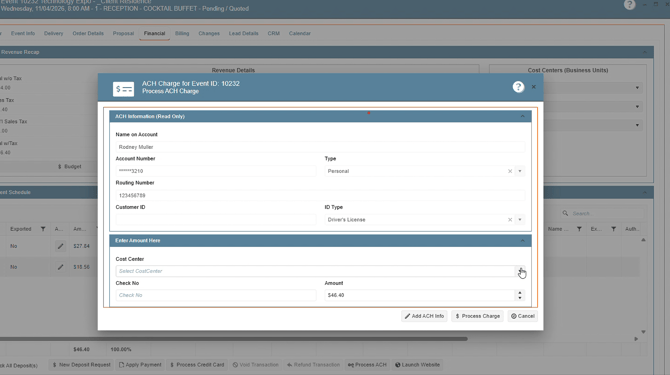
2. Preventing Duplicate ACH Charges Caused by Multiple Process Charge Submissions:
To help prevent duplicate ACH charges, the system has been enhanced to prevent multiple submissions of the same transaction. If the ACH response cannot be confirmed, the Process ACH button will be disabled and the user will be notified of a potential processing issue, helping avoid accidental duplicate charges.
-
Go to Sales and Marketing
-
Select Event and Order Management
-
Choose Event Management - All Status Types Included
-
Open an existing event
- Go to the Financial Tab, under Payment Schedule, click on Process ACH
3. Adding Event Manager Email Token to Email Management Templates:
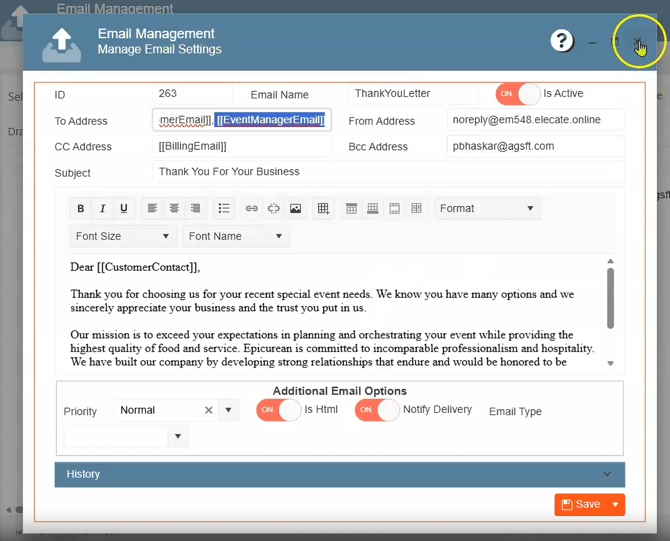
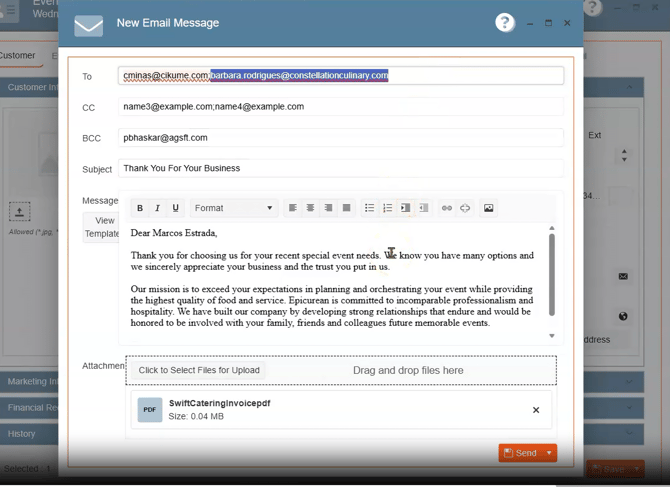
A new merge token, [[EventManagerEmail]], has been added to Email Management. When used in the To field, the token resolves to the assigned Event Manager’s primary email address, providing the same functionality and behavior as existing email tokens. If no Event Manager is assigned, the system follows the configured validation and error-handling rules.
- On the right side at the top, click on the Gear Icon
- Click on Email Management
- Search for your email template
-
Go to Sales and Marketing
-
Select Event and Order Management
-
Choose Event Management - All Status Types Included
- Open an existing event
- Go to the report field (Catering, Invoice), in the Print To button, select Email
Bug Fix:
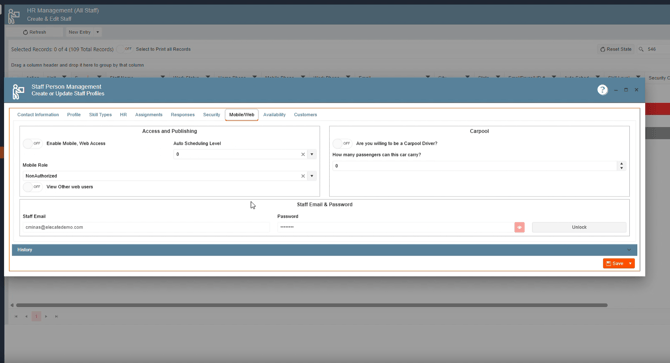
1. Deactivated Staff users retain Mobile App access after being disabled from the Staff MGMT Window:
It was validated that users disabled from the Staff MGMT window correctly lose access to the Staffing mobile application, fulfilling the expected behavior.
- Go to Data Items
- Click on HR Management
- Select HR Management (All Staff)
- Go to the Mobile/Web Tab
- Turn off the Enable Mobile, Web Access toggle
- In the Mobile Role drop-donw click on NonAuthorized
2. Rev Code table is not refreshing in the Salesperson Commission table:
After the fix was applied, the Rev Code data refreshes correctly within the Salesperson Commission table view, ensuring that updated values are displayed without requiring additional actions from the user.
- At the right side of the screen, click on the Gear Icon
- Click on Financial Setup
- Select Edit or Create Revenue Code

Next:
- Go to General Setup
- Click on Marketing
- Select Create an Edit Salesperson Commission by Revenue Code

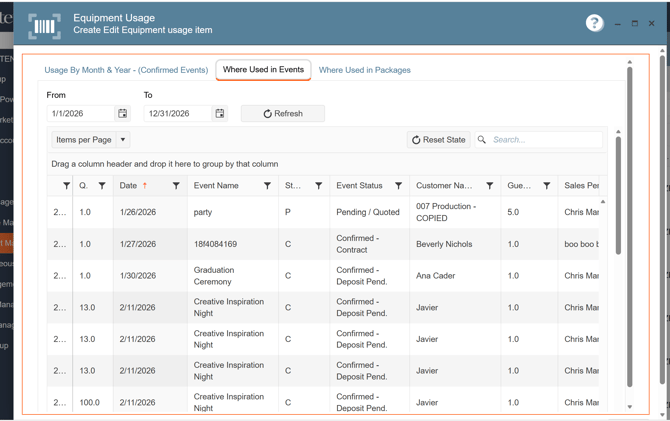
3. Item Usage History - Chronological Sort Ignores Year and Sorts by Month Only:
After the fix was applied, item usage history is now displayed in the correct chronological order, including the year in the sorting logic.
- Go to Data Items
- Click on Equipment Management
- Select Equipment Usage (Active Items Only)
- Open an existing item
- Go to the Where Used in Events Tab
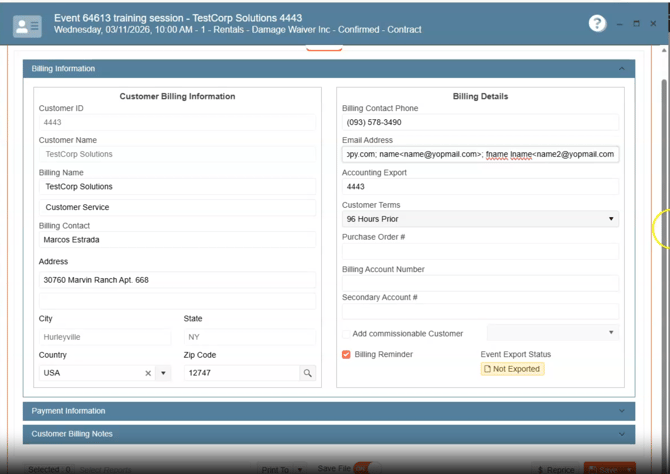
4. EventBillingEmail Is Not Required and Can Be Saved as Blank:
After the fix was applied, events without an Event Billing Email are properly identified and handled, ensuring billing communications and related processes can use a valid email address as expected.
-
Go to Sales and Marketing
-
Select Event and Order Management
-
Choose Event Management - All Status Types Included
-
Open an existing event
- Go to the Billing Tab
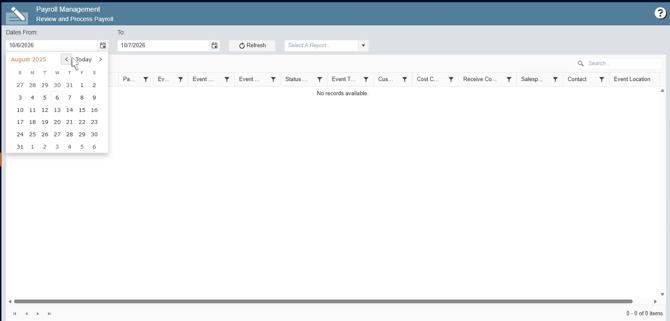
5. Payroll editor wipes evntstff columns (sktid, hours, location, booking flags, Bonus, signature link) on every save, causing NULL Skill Type in the Staffing Mobile App:
After the fix was applied, saving records in Payroll Management no longer overwrites evntstff fields with NULL or default values. Staff records retain their Skill Type and other related data, preventing synchronization issues in the Staffing Mobile App.
- Go to Finance and Accounting
- Click on Payroll Processing
- Select Payroll Entry
- Choose Payroll Management
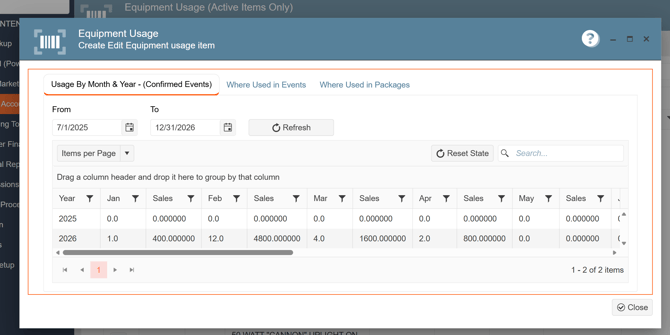
6. Equipment Usage Window Calendar Controls:
After the change was applied, both tabs now default to a broader date range that covers the current year rather than opening only to today's date. This provides users with more relevant results while avoiding the performance issues associated with loading all historical records.
- Go to Data Items
- Click on Equipment Management
- Select Equipment Usage (Active Items Only)
- Open an existing item
- Go to the Usage by Month & Year (Confirmed Events)
7. Deactivated users retain Mobile App access after being disabled in the User MGMT window:
After the fix was applied, deactivated staff users can no longer access the Mobile App. When Is Active is set to Off in Core User Management, the mobile application now correctly honors the user's inactive status and prevents login, ensuring access permissions remain synchronized with the Core system.
- Navigate to Users Management in the Core system.
- Select a staff user and open Add/Edit User Information.
- Set Is Active = Off to deactivate the user.
- Confirm changes by saving.
