
1. Wanting the Select customer modal show all the time the customers information:
- Customer search results
- Once a user access to the Select Customer info it should show all the available results in the account.
1. On the left side panel, go to Sales & Marketing
2. Select Event & Order Management
3. Choose Event Management - All Status Types Included
4. Open an existing event and click in the Update button

2. Wanting to set up GroupISO as the Credit Card processor so that I can process costumer transactions (as an Administrator):
Given and authenticated Administrator, when they want to set up GroupISO as merchant
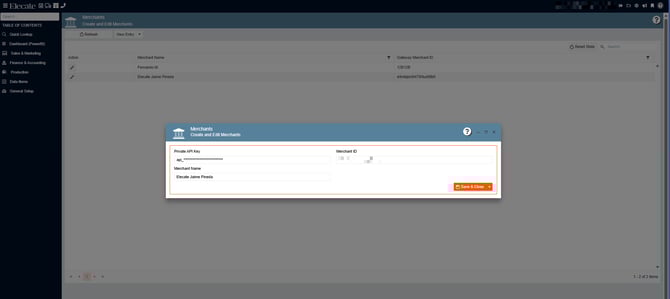
then they can set the `GroupISOFluidPay` for testing and `GroupISOFluidPayLive` value in the `CreditCardProcessor` AppSetting and then add the Merchant with its API Key, so finally can be assigned to the default unit.
1. At the top of the screen, on the right side click on the Gear Icon
2. Select Appsettings
3. Look for CreditCardProcessor and make sure we have on the value the following: GroupISOFluidPay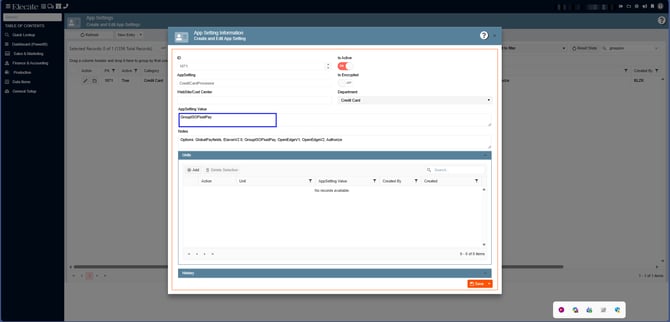
Next:
4. In the Gear Icon at the top on the right side, click on it
5. Look for Business Units
6. Select Create and Edit Merchants
7. By selecting the New Entry button, you can create a new merchant
3. Wanting to print the packages UPS labels within the system, so that I can improve setting times:
Given a user in the dispatching/pickup window, when they finish processing labels, then they have the option to print the ZPL format labels using the Zebra Printer.
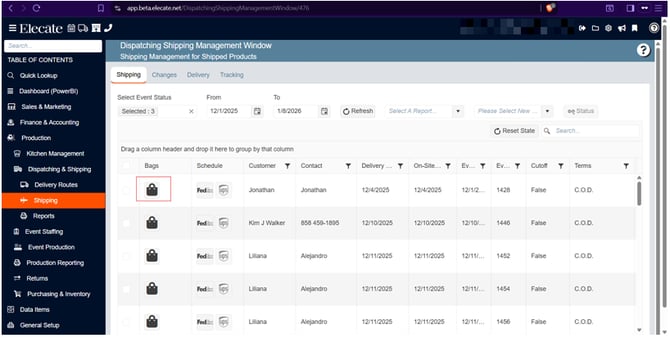
1. On the left side panel, go to Production
2. Click on Dispatching & Shipping
3. Select Shipping
4. Choose Dispatching Shipping Management Window
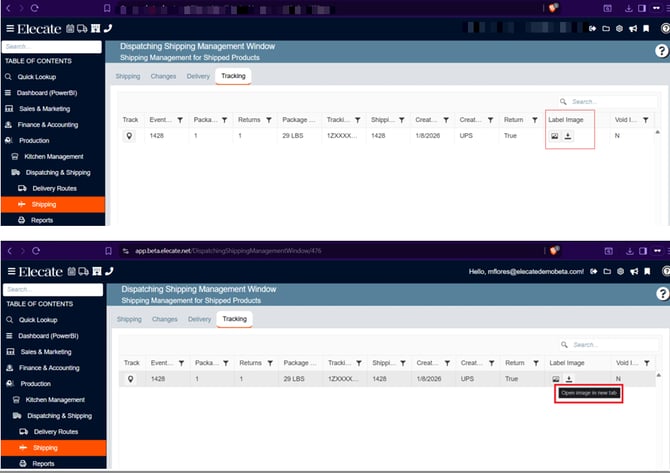
Creating a Return Label:
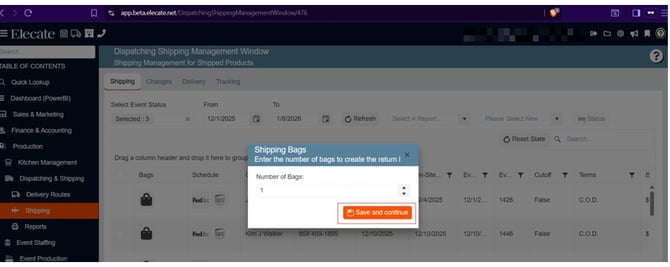
After creating the Return label, the Zebra Label Preview window can be accessed clicking
the Open Image button: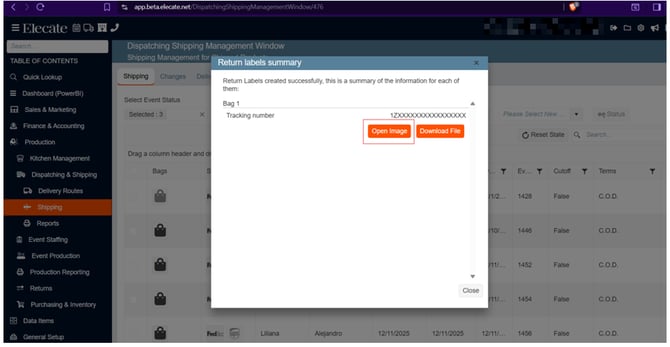

All the Label Size options are available: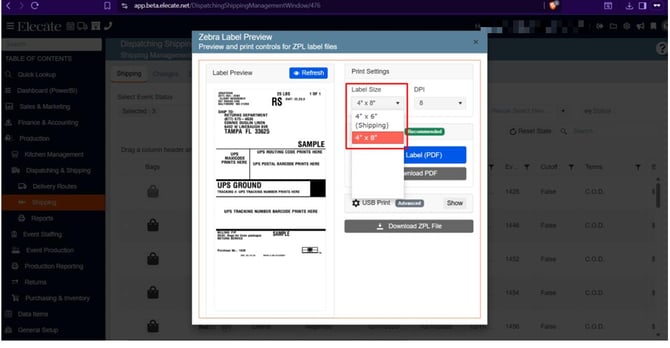
The Label Image can be downloaded on PDF format: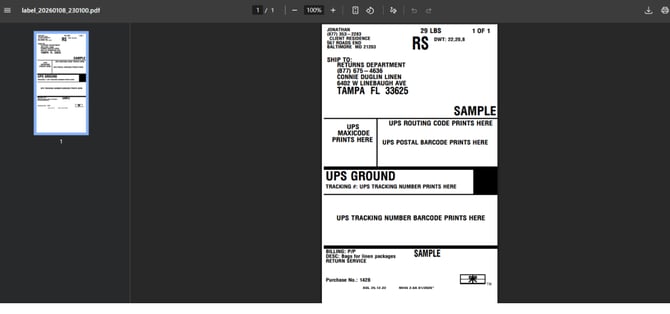
The Label Image can be printed: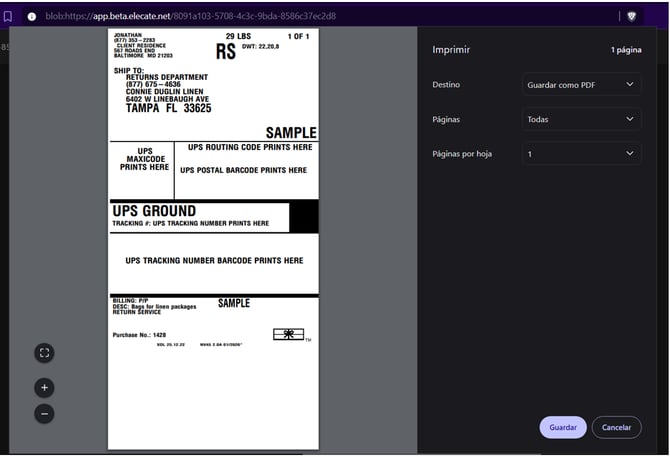
When the Print dialog is opened, a message appears in the Zebra Label Preview window: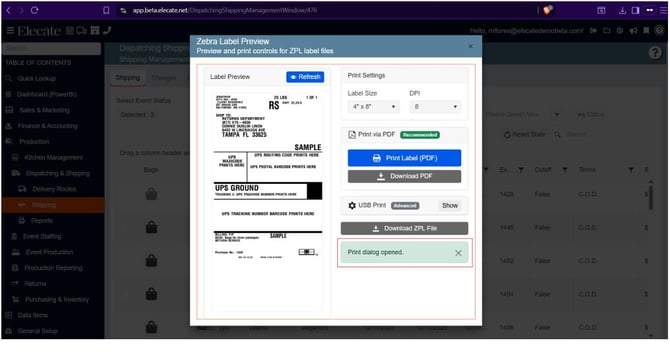
The USB Print section is hidden by default. When the Show button is clicked, the section is
shown properly.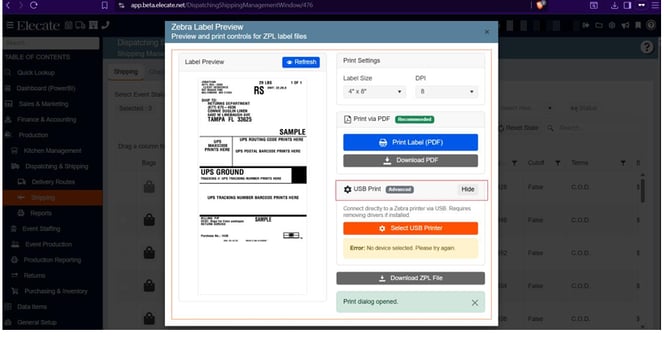
4. Wanting to be able to select which locations I want to import, so that I have the necessary Cost Centers:
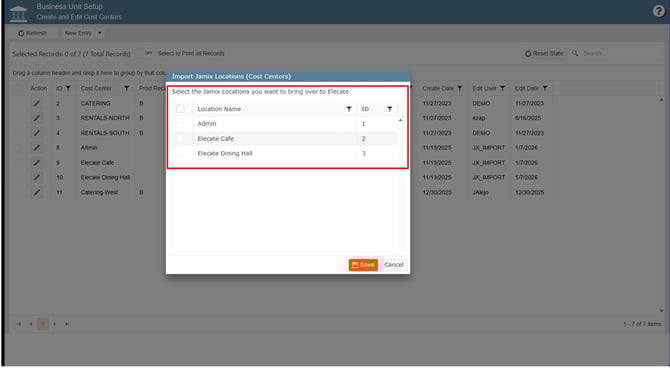
Given an authenticated administrator, when they want to bring their own Locations data from Jamix,
then a pop-up window will appear to allow the user to select, one, multiple or all locations, and those should be included in the Cost Center Grid.
1. At the top of the screen, on the right side click on the Gear Icon
2. Select Business Units
3. Choose Create and Edit Cost Centers
4. From the New Entry Menu, click on Import Locations (Jamix)
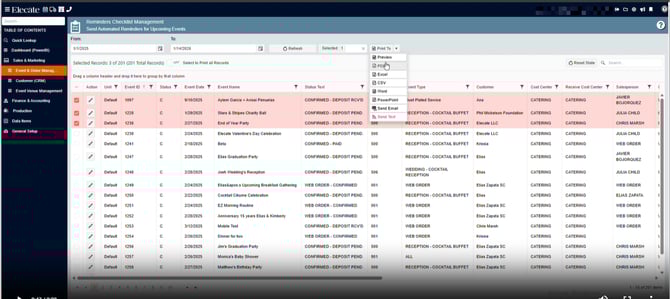
5. Adding the Pencil, Grid Persistence and the Email functionality in the Reminder Checklist Window:
- The Checklist window needs to have the following features brought over:
- Grid Persistence
- All the columns within this window must be able to group by, change the order and save those changes per user
- Edit button
- Add the "Pencil" icon which will allow the user to edit the checklist record show on the grid.
- Email feature
- On the Event Management window, when a record and a report is selected, a window is shown for emailing. We need to bring over that feature to the Checklist Window.
- Grid Persistence
1. On the left side panel, go to Sales & Marketing
2. Click on Event & Order Management
3. Select Reminders Checklist Management
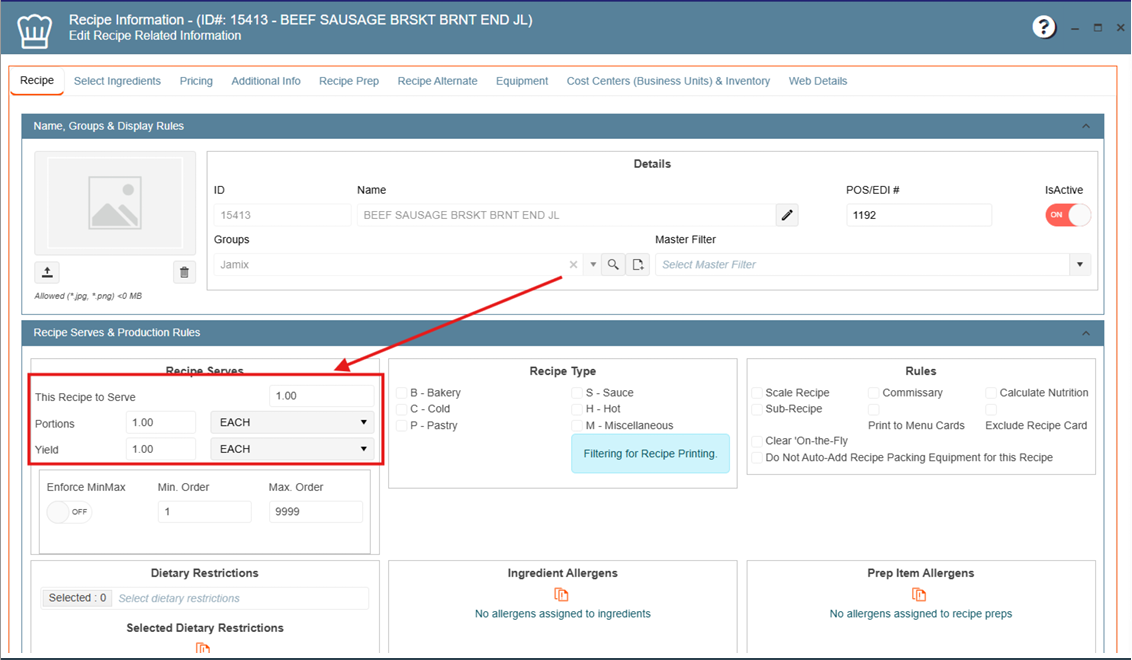
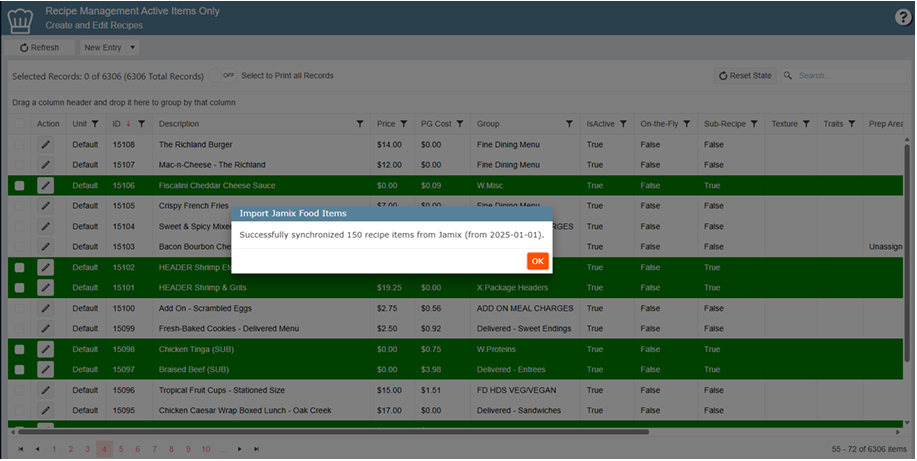
6. Wanting to Import stock cards using custom Conversion Rates, so that they can fit into Elecate's Food Items:
- Recipes endpoint successfully stores
basicUnit,salesBatchUnit, andsalesBatchSize. - PO endpoint uses
salesBatchSizefor conversion instead of Empower’s standard table. - Tested with complex units like CASE, BOX, and other non-standard units.
- POs sent to Jamix reflect correct quantities based on supplier-specific batch sizes.
1. On the left side panel, go to Data Items
2. Click on Food Management
3. Select Recipe Management (Active Items Only)
7. Wanting to know if staff people have declined or their availability, so that I can schedule efficiently (As a Staffing):
Given a staffing manager, when they want to schedule their staff, then:
1. Will see a label in the staff list to know if a staff is available, not available, or if the staff has previously declined to the event invitation
2. Will see the refresh button on the top of the list to get staff quicker
3. Will see the Report dropdown and Print To button together
The Available option needs to be a Toggle to be activated or deactivated
1. On the left side panel, go to Data Items
2. Select HR Management
3.Click on HR Management (Active Staff Only)
4. Select an existing record and go to the Availability Tab, set the schedule for the staff member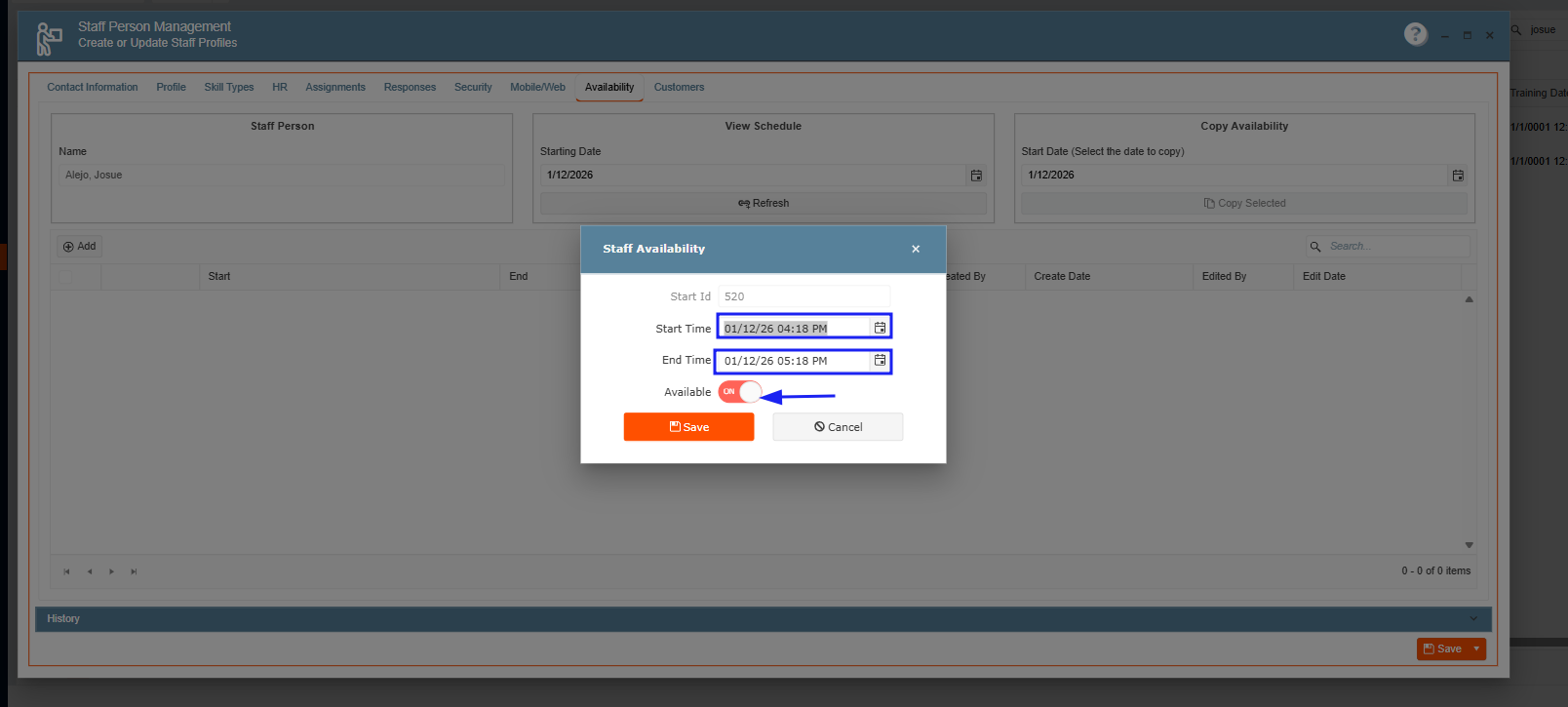
Next
5. On the left side panel, go to Production
6. Click on Event Staffing
7. Choose Staff Production Scheduling
8. Pick an event from the calendar, double click on the event´s number on the right column, select refresh to see the available staff for the event
