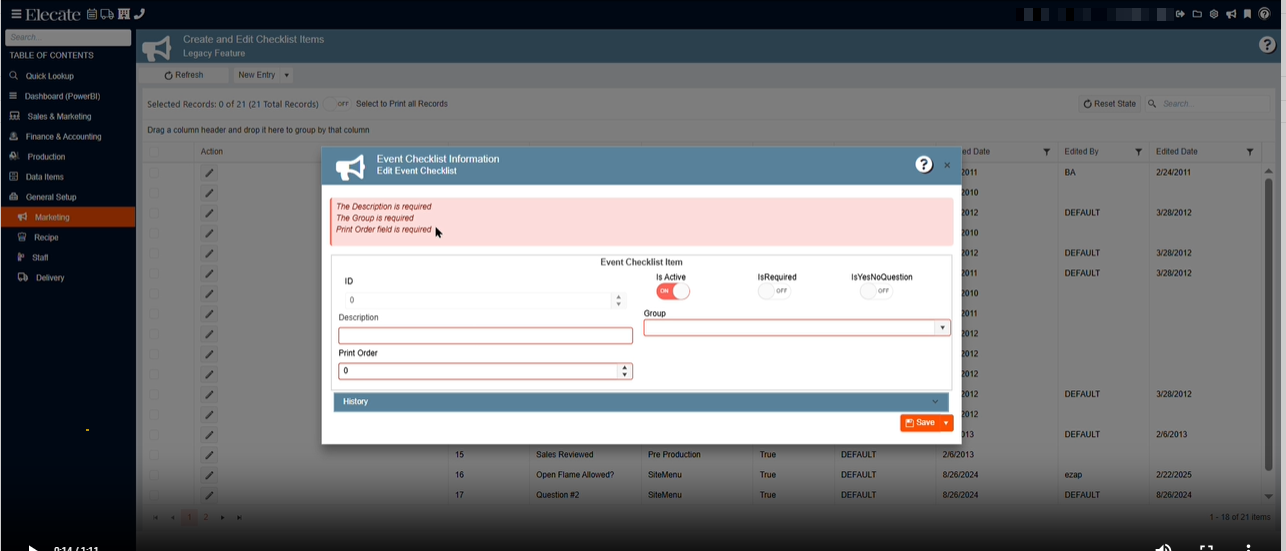
1. Changing the "print order" required message on the checklist modal window:
When the “Print Order” value is missing or set to 0, a validation message must appear at the top of the modal stating: “Print Order field is required.” The message should follow the standard styling used in the Data Items window, including the red background and red text.
1. Go to General Setup
2. Click on Marketing
3. Select Create and Edit Checklist Items
4. Choose New Entry
2. Having the "Greater than/less than" filtering feature that was used in WPF for the data items column:
- Food Management
- Recipe Management (All Items)
- Recipe Management (Active Items Only)
- Recipe Management (On The Fly)
- Menu Packages
- Beverage Management
- Beverage Management (All Items)
- Beverage Management (Active Items Only)
- Beverage Package Management
- Equipment Management
- Equipment Management (All Items)
- Equipment Management (Active Items Only)
- Equipment Package Management.
- HR Management
- HR Management (All Staff)
- HR Management (Active Only)
- Staff Package Management)
- Misc Management
- Miscellaneous Item Management (All Items)
- Miscellaneous Item Management (Active Items Only)
- Miscellaneous Package Management
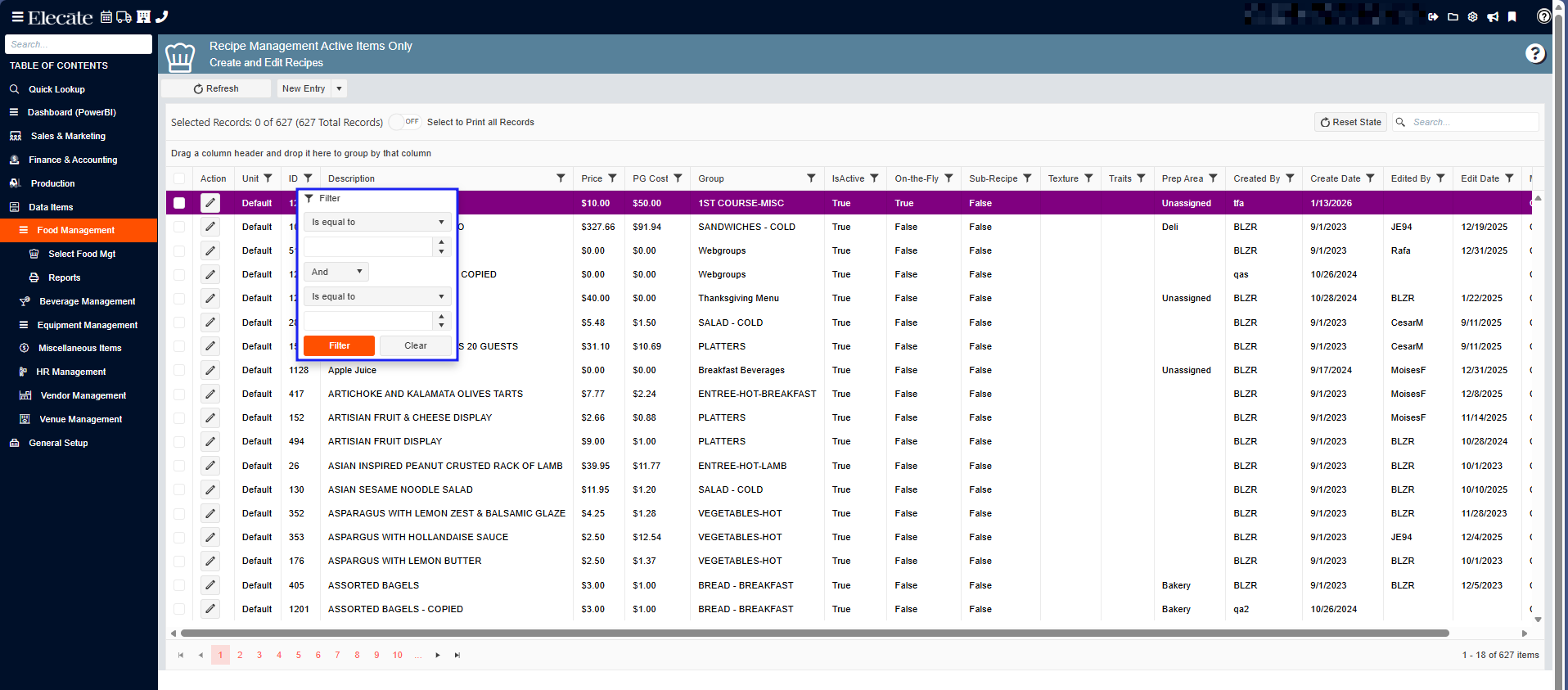
- Bring over from WPF the "Greater than/less than" feature that is already implemented on the column for each data item department.
1. Go to Data Items
2. Select Food Management
3. Choose Recipe Management (Active Items Only)
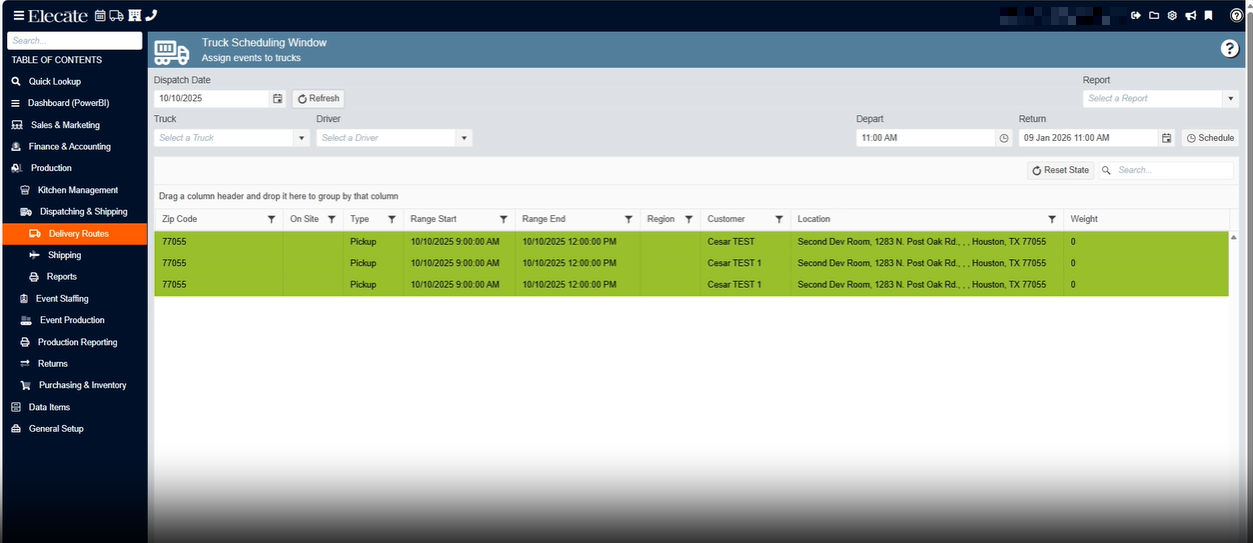
3. Having the "Truck Scheduling Window" from WPF brought over to Elecate:
Given a Production Manager or Administrator
When they want to assign event deliveries
Then they follow these steps:
-
Navigate to the Truck Scheduling window located at:
Production → Dispatching & Shipment → Delivery Routes → Truck Scheduling. -
Select a date in the Truck Scheduling window and click Refresh to load all events and their associated deliveries into the grid.
-
Select one, multiple, or all rows in the grid—optionally using filtering, grouping, or column tools—and then choose:
- a Truck
- a Driver
- a Depart time
- and/or a Return date/time
After selections are made, click Schedule.
3.1 This action assigns the selected Truck and Driver, and updates the event’s Delivery Type with the Depart and Return times.
3.2 The user must be able to group, filter, and reorder columns, and these customizations must persist (grid persistence).
-
Optionally, the user may print the Report Package List Report for the selected records.
1. Go to Production
2. Click on Dispatching & Shipping
3. Select Delivery Routes
4. Choose Truck Scheduling
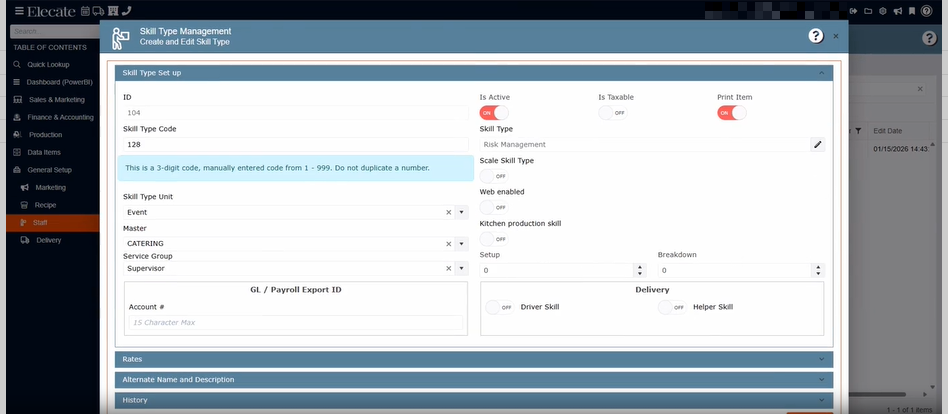
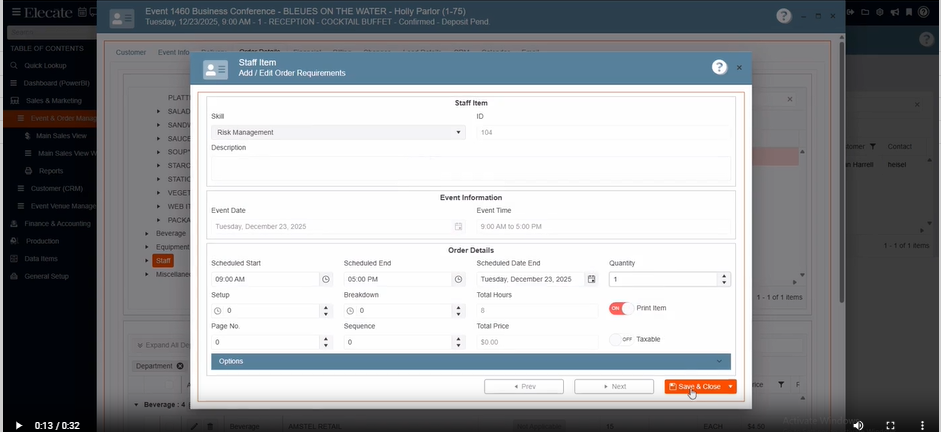
4. Being able to print a Skill Type, so that I can decide if it can be part of the order:
When they want to select Staff (skill types) in the orders without printing them, then they can select the Skill Type and toggle the Print Skill Type on or off.
1. Go to General Setup
2. Click on Staff
3. Select Create and Edit Skill Type
4. Open an existing record and check if the Print Item is ON or OFF
Then
5. Go to Sales & Marketing
6. Click on Event & Order Management
7. Select Event Management - All Status Types Included
8. Open an existing event, go to the Order Details Tab
9. Add the skill type where the Print Item toggle was ON or OFF, check if the skill type when is added to the event displays in the same way