Bug Fix:
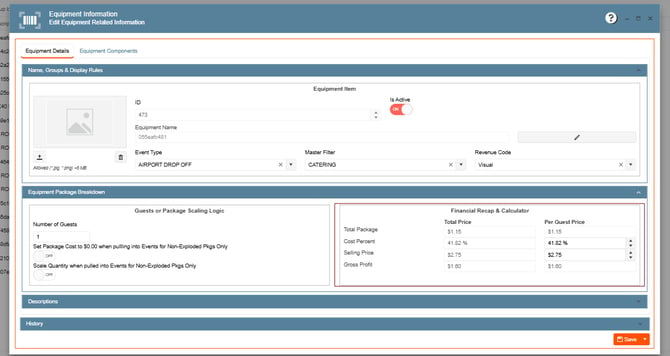
1. Equipment Package Calculation Error:
Corrected calculation logic so Equipment Package cost percentages display accurately.
1. On the left side panel, go to Data Items
2. Click on Equipment Management
3. Select Equipment Package Management
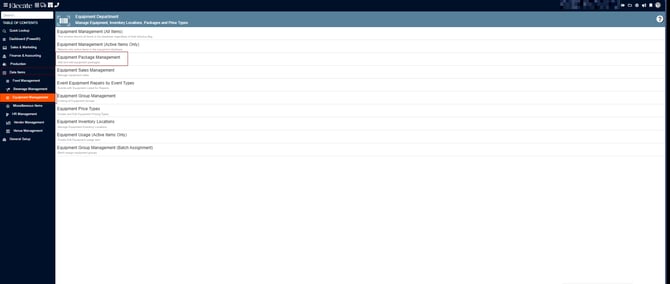
4. Open an existing record or create a New Package by selecting New Entry:
2. Recipe Prep Sequence Displays in Incorrect Order in Prep Quantification Screen:
Corrected the display order of Recipe Prep Sequence in the Prep Quantitation screen.
1. On the left side panel, go to Data Items
2. Click on Food Management
3. Select Recipe Management (Active Items Only)
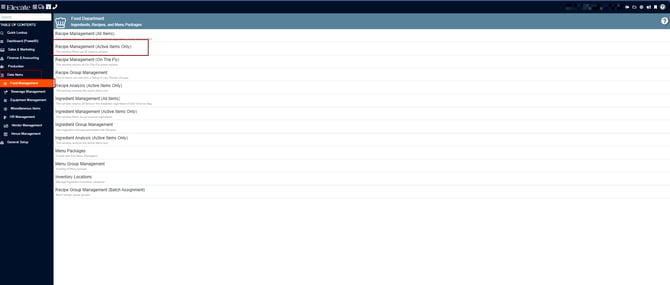
4. Open an existing Recipe or create a new one, go to the Recipe Prep tab, add Prep items
5. Save the changes (Next add the recipe to an event)
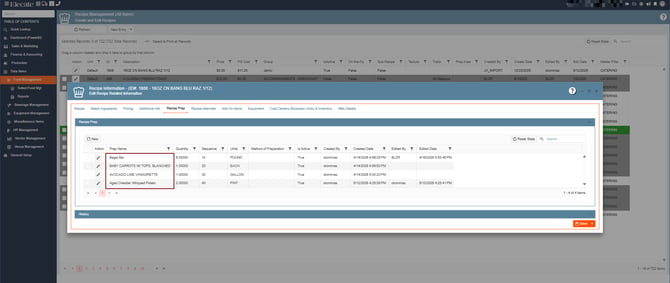
Next
1. In the left side panel, go to Production
2. Click on Kitchen Management
3. Select Main Kitchen View Window
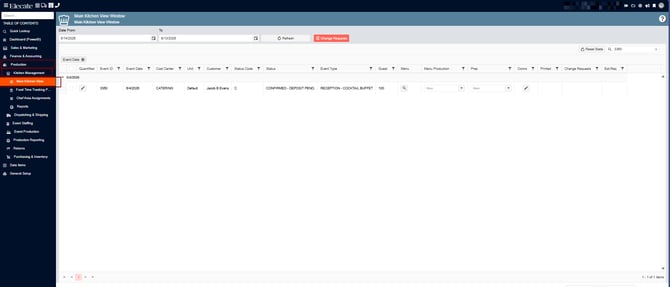
4. Search for the Event
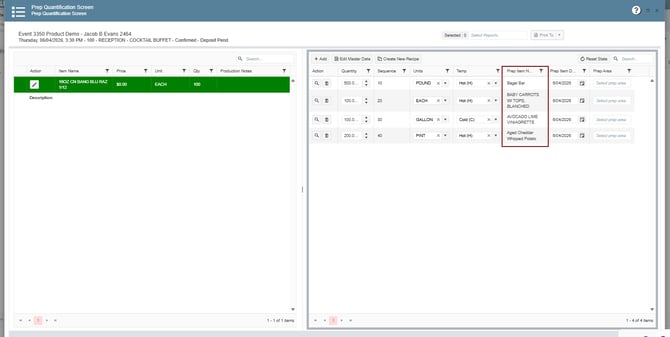
5. Open the event by clicking on the pen Icon
6. Click on the pen icon to see the Prep Items in the panel located on the right side (Review if the items are sorted)
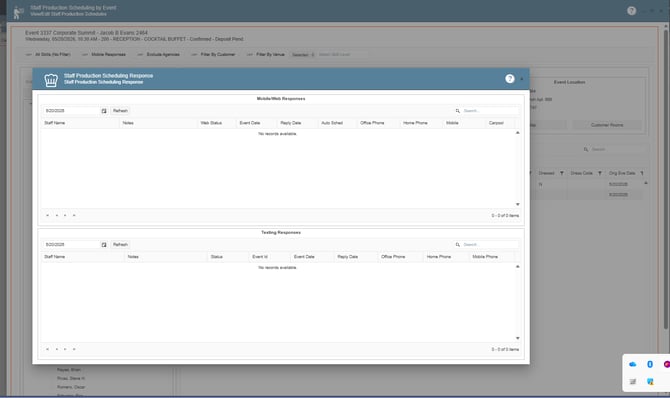
3. When using the "View Staff Response" function an error message will appear:
Resolved the error message that appeared when using the View Staff Response function.
Event Setup:
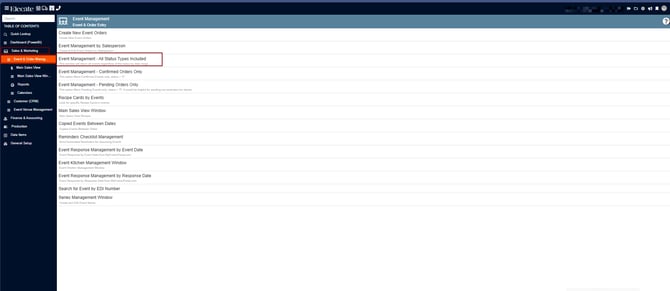
1. On the left side panel, go to Sales & Marketing
2. Go to Event Management
3. Select an event or create a new one
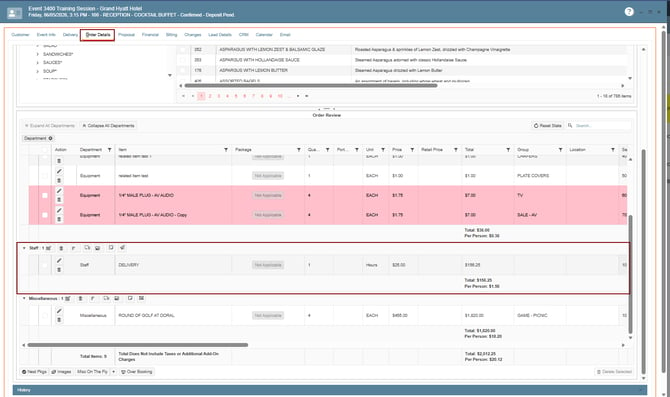
4. On Order Details, add staff to the event
5. Save & close
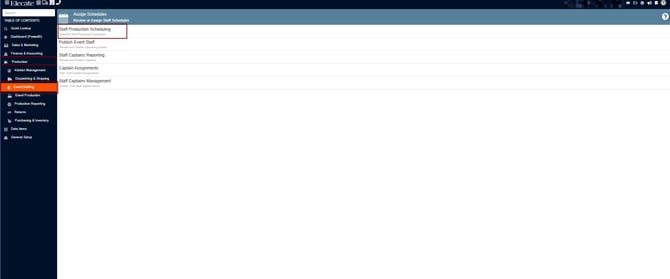
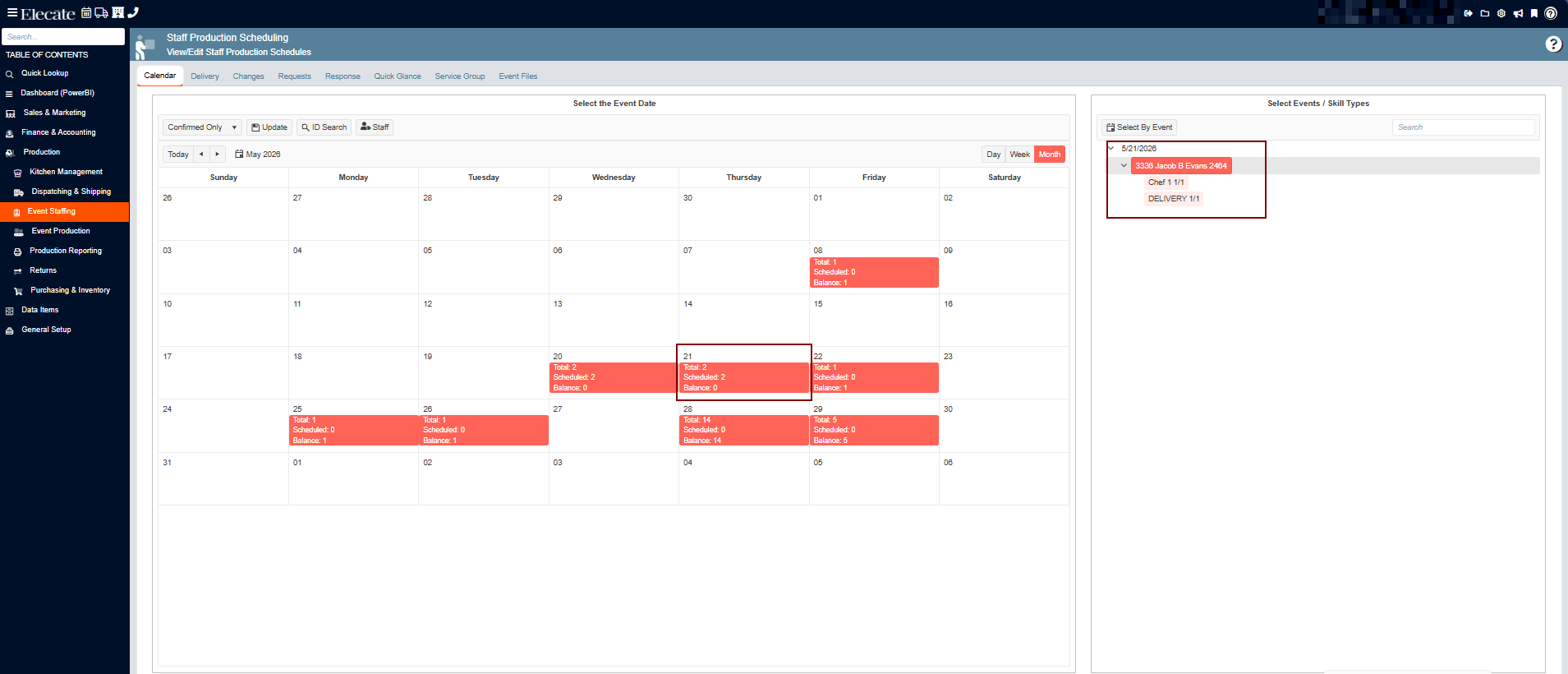
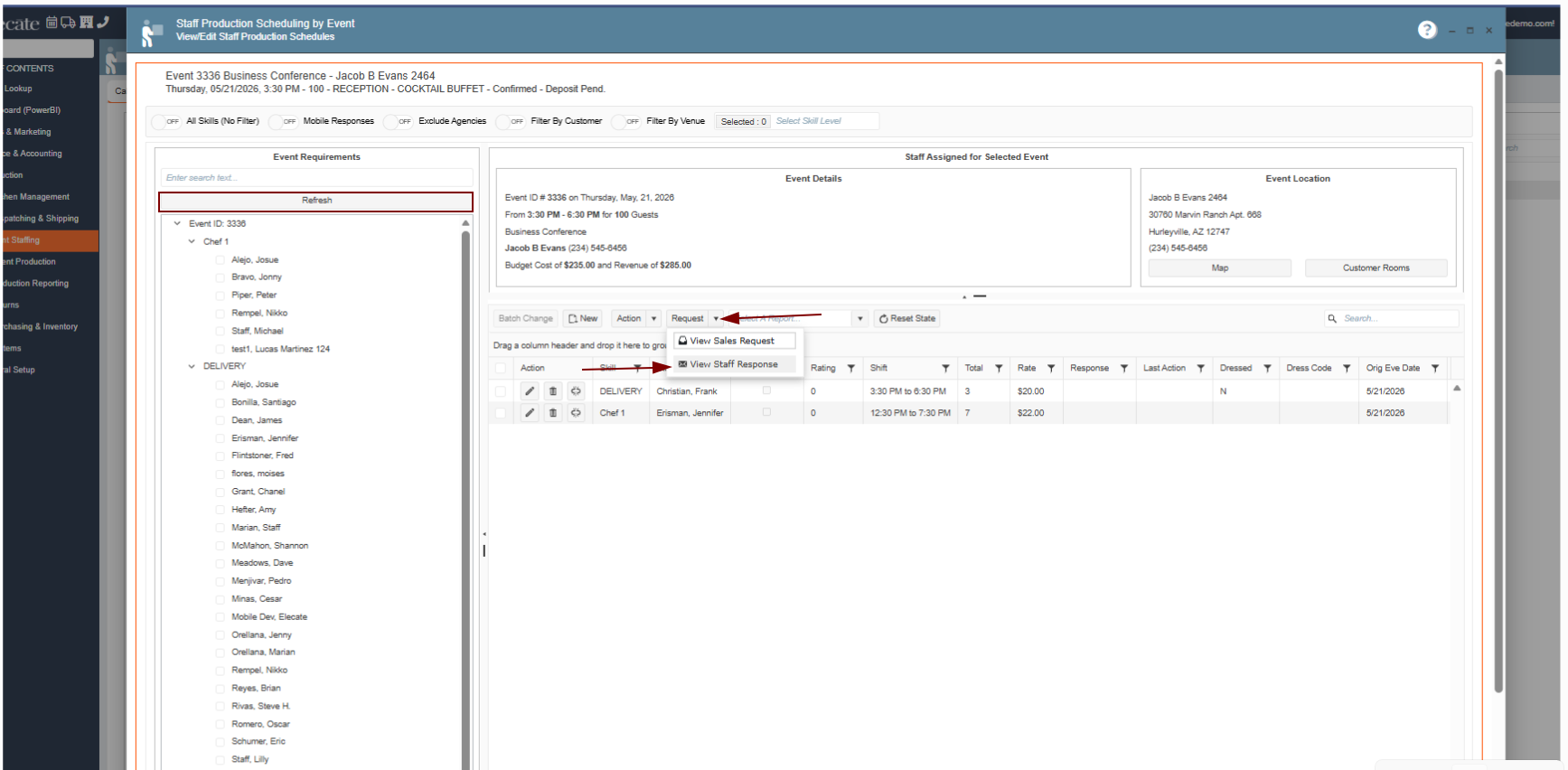
7. Check the staff member you just added
8. Click on the dropdown for the Request button
9. Click on the "View Staff Response" button
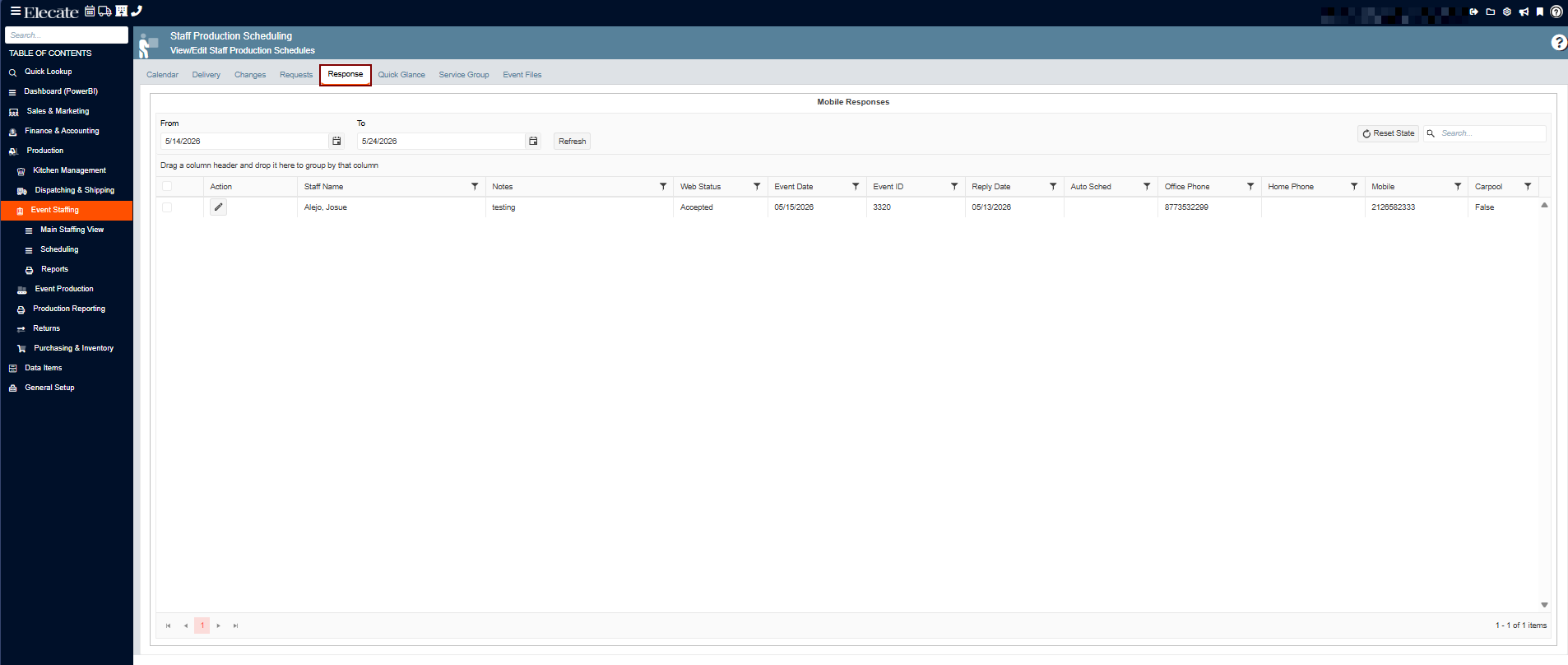
4. When accessing the "Response" tab on the Staff Production Scheduling window it will not open:
Resolved the issue preventing the Response tab from opening in the Staff Production Scheduling window.
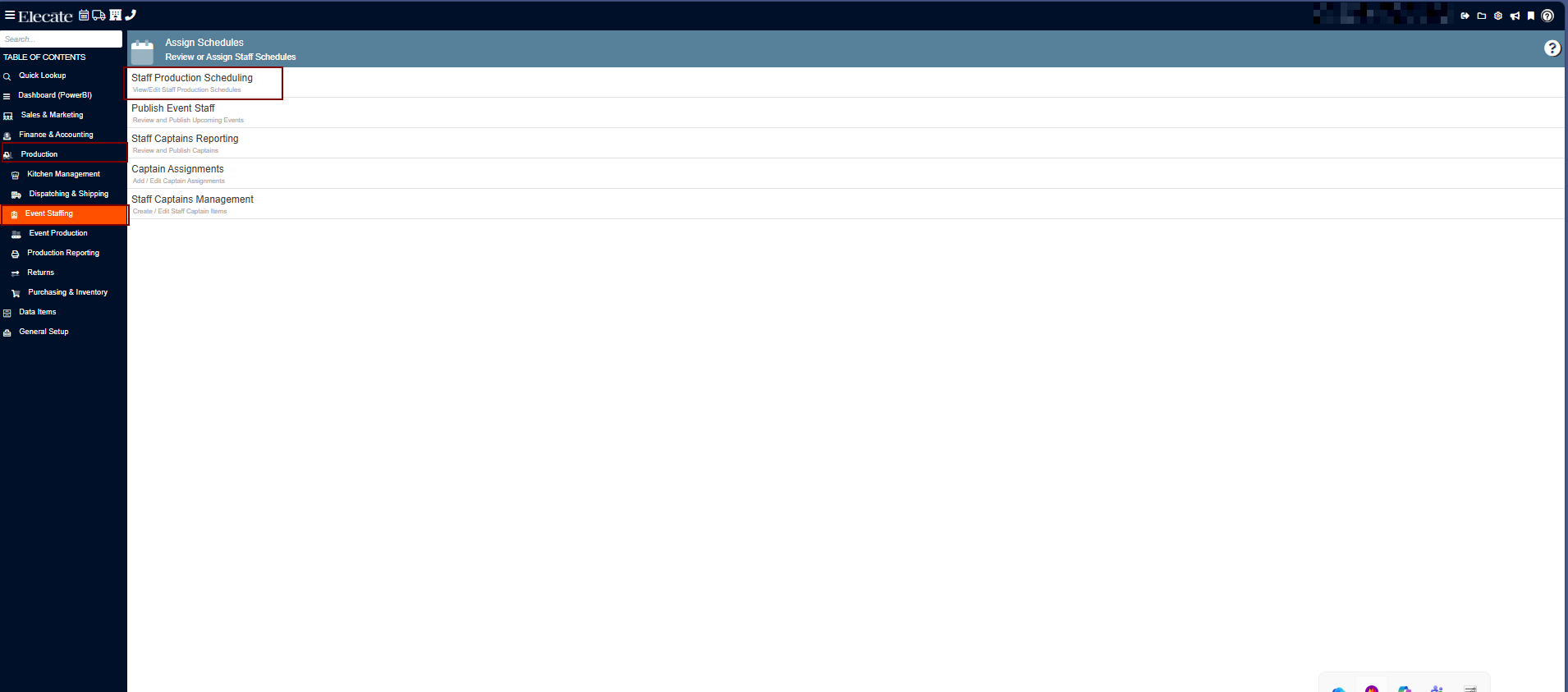
4. Click on the "Response" tab
5. Check if it opens