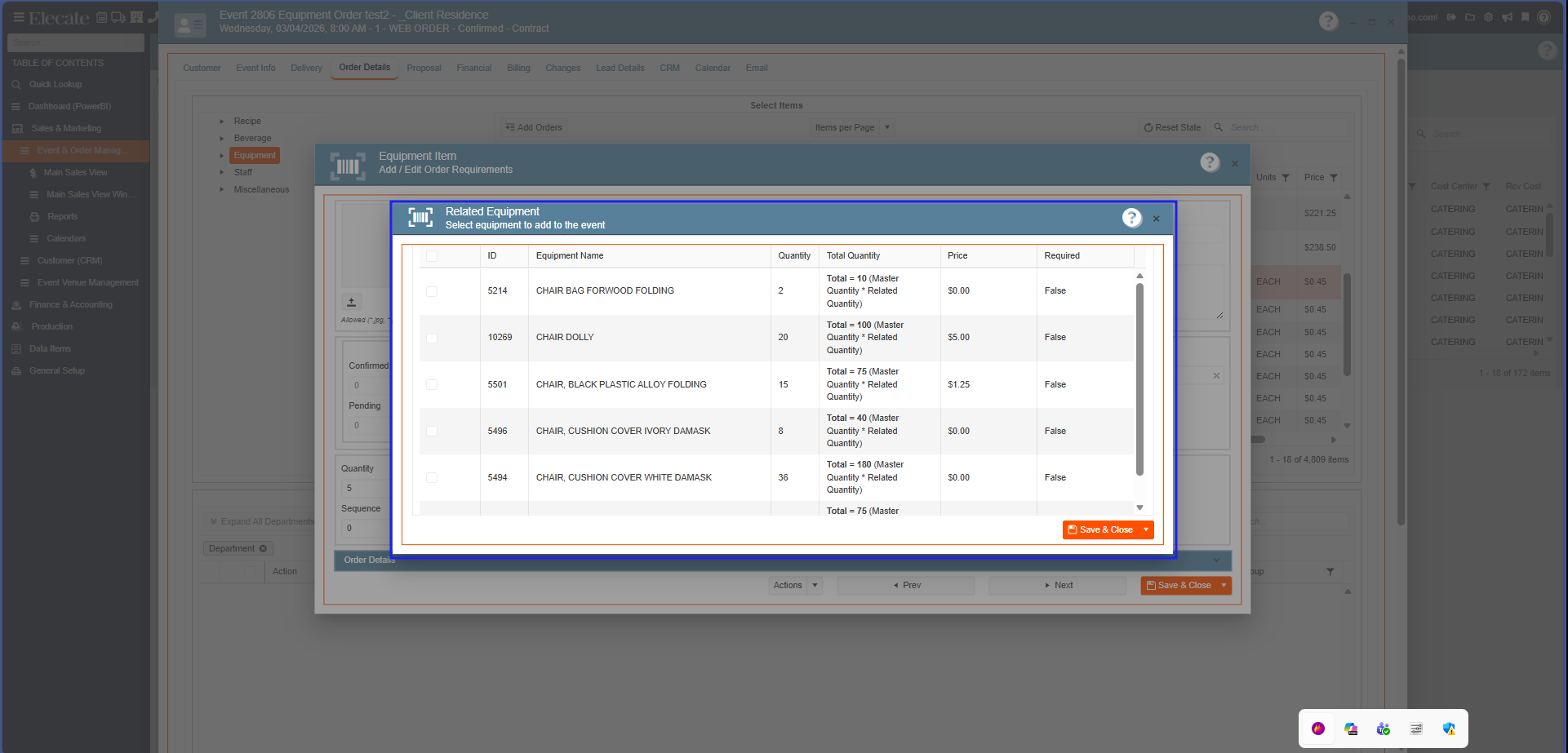
1. Improving the Related Equipment item flow to allow for a better UX experience:
- When a modal window for a related item is open to add it, and the user decides to not add to the event, then as soon as the user hits "Close" on the dropdown button or the X button, then the modal window for the equipment item must be closed as well.
- When the modal window for a related item opens and no item has been selected by the user (clicking on the checkmark), then the Save & Close button must be able to be selected by the user to hit either Save & Close or just Close.
- If the user hits Save & Close and has not selected the related item to be added, then a Save must not be trigger and the modal window for both the related item or the equipment item must be closed.
1. On the left side panel, go to Sales & Marketing
2. Click on Event & Order Management
3. Choose Event Management - All Status Types Included
4. Pick an event, before adding the equipment item to the event, check if the equipment item has related items added in data items, next add it to the event and check of the related item window appears:
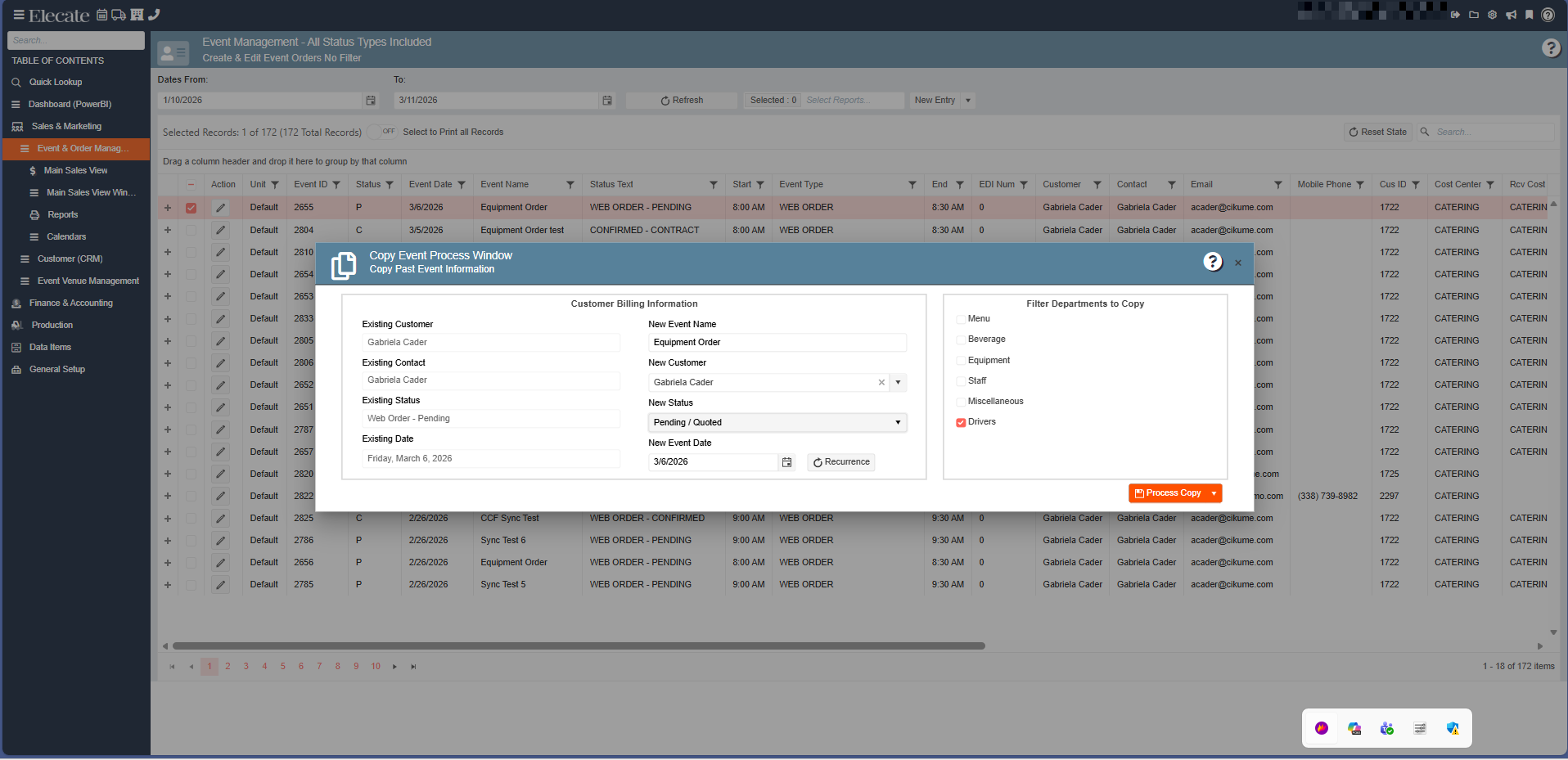
2. Including or excluding Drivers when copying an event, so that I control better Driver's assignments:
When they copy an event by selecting an Event record from the grid, and selection the option to Copy Event from the actions' dropdown menu, then they will see in the section of departments, the option to mark Drivers, unselected by default, and the new event will follow the decision by the user.
1. On the left side panel, go to Sales & Marketing
2. Click on Event & Order Management
3. Choose Event Management - All Status Types Included
4. Pick an event, put a check mark on it, next go to the New Entry drop-down menu, in the Filter Departments to Copy, put a check mark on Drivers, press on the Process Copy:
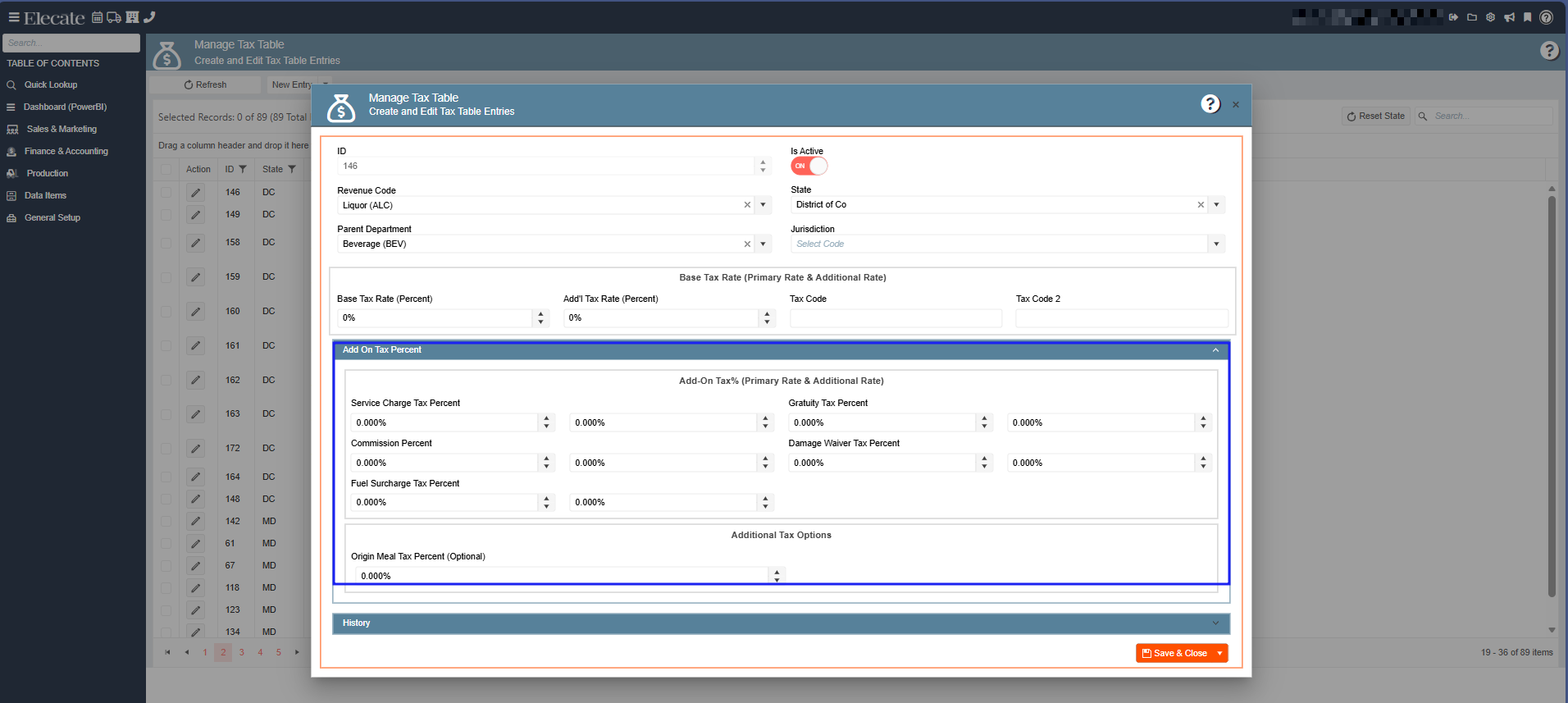
3. Having the ability to add 3 digits to my add-on taxes:
- The section called Add-On Tax (Primary Rate and Additional Rate) must have all the fields within the ability to have up to 3 digits after the dot.
1. At the top of the screen, click on the Gear Icon
2. Select Financial Setup
3. Choose Create and Edit Tax Table Entries
4. Pick an existing record or create a new one by clicking on the New Entry button, go to the Add On Tax Percent Section: