Enhancements:
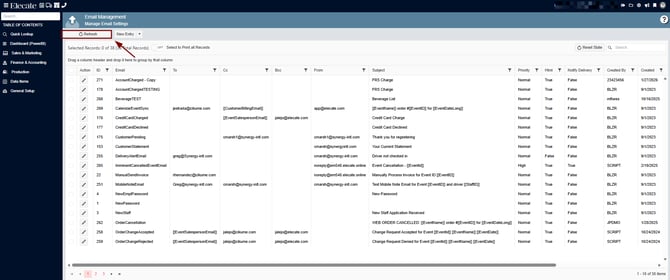
1. Having a "Refresh" button on the Email Management window:
We have confirmed that the Refresh button in the Email Management window is working as designed. When selected, it refreshes the data displayed in the table without the need to reload the entire page, providing a quicker and smoother user experience.
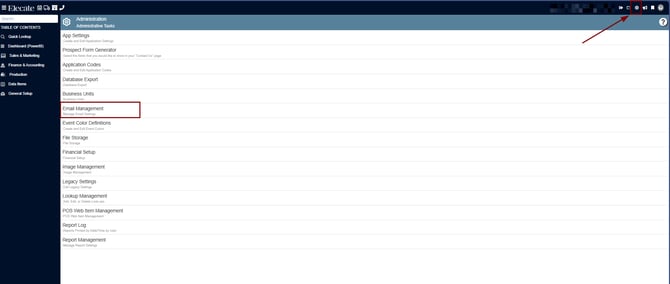
1. At the top of the screen, on the right side click on the Gear Icon
2. Select Email Management
3. On the left side of the window, we have the Refresh button
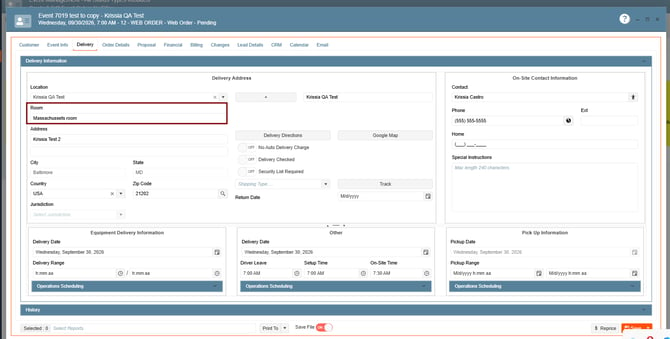
2. Knowing that I can only set a Room with up to 30 Characters in the placeholder:
The "Max length 30 characters." placeholder is displayed correctly in the Room field. Additionally, users cannot enter more than 30 characters, preventing save errors caused by exceeding the field limit.
1. On the left side panel, click on Sales & Marketing
2. Select Event & Order Management
3. Choose Event Management - All Status Types Included
4. Open an existing event, go to the Delivery Tab
3. Having a prompt that will allow me to overbooking an event:
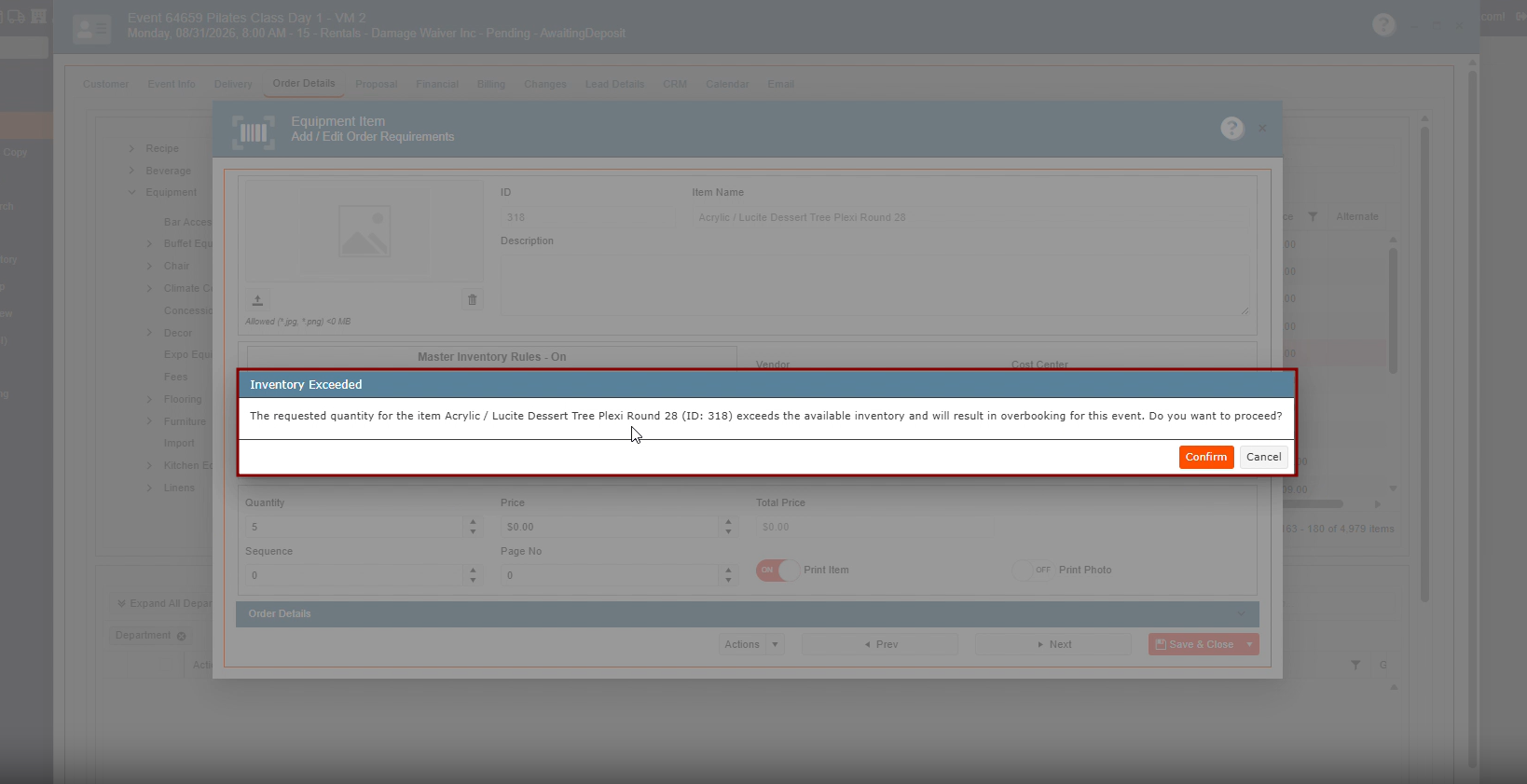
When a user attempts to add a quantity that exceeds the available inventory for an item on a Pending event, the system displays a confirmation message warning that proceeding will result in an overbooking. The user can then choose to continue with the overbooking or cancel the action, helping prevent unintended inventory discrepancies.
Before testing or validating this functionality, please confirm the following configuration settings:
- Equipment Inventory Rule (Legacy Settings) is configured as expected.
- AllowSubRentalOnPending (App Setting) is disabled.
- EnableSellItems (App Setting) is enabled
- Track Inventory is turned ON for the affected equipment item.
1. On the left side panel, click on Sales & Marketing
2. Select Event & Order Management
3. Choose Event Management - All Status Types Included
4. Open an existing event, go to Order Details
5. Add the equipment item previously configured
Bug Fix:
1. App Crashes When Using Search Bar in Payment Schedule:
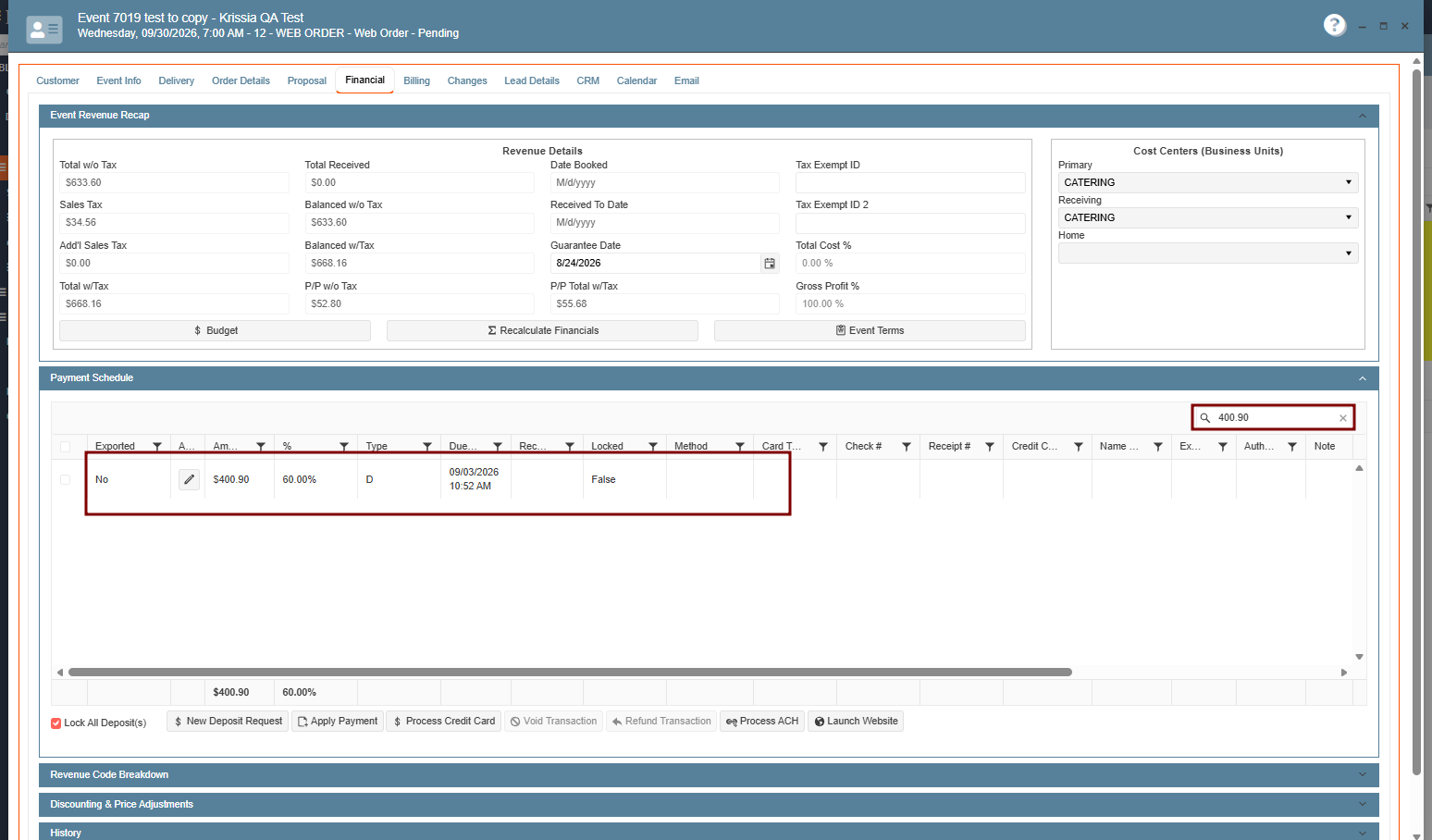
After the change was applied, the search function works correctly without generating errors or requiring a page reload. The system remains stable and refreshes the results based on the entered search criteria.
1. On the left side panel, go to Sales & Marketing.
2. Select Event & Order Management.
3. Open either Event Management – All Status or Main Sales View.
4. Select any event and navigate to the Financial tab.
5. Expand the Payment Schedule section.
6. Type any text or numeric value into the search bar.
2. CRM Management Report Fails with Data Conversion Error:
The report is generated and displayed correctly, and the previously reported data conversion error message no longer appears.
1. On the left side panel, go to Sales & Marketing
2. Click on Customer (CRM)
3. Select Report
4. Choose CRM Management Reports
3. Adding the same related item multiple times incorrectly reflects the quantity across all instances:
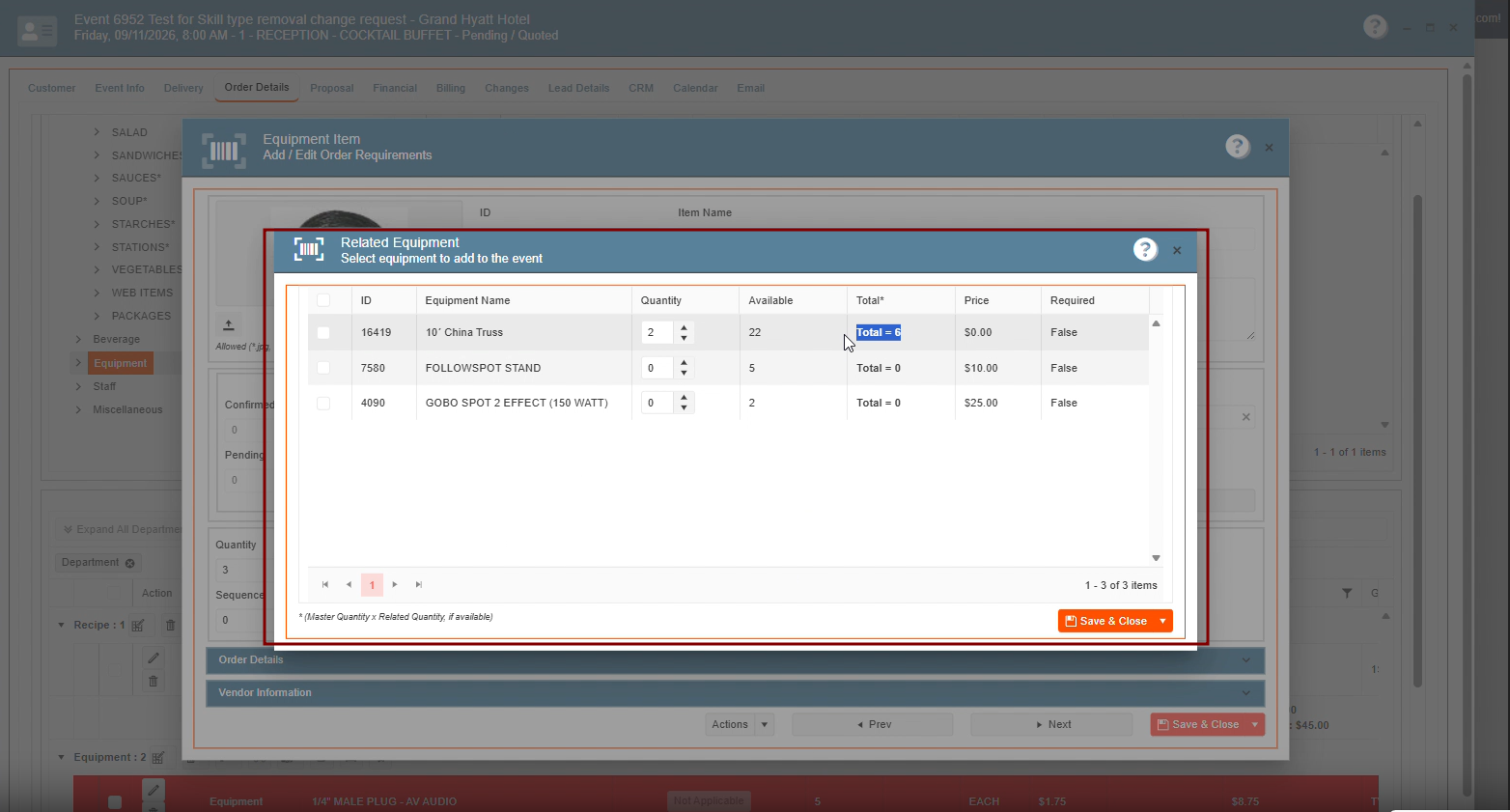
After the fix was applied, duplicate Related Items are handled correctly as independent line items. Each instance maintains its own quantity, editable values, and calculated totals, and changes made to one instance no longer affect other instances of the same related item.
1. On the left side panel, click on Sales & Marketing
2. Select Event & Order Management
3. Choose Event Management - All Status Types Included
4. Open an existing event, go to Order Details
5. Add the equipment item with related items
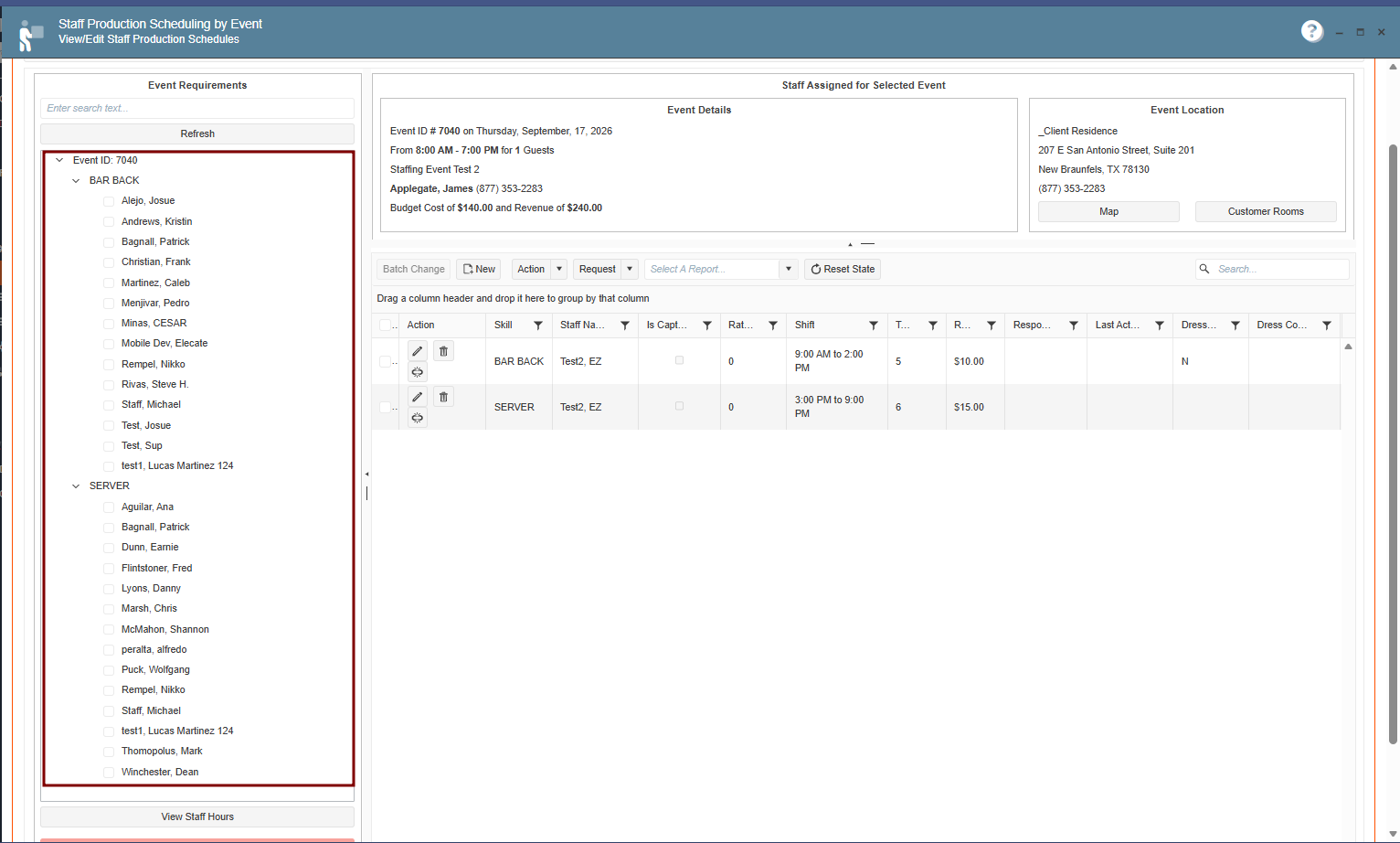
4. Staff member appears multiple times per Skill Type in Staff Production Scheduling search results:
After the fix was applied, Staff Production Scheduling search results display each staff member only once per Skill Type. Duplicate entries no longer appear, making the results easier to review and ensuring each staff member is listed uniquely within the selected skill type.
1. Navigate to Staff Production Scheduling.
2. Use the staff search functionality.
3. Search for an existing staff member.
4. Review the results grouped or displayed by Skill Type.
5. Observe the number of times the same staff member appears under the same Skill Type.