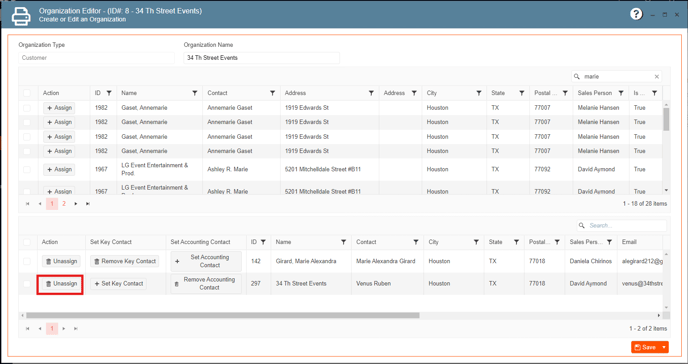
To add/remove key contacts and accounting contacts in the organization screen follow these steps:
- On the side panel go to Sales and Marketing.
- Go to Customer (CRM).
- Select Organization Management.
- Open the organization tab by clicking on the pencil icon or by double-clicking on the organization row.
Now you are at this screen:
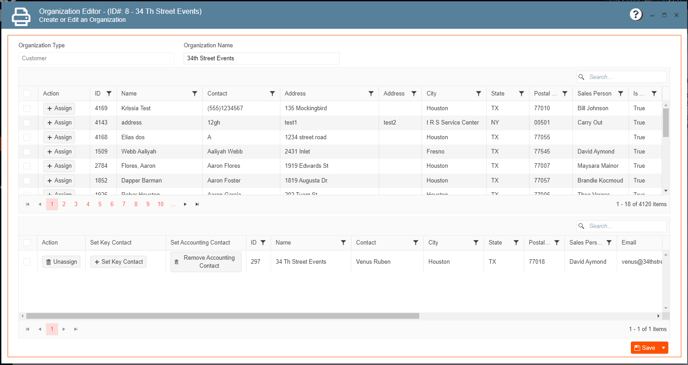
To add contacts:
1. Search for the contact name
2. Click Assign
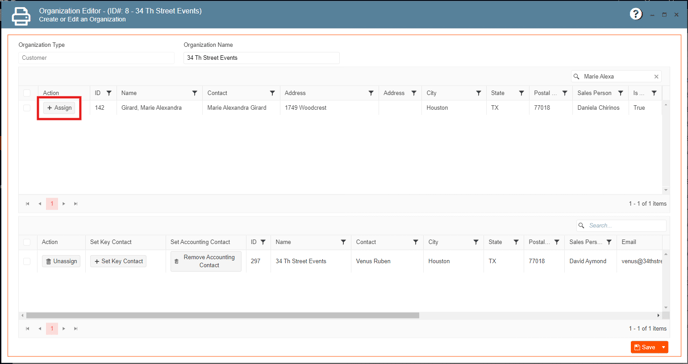
By doing this you will add the contact to the organization, but the contact is not set as a key or accounting contact yet.
To set as a key contact:
1. Select Set Key Contact
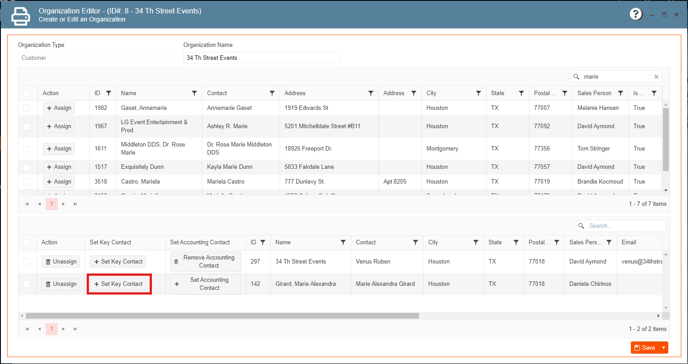
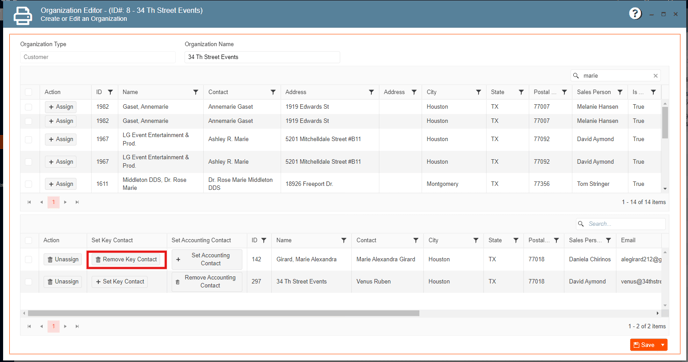
To remove a key contact:
1. Select Remove Key Contact
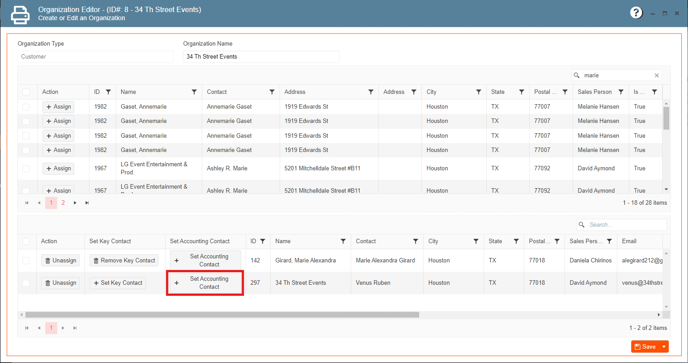
To set as an accounting contact:
1. Select Set Accounting Contact
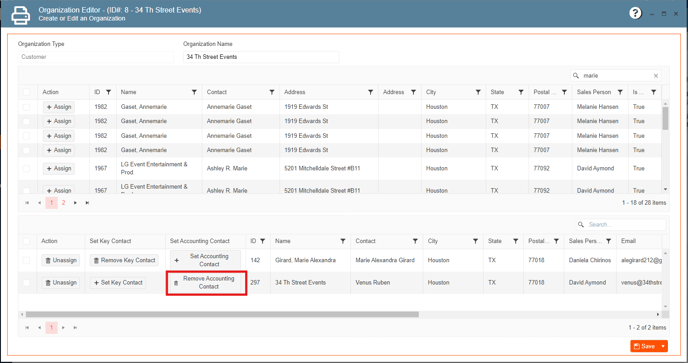
To remove an accounting contact:
1. Select Remove Accounting Contact
To remove a contact from the organization:
1. Select Unassign