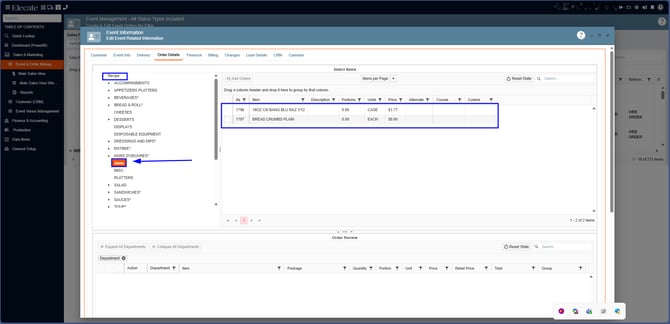
The Jamix Integration connects Elecate with Jamix, allowing food service and catering teams to synchronize operational data between both systems. Through the integration, users can import Jamix locations, recipes, stock cards, and measurement units into Elecate. Once imported, these items can be added to events, used for costing and production planning, and included in purchase orders. The integration helps reduce manual data entry and ensures that food and inventory information remains consistent across both platforms.
The Jamix integration allows Elecate to synchronize food-related data from Jamix, including locations, stock cards, recipes, and purchasing information. Once configured, users can import data from Jamix into Elecate, use Jamix items in events, and create purchase orders that are sent through the Jamix workflow
| Jamix | Elecate |
| Locations | Cost Center |
| Stock Cards | Recipes |
| Purchase Orders | Purchase Orders |
How to import Locations from Jamix?
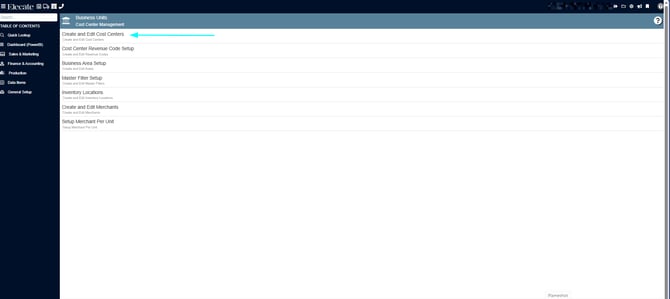
1. At the top right of the screen, click the Gear icon
2. Select Business Units

3. Choose Create and Edit Cost Centers
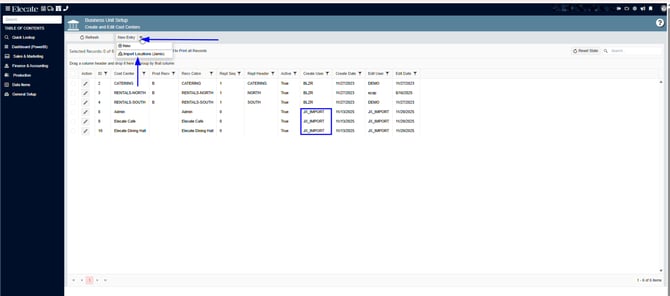
4. From the New Entry drop-down menu, click on Import Locations (Jamix):
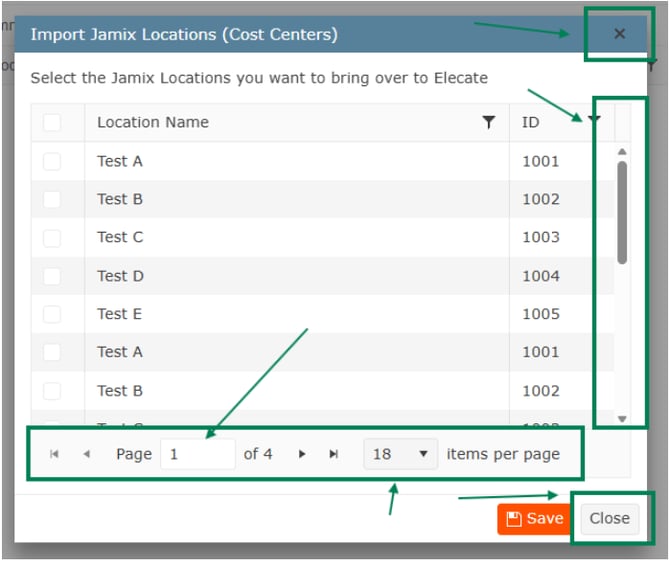
5. Click Import Locations. A window will appear where you can select the locations you want to import, then click Save (Note: If a location name exceeds the maximum length, only the first 20 characters will be imported)
Important: If a Cost Center has already been created and imported from Jamix, there is no need to create another Cost Center in Elecate with the same name.
Creating duplicate Cost Centers can lead to confusion when selecting Cost Centers and may result in users choosing the wrong location during daily operations. To maintain consistency between Elecate and Jamix, always use the Cost Centers imported through the Jamix Integration whenever possible.
How to Import Jamix Stock Card to Elecate?
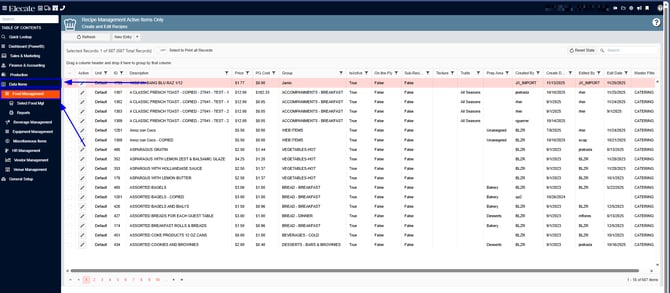
1. On the left side panel, go to Data Items
2. Click on Food Management
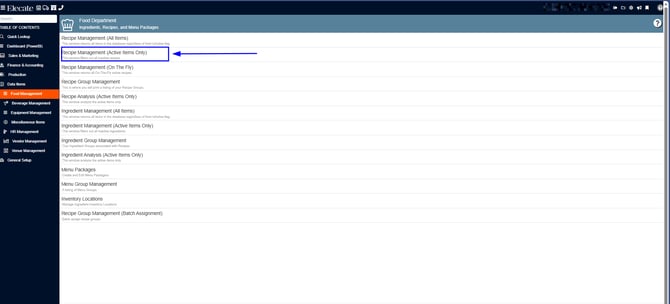
3. Select Recipe Management (Active Items Only)
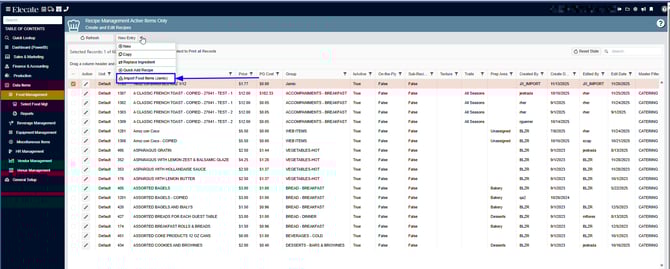
4. Click on the New Entry drop-down menu, select Import Food Items (Jamix):
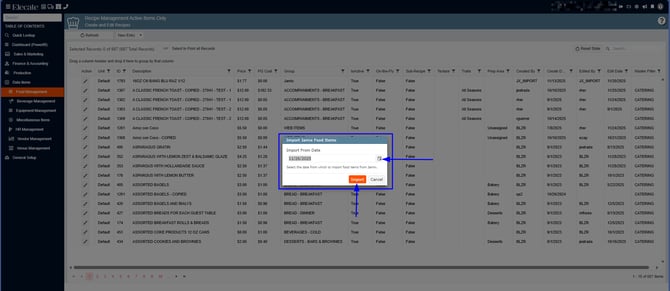
5.From the Calendar icon, select the desired date. Please choose a past date, as the system will synchronize information from the selected date through the current day.
If pricing has been updated, be sure to select a date that includes those changes Example: if the item was last edited in Jamix on June 19, run the import with a start date of June 1 to ensure it is captured. This will ensure the window displays the most accurate and up-to-date information available.
6. Once the synchronization is completed, you will see the following message, the warning message will let you know if recipes were found or not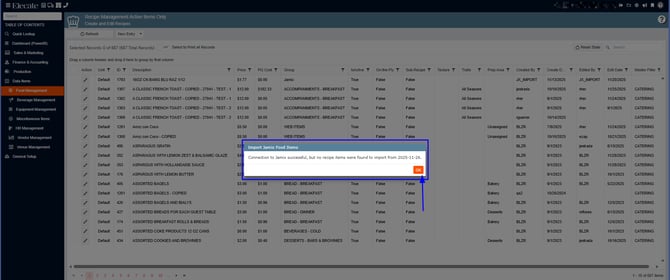
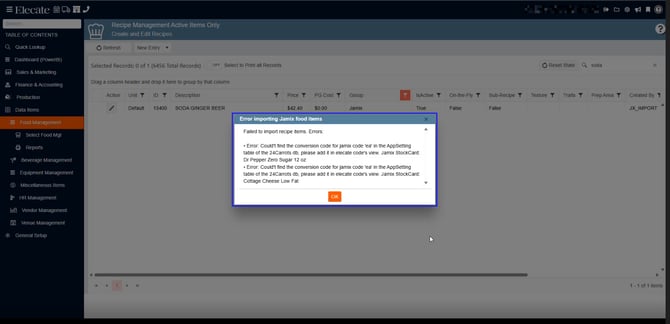
If an item's unit of measure in Jamix is not mapped to an Elecate unit, that item is skipped and the rest of the import continues.
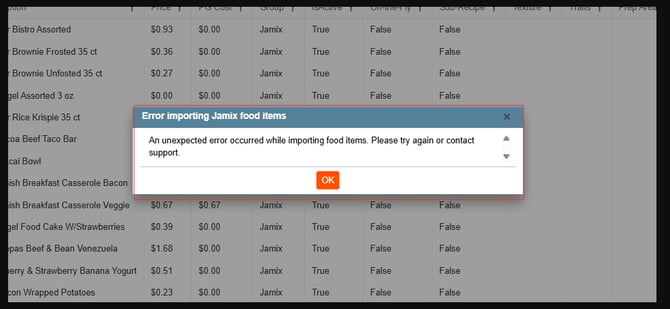
To bring in the skipped items:
- Click the Gear icon.
- Select Application Codes.
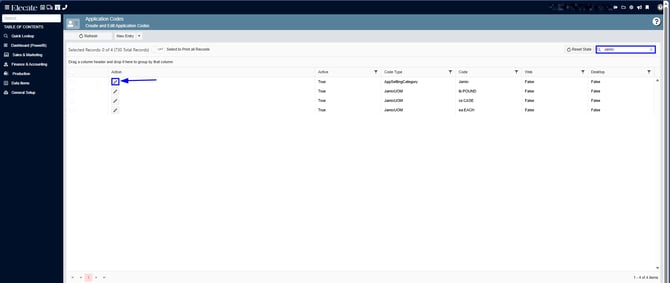
- Search for "Jamix" and check that every Jamix unit of measure is mapped to an Elecate unit.
- Add or update any missing units and save.
- Run the import again with the same start date.
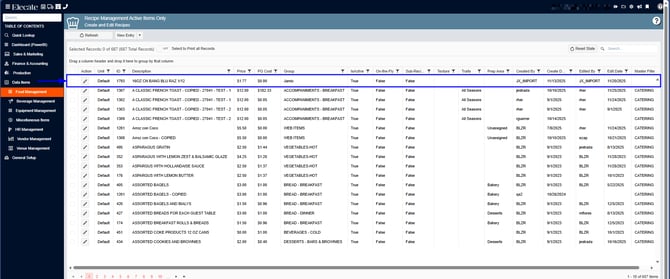
7. You can identify the Jamix import by the Group Name ‘Jamix,’ as shown in the image below:
Recipe Import Now Supports Pricing, Scaling, and Printing:
The recipe import process has been updated to automatically populate pricing information using the item's Unit Price. For new recipe imports, both Retail Price and Total Cost are populated, while existing recipes update only the Total Cost, preserving any manually maintained Retail Price values. Additionally, the Recipe Card can now be scaled and printed.
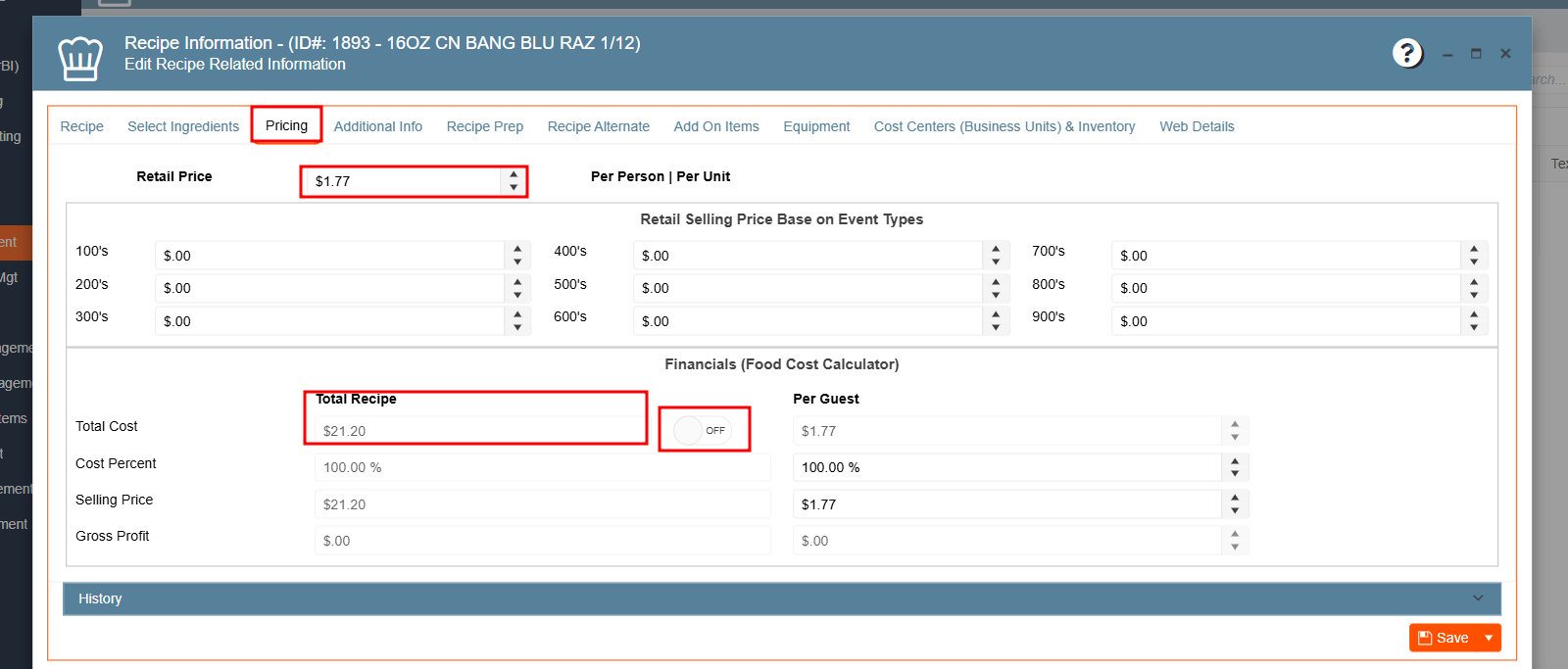
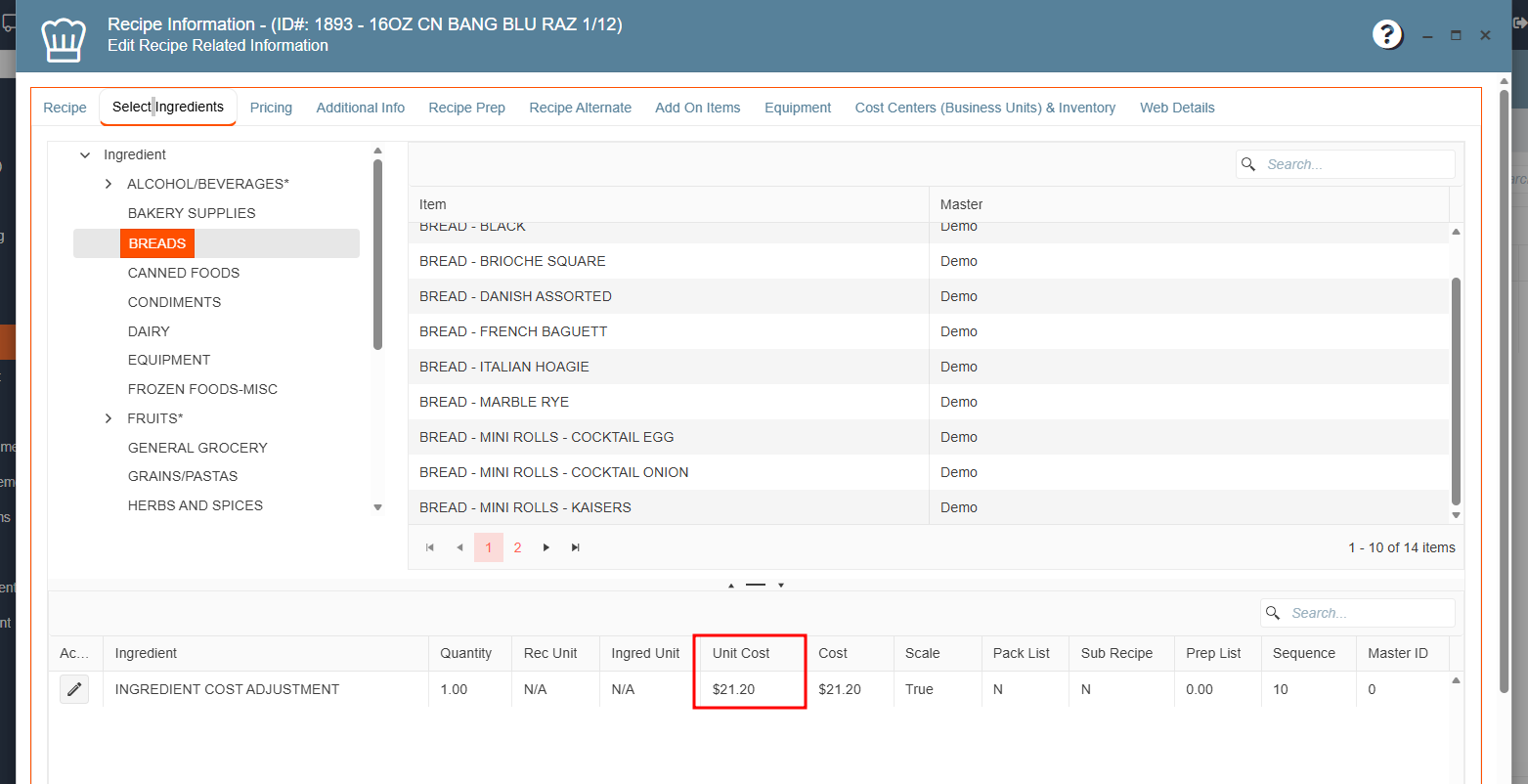
Additionally, the Unit Cost can be viewed from the Select Ingredients tab. Users can compare the cost displayed in the Pricing tab with the value shown in the Unit Cost column, and both amounts should match.
This is because the recipe price is calculated based on the costs of its ingredients, ensuring consistency between the recipe pricing information and its ingredient cost breakdown.
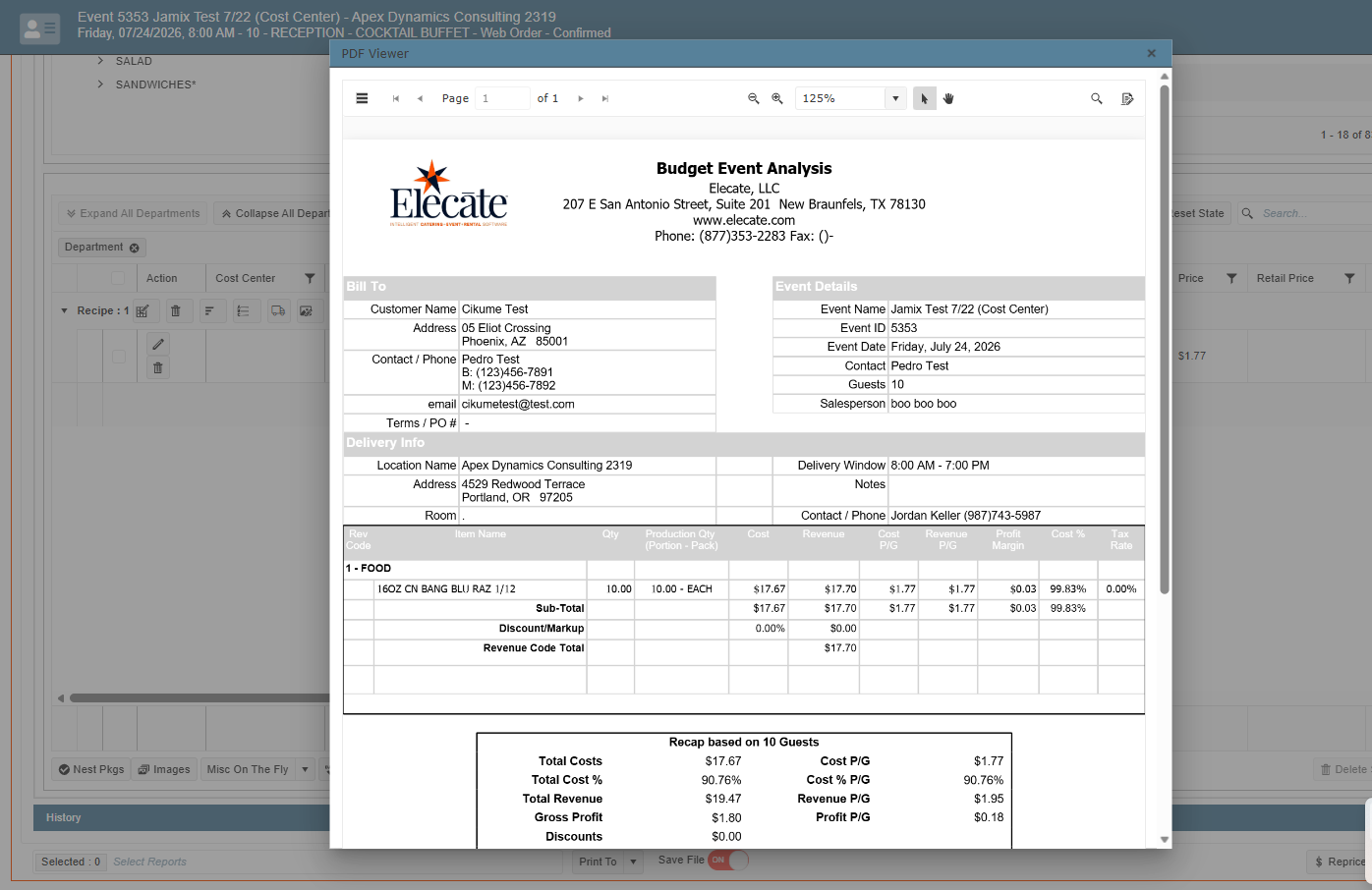
If the user wants to see recipe information for an event, they can run the Budget Event Analysis report. This report shows recipe details, including costs and pricing, making it easy to review the information they need.
Important: After updating a recipe price, the new cost will only be reflected in new events where the recipe is added after the update, or in existing events where the recipe is newly added.
Events that already contain the recipe will retain the original price that was in effect when the recipe was added. The pricing is not updated automatically.
To display the updated price in an existing event, the user must remove the recipe and add it back to the event.
The same behavior applies to reports. Reports will use the price currently stored on the event, so existing events will continue to reflect the original recipe cost until the recipe is removed and re-added.
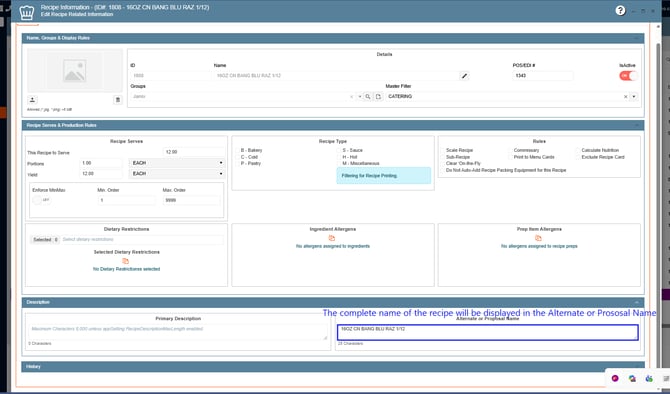
8. If the Jamix recipe name exceeds the maximum length, the system will use only the first 20 characters. The full recipe name will appear in the Alternate or Proposal Name field
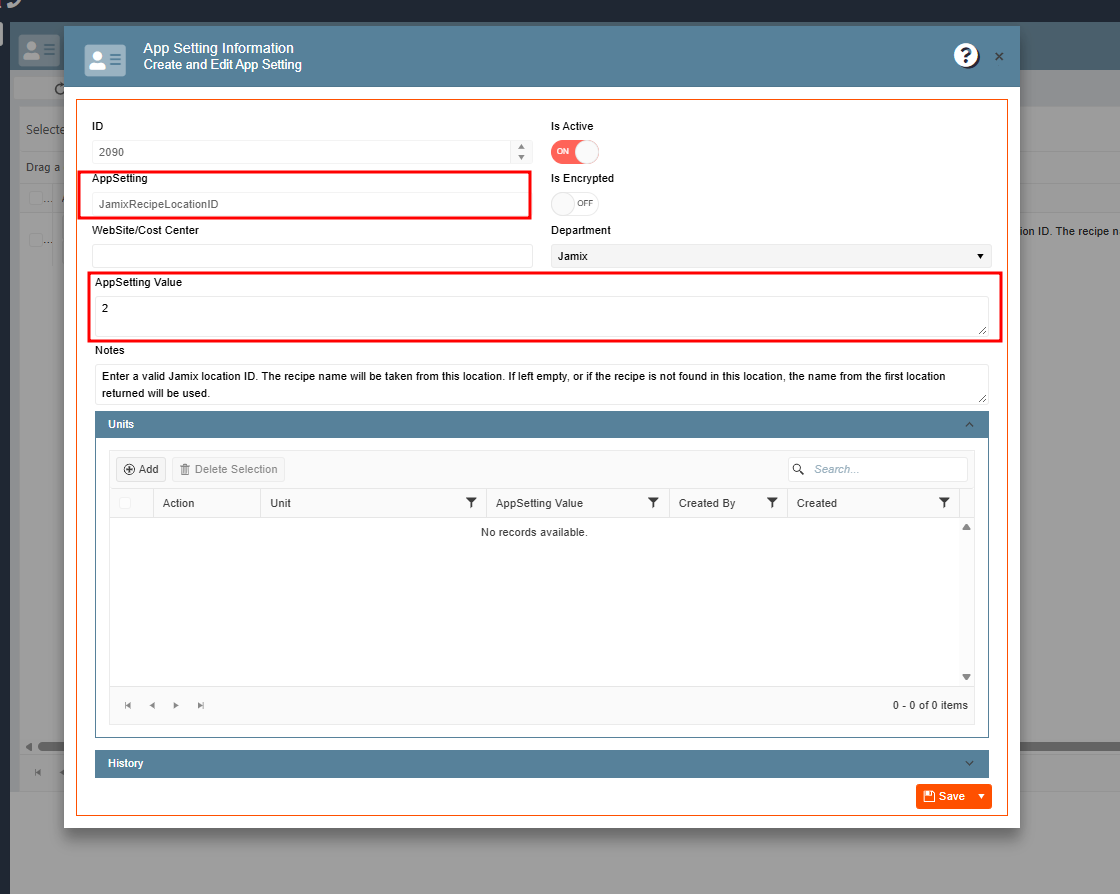
When an item exists in several Jamix kitchens, Elecate takes its name and prices from the location set in JamixRecipeLocationId. Elecate uses the location with the lowest Jamix location ID that carries the item when:
- the setting is empty,
- the setting is not one of the imported locations, or
- the item does not exist in that location.
Every Jamix location that carries the item is still linked to it, so Purchase Orders can be sent to any of them.
For example, if the setting is configured with Location ID 2 (Elecate Orders), all imported item names will follow the naming conventions defined in that Jamix location. This enhancement is especially important for clients managing multiple Jamix kitchens, helping maintain consistent and accurate recipe naming across the application.
How to submit a Purchase:
1. On the left side panel, go to Production
2. Click on Purchasing & Inventory
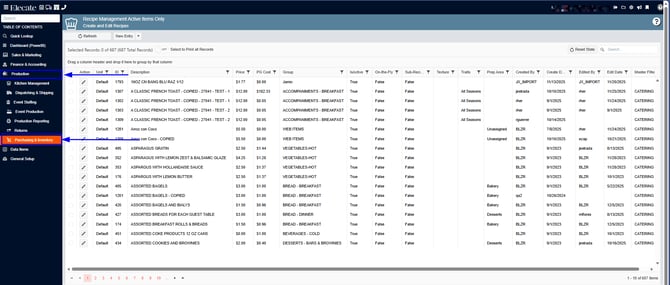
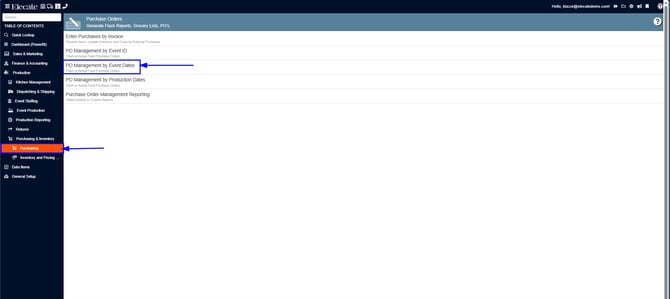
3. Select Purchasing
4. Choose PO Management by Event Dates
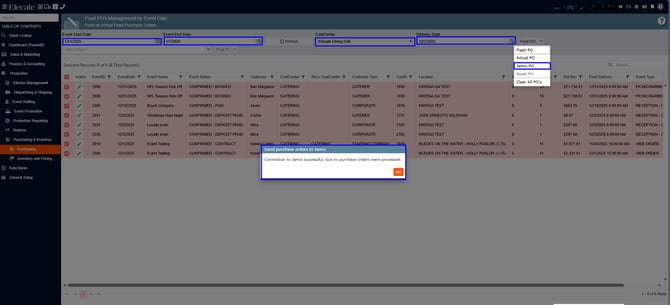
5. You need to select the Event Start and End Date, The Cost Center, the Delivery Date and from the Flash PO drop down, click on Jamix PO, the following pop-up will show up letting you know if the purchase was completed or not:
The Purchase Order creation process has been updated to automatically use the event's Receiving Cost Center as the target location in Jamix. Additionally, validation has been added to notify users when a Receiving Cost Center is not configured, helping prevent errors during Purchase Order creation.
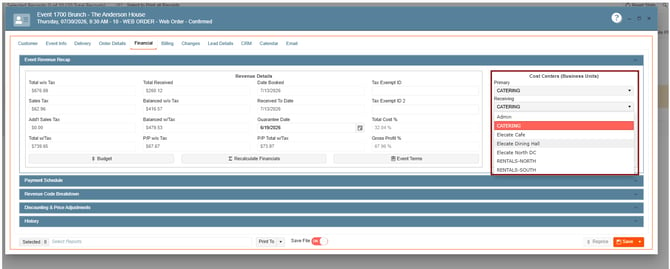
In Jamix, there are two different Cost Centers, each serving a specific purpose:
- Primary Cost Center: Controls data visibility and determines which information users are allowed to see within the application.
- Receiving Cost Center: Controls where Purchase Orders are sent for fulfillment, such as a specific kitchen or location responsible for receiving and processing the order.
- In the Receiving Cost Center field, users can only select Cost Centers that have been imported through the Jamix Integration.
Understanding the distinction between these two Cost Centers is important, as the Primary Cost Center governs access and visibility, while the Receiving Cost Center determines the operational destination of the order.
What happens if I click Jamix PO again for the same events?
- Items that have not been sent yet go into a new Purchase Order in Jamix.
- Items already sent are compared with Jamix. If the event quantity changed, the Jamix Purchase Order is updated, and the quantity in Elecate's Purchase Order is updated to match.
- Items removed from the event are removed from the Jamix Purchase Order.
- If the Purchase Order is already marked as Ordered in Jamix, Elecate does not change it. Any later quantity change has to be made by hand in Jamix.
Purchase Order checks before sending:
Why did I get "No Purchase Orders were sent to Jamix"?
Before sending anything, Elecate checks every item in the selected events. If any check fails, nothing is sent and the message lists every problem at once, so you can fix them all before trying again.
|
Message |
How to fix it |
|
The Jamix batch unit, batch size or basic unit is missing |
Run Import Food Items (Jamix) again for that item. |
|
The Jamix unit of measure "X" is not mapped to an Elecate unit |
Add it in Application Codes under "Jamix - Units of Measure". |
|
No conversion factor was found between X and Y |
Add a conversion between the two units on the recipe. |
|
The recipe group code is longer than 7 characters |
Use a Recipe Group code of 7 characters or fewer. |
|
Cost center is longer than 20 characters |
Shorten the Cost Center code. |
|
The quantity is too large for a Purchase Order line |
Split the quantity across lines or events (limit 99,999). |
What if a Purchase Order was created in Jamix but Elecate shows an error?
The message names the Jamix Purchase Order number. Delete that Purchase Order in Jamix before sending again, or it will be created twice.
Before starting to use Jamix, review these App Settings:
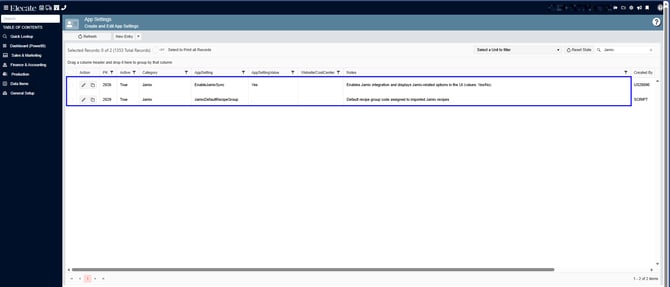
- EnableJamixSync- Turns on the Integration
- JamixDefaultRecipeGroup- Group where new Jamix items are created. Enter the group's code, not its name. Create the group first. The stock card import fails if this is empty.
- RecipeAltDescriptionToMaxLength - Lets the Alternate or Proposal Name field hold up to 4,000 characters instead of 50, so long Jamix names are kept in full.
- JamixRecipeLocationId - Location used as the master source for item names and prices
Authentication Process:
1. At the top of the screen, on the right side click on the Gear Icon
2. Look for Setup Client (Second Page)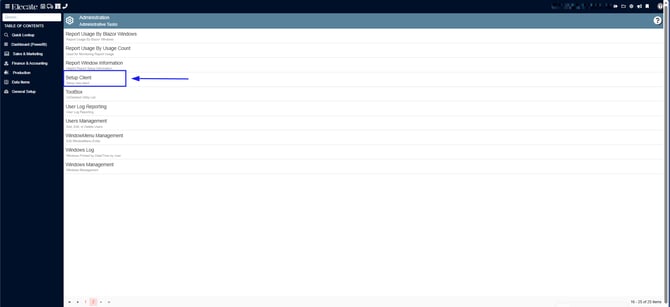
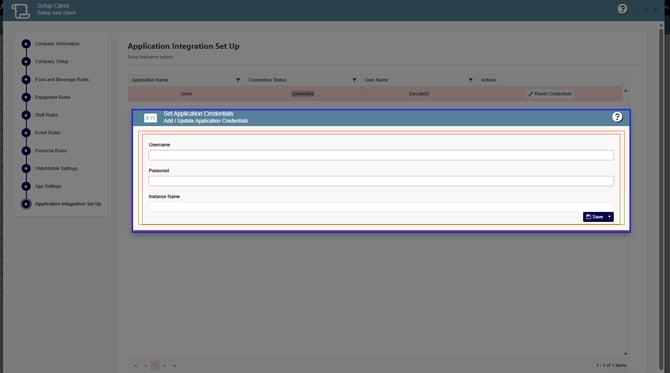
3. In the Setup Client window, go to the last option Application Integration Set up
4. Click on Reset Credentials, you will have to enter the Business Username, Password and Instance Name, you can find this information in the URL provided by Jamix, example:
https://usa.jami.cloud/apps/instancename/app/, you just need to copy the information from the URL.
Important: Please use only the Jamix provided credentials for the login information. Work with Elecate and Jamix to secure those credentials.
To enable or review the Jamix App Settings:
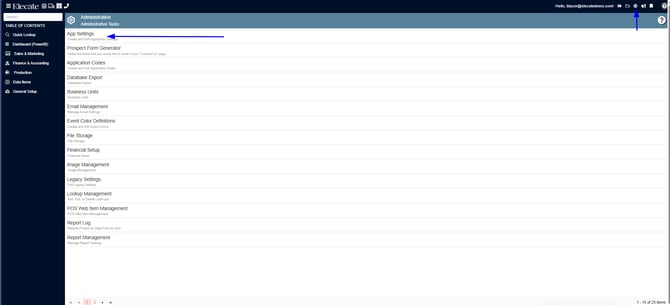
1. At the top right of the screen, click the Gear icon
2. Select App Settings
3. In the search bar type in: Jamix, the following App Settings will show up:
How to create Recipe Groups for Jamix:
1. On the left side panel, go to Data Items
2. Click on Food Management
3. Select Recipe Group Management
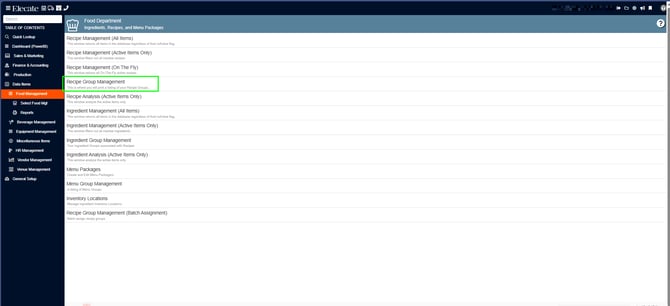
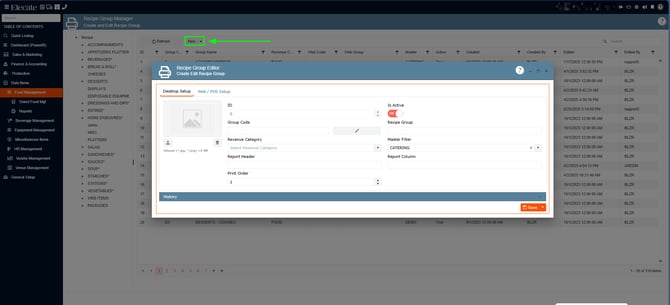
4. Click on New Entry to create the new group, next go to the app setting JamixDefaultRecipeGroup and enter the Group name that you just created
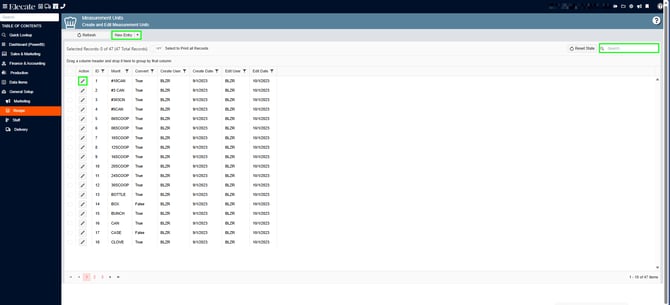
How to check the measurements in Elecate’s catalog:
1. On the left side panel, go to General Setup: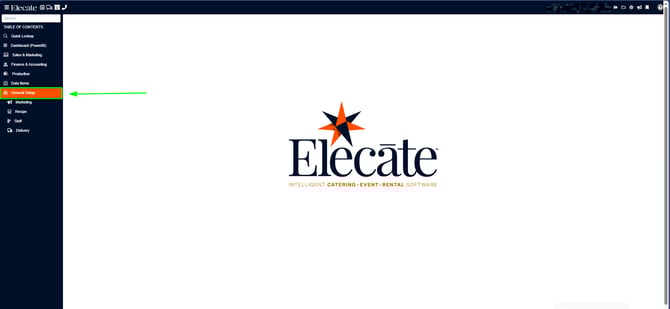
2. Select Recipe
3.Choose Create and Edit Measurement Units 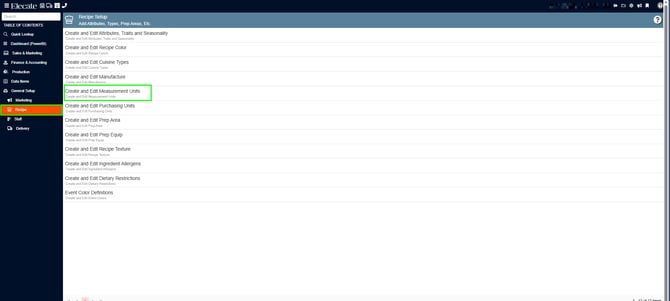
4. In the following window, you can create a new measure by clicking on New Entry, look for a measure in the search bar and edit the existing records by clicking on the pen Icon
How to check or Update the Jamix´s Measurements in Elecate?
Before creating a new Jamix measure, ensure that the same measure exists in the Elecate catalog. If it doesn’t, you won’t be able to complete the import.
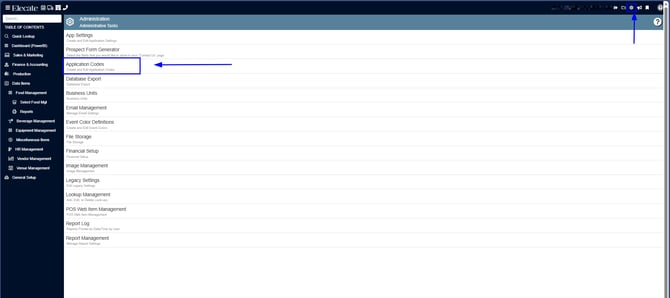
1. At the top of the screen on the left side panel, click on the Gear Icon
2. Click on Application Codes
3. In the search bar type Jamix, the following information will show up
1. On the left side panel, go to Sales & Marketing
2. Click on Event & Order Management

3. Select Event Management- All Status Types Included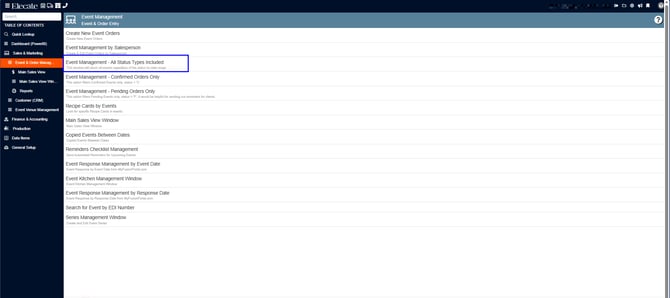
4. Click on New Entry: 
5. Fill in the required information: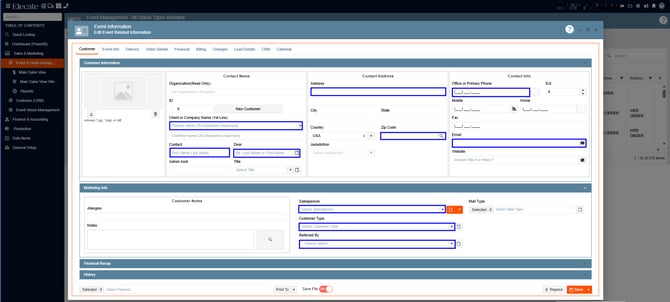
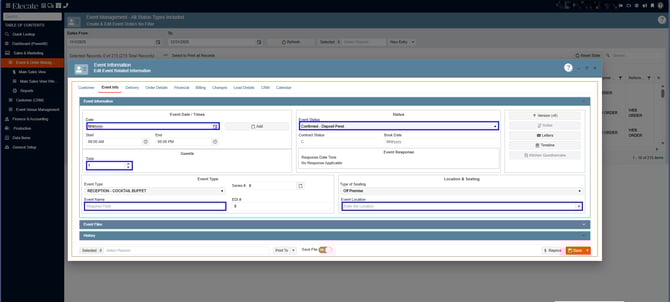
6. Go to the Financial Tab, in the Cost Centers section choose the Receiving and Home fields, the Jamix Locations:
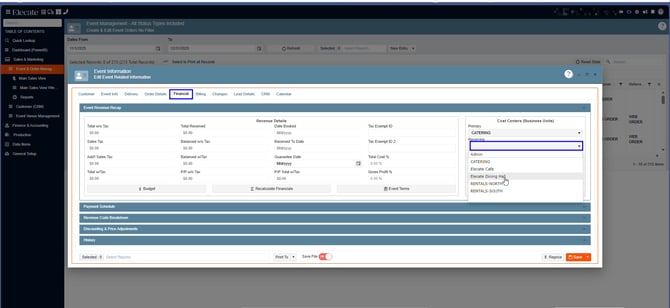
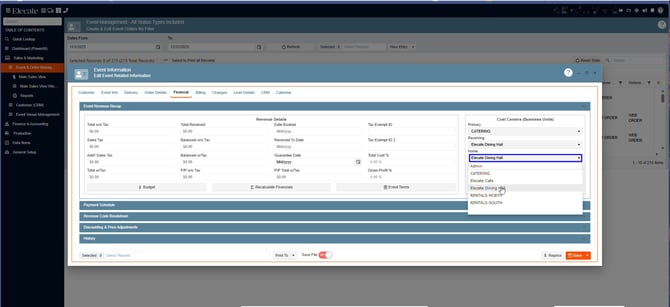
7. In the Order Details tab, you need to select the Jamix group, in order to add the items to the event, once you have added the items, then you can close and save the event: