
Why selecting an Event Type is required
-
Tax configuration:
Each event type can have specific tax codes assigned. This ensures the system applies the correct taxes automatically based on the nature of the event. -
Cost center allocation:
Different event types can be linked to different cost centers, helping with accurate accounting, reporting, and budgeting. -
Standardization & consistency:
Assigning an event type ensures events follow predefined rules, making reporting and internal tracking more consistent.
How to edit or create Event Types?
1. At the top of the screen, on the right side click on the Gear Icon: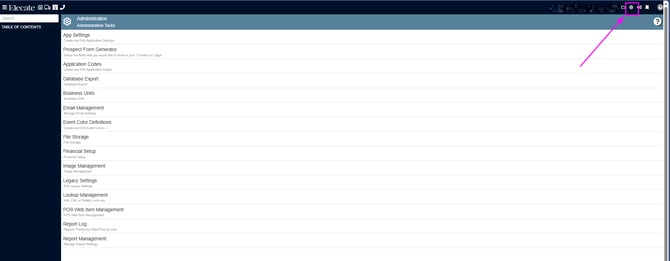
2. Select Financial Setup: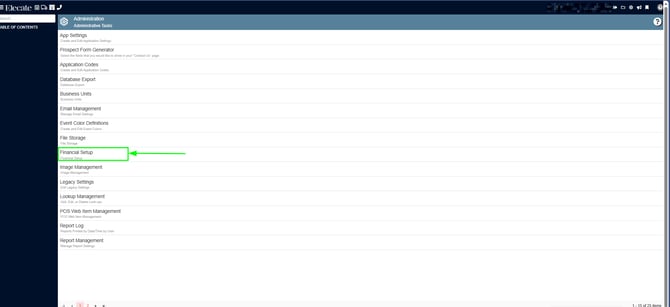
3. Choose Create and Edit Event Types: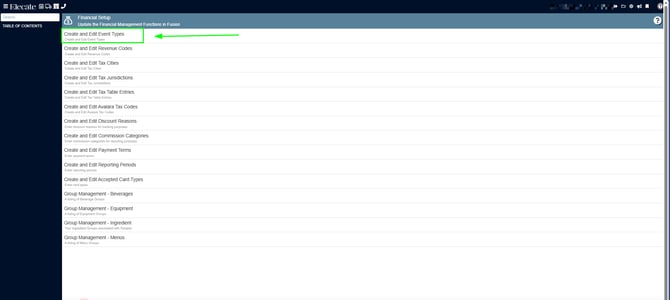
4. In the following screen, you will be able to create new event types or edit the existing information: 
5. If you need to create a new Event Type, click on New Entry, the following window will appear, you just need to fill out the required information, including the Add-ons:
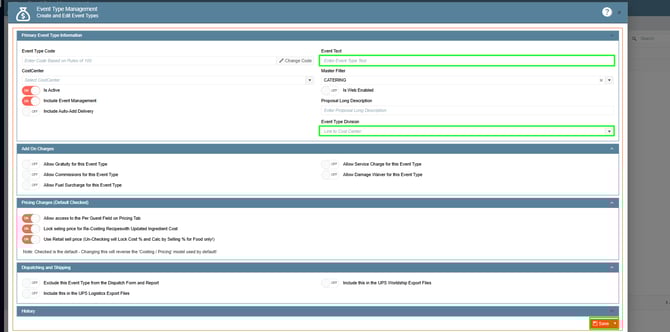
6. In the other hand, if you just need to edit an existing event, click on the pen icon: 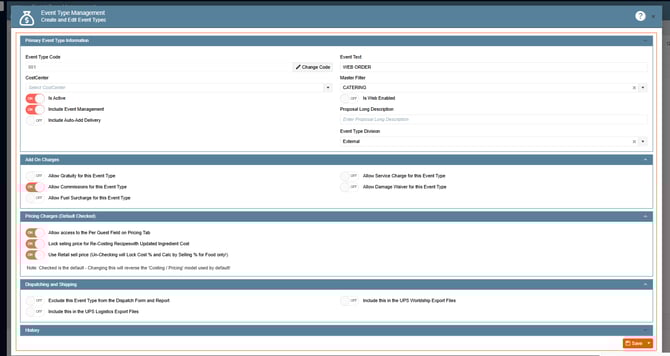
Add-On Charges:
Allow Gratuity For This Event Type: Check this box if you allow a “Gratuity Charge” for this type of event. This links to “Revenue Categories.”
Allow Service Charge For This Event Type: Check this box if you allow a “Service Charge” for this type of event. This links to “Revenue Categories.”
Allow Commissions For This Event Type: Check this box if you allow a “Commissions” for this type of event. This links to “Revenue Categories.”
Allow Damage Waiver For This Event Type: Check this box if you allow a “Damage Waiver” for this type of event. This links to “Revenue Categories.”
Allow Fuel Surcharge For This Event Type: Check this box if you allow a “Fuel Surcharge” for this type of event. This links to “Revenue Categories.”
How to edit/update Event Types in an event?
1. On the left side panel, go to Sales & Marketing
2. Click on Event & Order Management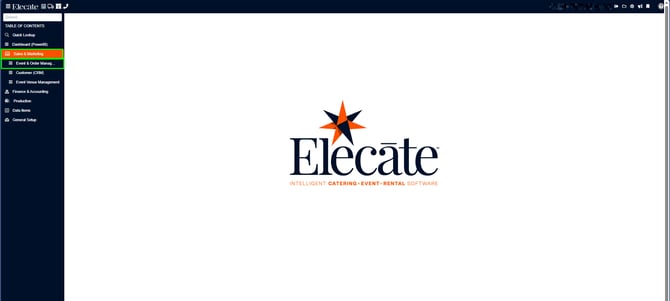
3. You can either select Event Management- All Status Types Included or Event Management- Confirmed Orders Only:
4. Open an existing record by clicking on the pen icon: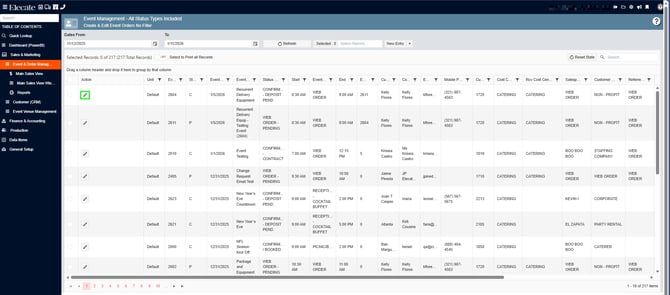
5. Go to the Event Info Tab and in the Event Type section, click on the drop-down menu: This is for taxing purposes, since you can set the tax codes and cost centers differently for each event type.