Equipment Packages are predefined groups of equipment items that can be added to events as a single package. They help streamline event planning, ensure consistency across similar events, and simplify pricing by allowing users to manage multiple equipment items from one record. Equipment Packages also control package pricing, scaling behavior, revenue categorization, and the equipment components that are included when the package is added to an event .
The Equipment Package form is organized into the following sections:
Name, Groups & Display Rules
- Equipment Package Name
- Event Type
- Master Assignment
- Revenue Code
- Package Image
Package Breakdown
- Guest Capacity
- Package Behavior Settings
- Pricing and Financial Information
Descriptions
- Proposal Description
- Internal Description
Package Usage
- View events currently using the package
Equipment Package Components
- Equipment items included in the package
- Component quantities
- Package composition setup
Recommended Setup Sequence:
Phase 1 – Configure Package Header Information
Complete:
- Package Name
- Event Type
- Master
- Revenue Code
Phase 2 – Configure Pricing
Set:
- Guest Capacity
- Selling Price
- Cost Percentage
- Package scaling options
Phase 3 – Create Package Components
Add all equipment items and quantities that belong in the package.
Phase 4 – Add Descriptions
Enter proposal and internal descriptions.
To check Equipment Packages:
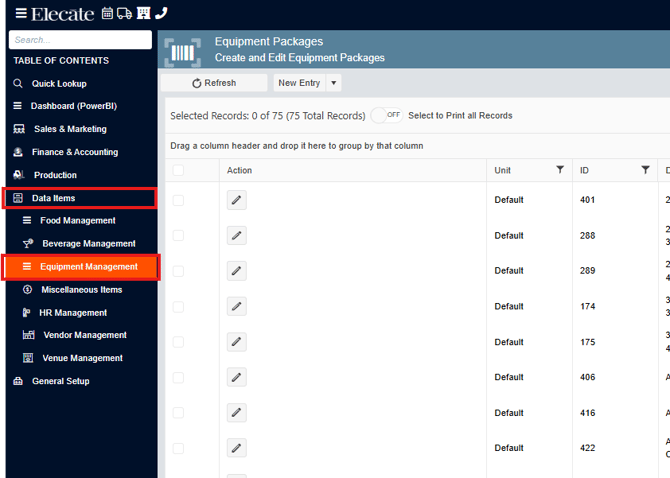
1. On the side panel go to Data Items
2. Click on Equipment Management
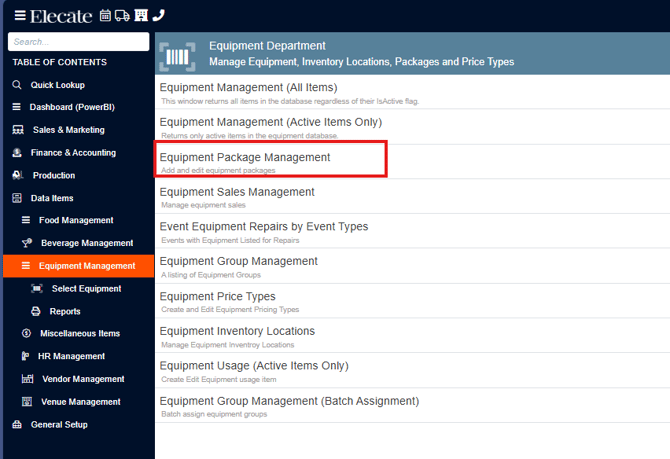
3. Select Equipment Package Management
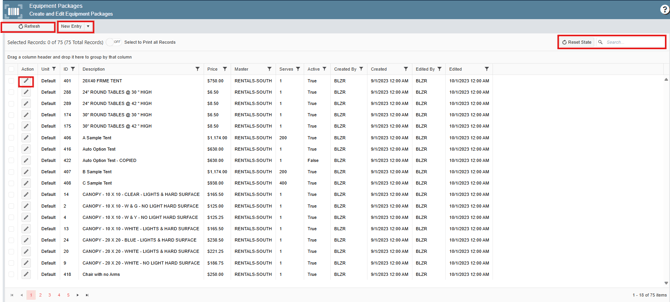
4. On this window, then you have to click on refresh if you want to see the current information, create a new entry, reset state or search for the information using the ID.
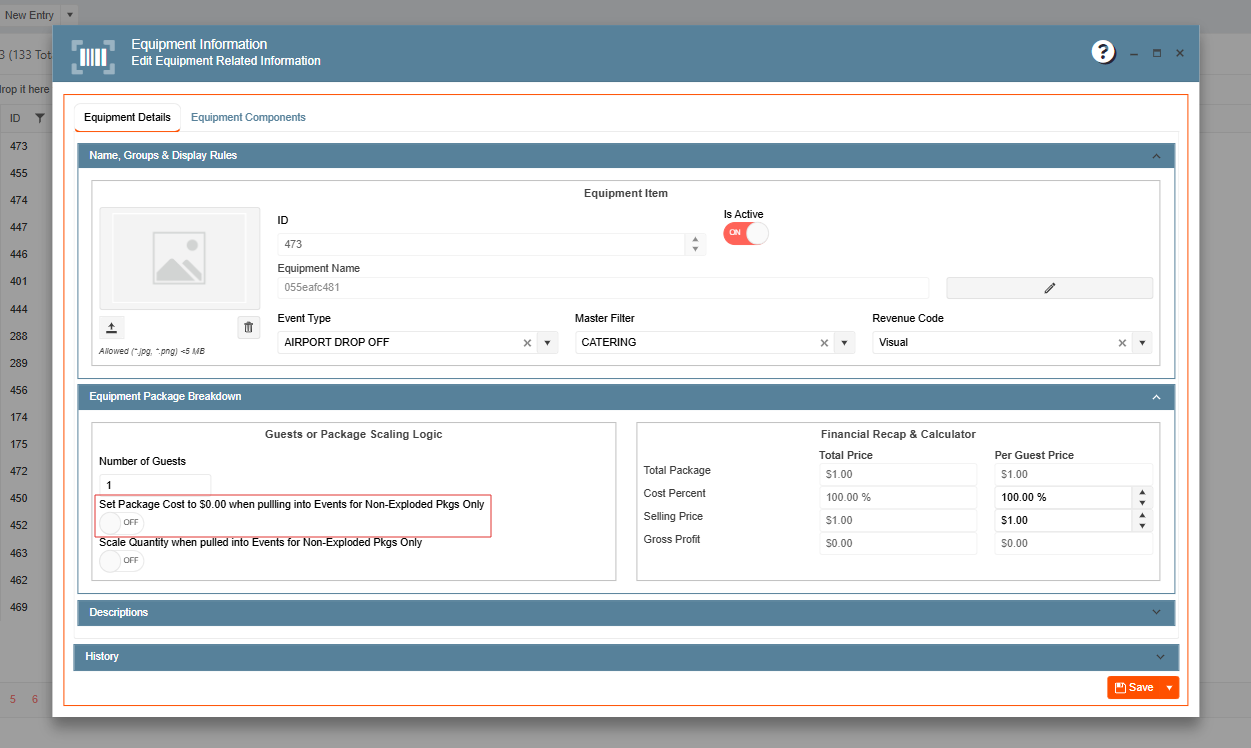
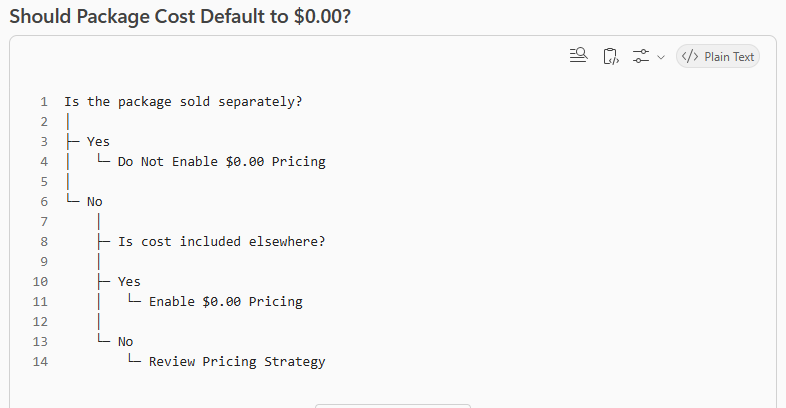
Set Package Cost to $0.00 When Pulled Into Events (Non-Exploded Packages Only):
Purpose
Automatically sets the package price to $0.00 when added to an event.
When Enabled
- Package price defaults to zero.
- Revenue may be included elsewhere in the event pricing structure.
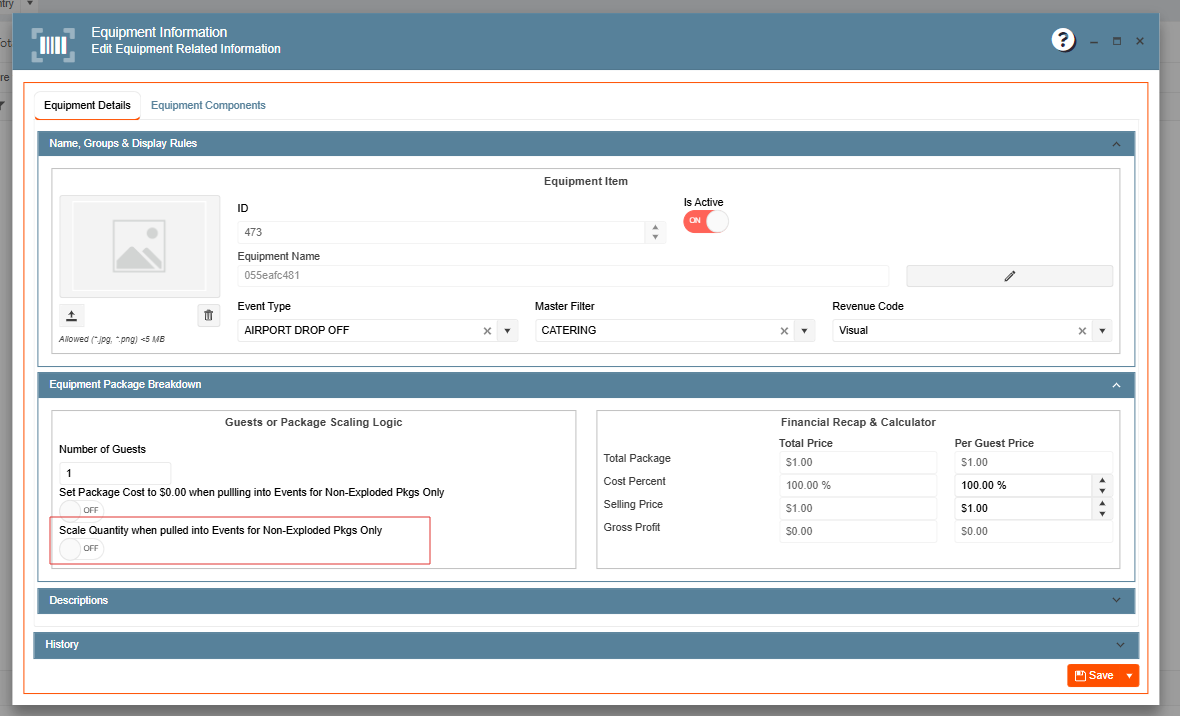
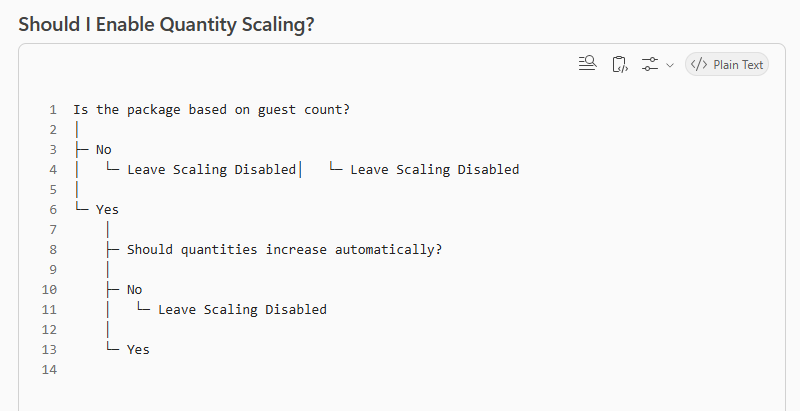
Scale Quantity When Pulled Into Events (Non-Exploded Packages Only):
Purpose
Automatically adjusts package quantities based on event requirements.
When Enabled
Item quantities scale when added to events.
Business Impact
Reduces manual quantity adjustments.
Best Practice
Enable for packages that are designed around guest counts.
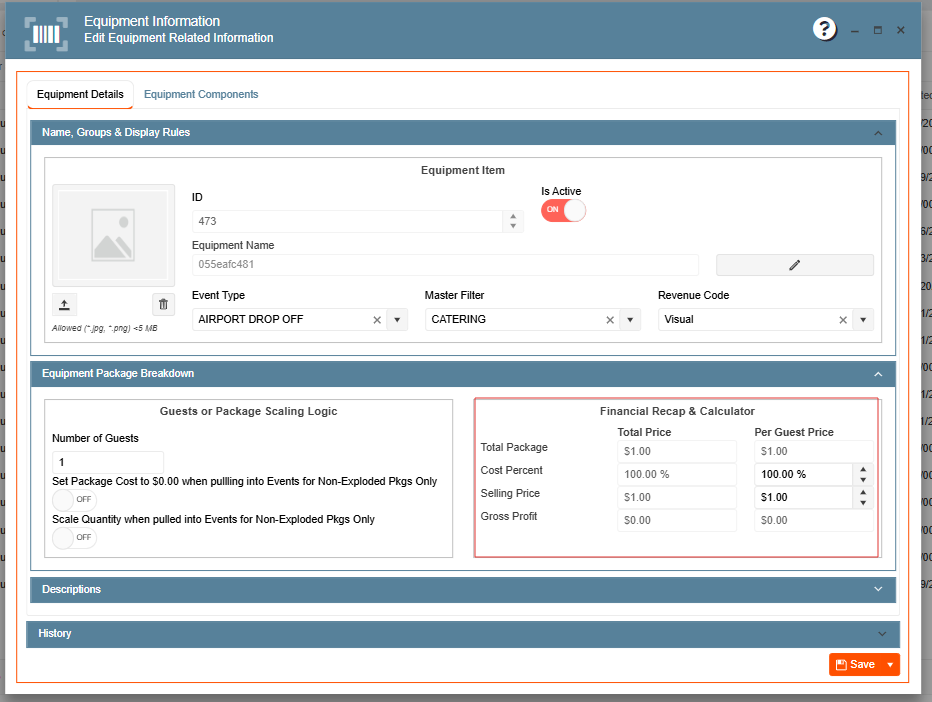
Cost Percent:
Purpose
Calculates the relationship between package cost and selling price.
Business Impact
Helps maintain profitability targets.
Best Practice
Monitor regularly to ensure package margins remain accurate.
Selling Price
Purpose
Determines the amount charged to customers for the package.
Business Impact
Directly impacts package revenue.
Best Practice
Review pricing regularly based on equipment costs and business objectives.
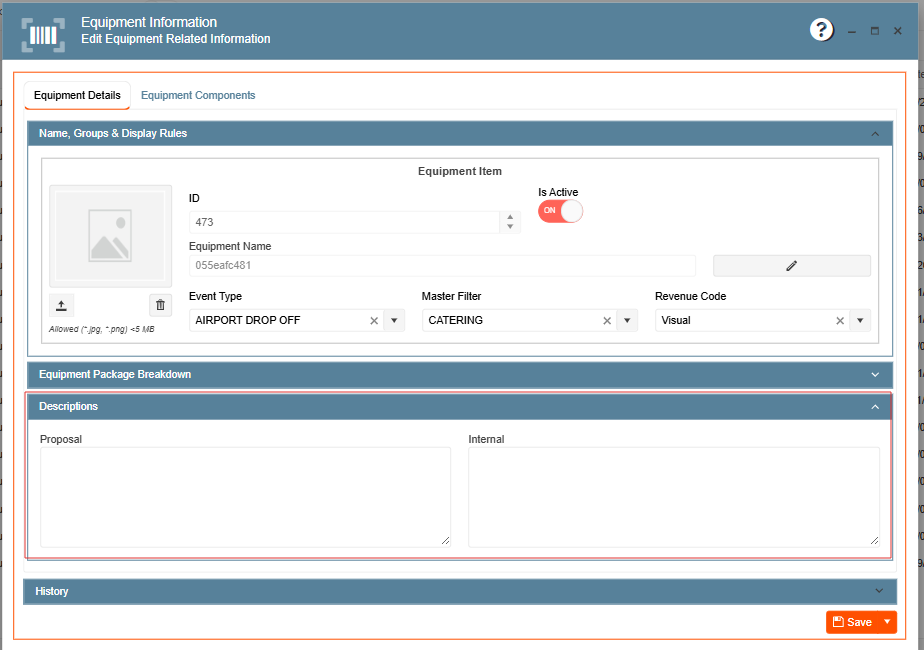
Internal Description:
Purpose
Internal operational notes not intended for customer viewing.
Best Practice
Document setup requirements, logistics notes, or special handling instructions.
Decision Frameworks:
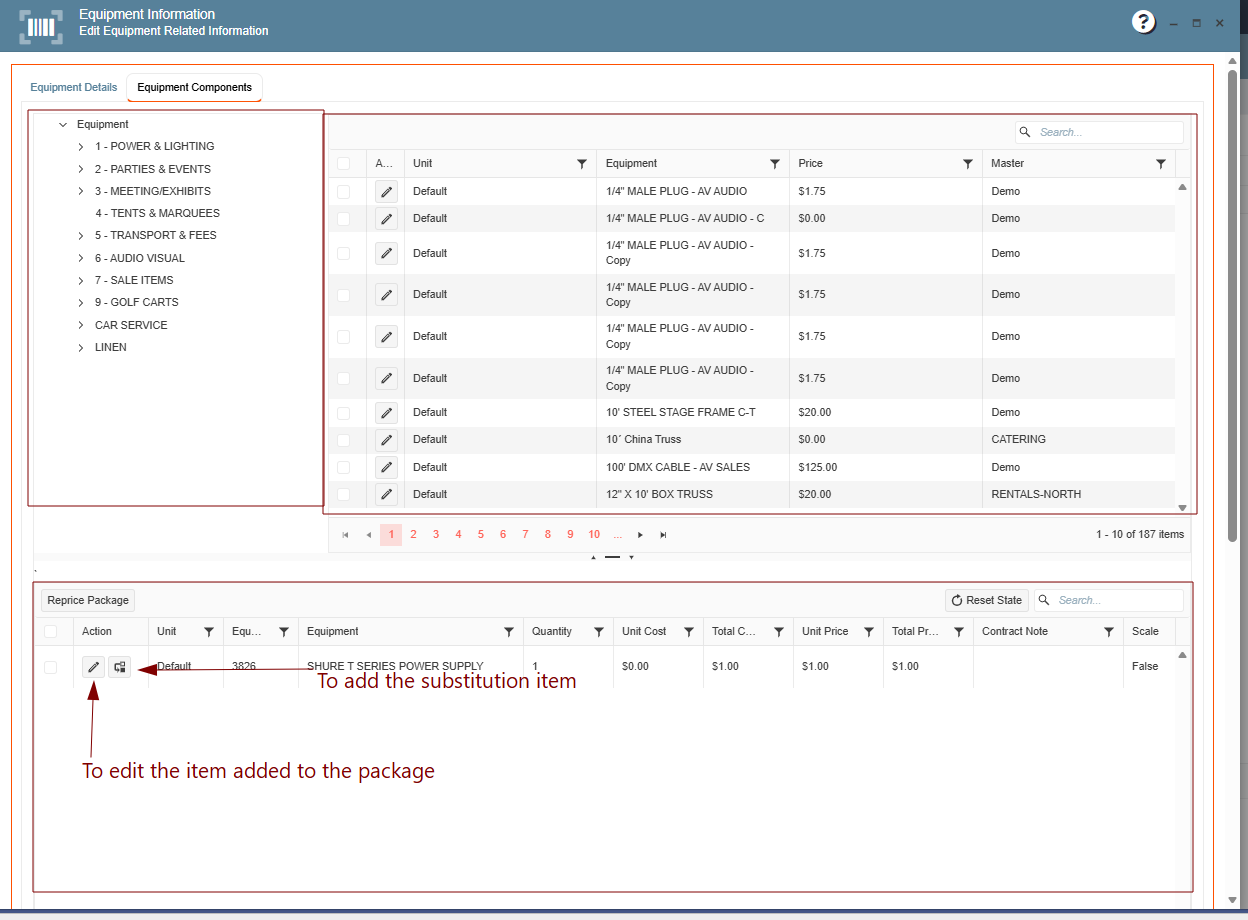
6. Next to the Equipment Details, we have the Equipment Components, on this window you will have the option to play with the items, adding or removing them from your package, additionally include the substitutions for the items.
When creating an Equipment Package, users can add equipment items from the various available categories.
- The left panel displays the available Equipment Categories.
- The right panel shows the Equipment Items within the selected category.
- The bottom section displays the Equipment Items that have been added to the package.
This layout makes it easy to browse categories, select equipment items, and review all items associated with the Equipment Package in one place.
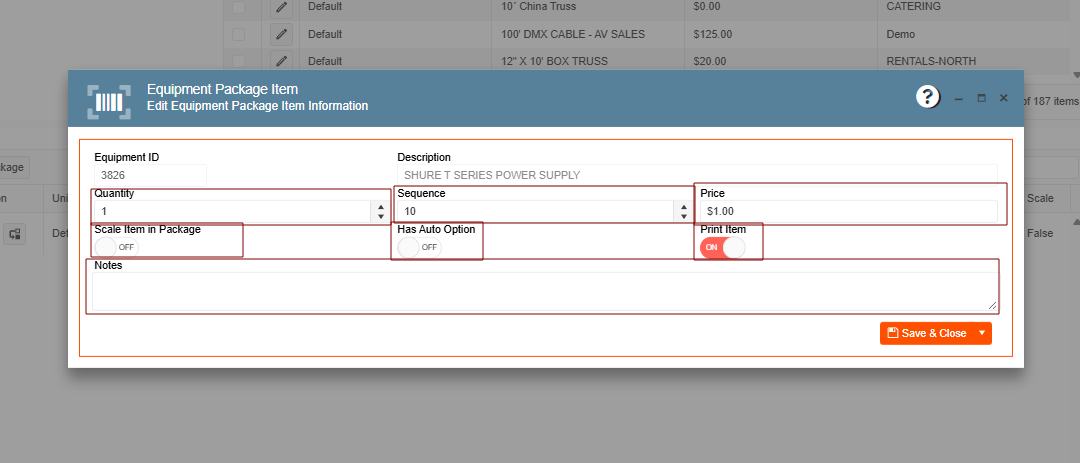
Users have the option to edit equipment items that have been added to an Equipment Package. When editing an item, they can:
- Modify the Price, Quantity, and Sequence.
- Enable or disable the Scale, Has Auto Option and Print toggles based on their preferences or business requirements.
- Add Notes to provide additional details or special instructions for the item.
These customization options allow users to tailor each equipment item to meet the specific needs of the Equipment Package.
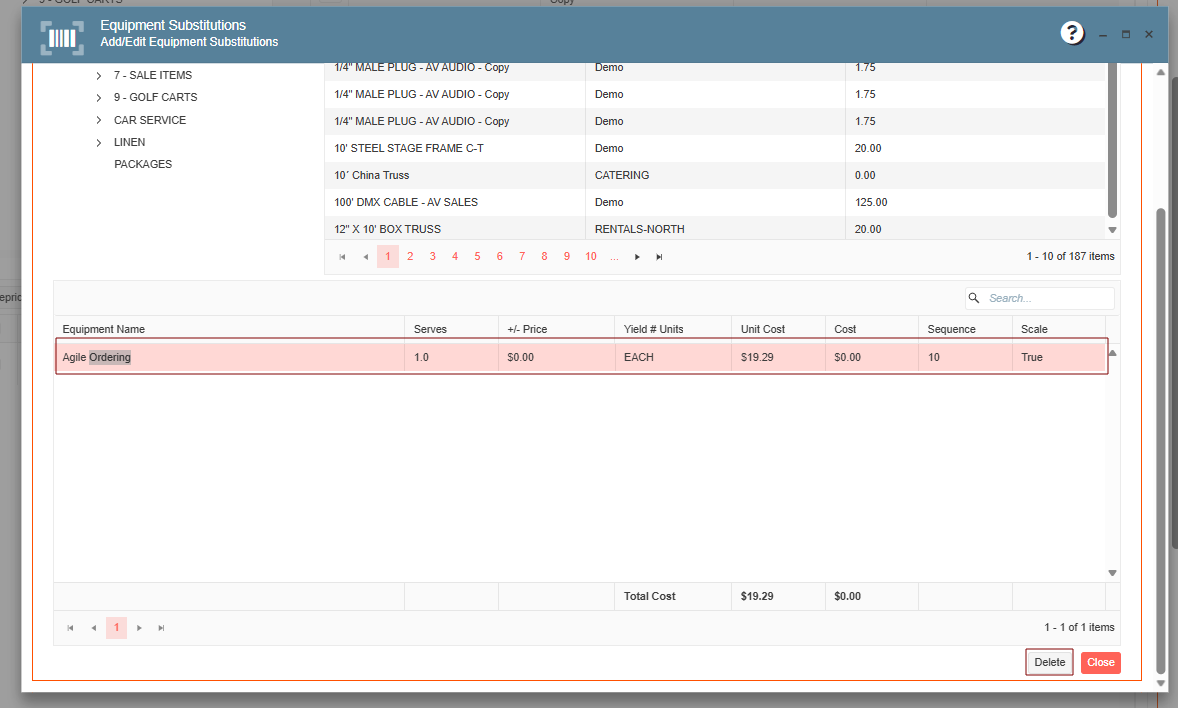
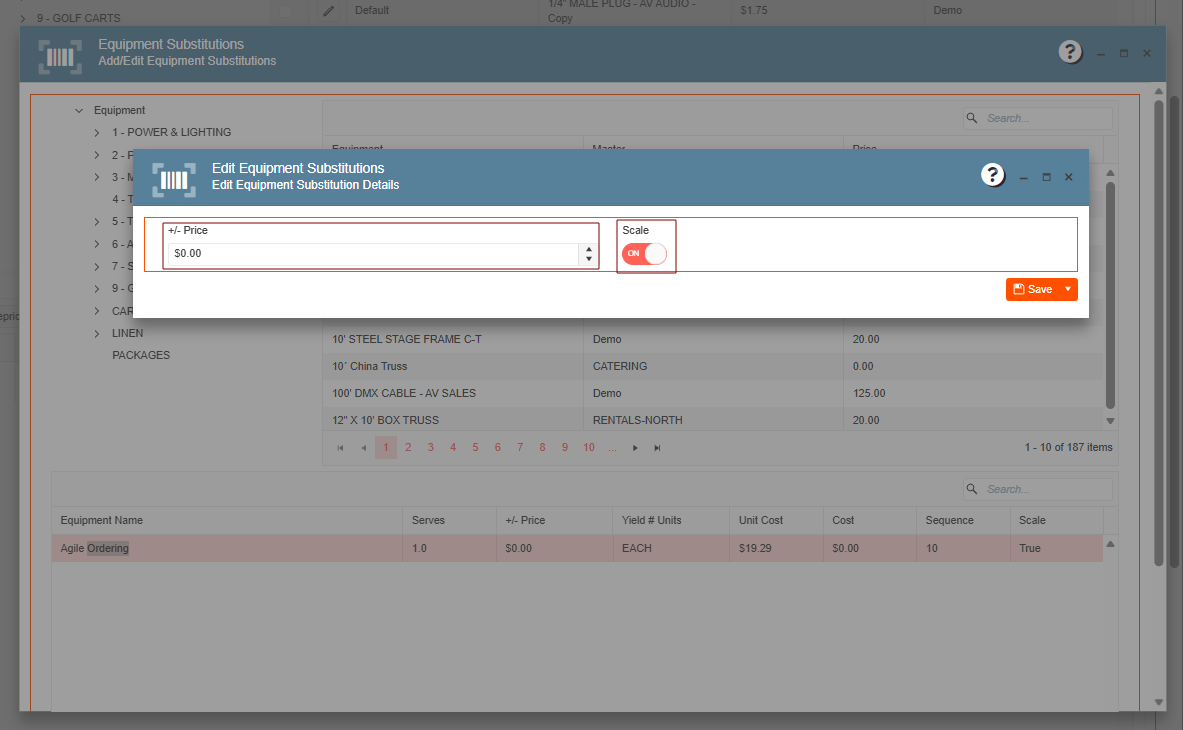
When editing a substitution item, users can:
- Modify the Price as needed.
- Enable or disable the Scale flag to determine whether the substitution item should be scaled based on quantity adjustments.
This allows users to customize substitution items and ensure pricing and scaling behavior align with their menu package requirements.
To delete a substitution item, select the item in the Substitutions section at the bottom of the screen. Once the item is selected, the Delete button will be available, allowing you to remove the substitution from the Equipment Package: