
Customer and event marketing reports involve the analysis and documentation of data related to marketing efforts aimed at both customers and events within a business or organization. These reports summarize metrics such as campaign performance, customer engagement, event attendance, conversion rates, and return on investment (ROI). They help businesses assess the effectiveness of their marketing strategies, identify trends, and make data-driven decisions to optimize marketing efforts and drive business growth.
How to Access the Report
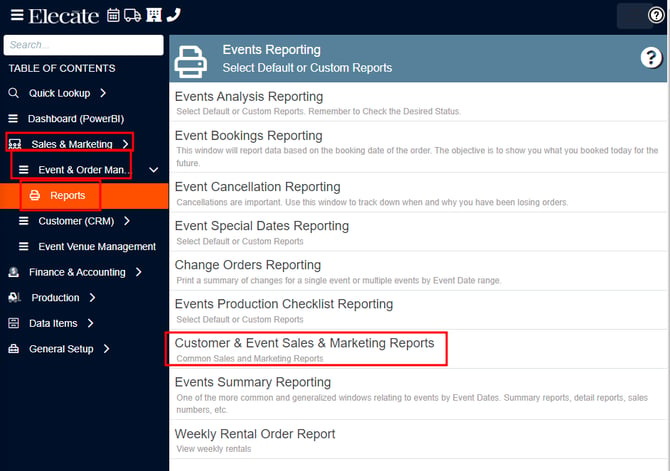
To access Customer & Event Sales & Marketing Reports, follow these steps:
- Go to Sales & Marketing in the left side panel
- Click Event & Order Management
- Click Reports in the navigation bar
- Click Customer & Event Sales & Marketing Reports
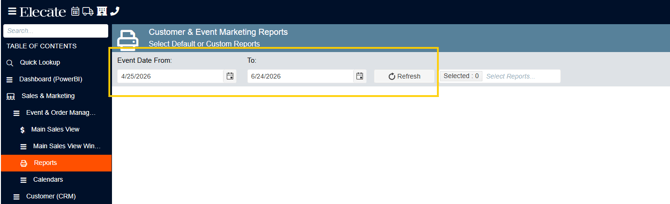
The Customer & Event Sales & Marketing Reports interface is organized into three logical sections:
DATA FILTERS
-
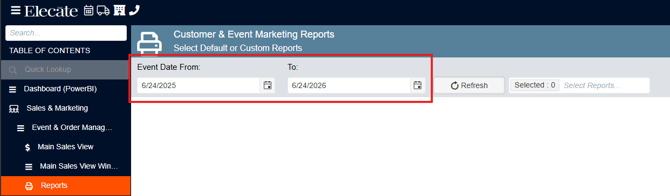
Event Date From / To: Two date input fields for selecting the start and end dates
Filters all reports to show only events and their associated orders that occurred between the "From" date and the "To" date, inclusive.
Format: MM/DD/YYYY (Month/Day/Year) - Example: 06/15/2024
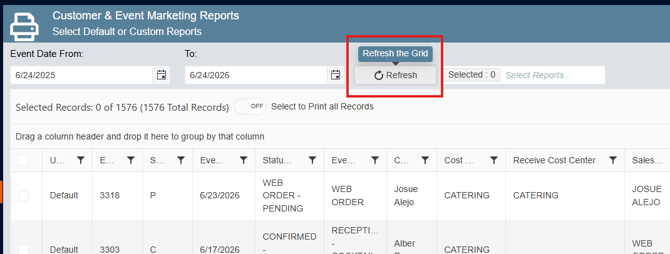
- Refresh Button: Updates the data after changing filter parameters
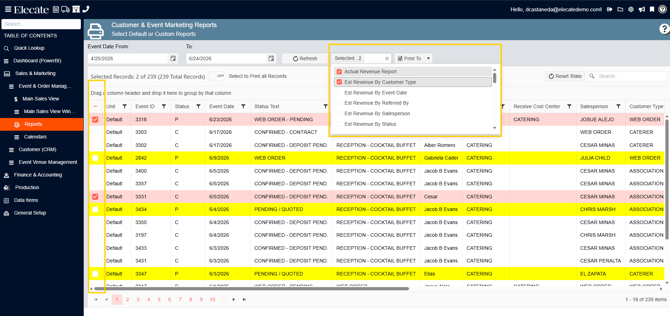
REPORT SELECTION
- Select Reports Dropdown: Browse and choose which pre-loaded reports to view
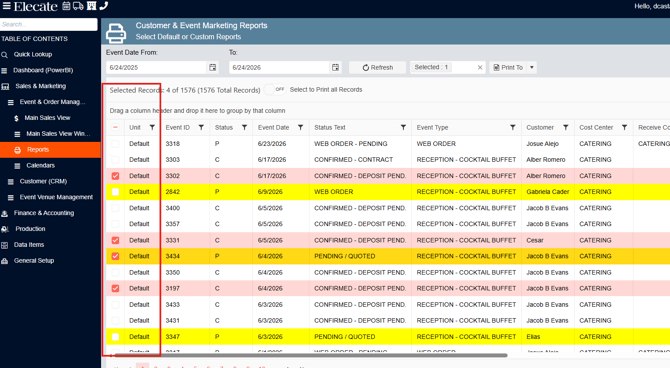
- Checkboxes: Select multiple reports if you want to export several at once
- Selected Reports Counter: Shows how many reports are currently selected
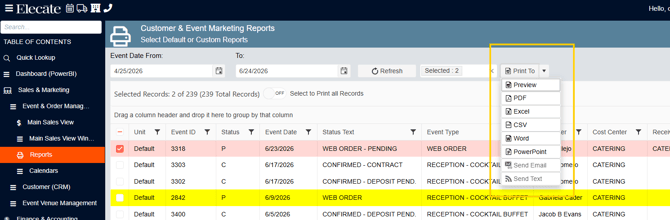
OUTPUT OPTIONS
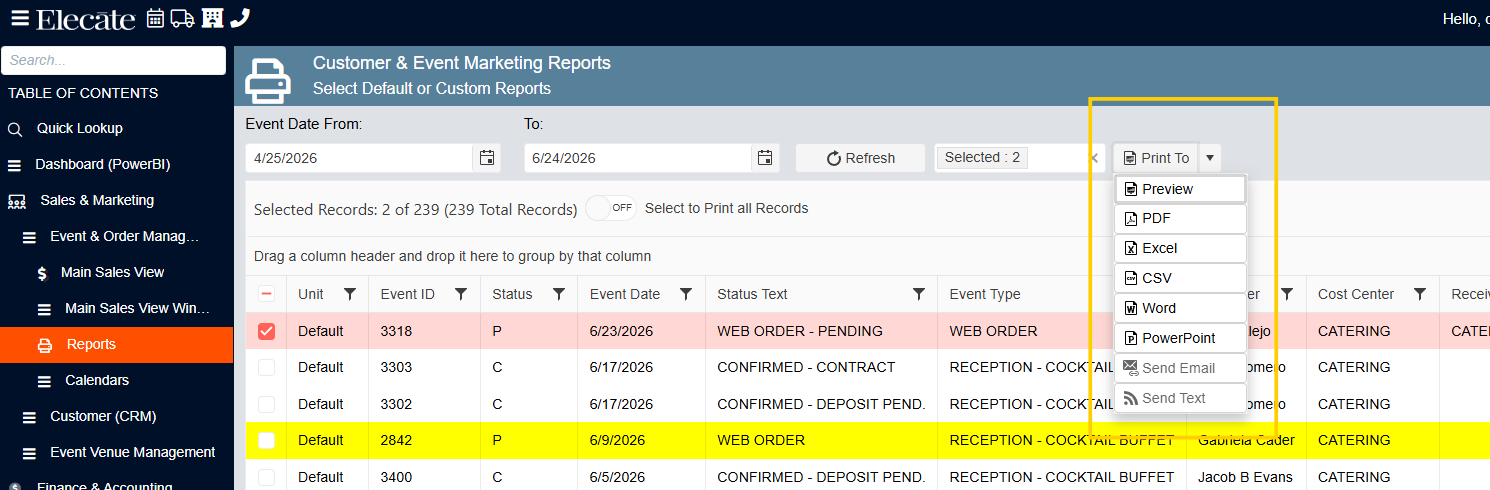
- Print Button: Opens export format menu with options for viewing and exporting
- Format Selection: Choose between Print to Screen, PDF, Excel, Word, PowerPoint, or Email
Reporting sequence
Before you can generate meaningful Customer & Event Sales & Marketing Reports, ensure the following data exists in your system:
- Customers - At least one customer account must be created in the system
- Events - At least one event must be scheduled/created
- Event Orders - Orders must be associated with events so the reports have transactional data to summarize
- Set the date range – Event Date from june 24, 2025 to june 24, 2026 to search for an event.
-
Click on Refresh.
-
Click on the drop-down "Select Reports..." and select the report you want to view.
SELECT REPORTS: Shows the list of available reports that summarize event and customer data by different categories and metrics.
-
Click on the Check boxes to select the report or reports you want to export.
- Click Print to and select how you want to view the report.
When to use each:
- Print to Screen: You need to see the data right now without creating a file
- PDF: You're sending to clients, board members, or need a locked format
- Excel: Your team needs to analyze deeper or combine with other data
- Word: You're writing a detailed analysis document
- PowerPoint: You're presenting findings in a meeting
- Send Email: You want the report automatically delivered to a group