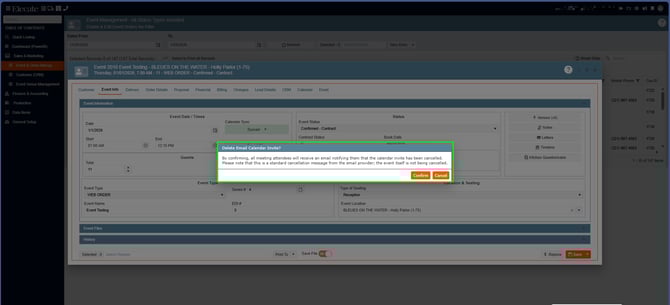
How to synchronize an event to the calendar:
1. On the left side panel, go to Sales & Marketing
2. Click on Event & Order Management: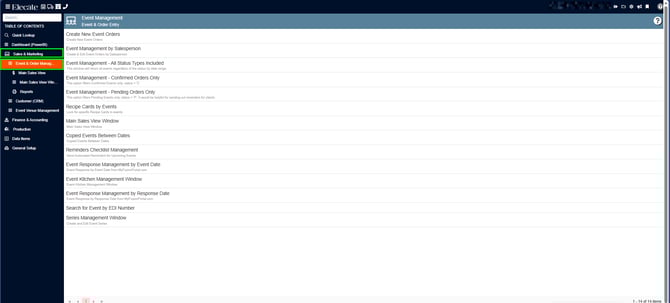
3. Select Event Management - All Status Types Included: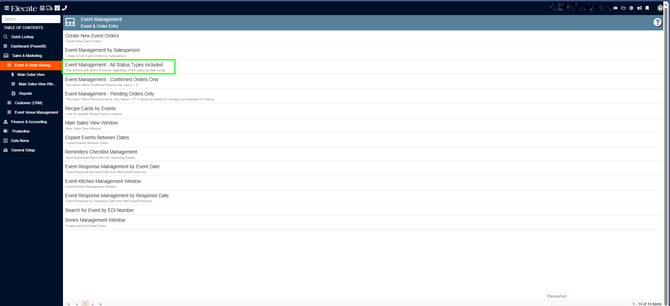
4. You can either select an existing event or create a new one by clicking on New Entry: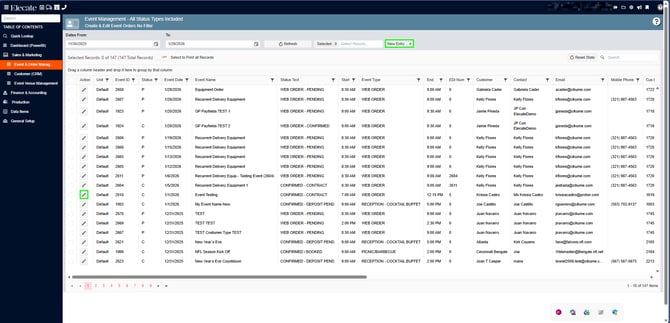
5. Once you have created the event, go to the Event Info tab. In this tab, you will find the Calendar Sync drop-down menu, which contains four different options, as shown in the image below:
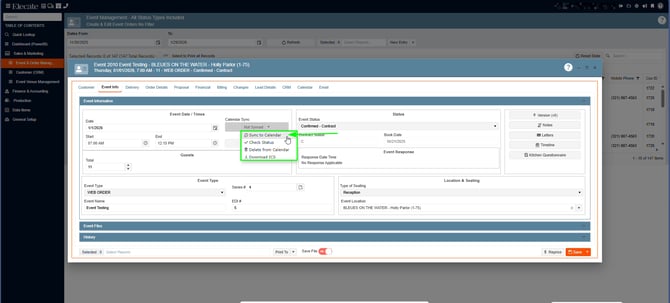
6. To synchronize the event to the calendar, you just need to click on the Sync to Calendar option, then press on Confirm:

The invitees will receive the invite, the event will show up in their calendar:
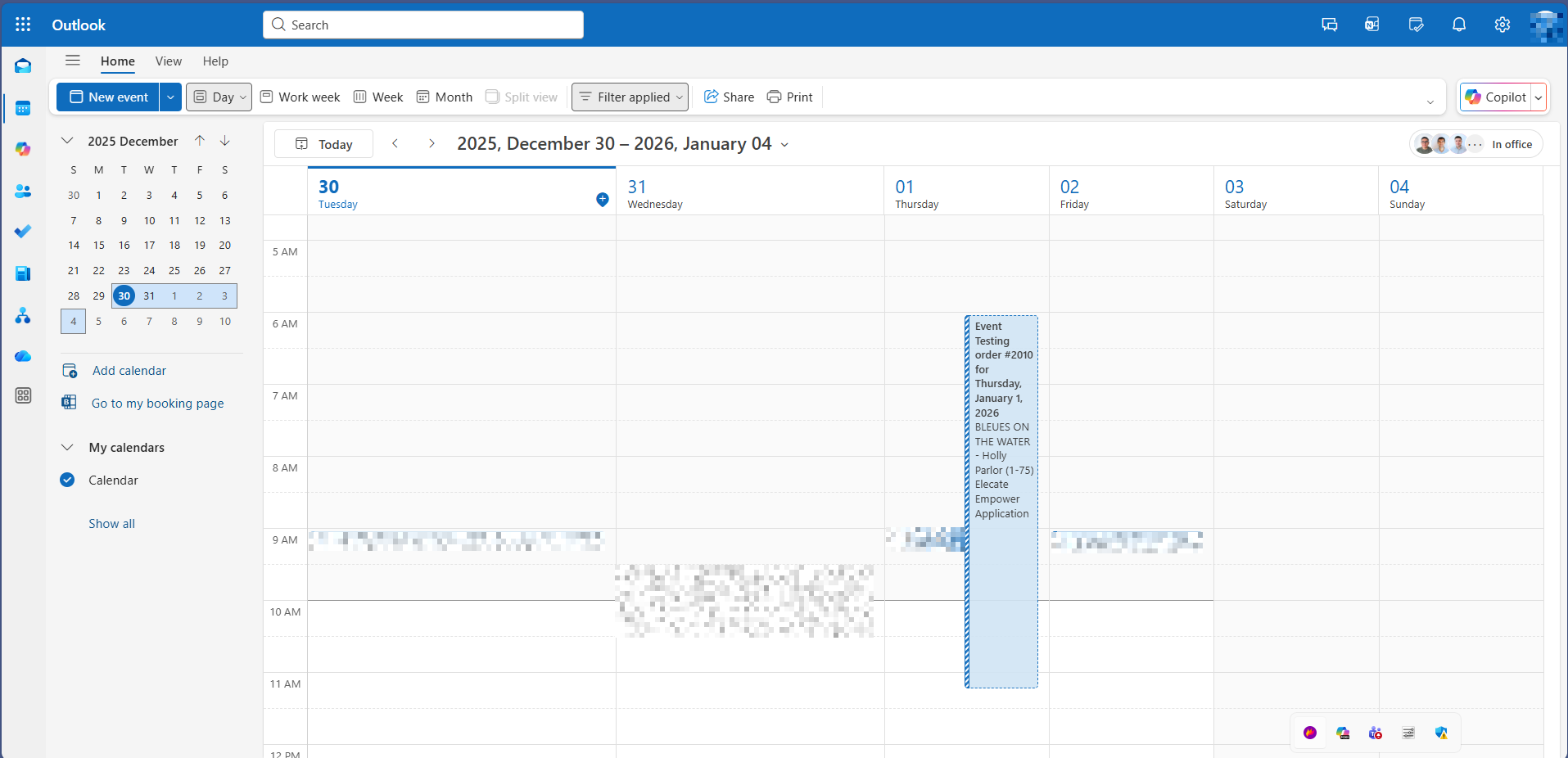
Any changes made to the event: such as time, date, cancellation, or name will automatically be updated in the calendar.
You have the option to delete the event from the calendar, from the calendar drop-down select Delete from the calendar: