1. Updating Event options' Lock/Unlock & Reset Budget/Actual Hours to display the label accordingly to the state of events:
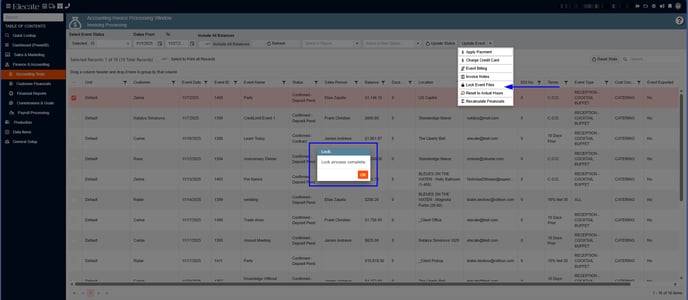
- When Event files are unlocked, the option label will read: Lock Event Files. Then functionality will follow the action described in the label.
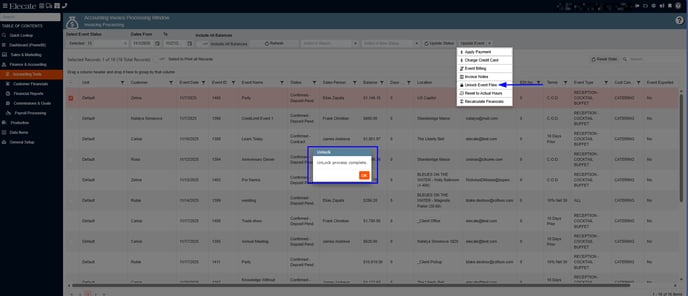
- When Event files are locked, the option label will read: Unlock Event Files. Then functionality will follow the action described in the label.
-
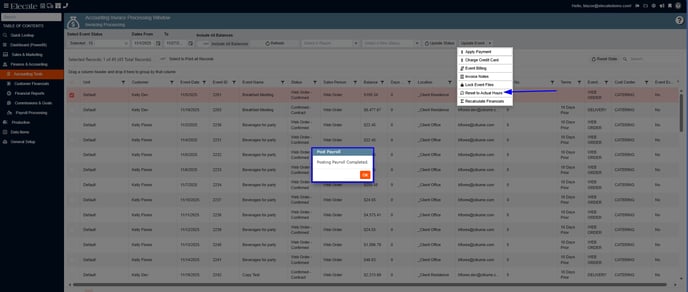
When records set to Actual hours, the option label will read: Reset to Budget Hours. Then functionality will follow the action described in the label.
-
When records set to Budget hours, the option label will read: Reset to Actual Hours. Then functionality will follow the action described in the label.
1. On the left side panel, go to Finance & Accounting
2. Click on Accounting Tools
3. Select Accounting Invoice Processing Window
4. Put a check mark in the different status from the Select Event Status field, next click on Refresh, select a record by putting a check mark on it, then go to the Update Event drop-down
2. Creating Jamix Stock Cards endpoints that can be mapped to Elecate's Food Items:
Sync the jamix endpoit.
3. Implementing (Create) POST PO endpoint for Jamix API integration:
- The POST PO endpoint is implemented and accessible.
- The endpoint returns valid PO data from Jamix.
- The response includes all required fields (e.g., PO number, items, quantities, dates).
- Error handling is in place for failed or malformed requests.
4. Having the ability to link customers & staff members Part 2:
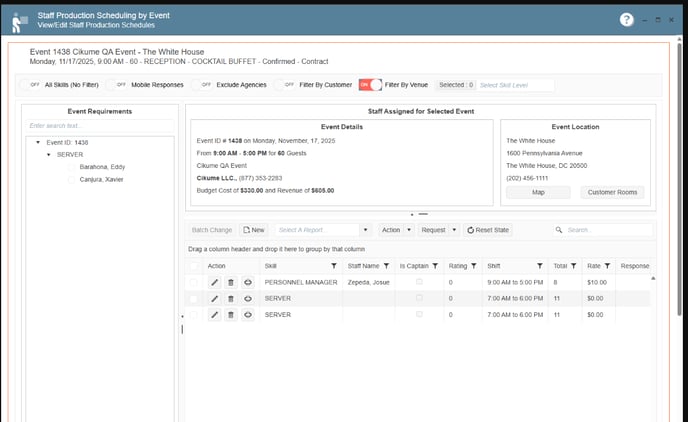
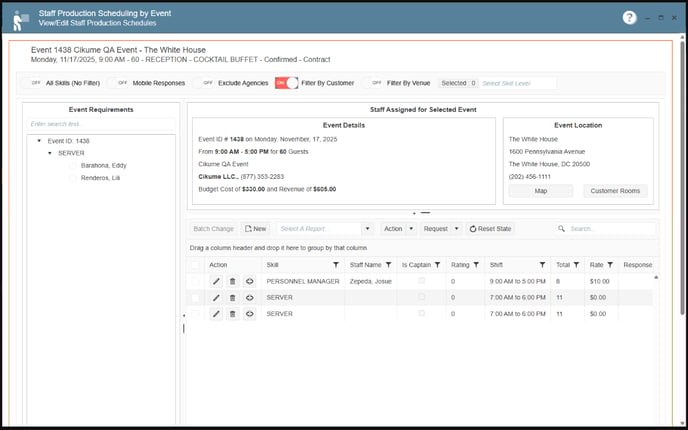
- On the Staff Production Scheduling Window, we need to have a filter for "Selected Staff", that will show the staff that they have assigned at a customer level
- Add a filter by Venue.
- The filter should work that if you linked a staff person to a venue (without the need for staffing) as soon as you access this screen and you filter by Venue, you should be able to see the staff members that have been associated with that specify venue
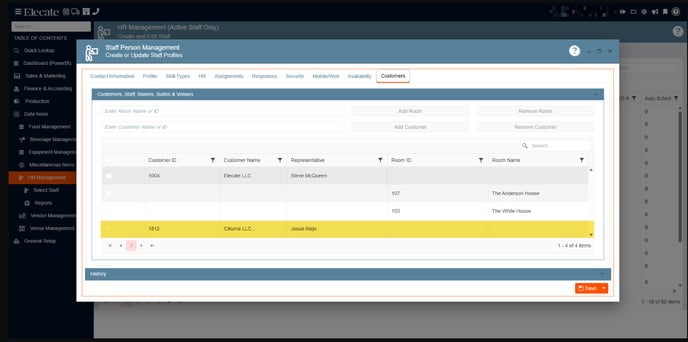
- On the Staff HR Management window, on the customer tab, you need to have the ability to also look for "Venues" and allow the staff member to be associated with the venue instead of only customers.
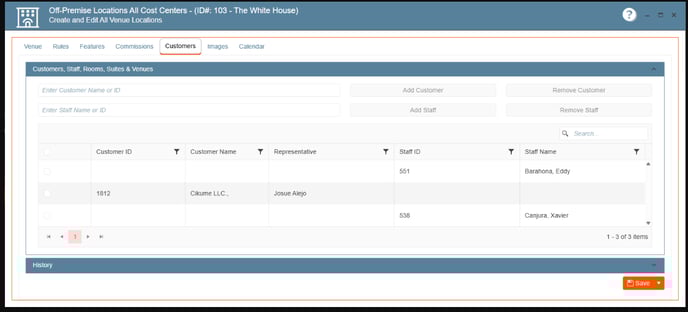
- On venue management, whether ON or OFF premise, on the customer tab, we need the ability to add a staff member in there, so a venue will have a preferred staffing person if desired.
1. On the left side panel, go to Data Items
2. Click on HR Management
3. Select HR Management (Active Staff Only)
4. Open an existing record and go to the Customers Tab
5. Add a Customer, you either enter the ID or the Customer´s name
Next
1. Go to the Sales and Marketing
2. Click on Event Venue Management
3. Select Off- Premise Locations All Cost Centers- All Status
4. Open an existing record, go to the Customer Tab and add a staff member
Finally
1. Go to Production
2. Select Event Staffing
3. Click on Staff Production Scheduling
4. Pick an event from the Calendar, in the Select Events/Skill Types box, click on the desired event
5. In the following window, you will be able to filter by Venue or Customer only turn on the toggles
5. Having Grid Persistence on the Dispatching Pickup Management Window for a better user experience:
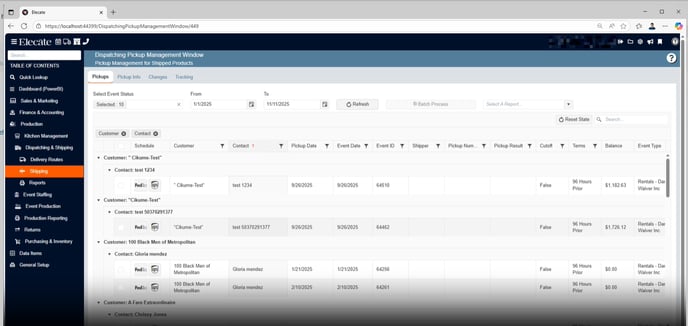
- Add Grid Persistence to the Dispatching Pickup Management Window
- Allow the user to group by columns
- Save user selection, so once the user goes back to that page, their selection will be shown
- On the "Dispatching Pickup Management Window" we need to show 250 records per page.
- Add a "Reset State" button next to the search bar, on the left side.
1. On the left side panel, go to Production
2. Click on Dispatching & Shipping
3. Select Shipping
4. Choose Dispatch Pickup Window
6. Having a new column and an appSetting to the Postal Code Selector window:
- Create a new columns in the Postal Code Selector:
- Jurisdiction
- Those columns will be pulled from their financial table
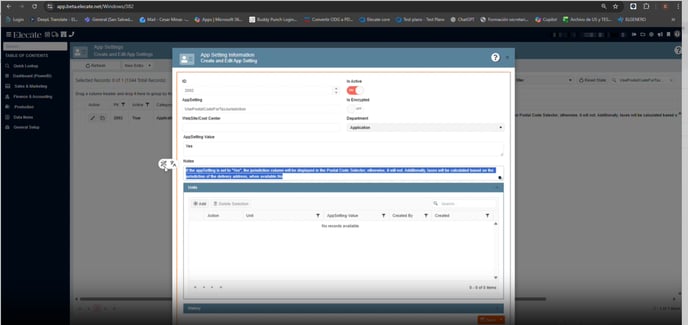
- Create the appSetting " UsePostalCodeForTaxJurisdiction"
- If it the appSetting is ON, then the new columns will be show in the Postal Code Selector, otherwise they won´t.
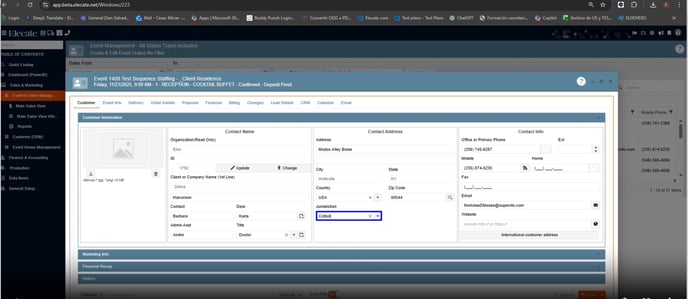
- Add the dropdown for "Jurisdiction" on the following windows
- On the "Delivery" tab for the event
- This is set on the "Delivery Address" underneath the "Country" dropdown
- On the Customer window
- This iset on the customer window (both marketing & financial), and must be underneath the Country field
- On the Prospect window
- This iset on the prospect window, and must be underneath the Country field
- On Venue management
- This is the contact Address (both for the On Premise & Off Premise) and underneath the Country field.
- On the rooms
- This is when adding a room, when you select the "Minor Room" you need to have the field underneath the Minor Room.
- On the "Delivery" tab for the event
1. At the top of the screen, on the right side click on the Gear Icon
2. Select AppSetting
3. In the search field, type in UsePostalCodeForTaxJurisdiction, set the value to Yes
Next
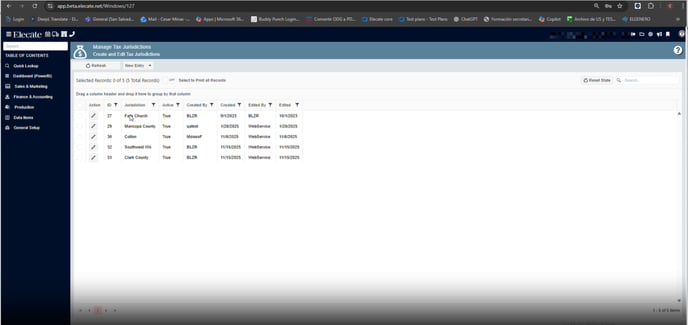
To create or edit the Jurisdiction information, you need to follow these steps:
1. At the top of the screen, on the right side click on the Gear Icon
2. Select Financial Setup
3. Go to Create and Edit Tax Jurisdiction
Then
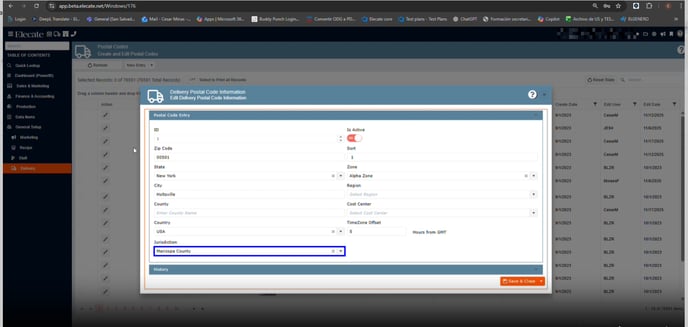
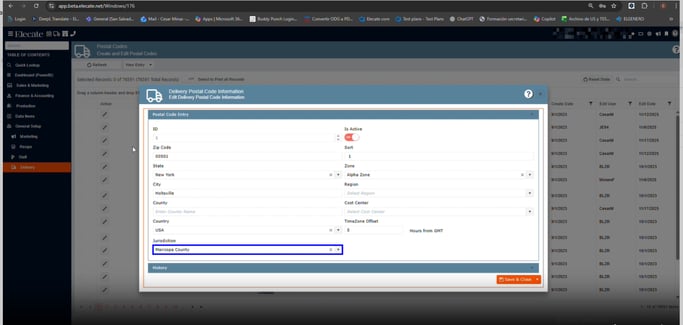
1. On the left side panel, go to General Setup
2. Click on Delivery
3. Select Create and Edit Postal Codes, once you open an existing record, you will be able to see the Jurisdiction field
You can see the Jurisdiction field also, directly from the Events: 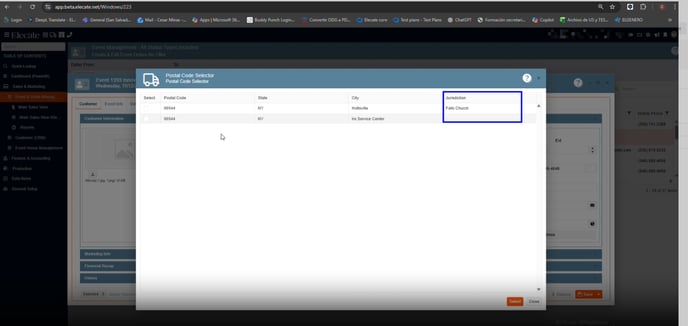
7. Changing the function of a table based on an appSetting:
- If the appSetting "UsePostalCodeForTaxJurisdiction" is ON, then we need to change the dbo.udfTaxTable_TaxID function to use jurisdiction directly.
8. Wanting that shipping labels are handle as individual packages in the UPS procedure:
- If a bag is added when a shipping label is created, then this mean that the label will become a package.
- This means that every single bag will be handle as an individual package, therefore the weight on the shipping label won't sum multiple bags, but instead it will be only one.
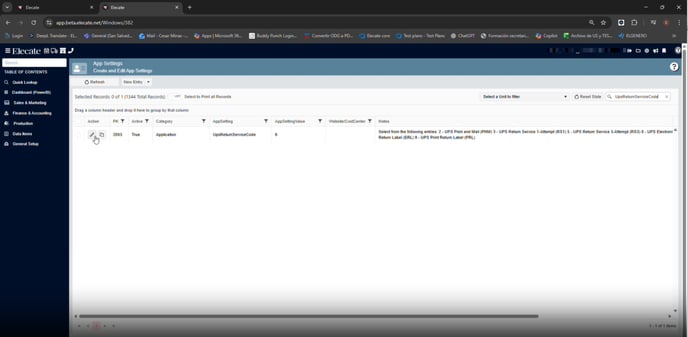
- For every shipping label created, we need to create a "return" label as well.
- For every shipping label created, a tracking number must be assigned.
- Return the bag column
- Along with the bag button that will show the previous modal window that the user had for bags
- This will allow the user the numbers of bags or packages to create once creating a shipping label
- Once a user clicks on the the shipping label of their choose (whether Fedex or UPS), then the window that user must see the counter for how many bags they have set up.
- Meaning if the user set up 10 bags on the bag column, then as soon as the user clicks on the shipping label. Then they need to see (1 of 10)
- The field "Number of Packages" must be read only and set a value of 1.
- The user must be allow to only change the weight and the dimensions for each bag/package
-
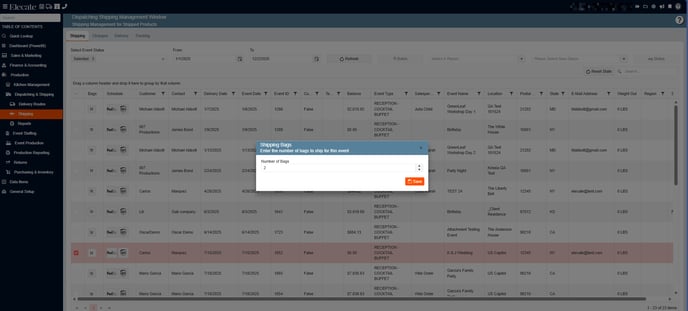
Bags Column & ButtonIn the interface, you’ll see a column labeled “Bags” with an associated button.
- Click this button to set the number of bags that will appear on the shipping label window.
-
Schedule Shipping Label Window ButtonAfter setting the bag count, click the Schedule Shipping Label Window button.
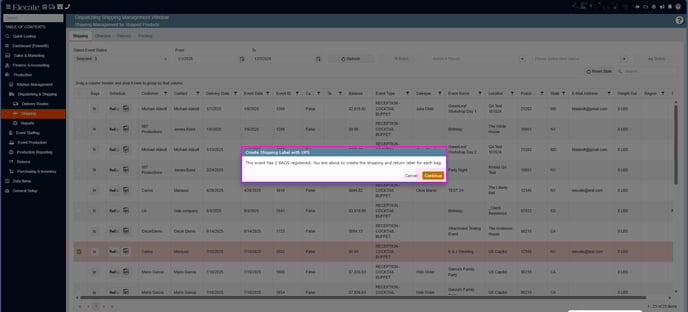
- A prompt will display the total number of bags you’ve registered, along with the number of labels and return labels that will be generated once you proceed.
- Box Information Modal
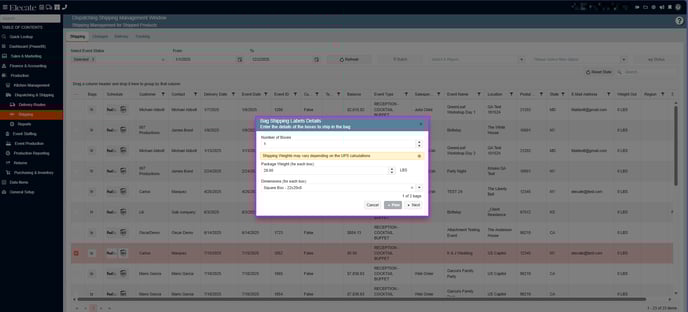
Next, a modal window will appear asking you to enter details for the boxes.- Default Settings:
- Number of boxes: 1
- Weight: Pulled from App Settings
- Dimensions: Pulled from App Settings
- You can navigate between bags using Next or Previous to update details for each one.
- Default Settings:
- Bag Shipping Label Summary
Once all setup steps are complete, a summary window will appear showing:- Bag and box details
- Number of boxes
- Weight and dimensions
Review the information, and when ready, click Confirm. - The system will then create and send the shipping label.
- Once reaching the last iteration, the button for "Next" must be replace by a button called "Show Preview"
- If no bag has been added, the customer needs a prompt stating that they need to add a bag.
- No bag has been registered for this event, do you want to add bags to this event?
- The shipping label summary window must have a scroller which will allow the user to see all the items in the order and go through them.
- Bag Shipping Label Details, must have a tooltip for weight that states the following:
- "Shipping Weights may vary depending on the UPS calculations"
1. On the left side panel, go to Dispatching & Shipping
2. Click on Shipping
3. Select Dispatching Shipping Management Window
4. In the Bags column, click on the icon and start creating your shipping label
9. Wanting new Enhances Accounting Statements Window with Grid Persistence and Improved Paging:
- Add Grid Persistence to the Accounting Statements window
- Allow the user to group by columns
- Save user selection, so once the user goes back to that page, their selection will be shown
- On the "Accounting Statement window" we need to show 250 records per page.
- Remove the "Send Text" option from the dropdown
- Bring back the notification that shows when you are sending an email using the "Send Email" functionality.
1. On the left side panel, go to Finance & Accounting
2. Click on Accounting Tools
3. Select Accounting Generate Statements Window

10. Changing precision and UI/UX to support the field size in RecipePrep & EventRecipePrep:
- In the "Quantity" field for the "Recipe Prep Information" modal window, we need to allow up to 5 digits after the decimal point, in order to allow a more accurate/scalable amounts.
1. On the left side panel, go to Data Items
2. Click on Food Management
3. Select Recipe Management (Active Items Only)
4. You can edit an existing record or create a new by clicking on the New Entry button
5. If you selected an existing record, go to the Recipe Prep Tab, click on Add button or click on the Pen icon if you need to update an existing record, next in the Quantity field, you enter up to 5 numeric values:

1. On the left side panel, go to Production
2. Click on Kitchen Management
3. Select Main Kitchen View
4. Open an existing record, click on the pen icon, on the right side of the screen you will see box where the Quantity can be modified: 
11. Verifying that financials are updated before charging Credit Cards so that the System charges correctly:
- When they want to check multiple events' financial info in the Accounting Invoices Processing window
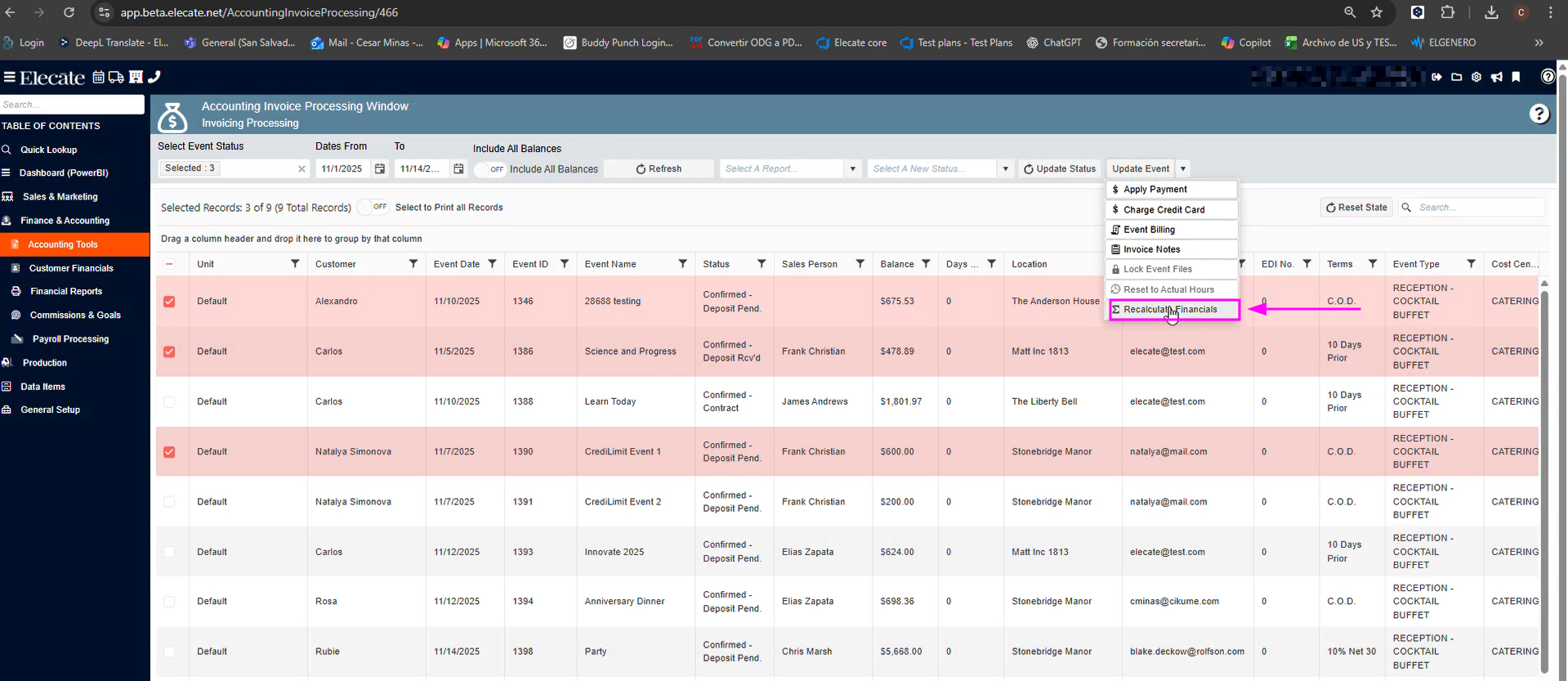
- Then they can select the Actions dropdown and click the Recalculate Financial button, which displays a pop-up loading window and informs them when the process is complete.
1. On the left side panel, go to Finance & Accounting
2. Click on Accounting Tools
3. Select Accounting Invoice Processing Window
4. You need to complete the following information: the Select Event Status, Dates From - To, click on Refresh, put a check mark on the event where you need to process the payment, go to the Update Event drop-down and click on Charge Credit Card, once the payment is completed, next you need to press the Update Event button and select Recalculate Financials:

12. Needing the new list of customer gets added into the Elecate Database:
- The new list of customers for the client was already added to the Database in Elecate.
13. Needing the BD team Clear out demo packages during equipment import:
-
When running the equipment import script:
- All packages with
PK < 440and tagged aselecateDemoare deleted before or during the import.
- All packages with
- The process should:
- Log the deletion of demo packages for audit purposes.
- Ensure no impact on packages with
PK ≥ 440.
- If deletion fails:
- The script should return an error message and stop the import process.
- This logic should apply only when importing equipment or performing demo equipment clear-out.
14. Requesting to the DB team to Delete Tax Table Entries for MD, VA, and DC (As a Stakeholder):
- All tax table entries for MD, VA, and DC are removed from the system.
- No residual data for these states remains in the tax table after deletion.
- Other state entries remain unaffected.
15. Needing the DB team Remove Alt/Proposal Names from Recipes Except for New Group (As a Stakeholder):
- All recipes outside Jeremy’s new group have their Alt/Proposal Name field set to empty.
- Recipes within Jeremy’s new group retain their current Alt/Proposal Name values.
- No other recipe attributes are modified during this process.
16. Ensuring Recipe Descriptions Are Imported from Parsley:
- All recipes in the system have their Primary Description populated from Parsley.
- No recipe remains with an empty description unless Parsley has no description for it.
- Data integrity is maintained—descriptions match exactly what is in Parsley.