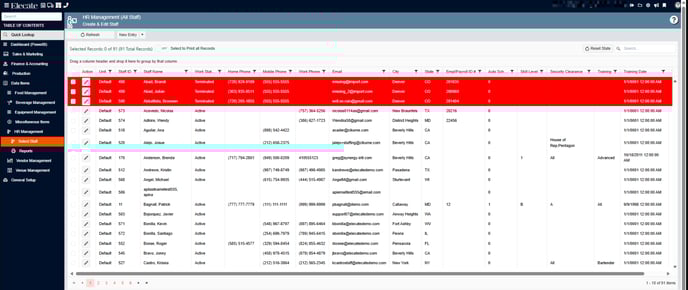
1. Uploading staffing data for a Client:
-
Objective: Upload the skill types and staff member data from the provided Excel file into the Elecate environment.
-
Source: The Excel file contains all necessary information for the import (skills and staff details).
-
Destination in Elecate:
- Data Items
- HR Management
- Select Staff
- HR Management (All Staff)
2. Being able to resolve the change requests:
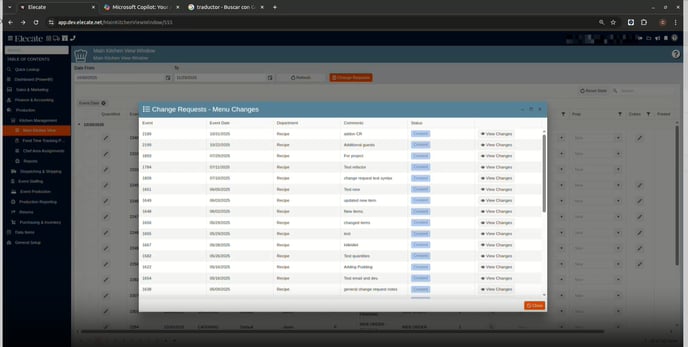
If a role has access to the "Change Request Review Window", then they must be able to execute the following action buttons:- Add/Edit Item
- Approve
- Reject & Close
- Return to Sales
- Close
- Go to settings
- Go to Windows Management
- Look for "Change Request Review"
- Add the culinary role if it is no added already
- Save & Close
- Go to settings
- Go to user management
- Create a new user or use an existing one
- Go to identity roles
- Removed all the roles but culinary
- Save & close
- Go to Production
- Go to kitchen management
- Go to main kitchen view
- Open a change request
- Check if you have the options to approved or declined or if you only see "close"
3. Requesting to delete some record from specific tables from my database that won't be needed:
- Equipment Groups
- Vendor Management - inactive vendors
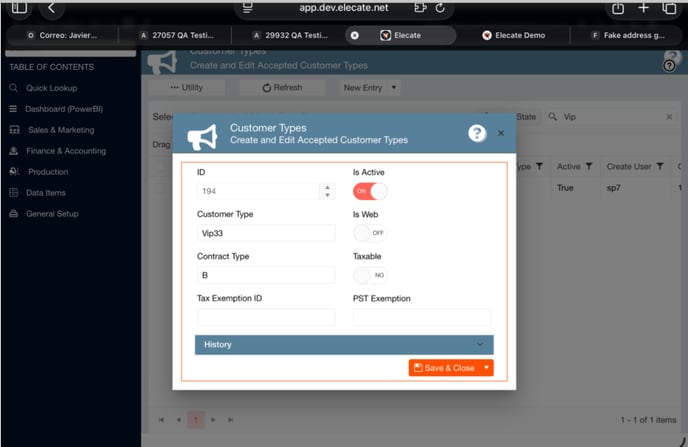
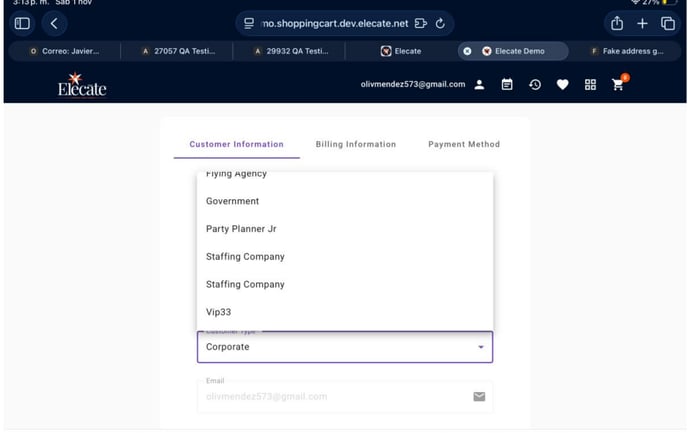
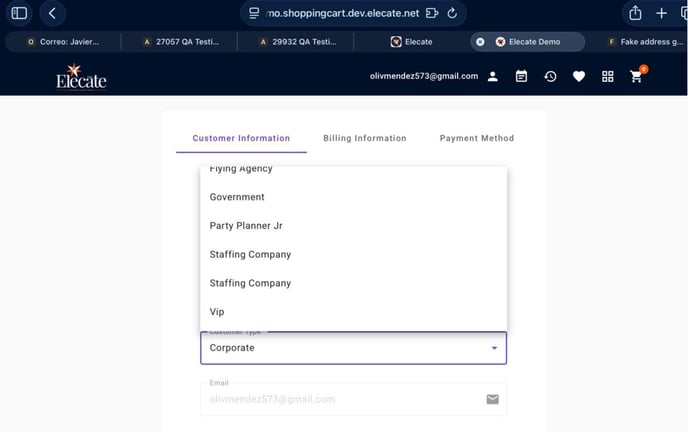
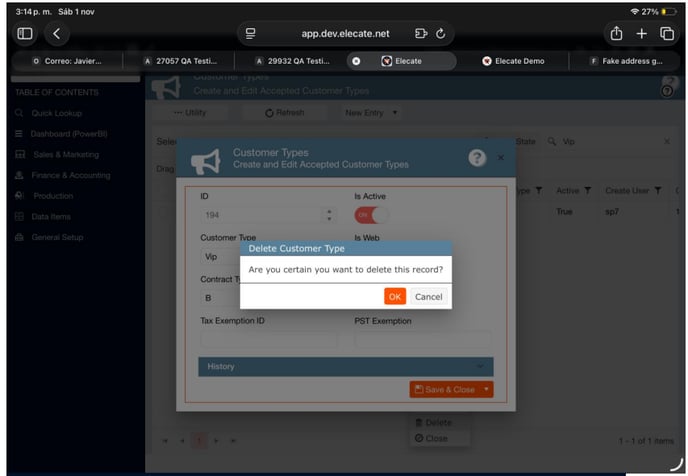
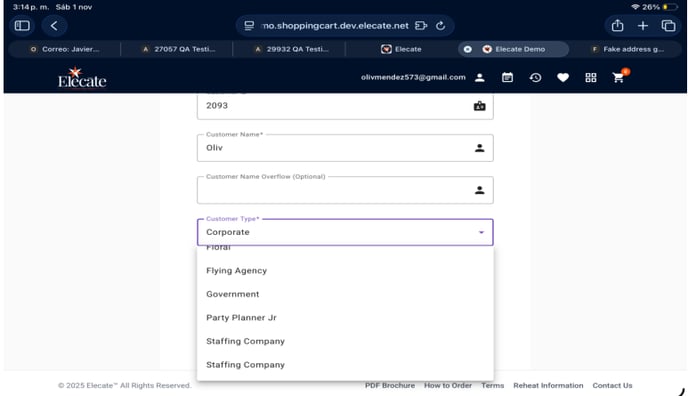
4. Needing the Core team work on Sync customertype Records with Shop-Sync Service:
-
Create Sync Triggered
- When a new
customertyperecord is created, a POST request is sent to the corresponding endpoint with the correctdatabase_nameandctpId.
- When a new
-
Update Sync Triggered
- When a
customertyperecord is updated, a PUT request is sent to the endpoint with the updatedctpIdanddatabase_name.
- When a
-
Delete Sync Triggered
- When a
customertyperecord is deleted, a DELETE request is sent to the endpoint with the correct identifiers.
- When a
-
Error Handling
- If the endpoint returns an error (e.g., 4xx or 5xx), the system logs the error and retries according to the defined retry policy.
-
Audit Logging
- All sync actions (create, update, delete) are logged with timestamp, action type, and response status for traceability.
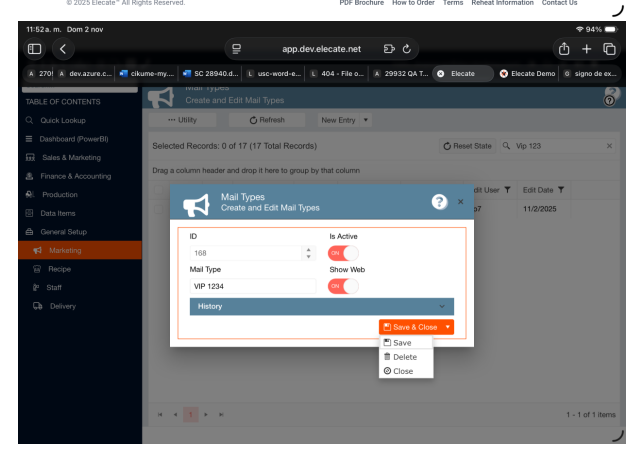
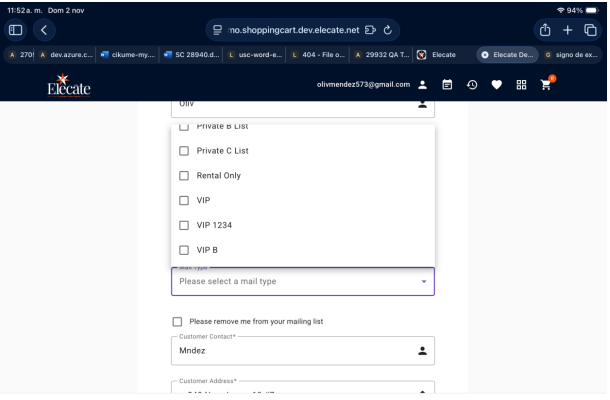
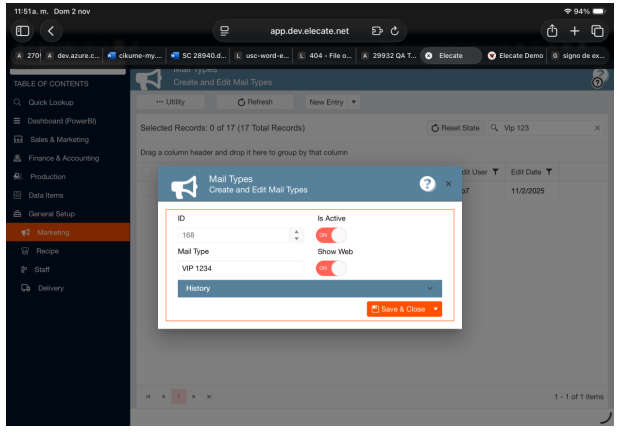
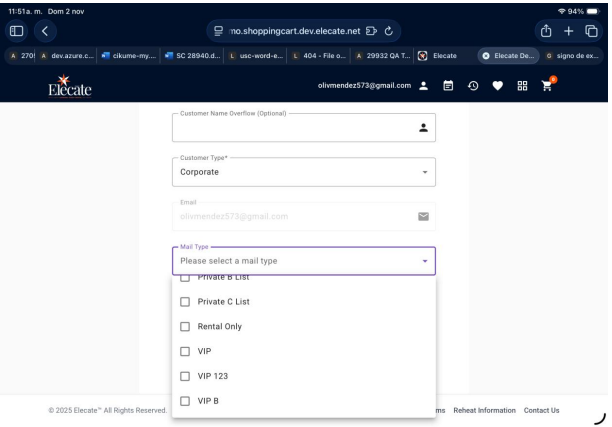
5. Needing the Core team work on Sync mailtyperecords with Shopping Sync service:
-
Create Sync Triggered
- When a new
mailtyperecord is created, a POST request is sent to the corresponding endpoint with the correctdatabase_nameandmailId.
- When a new
-
Update Sync Triggered
- When a
mailtyperecord is updated, a PUT request is sent to the endpoint with the updatedmailIdanddatabase_name.
- When a
-
Delete Sync Triggered
- When a
mailtyperecord is deleted, a DELETE request is sent to the endpoint with the correct identifiers.
- When a
-
Error Handling
- If the endpoint returns an error (e.g., 4xx or 5xx), the system logs the error and retries according to the defined retry policy.
-
Audit Logging
- All sync actions (create, update, delete) are logged with timestamp, action type, and response status for traceability.
6. Updating the Tent Cards view for a client (DB team):
Objective:
- Modify the original view and create a new view for the Tent Cards project.
Reason:
- The current view does not meet project requirements.
- An updated version is needed to ensure alignment with stakeholder expectations and functional needs.
Edit Button Availability
-
-
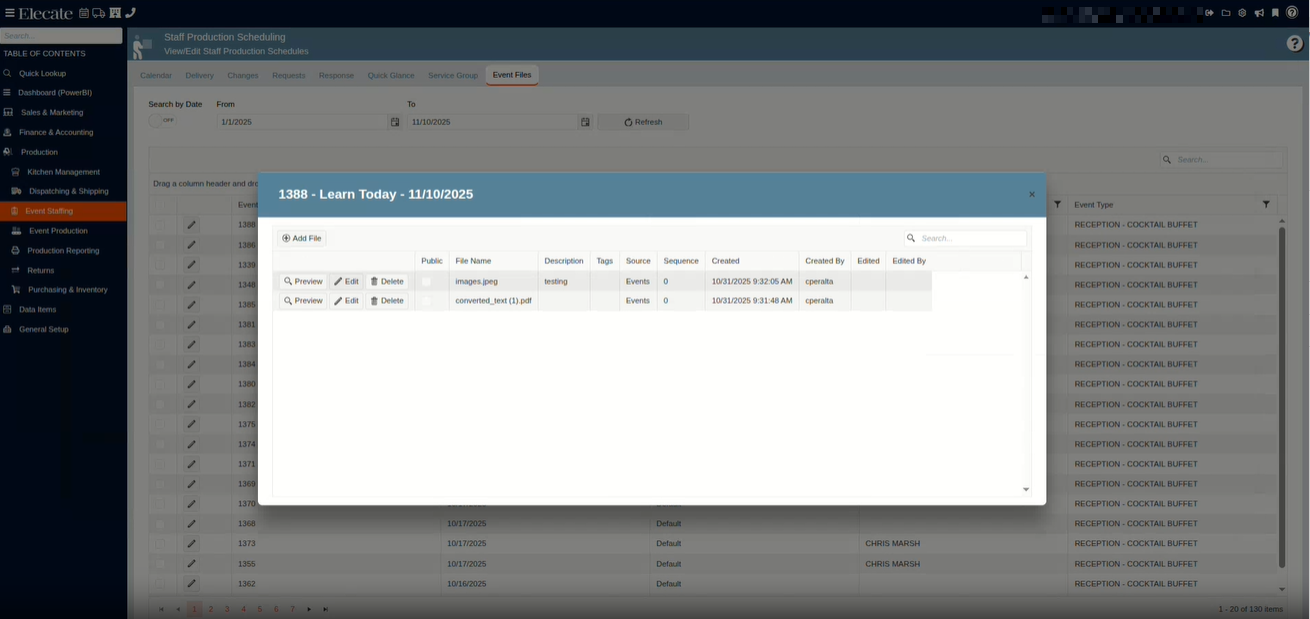
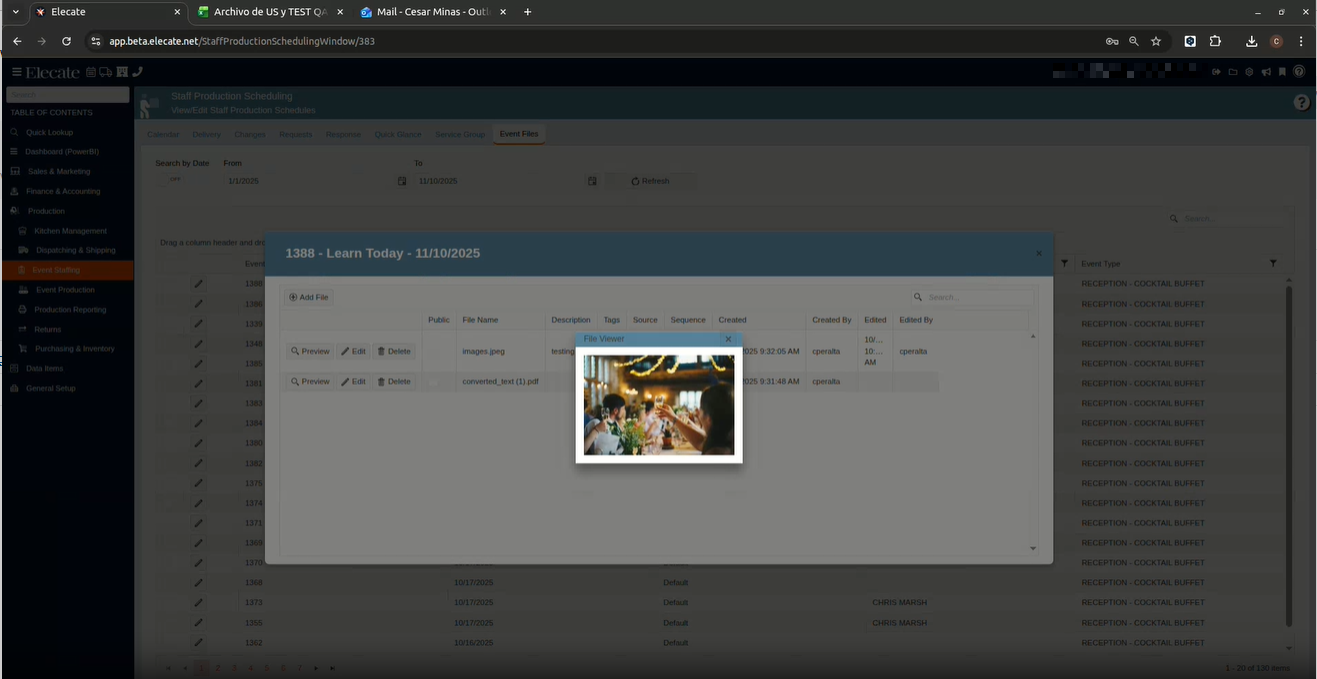
- An Edit button is added next to each file entry in the Event Files window.
- The button is visible only to users with Staffing Manager permissions.
-
Modal Window Activation
- Clicking the Edit button opens the modal titled "Stored File" with the subtitle "Add / Update Stored File Information."
- The modal is pre-populated with the selected file’s current metadata:
- Sequence
- File Type
- Source
- Tags
- Description
- Public toggle
- Storage File Type options
Edit Functionality
-
- Users can update any editable fields in the modal.
- Clicking Save updates the file metadata and reflects changes in the Event Files list.
1. On the left side panel, go to Production
2. Click on Event Staffing
3. Select Staff Production Scheduling
4. Go to the Event Files Tab
5. Open the event by clicking on the pen icon and upload the desire information
8. Being alerted when I'm about to Double-Book a staff through a Message, so that I am aware people could have overlap:
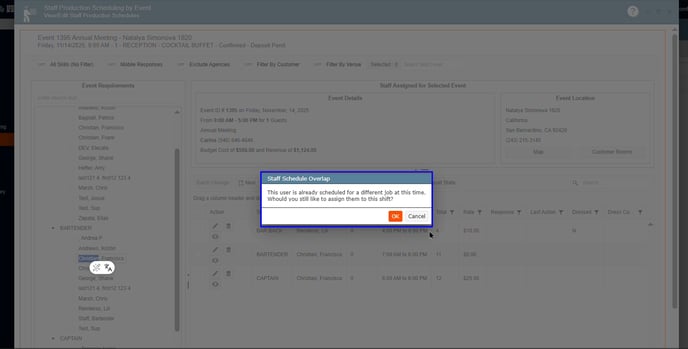
When a Staff Manager assigns staff to an event using the Production Scheduling Window, if the selected staff member already has a shift scheduled during the same time period, a pop-up alert appears notifying the manager that the new assignment overlaps with the staff member’s existing shifts.
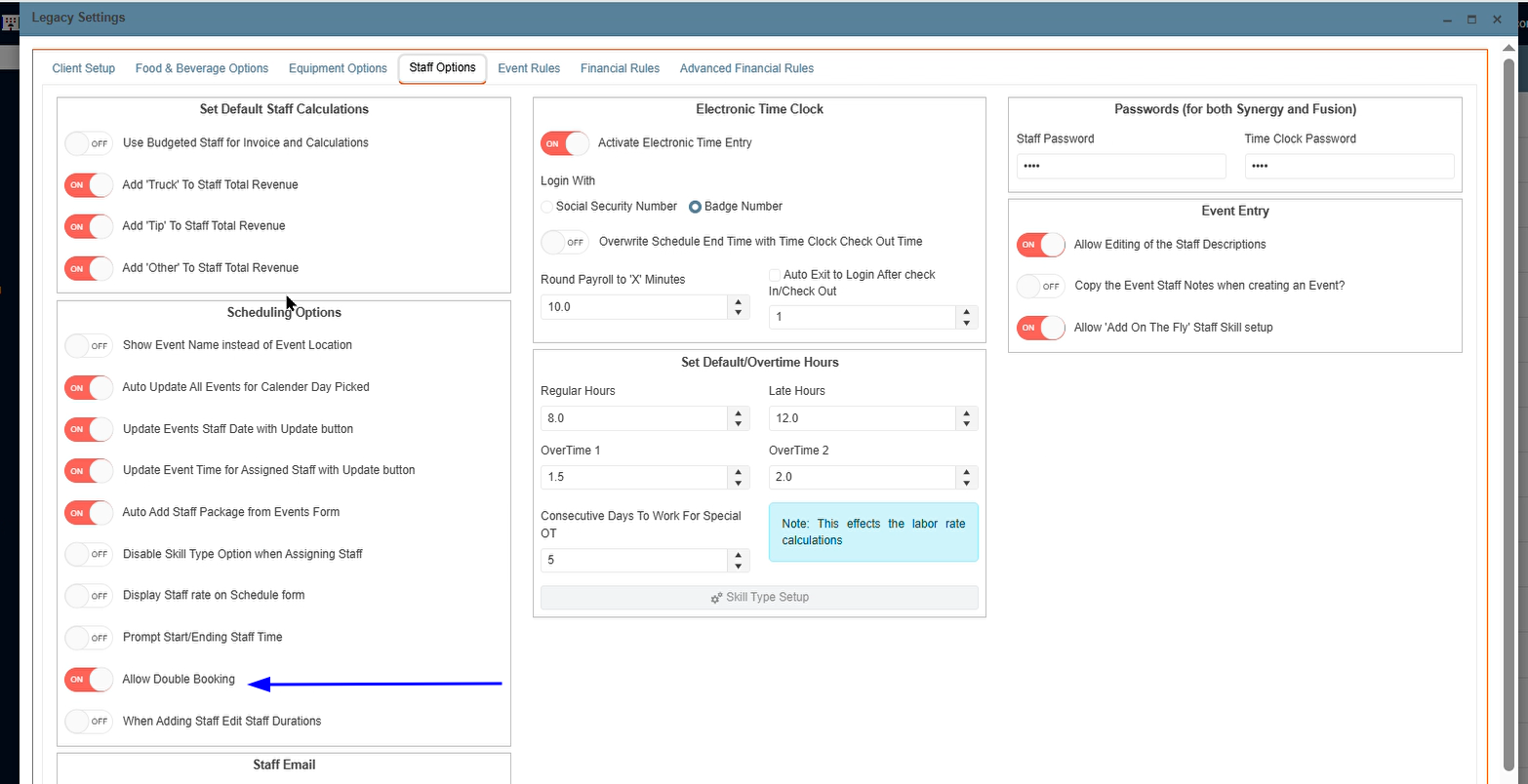
1. At the top of the screen, on the right side click on the Gear Icon
2. Click on Legacy Setting and make sure the Allow Double Booking toggle is ON
Next
1. On the left side panel, go to Event Staffing
2. Click on Staff Production Scheduling
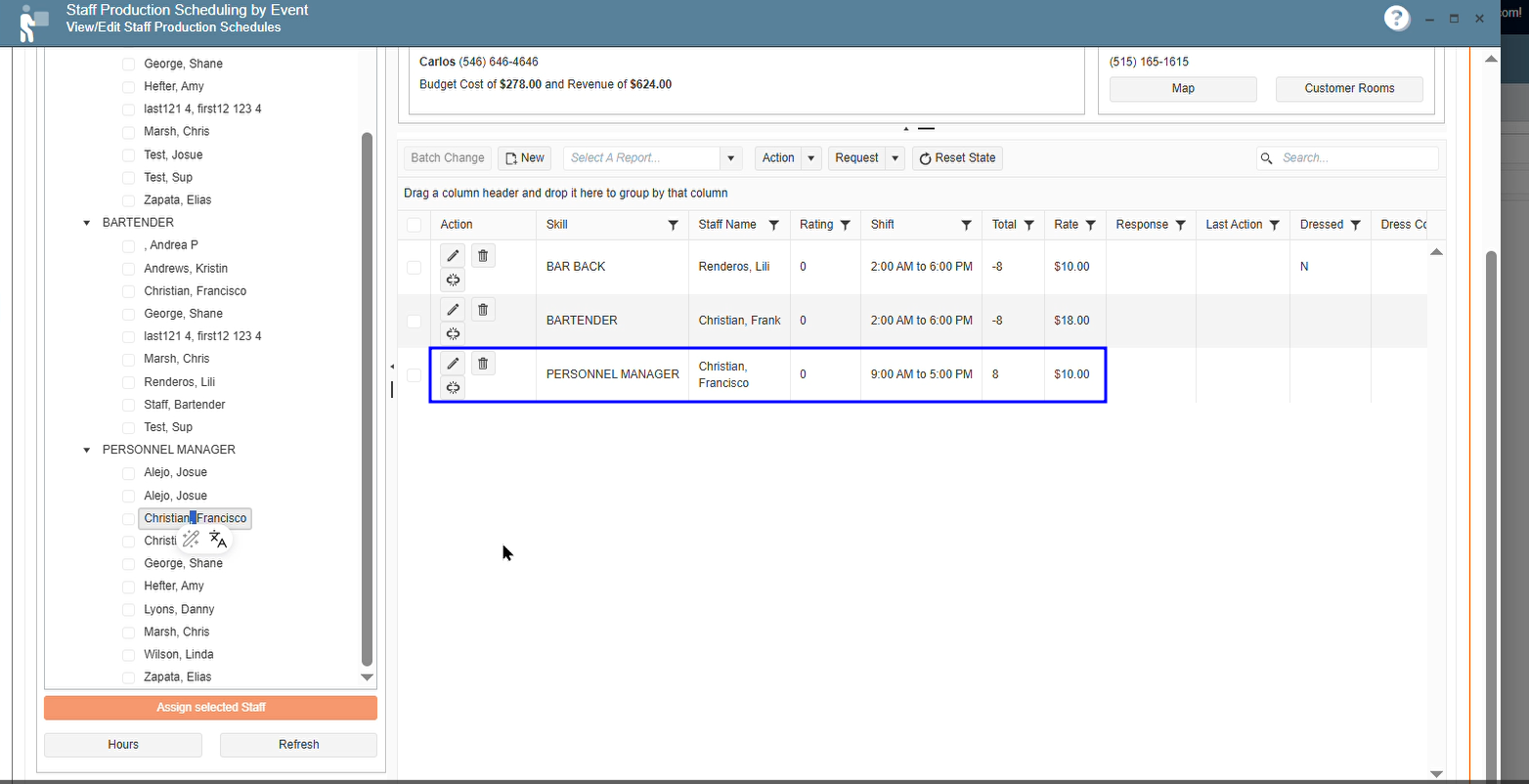
3. Select an event in the calendar, in the Select Events/ Skill Types column, open an event
4. From the Event Requirements column, all the way down look for the Refresh button and click on it
5. Select a staff member and press the Assign selected staff button, save and close the event
6. Go back to the calendar and select a different event, try to assign the same staff member assigned to the previous event, if both events share the same day and time a warning will pop-up, informing the manager about this.
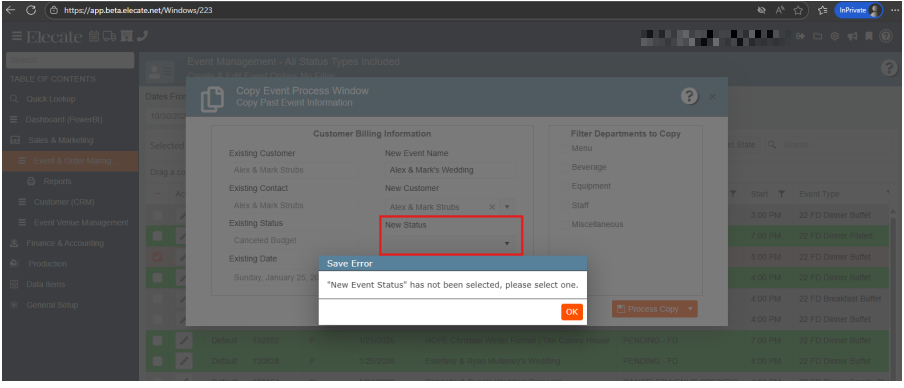
9. When copying an event, I want the "New Status" Dropdown to be blank by default, so that I can select a new Event Status (As a Salesperson):
- When using the "Copy Event" functionality, we need to have the "New Status" field to be blank, in order for the user to select their desired status.
- If the user tries to Process Copy, and have not selected an event status, an alert that this is a required field must appear
- The alert must be shown by a pop up.
- The message must be ""New Event Status" has not been selected, please select one."
1. On the left side panel, go to Sales & Marketing
2. Select Event & Order Management
3. Click on Event Management - All Status Types Included
4. Put a check mark on the event that you want to create a copy and from the New Entry drop-dowm menu select copy event.

10. Needing the db team Update rec_area in Recipes table using data from RecipePrep:
- The update must match records using
RecipePrep.RecipeFk = Recipes.recid. - Only the
rec_areafield inRecipesshould be updated. - The operation must be an
UPDATEstatement, not aSELECT. - The update should not create new records or modify other fields.
11. Requesting the DB team to make a Clean Up Historical Events for a Client:
- All events with IDs lower than #1416 are removed from the system.
- No data or financial records are impacted by this cleanup.
- A confirmation is sent once the cleanup is completed.
12. Needing the DB team Delete Prospect Data Older Than 12/31/2020:
- All prospect records with
pro_date < 12/31/2020are deleted. - Linked tables are reviewed and cleaned accordingly.
- No broken references or data integrity issues remain after deletion.
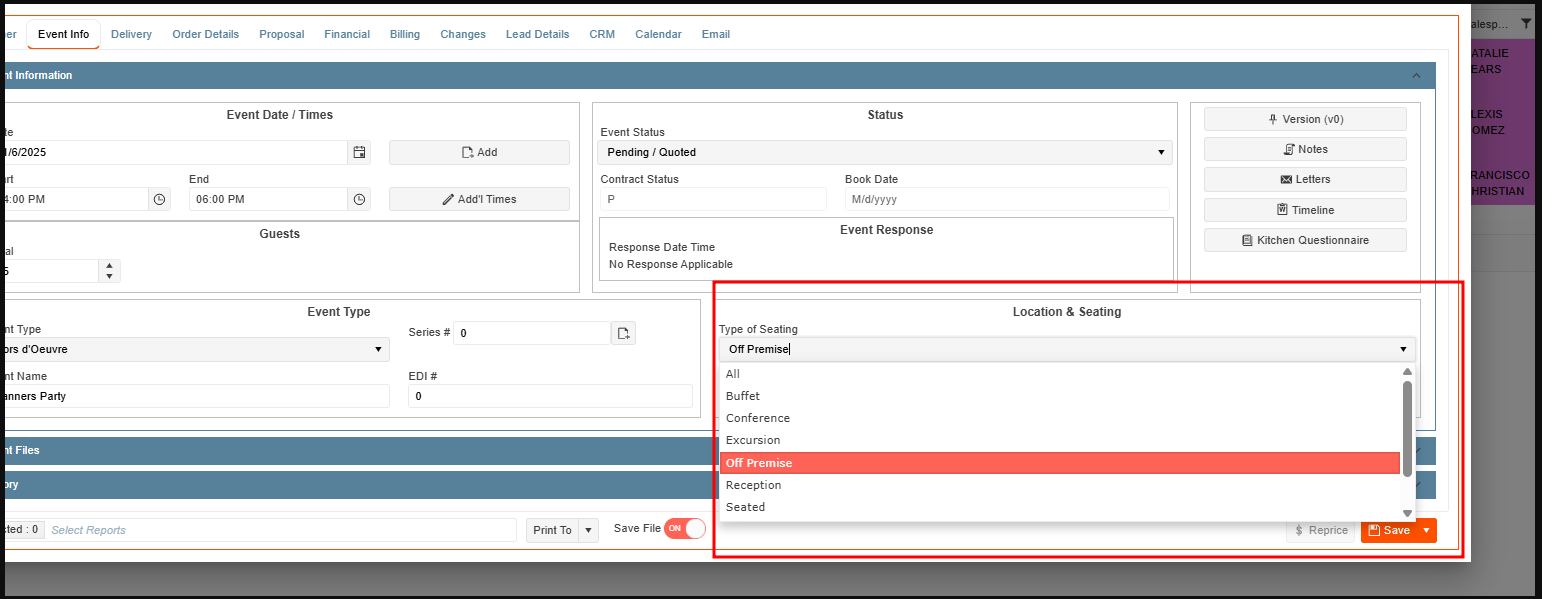
13. Removing options in the Seating Type - Copy:
- I need to have available the following seating types:
- All
- On Premise
- Off Premise
1. On the left side panel, go to Sales & Marketing
2. Click on Event & Order Management
3. Select Event Management - All Status Types Included
4. You can either open an existing event or create a new by clicking on New Entry
5. Go to the Event Info Tab, in the Location & Seating section, click on Type of Seating drop-down
14. Needing the DB team run script on Database:
This request is related to running scripts in the database.
15. Needing the DB team work on Create usp_FoodDeliveryReminders to support automated client email reminders for upcoming deliveries:
-
Parameters:
- Includes
@DaysBeforeparameter (fromusp_EventStaffScheduleReminders) to determine how many days in advance the reminder should be triggered. - Includes a
@DateRangeparameter (fromusp_eventsPickupDeliveryViewsByDispatchDateRange) to filter deliveries within a specific time window.
- Includes
-
Output Columns:
- Includes all necessary columns for email content generation (e.g., client name, delivery date, delivery address, items, etc.).
- Columns added specifically for food delivery context.
-
Cloning:
- The procedure can be cloned and adapted for:
usp_EquipmentDeliveryRemindersusp_PickupReminders
- The procedure can be cloned and adapted for:
-
Performance:
- The procedure should be optimized for efficient querying over large datasets.
15. Needing another data clean-up for another prospect block for a Client:
Select from prospect where pro_date is null
Delete from prospect where pro_date is null.