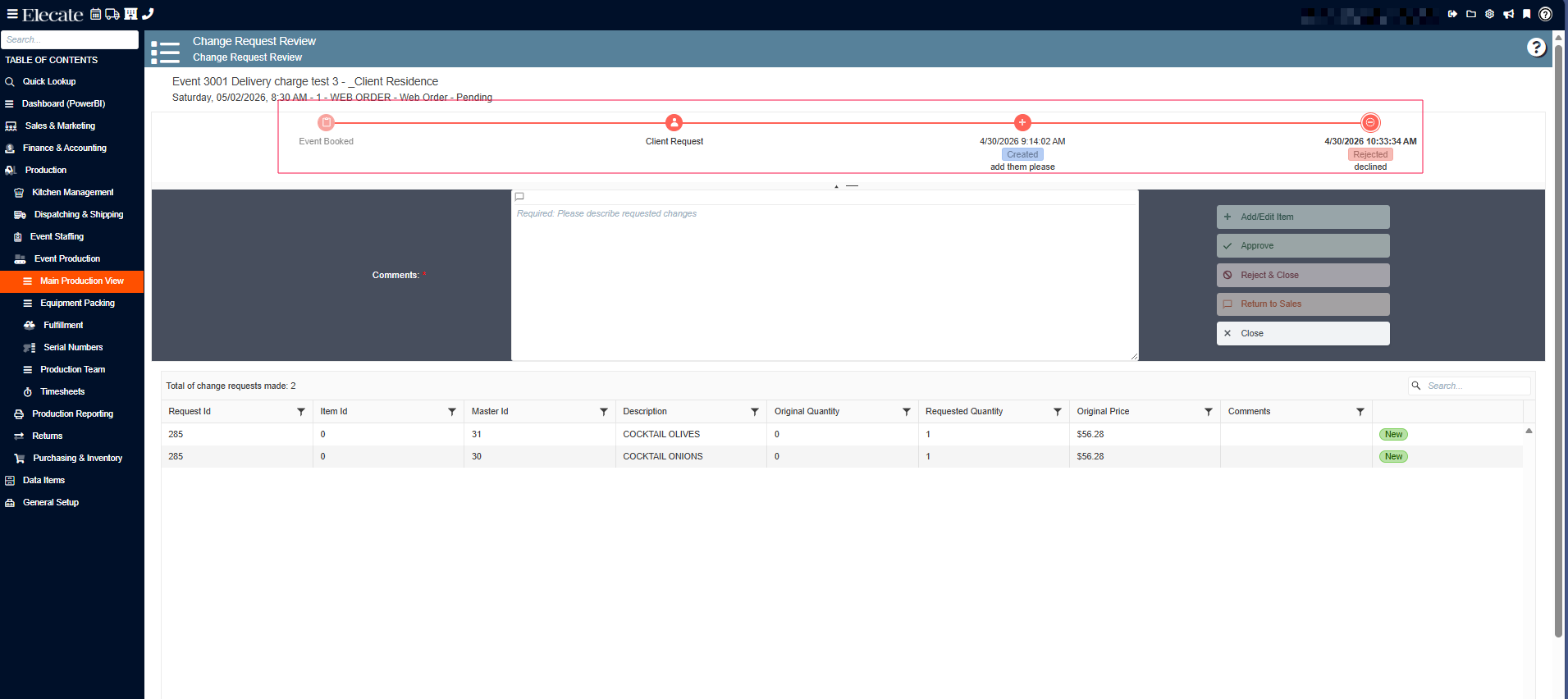
Once a change request is sent, the next step is accepted or declined the request, how they will do it:
1. On the left side panel, go to Production
2. Click on Kitchen Management
3. Select Main Kitchen View
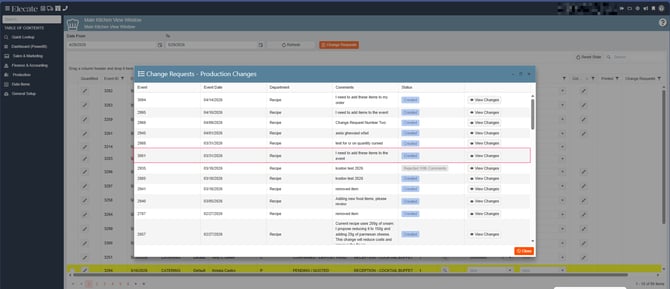
4. Once the Main Kitchen Window is open, a modal window will appear. This window displays all events with an active change request. Select the desired event to continue:
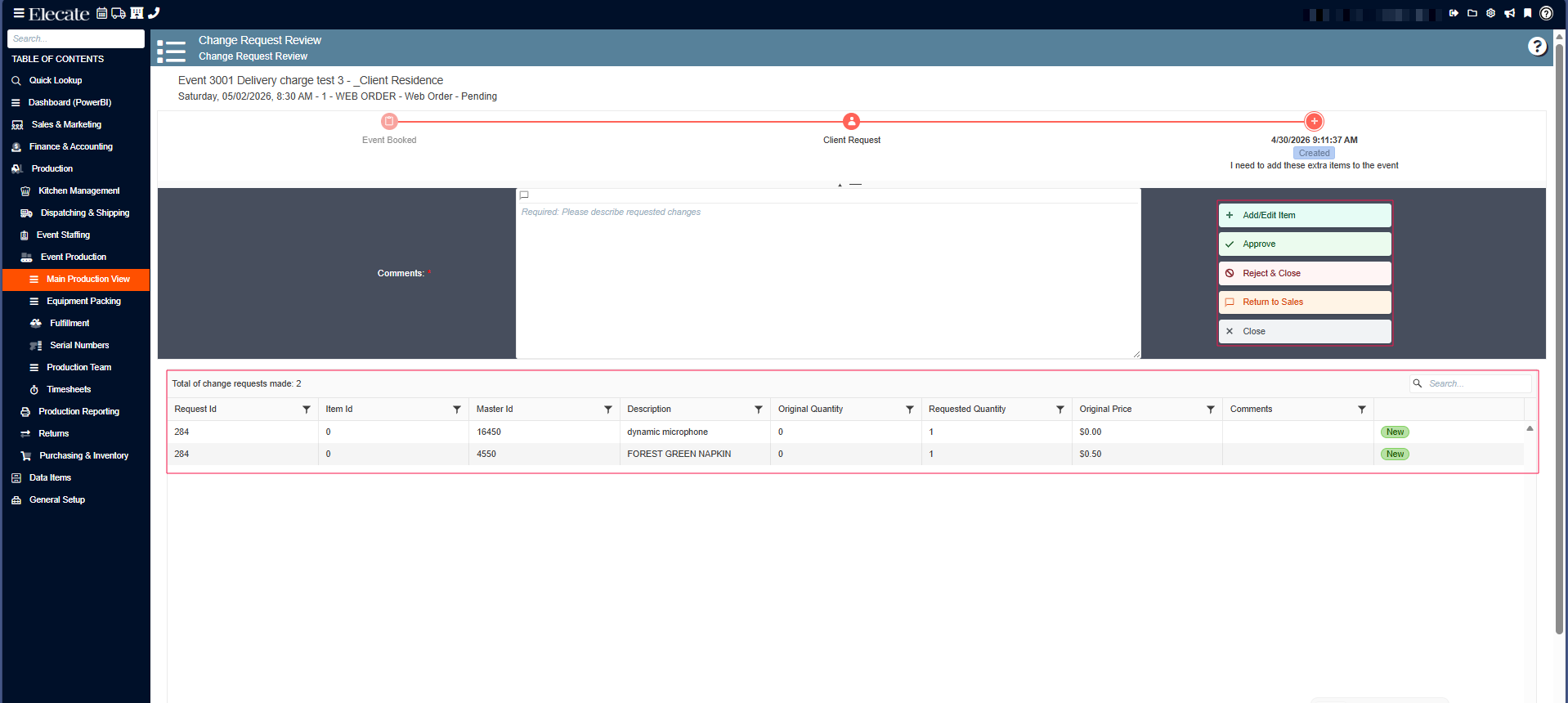
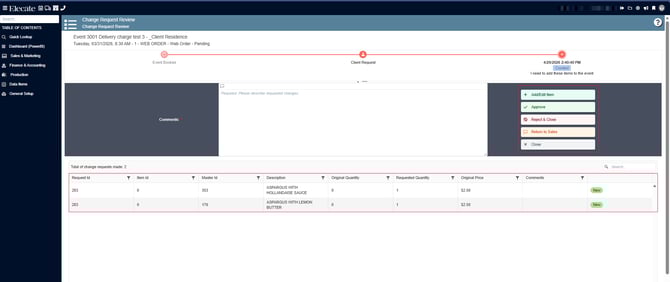
5. After opening the event, the following options will be available:
- Add/Edit Items
- Approve
- Reject & Close
- Return to Sales and Close
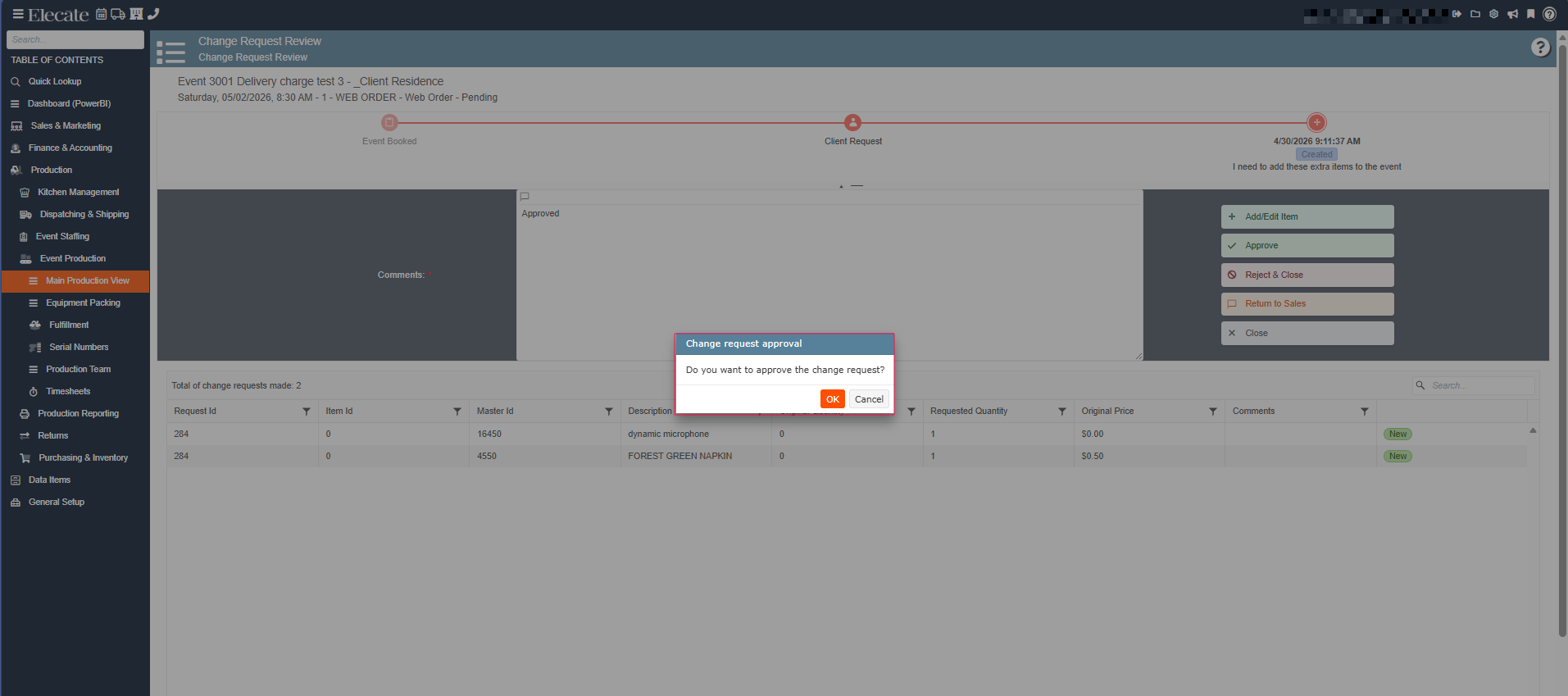
6. If you approve the change request, you must enter a comment before closing the window. Once the comment is added, click OK to proceed.
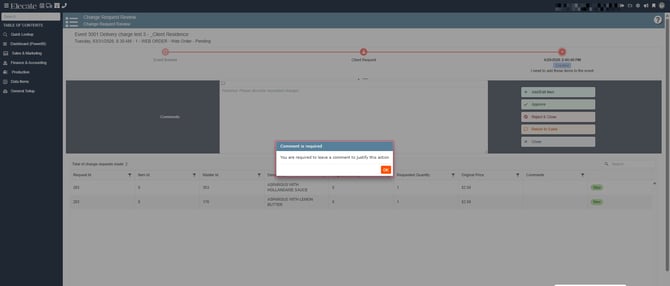
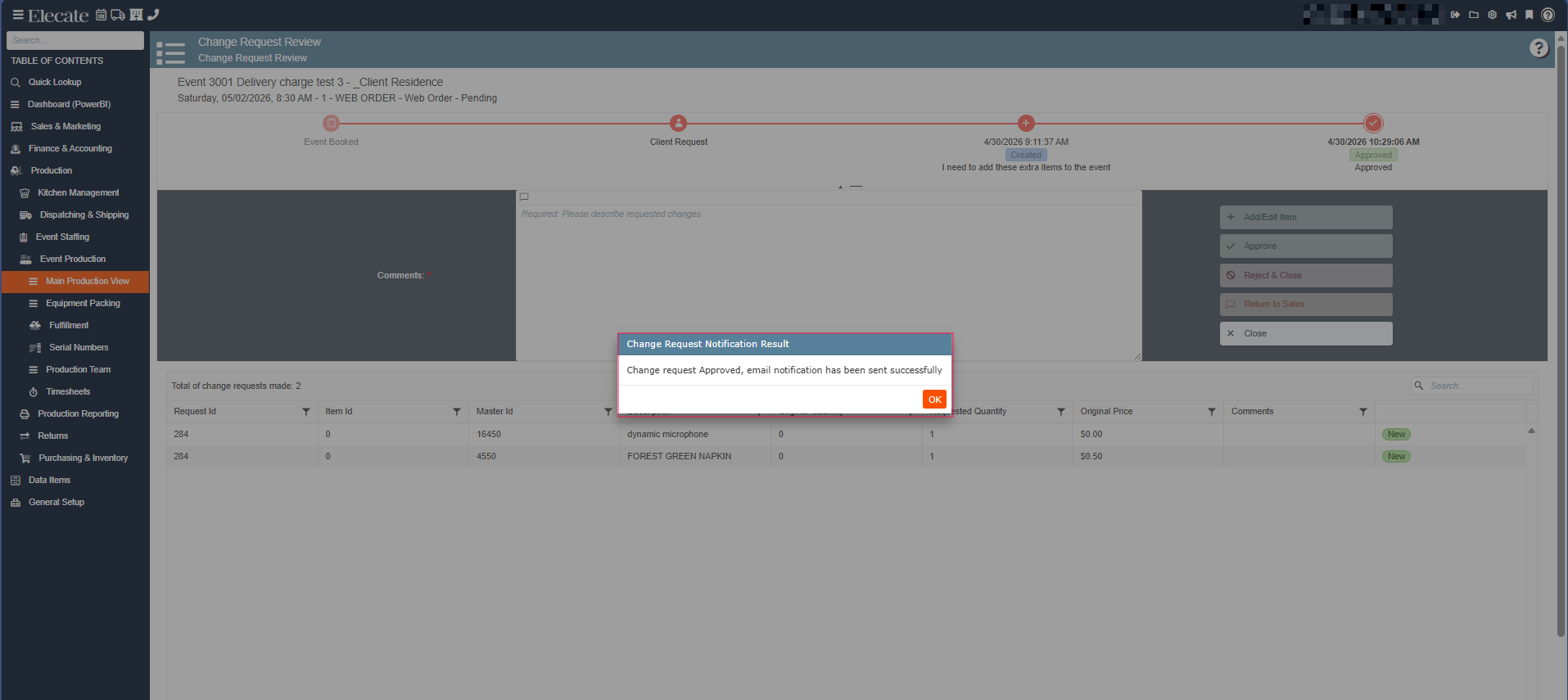
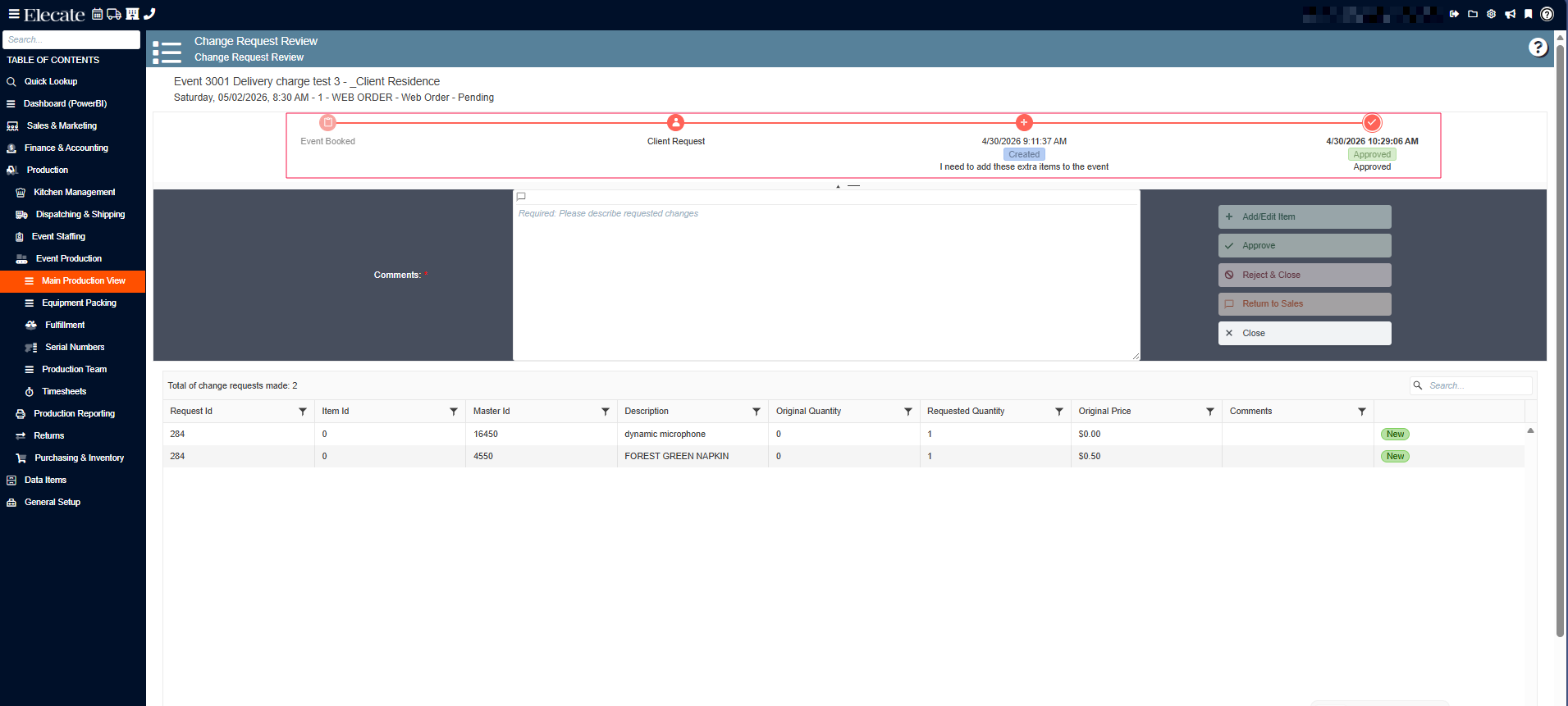
Click on OK, to continue with the process
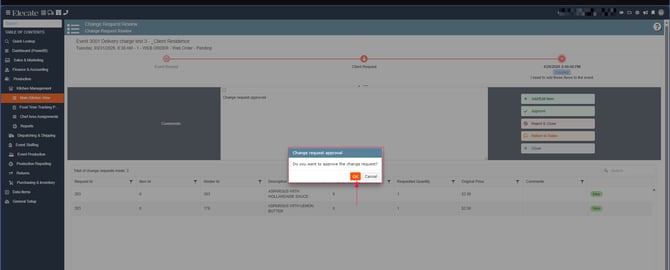
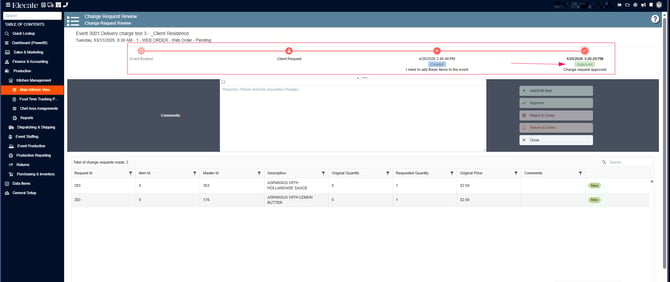
How to Accept o Decline a Change request for the Beverage or Equipment department:
1. On the left side panel, go to Production
2. Click on Kitchen Management
3. Select Main Kitchen View
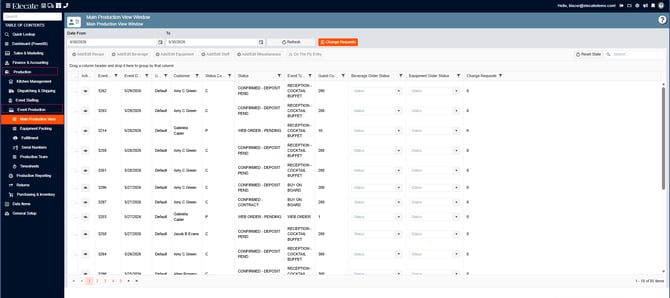
4. Once the Main Production View is open, a modal window will appear. This window displays all events with an active change request. Select the desired event to continue:
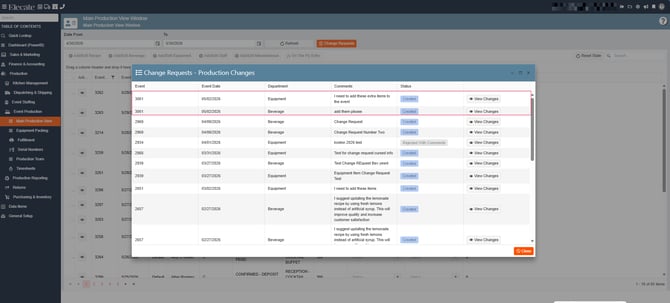
5. After opening the event, the following options will be available:
- Add/Edit Items
- Approve
- Reject & Close
- Return to Sales and Close